
Raspberry Pi - Deursensor - Piezo Buzzer
Deze handleiding legt uit hoe u Raspberry Pi en een deursensor gebruikt om een piezo buzzer te activeren. In detail:
- De Raspberry Pi schakelt de piezo buzzer aan om geluid te produceren wanneer deursensor detecteert dat de deur open is.
- De Raspberry Pi schakelt de piezo buzzer uit om het geluid te stoppen wanneer deursensor detecteert dat de deur gesloten is.
- De Raspberry Pi speelt het liedje "Jingle Bells" af wanneer deursensor detecteert dat de deur open is.
Hardware Benodigd
Of u kunt de volgende kits kopen:
| 1 | × | DIYables Sensorkit (18 sensoren/displays) |
Over Piezo Buzzer en Deursensor
Als u niet bekend bent met de piezo buzzer en deursensor, inclusief hun pinout, functionaliteit en programmering, kunnen de volgende tutorials helpen:
Bedradingsschema
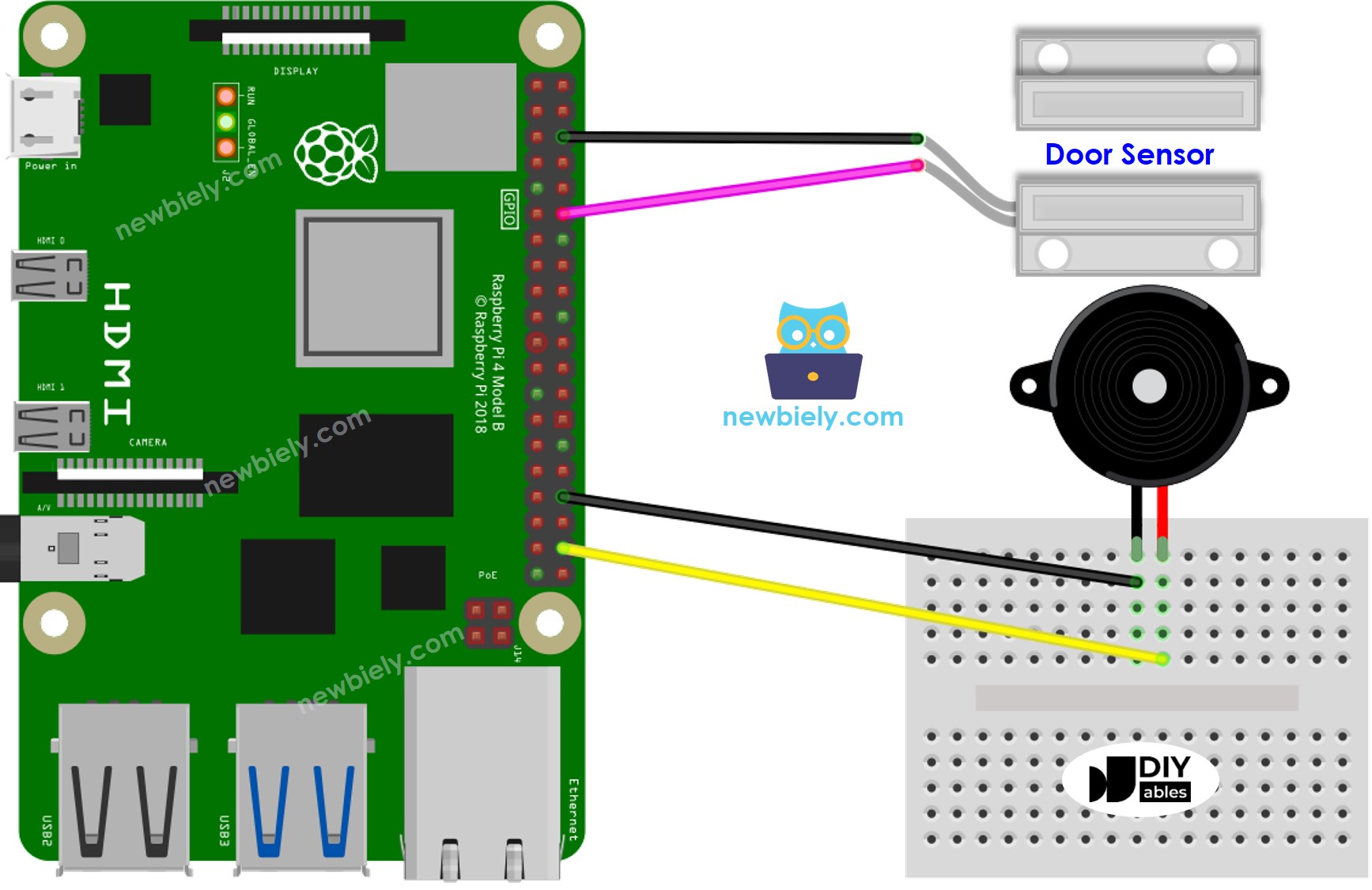
Deze afbeelding is gemaakt met Fritzing. Klik om de afbeelding te vergroten.
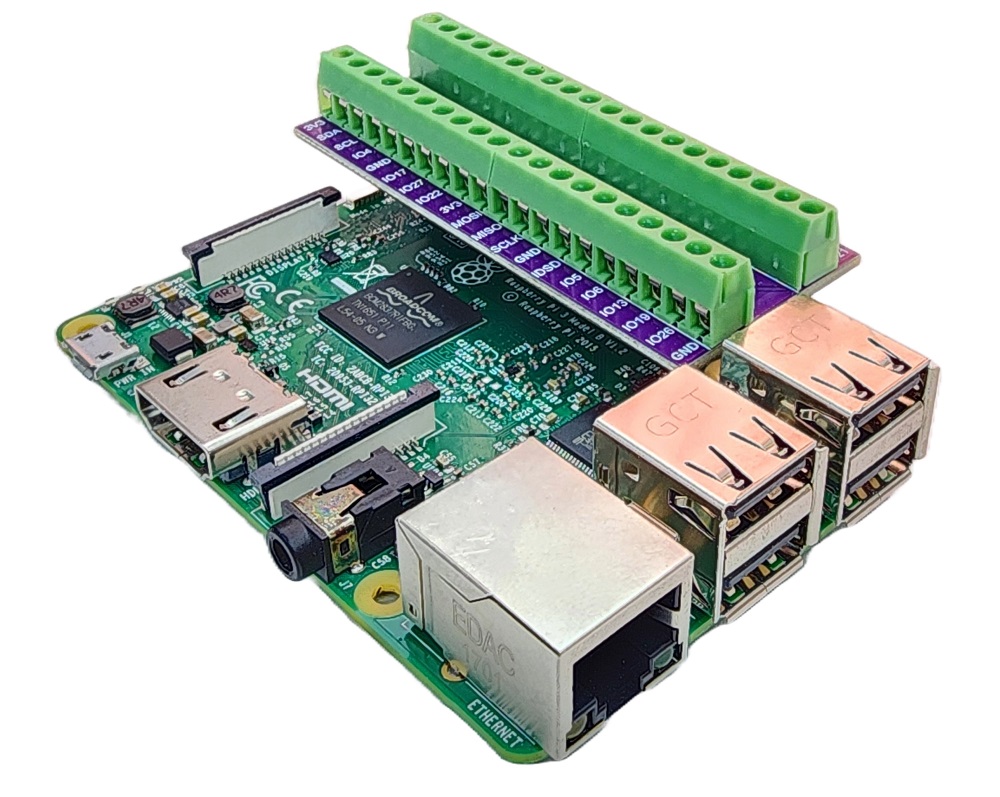
Om uw bekabelingsopstelling te vereenvoudigen en te organiseren, raden we het gebruik van een Schroevenklemaansluiting-shield voor Raspberry Pi aan. Deze shield zorgt voor veiligere en beter beheerbare verbindingen, zoals hieronder weergegeven:
Raspberry Pi Code - Eenvoudig Geluid
In deze sectie leren we hoe u een piezo buzzer gebruikt om een eenvoudig geluid te produceren wanneer de deur open is met behulp van Raspberry Pi.
Snel Starten
- Zorg dat u Raspbian of een ander Raspberry Pi compatibel besturingssysteem geïnstalleerd hebt op uw Pi.
- Zorg dat uw Raspberry Pi verbonden is met hetzelfde lokale netwerk als uw PC.
- Zorg dat uw Raspberry Pi met internet verbonden is als u libraries moet installeren.
- Als dit de eerste keer is dat u Raspberry Pi gebruikt, zie hoe u de Raspberry Pi installeert.
- Verbind uw PC met de Raspberry Pi via SSH met behulp van de ingebouwde SSH-client op Linux en macOS of PuTTY op Windows. Zie hoe u uw PC via SSH met Raspberry Pi verbindt.
- Zorg dat u de RPi.GPIO library geïnstalleerd hebt. Als dit niet het geval is, installeer deze dan met de volgende commandos:
- Maak een Python-scriptbestand door_sensor_buzzer.py aan en voeg de volgende code toe:
- Sla het bestand op en voer het Python-script uit door de volgende opdracht in de terminal te typen:
- Breng de magneet vlak bij de reed switch (deursensor) en haal hem weer weg.
- Luister naar het geluid van de piezo buzzer.
Het script draait in een oneindige lus totdat u Ctrl + C indrukt in de terminal.
Code Uitleg
Bekijk de regel-voor-regel uitleg in de comments van de broncode!
Raspberry Pi speelt de melodie van het liedje
In deze sectie zorgen we dat de Raspberry Pi de piezo buzzer het liedje "Jingle Bells" laat spelen wanneer de deur open is.
Snel Starten
- Maak een Python-scriptbestand door_buzzer_Jingle_Bells.py aan en voeg de volgende code toe:
- Sla het bestand op en voer het Python-script uit door de volgende opdracht in de terminal te typen:
- Verplaats de magneet van de reed switch van de deursensor vandaan om de deur open te simuleren.
- Hoor de melodie van de piezo buzzer.
Code Uitleg
Bekijk de regel-voor-regel uitleg in de commentaarsectie van de broncode!
Video Tutorial
We overwegen het maken van videotutorials. Als u videotutorials belangrijk vindt, abonneer u dan op ons YouTube-kanaal om ons te motiveren de video's te maken.
Bekijk onze video-tutorial voor een visuele begeleiding bij dit project! De video biedt extra inzichten en laat duidelijk zien hoe u alles aansluit en programmeert.
Gerelateerde Tutorials
📱 Aanbevolen apps
 English for KidsSpelenderwijs Engels leren voor jonge kinderen.Ontdek het opGoogle PlayBeschikbaar in deApp Store
 Bubble NoteZelfverwijderende notities – schrijf ze als berichten.Ontdek het opGoogle PlayBeschikbaar in deApp Store
 Didn't BuyVersla impulsaankopen en bespaar meer.Ontdek het opGoogle PlayBeschikbaar in deApp Store
 Knowledge PathOefentoetsen om alles te leren.Ontdek het opGoogle PlayBeschikbaar in deApp Store