Raspberry Pi - Verkeerslicht

In deze tutorial leren we hoe u de Raspberry Pi gebruikt om een verkeerslichtmodule te besturen. We behandelen in detail:

Hardware Benodigd

1×Raspberry Pi 5
1×Verkeerslichtmodule
1×Jumperdraden
1×(Aanbevolen) Schroefklem Block Shield voor Raspberry Pi
1×(Aanbevolen) Raspberry Pi Prototyping Basisplaat & Breadboard Kit
1×(Aanbevolen) HDMI-Touchscreen-Monitor voor Raspberry Pi

Of u kunt de volgende kits kopen:

1×DIYables Sensorkit (30 sensoren/displays)
1×DIYables Sensorkit (18 sensoren/displays)
Openbaarmaking: Sommige van de links in deze sectie zijn Amazon-affiliate links. We kunnen een commissie ontvangen voor aankopen die via deze links worden gedaan, zonder extra kosten voor u. We waarderen uw steun.

Over de Verkeerslichtmodule

Pinout

Een verkeerslichtmodule heeft 4 pinnen:

  • GND pin: De aarde (ground) pin, sluit deze pin aan op GND van de Raspberry Pi.
  • R pin: De pin voor het aansturen van het rode licht, sluit deze pin aan op een digitale uitgang van de Raspberry Pi.
  • Y pin: De pin voor het aansturen van het gele licht, sluit deze pin aan op een digitale uitgang van de Raspberry Pi.
  • G pin: De pin voor het aansturen van het groene licht, sluit deze pin aan op een digitale uitgang van de Raspberry Pi.
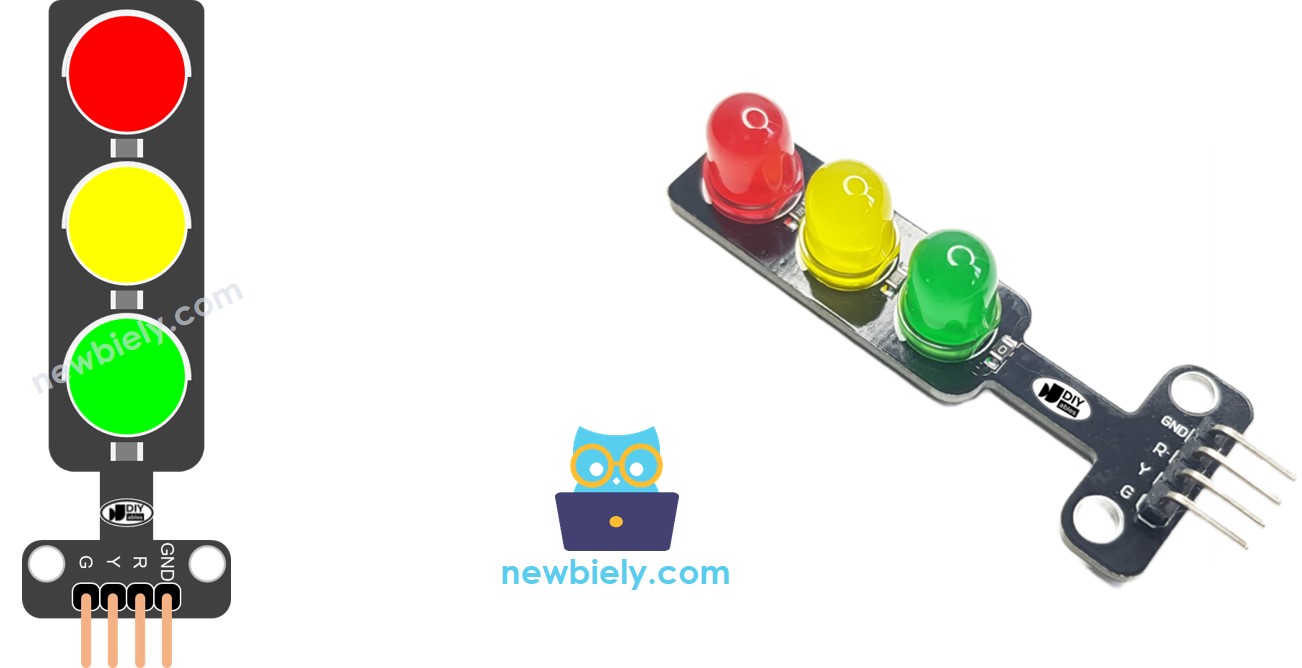
Verkeerslicht Pinout

Hoe Het Werkt

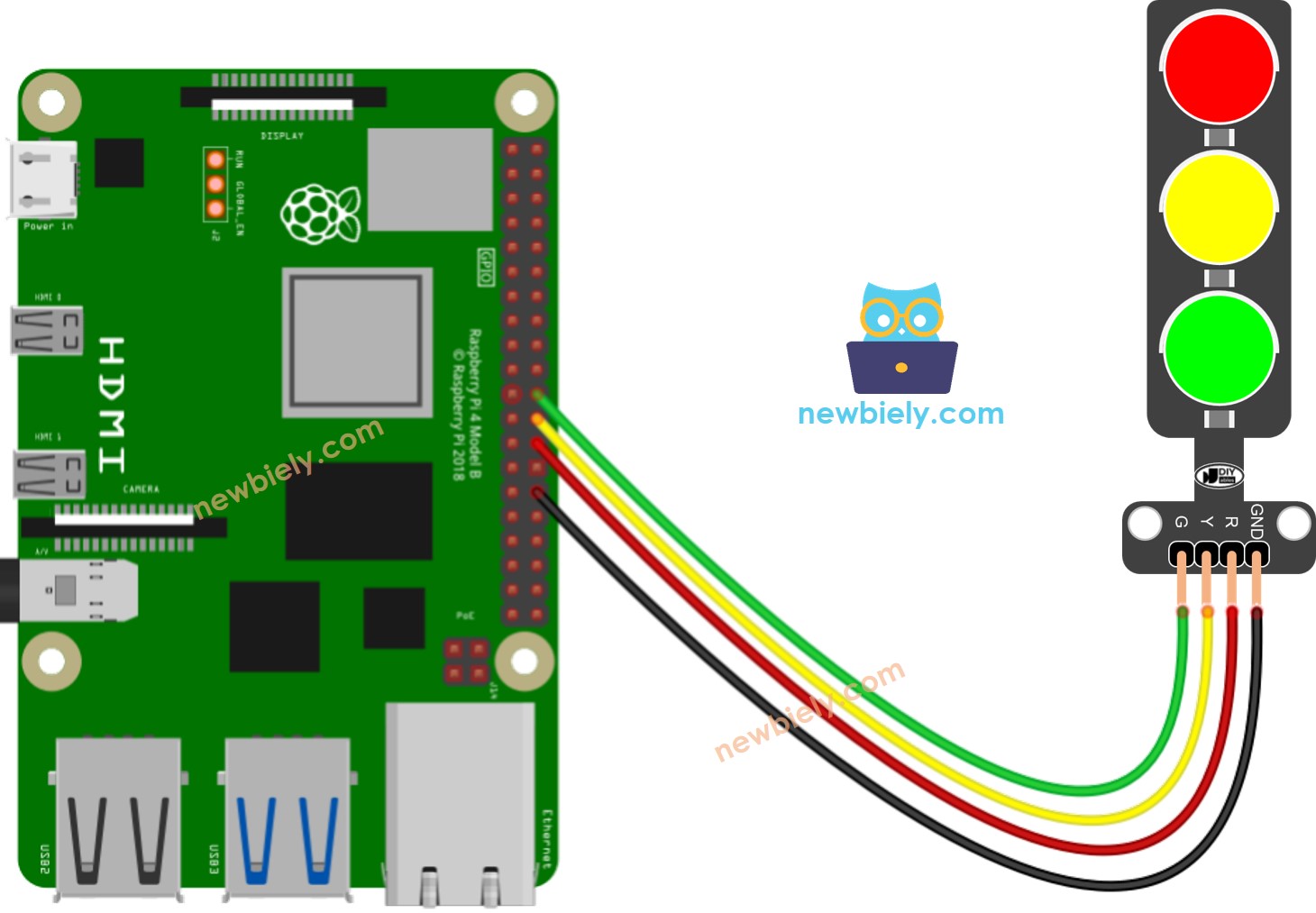
Bedradingsschema

Raspberry Pi verkeerslicht Bedradingsschema

This image is created using Fritzing. Click to enlarge image

Raspberry Pi Code

# Deze Raspberry Pi code is ontwikkeld door newbiely.nl # Deze Raspberry Pi code wordt zonder enige beperking aan het publiek beschikbaar gesteld. # Voor volledige instructies en schema's, bezoek: # https://newbiely.nl/tutorials/raspberry-pi/raspberry-pi-traffic-light import RPi.GPIO as GPIO import time # Define GPIO pins PIN_RED = 7 # The Raspberry Pi GPIO pin connected to the R pin of the traffic light module PIN_YELLOW = 8 # The Raspberry Pi GPIO pin connected to the Y pin of the traffic light module PIN_GREEN = 25 # The Raspberry Pi GPIO pin connected to the G pin of the traffic light module # Define time durations RED_TIME = 4 # RED time in seconds YELLOW_TIME = 4 # YELLOW time in seconds GREEN_TIME = 4 # GREEN time in seconds # Set up GPIO GPIO.setmode(GPIO.BCM) GPIO.setup(PIN_RED, GPIO.OUT) GPIO.setup(PIN_YELLOW, GPIO.OUT) GPIO.setup(PIN_GREEN, GPIO.OUT) try: while True: # Red light on GPIO.output(PIN_RED, GPIO.HIGH) GPIO.output(PIN_YELLOW, GPIO.LOW) GPIO.output(PIN_GREEN, GPIO.LOW) time.sleep(RED_TIME) # Yellow light on GPIO.output(PIN_RED, GPIO.LOW) GPIO.output(PIN_YELLOW, GPIO.HIGH) GPIO.output(PIN_GREEN, GPIO.LOW) time.sleep(YELLOW_TIME) # Green light on GPIO.output(PIN_RED, GPIO.LOW) GPIO.output(PIN_YELLOW, GPIO.LOW) GPIO.output(PIN_GREEN, GPIO.HIGH) time.sleep(GREEN_TIME) except KeyboardInterrupt: # Clean up GPIO on exit GPIO.cleanup()

Snelle Stappen

  • Zorg ervoor dat u Raspbian of een ander Raspberry Pi-compatibel besturingssysteem op uw Pi heeft geïnstalleerd.
  • Zorg dat uw Raspberry Pi verbonden is met hetzelfde lokale netwerk als uw pc.
  • Zorg dat uw Raspberry Pi met internet verbonden is als u bibliotheken moet installeren.
  • Als dit de eerste keer is dat u een Raspberry Pi gebruikt, bekijk dan hoe u de Raspberry Pi instelt.
  • Verbind uw pc met de Raspberry Pi via SSH met behulp van de ingebouwde SSH-client op Linux en macOS of PuTTY op Windows. Zie hoe u uw pc verbindt met de Raspberry Pi via SSH.
  • Controleer of de RPi.GPIO bibliotheek is geïnstalleerd. Zo niet, installeer deze dan met het volgende commando:
sudo apt-get update sudo apt-get install python3-rpi.gpio
  • Maak een Python scriptbestand aan met de naam traffic_light.py en voeg de volgende code toe:
# Deze Raspberry Pi code is ontwikkeld door newbiely.nl # Deze Raspberry Pi code wordt zonder enige beperking aan het publiek beschikbaar gesteld. # Voor volledige instructies en schema's, bezoek: # https://newbiely.nl/tutorials/raspberry-pi/raspberry-pi-traffic-light import RPi.GPIO as GPIO import time # Define GPIO pins PIN_RED = 7 # The Raspberry Pi GPIO pin connected to the R pin of the traffic light module PIN_YELLOW = 8 # The Raspberry Pi GPIO pin connected to the Y pin of the traffic light module PIN_GREEN = 25 # The Raspberry Pi GPIO pin connected to the G pin of the traffic light module # Define time durations RED_TIME = 4 # RED time in seconds YELLOW_TIME = 4 # YELLOW time in seconds GREEN_TIME = 4 # GREEN time in seconds # Set up GPIO GPIO.setmode(GPIO.BCM) GPIO.setup(PIN_RED, GPIO.OUT) GPIO.setup(PIN_YELLOW, GPIO.OUT) GPIO.setup(PIN_GREEN, GPIO.OUT) try: while True: # Red light on GPIO.output(PIN_RED, GPIO.HIGH) GPIO.output(PIN_YELLOW, GPIO.LOW) GPIO.output(PIN_GREEN, GPIO.LOW) time.sleep(RED_TIME) # Yellow light on GPIO.output(PIN_RED, GPIO.LOW) GPIO.output(PIN_YELLOW, GPIO.HIGH) GPIO.output(PIN_GREEN, GPIO.LOW) time.sleep(YELLOW_TIME) # Green light on GPIO.output(PIN_RED, GPIO.LOW) GPIO.output(PIN_YELLOW, GPIO.LOW) GPIO.output(PIN_GREEN, GPIO.HIGH) time.sleep(GREEN_TIME) except KeyboardInterrupt: # Clean up GPIO on exit GPIO.cleanup()
  • Sla het bestand op en voer het Python-script uit met het volgende commando in de terminal:
python3 traffic_light.py

Het script draait in een oneindige lus totdat u Ctrl + C indrukt in de terminal.

  • Bekijk de verkeerslichtmodule

Houd er rekening mee dat de precieze werking van een verkeerslicht kan variëren afhankelijk van het specifieke ontwerp en de technologie die in verschillende regio’s en kruispunten wordt gebruikt. De hierboven beschreven principes geven een algemeen inzicht in hoe verkeerslichten het verkeer regelen en de veiligheid op de wegen verbeteren.

De bovenstaande code laat de aansturing van afzonderlijke lampen zien. Laten we nu de code verbeteren voor een betere optimalisatie.

Raspberry Pi Code Optimalisatie

  • Laten we de code verbeteren door een functie te implementeren voor de lichtbesturing.
# Deze Raspberry Pi code is ontwikkeld door newbiely.nl # Deze Raspberry Pi code wordt zonder enige beperking aan het publiek beschikbaar gesteld. # Voor volledige instructies en schema's, bezoek: # https://newbiely.nl/tutorials/raspberry-pi/raspberry-pi-traffic-light import RPi.GPIO as GPIO import time # Define GPIO pins PIN_RED = 7 # The Raspberry Pi GPIO pin connected to the R pin of the traffic light module PIN_YELLOW = 8 # The Raspberry Pi GPIO pin connected to the Y pin of the traffic light module PIN_GREEN = 25 # The Raspberry Pi GPIO pin connected to the G pin of the traffic light module # Define time durations in seconds RED_TIME = 2 # RED time in seconds YELLOW_TIME = 1 # YELLOW time in seconds GREEN_TIME = 2 # GREEN time in seconds # Define indices for the light states RED = 0 YELLOW = 1 GREEN = 2 # Create lists for pins and times pins = [PIN_RED, PIN_YELLOW, PIN_GREEN] times = [RED_TIME, YELLOW_TIME, GREEN_TIME] # Set up GPIO GPIO.setmode(GPIO.BCM) GPIO.setup(PIN_RED, GPIO.OUT) GPIO.setup(PIN_YELLOW, GPIO.OUT) GPIO.setup(PIN_GREEN, GPIO.OUT) def traffic_light_on(light): for i in range(len(pins)): if i == light: GPIO.output(pins[i], GPIO.HIGH) # turn on else: GPIO.output(pins[i], GPIO.LOW) # turn off try: while True: # Red light on traffic_light_on(RED) time.sleep(times[RED]) # keep red light on during a period of time # Yellow light on traffic_light_on(YELLOW) time.sleep(times[YELLOW]) # keep yellow light on during a period of time # Green light on traffic_light_on(GREEN) time.sleep(times[GREEN]) # keep green light on during a period of time except KeyboardInterrupt: # Clean up GPIO on exit GPIO.cleanup()
  • Laten we de code verbeteren door een for-loop te gebruiken.
# Deze Raspberry Pi code is ontwikkeld door newbiely.nl # Deze Raspberry Pi code wordt zonder enige beperking aan het publiek beschikbaar gesteld. # Voor volledige instructies en schema's, bezoek: # https://newbiely.nl/tutorials/raspberry-pi/raspberry-pi-traffic-light import RPi.GPIO as GPIO import time # Define GPIO pins PIN_RED = 7 # The Raspberry Pi GPIO pin connected to the R pin of the traffic light module PIN_YELLOW = 8 # The Raspberry Pi GPIO pin connected to the Y pin of the traffic light module PIN_GREEN = 25 # The Raspberry Pi GPIO pin connected to the G pin of the traffic light module # Define time durations in seconds RED_TIME = 2 # RED time in seconds YELLOW_TIME = 1 # YELLOW time in seconds GREEN_TIME = 2 # GREEN time in seconds # Define indices for the light states RED = 0 YELLOW = 1 GREEN = 2 # Create lists for pins and times pins = [PIN_RED, PIN_YELLOW, PIN_GREEN] times = [RED_TIME, YELLOW_TIME, GREEN_TIME] # Set up GPIO GPIO.setmode(GPIO.BCM) GPIO.setup(PIN_RED, GPIO.OUT) GPIO.setup(PIN_YELLOW, GPIO.OUT) GPIO.setup(PIN_GREEN, GPIO.OUT) def traffic_light_on(light): for i in range(len(pins)): if i == light: GPIO.output(pins[i], GPIO.HIGH) # turn on else: GPIO.output(pins[i], GPIO.LOW) # turn off try: while True: for light in range(RED, GREEN + 1): traffic_light_on(light) time.sleep(times[light]) # keep light on during a period of time except KeyboardInterrupt: # Clean up GPIO on exit GPIO.cleanup()
  • Laten we de code verbeteren door de millis() functie te gebruiken in plaats van delay().
# Deze Raspberry Pi code is ontwikkeld door newbiely.nl # Deze Raspberry Pi code wordt zonder enige beperking aan het publiek beschikbaar gesteld. # Voor volledige instructies en schema's, bezoek: # https://newbiely.nl/tutorials/raspberry-pi/raspberry-pi-traffic-light import RPi.GPIO as GPIO import time # Define GPIO pins PIN_RED = 7 # The Raspberry Pi GPIO pin connected to the R pin of the traffic light module PIN_YELLOW = 8 # The Raspberry Pi GPIO pin connected to the Y pin of the traffic light module PIN_GREEN = 25 # The Raspberry Pi GPIO pin connected to the G pin of the traffic light module # Define time durations in seconds RED_TIME = 2 # RED time in seconds YELLOW_TIME = 1 # YELLOW time in seconds GREEN_TIME = 2 # GREEN time in seconds # Define indices for the light states RED = 0 YELLOW = 1 GREEN = 2 # Create lists for pins and times pins = [PIN_RED, PIN_YELLOW, PIN_GREEN] times = [RED_TIME, YELLOW_TIME, GREEN_TIME] # Set up GPIO GPIO.setmode(GPIO.BCM) GPIO.setup(PIN_RED, GPIO.OUT) GPIO.setup(PIN_YELLOW, GPIO.OUT) GPIO.setup(PIN_GREEN, GPIO.OUT) light = RED # start with RED light last_time = time.time() def traffic_light_on(light): for i in range(len(pins)): if i == light: GPIO.output(pins[i], GPIO.HIGH) # turn on else: GPIO.output(pins[i], GPIO.LOW) # turn off try: while True: if (time.time() - last_time) > times[light]: light += 1 if light >= 3: light = RED # new circle traffic_light_on(light) last_time = time.time() # TO DO: your other code except KeyboardInterrupt: # Clean up GPIO on exit GPIO.cleanup()

Video Tutorial

We overwegen het maken van videotutorials. Als u videotutorials belangrijk vindt, abonneer u dan op ons YouTube-kanaal om ons te motiveren de video's te maken.

Bekijk onze video-tutorial voor een visuele begeleiding bij dit project! De video biedt extra inzichten en helpt u stap voor stap door het proces.

※ ONZE BERICHTEN

  • U bent welkom om de link naar deze tutorial te delen. Gebruik onze inhoud echter niet op andere websites. We hebben veel moeite en tijd gestoken in het maken van de inhoud, respecteer alstublieft ons werk!