
Arduino Nano - LED Besturen via Bluetooth
Deze tutorial legt uit hoe u de Arduino Nano programmeert om een LED te besturen via Bluetooth of BLE.
- Om de LED via Bluetooth te besturen, dient u de HC-05 Bluetooth module te gebruiken.
- Voor het aansturen van de LED via BLE gebruikt u de HM-10 BLE module.
Deze tutorial bevat instructies voor beide modules.
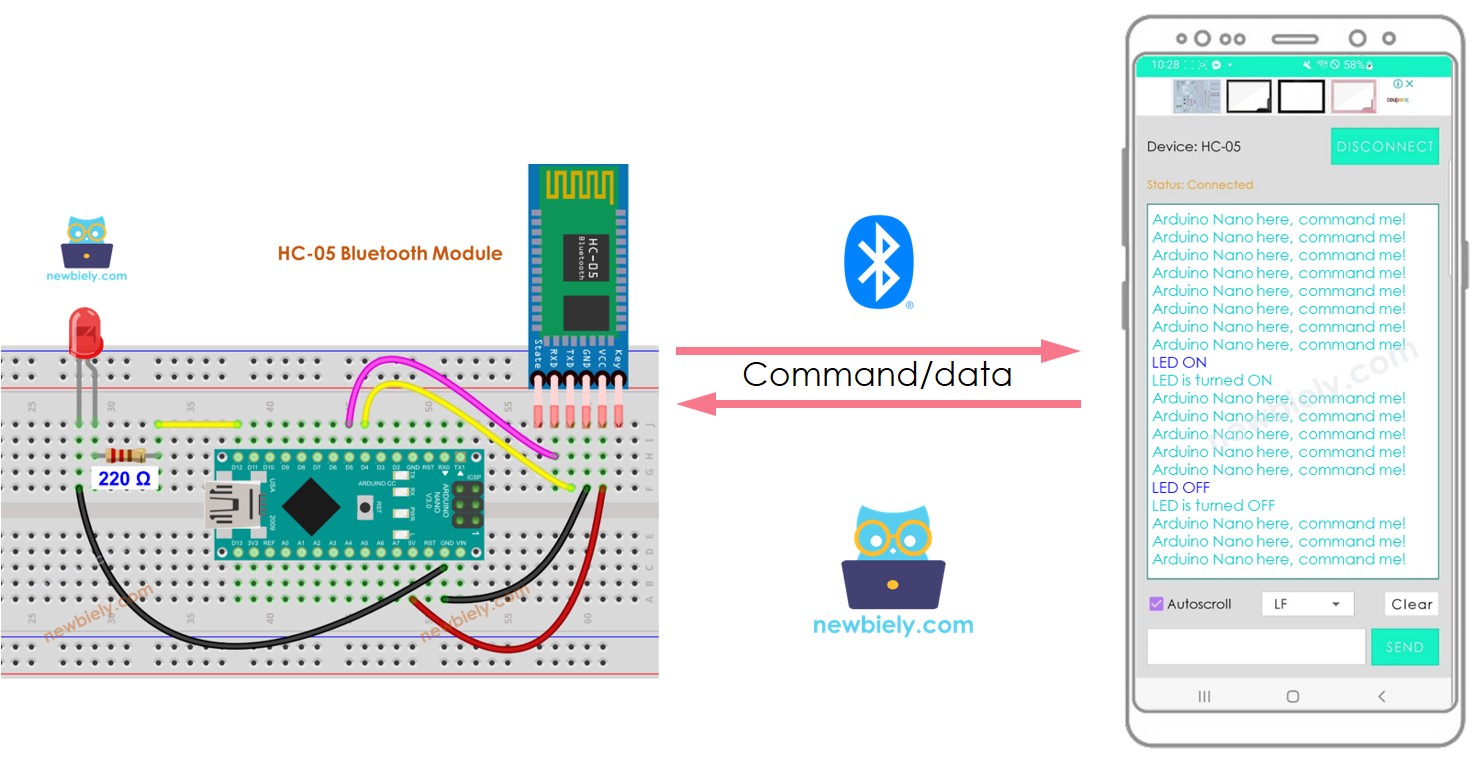
We gebruiken de Bluetooth Serial Monitor App op een smartphone om commando’s naar de Arduino Nano te sturen.
Deze commando’s zijn onder andere:
- LED ON waarmee de LED aangezet wordt
- LED OFF waarmee de LED uitgeschakeld wordt
Hardware Benodigdheden
Of u kunt de volgende kits kopen:
| 1 | × | DIYables Sensorkit (18 sensoren/displays) |
Over LED en Bluetooth Module
Als u niet bekend bent met de LED en Bluetooth Module (pinout, werking, programmeren, etc.), kunnen de volgende tutorials u verder helpen:
Aansluitschema
- Indien u de LED via Bluetooth wilt aansturen, gebruikt u de HC-05 Bluetooth module volgens het onderstaande aansluitdiagram.
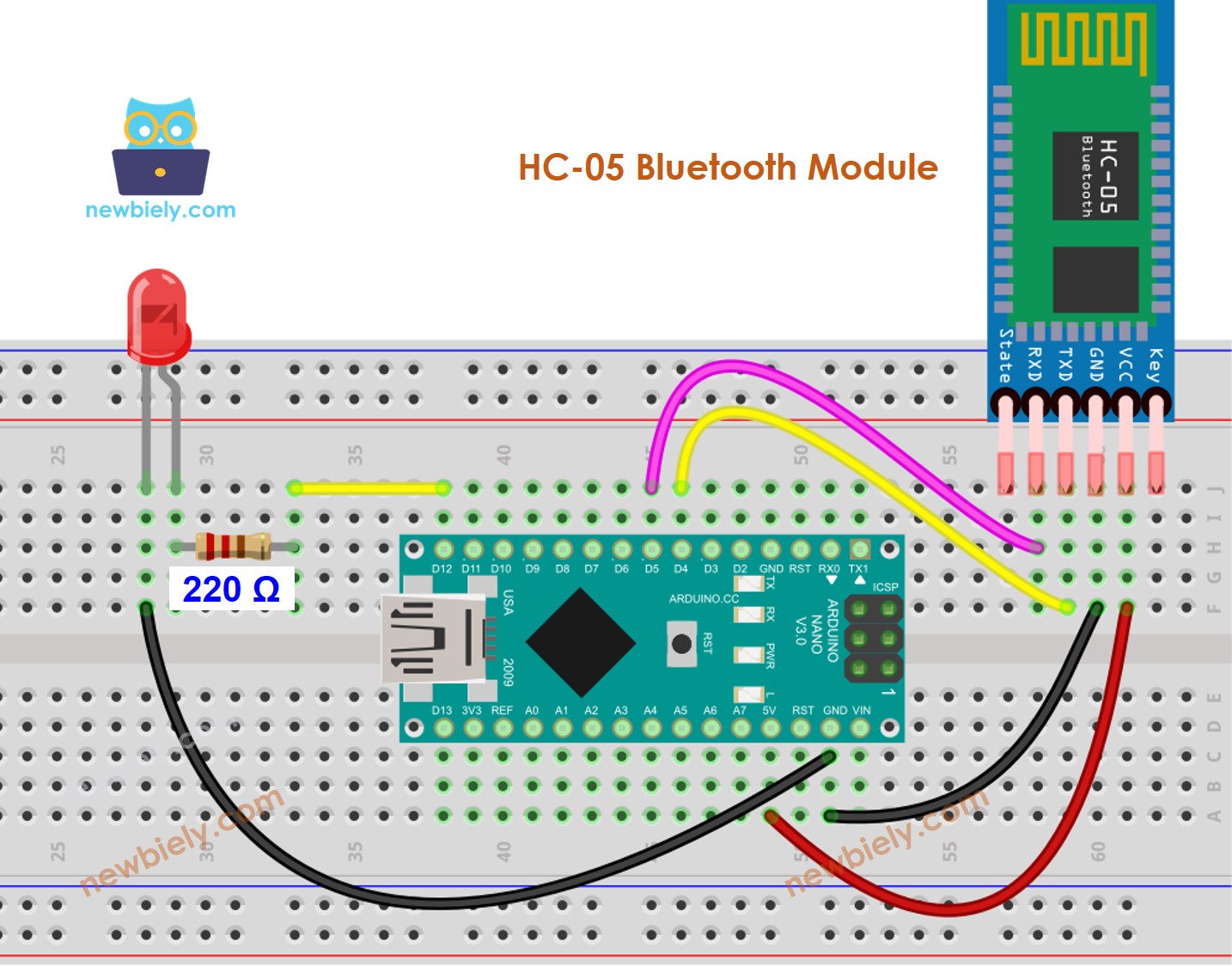
Deze afbeelding is gemaakt met Fritzing. Klik om de afbeelding te vergroten.
- Wilt u de LED bedienen via BLE, dan sluit u de HM-10 BLE module aan volgens het volgende schema.
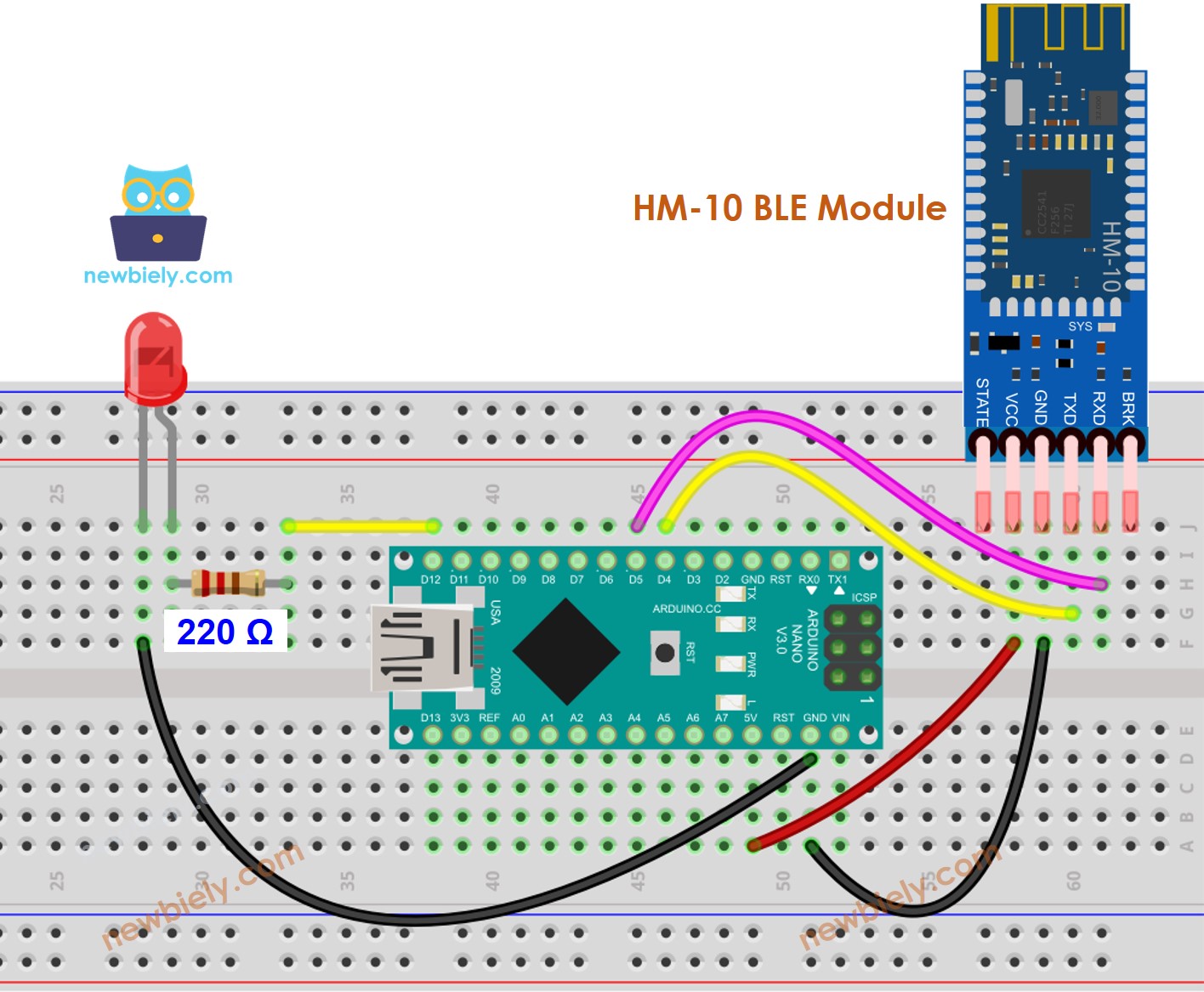
Deze afbeelding is gemaakt met Fritzing. Klik om de afbeelding te vergroten.
Arduino Nano Code - LED besturen via Bluetooth/BLE
De code werkt voor zowel de HC-05 Bluetooth module als de HM-10 BLE module. Het is voor beide toepasbaar.
Snelle Stappen
- Download de Bluetooth Serial Monitor App op uw smartphone.
- Open de code in de Arduino IDE en klik op de Upload-knop om deze naar de Arduino Nano te uploaden. Mocht u problemen ondervinden bij het uploaden, ontkoppel dan eerst de TX- en RX-pinnen van de Bluetooth module, upload de code, en sluit ze daarna weer aan.
- Start de Bluetooth Serial Monitor App op uw telefoon en kies Classic Bluetooth of BLE, afhankelijk van welke module u gebruikt.
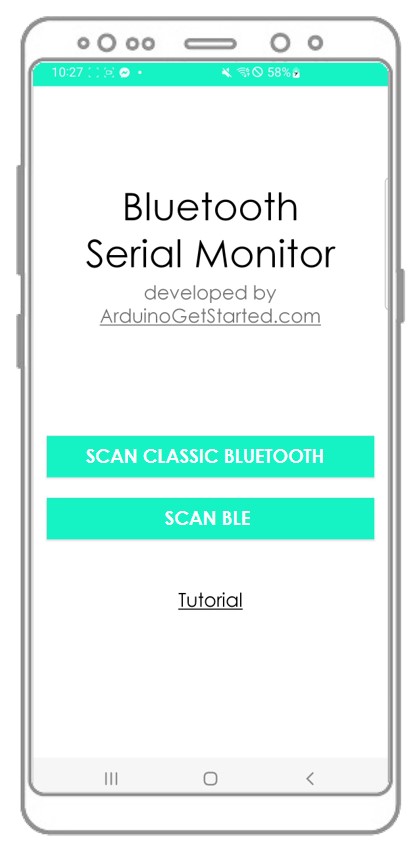
- Maak verbinding met de HC-05 Bluetooth module of HM-10 BLE module via de app.
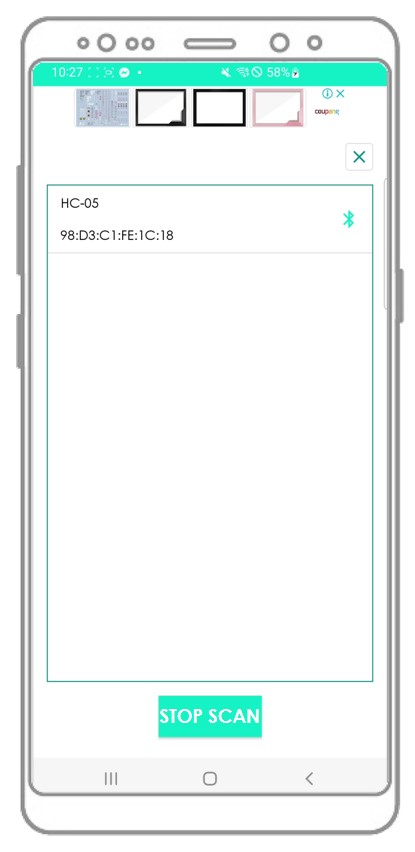
- Typ “LED ON” of “LED OFF” in en druk op de Send-knop.
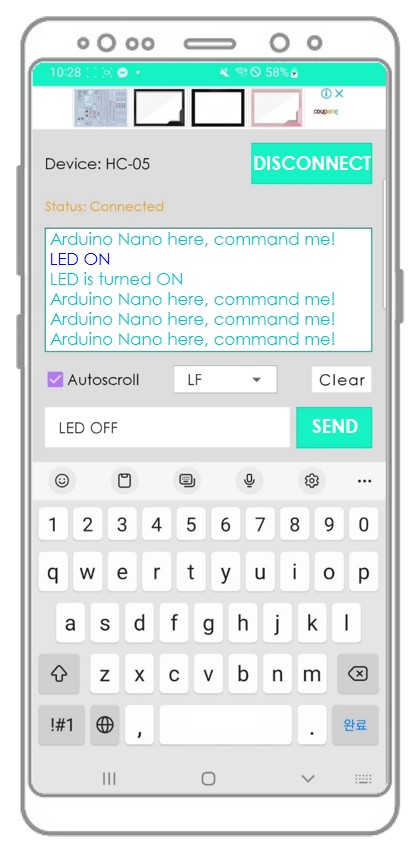
- Controleer de status van de LED op de Arduino Nano. Deze zal aan of uit zijn.
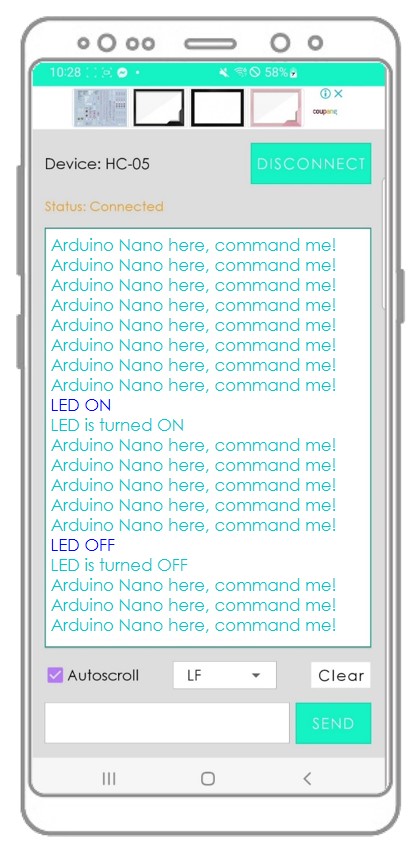
- Daarnaast kunt u de status van de LED ook in de Bluetooth App zien.
- Controleer ten slotte het resultaat op de Android App.
U vraagt zich wellicht af hoe de Arduino Nano een volledig commando interpreteert. Bijvoorbeeld, wanneer u “OFF” stuurt, hoe weet de Arduino of het commando “O”, “OF” of “OFF” is?
Bij het verzenden voegt de Bluetooth App een newline-karakter ('\n') toe door de optie “newline” in de app te kiezen. De Arduino Nano leest data totdat het newline-karakter wordt bereikt. Dit newline-karakter werkt als scheidingsteken tussen commando’s.
Als u de Bluetooth Serial Monitor app nuttig vindt, waardeert u het misschien om een 5-sterren beoordeling achter te laten in de Play Store. Wij zijn u dankbaar voor uw steun. Hartelijk dank!
Video Tutorial
We overwegen het maken van videotutorials. Als u videotutorials belangrijk vindt, abonneer u dan op ons YouTube-kanaal om ons te motiveren de video's te maken.
Functie Referenties
Gerelateerde Tutorials
📱 Aanbevolen apps
 English for KidsSpelenderwijs Engels leren voor jonge kinderen.Ontdek het opGoogle PlayBeschikbaar in deApp Store
 Bubble NoteZelfverwijderende notities – schrijf ze als berichten.Ontdek het opGoogle PlayBeschikbaar in deApp Store
 Didn't BuyVersla impulsaankopen en bespaar meer.Ontdek het opGoogle PlayBeschikbaar in deApp Store
 Knowledge PathOefentoetsen om alles te leren.Ontdek het opGoogle PlayBeschikbaar in deApp Store