
Arduino Nano - Ethernet
Deze handleiding laat u zien hoe u de Arduino Nano aansluit op het internet of uw lokale netwerk met behulp van het W5500 Ethernet-module. We gaan de volgende onderwerpen behandelen:
- De Arduino Nano verbinden met het W5500 Ethernet-module
- Code schrijven voor de Arduino Nano om HTTP-verzoeken via Ethernet te maken
- Het maken van een eenvoudige webserver op de Arduino Nano met Ethernet
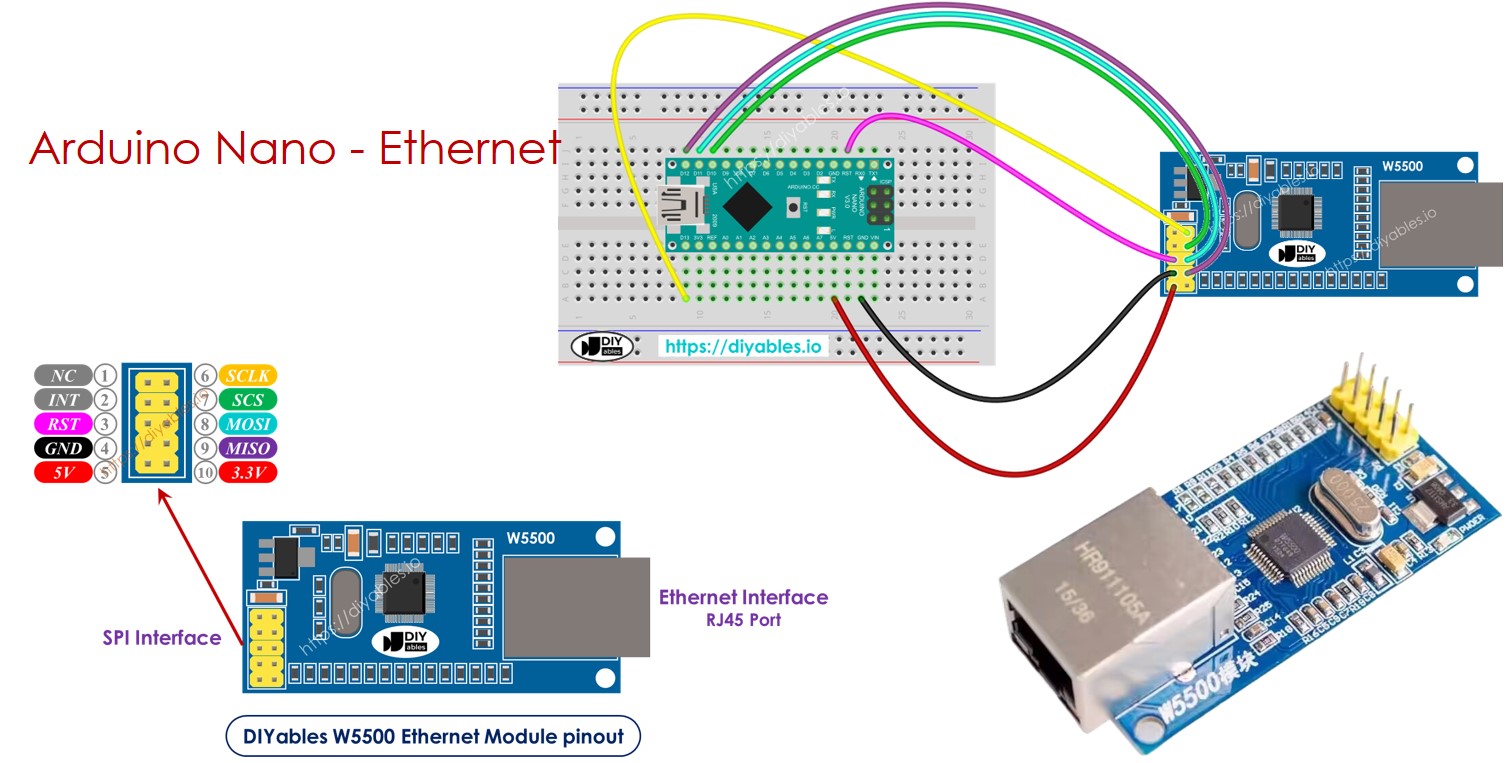
Hardware Benodigd
Of u kunt de volgende kits kopen:
| 1 | × | DIYables Sensorkit (18 sensoren/displays) |
Openbaarmaking: Sommige van de links in deze sectie zijn Amazon-affiliate links. We kunnen een commissie ontvangen voor aankopen die via deze links worden gedaan, zonder extra kosten voor u. We waarderen uw steun.
Over het W5500 Ethernet-module
Het W5500 Ethernet-module biedt twee soorten verbindingen:
- RJ45 interface: Gebruik deze om met een Ethernet-kabel aan te sluiten op een router of switch.
- SPI interface: Gebruik deze voor aansluiting op een Arduino Nano bord. Het heeft 10 pinnen:
- NC pin: Laat deze pin onverbonden.
- INT pin: Laat deze pin onverbonden.
- RST pin: Dit is de reset-pin. Verbind deze met de EN pin van de Arduino Nano.
- GND pin: Verbind deze pin met de GND pin van de Arduino Nano.
- 5V pin: Verbind deze pin met de 5V pin van de Arduino Nano.
- 3.3V pin: Laat deze pin onverbonden.
- MISO pin: Verbind deze pin met de SPI MISO pin van de Arduino Nano.
- MOSI pin: Verbind deze pin met de SPI MOSI pin van de Arduino Nano.
- SCS pin: Verbind deze pin met de SPI CS pin van de Arduino Nano.
- SCLK pin: Verbind deze pin met de SPI SCK pin van de Arduino Nano.
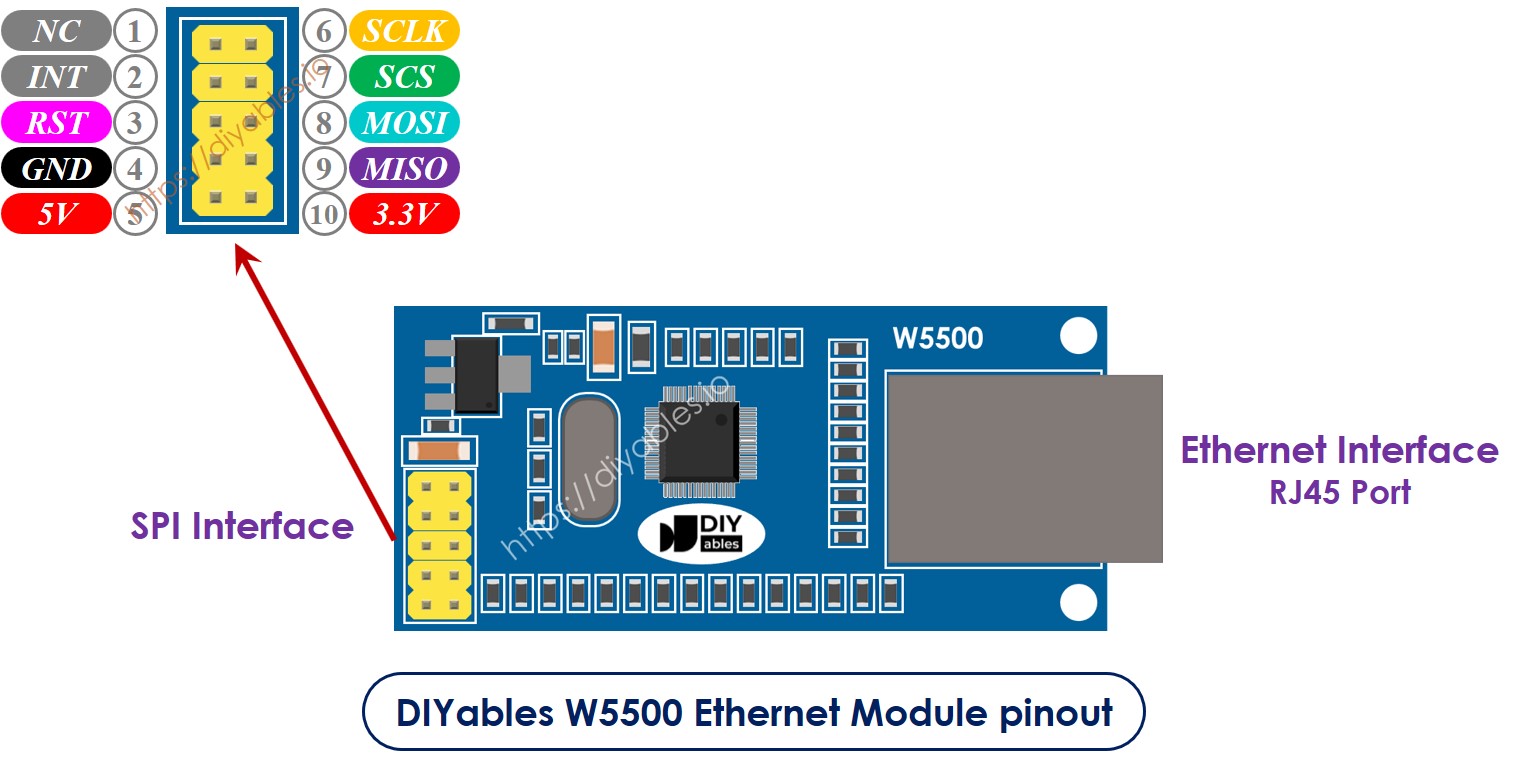
image source: diyables.io
Bekabelingsschema tussen Arduino Nano en W5500 Ethernet-module
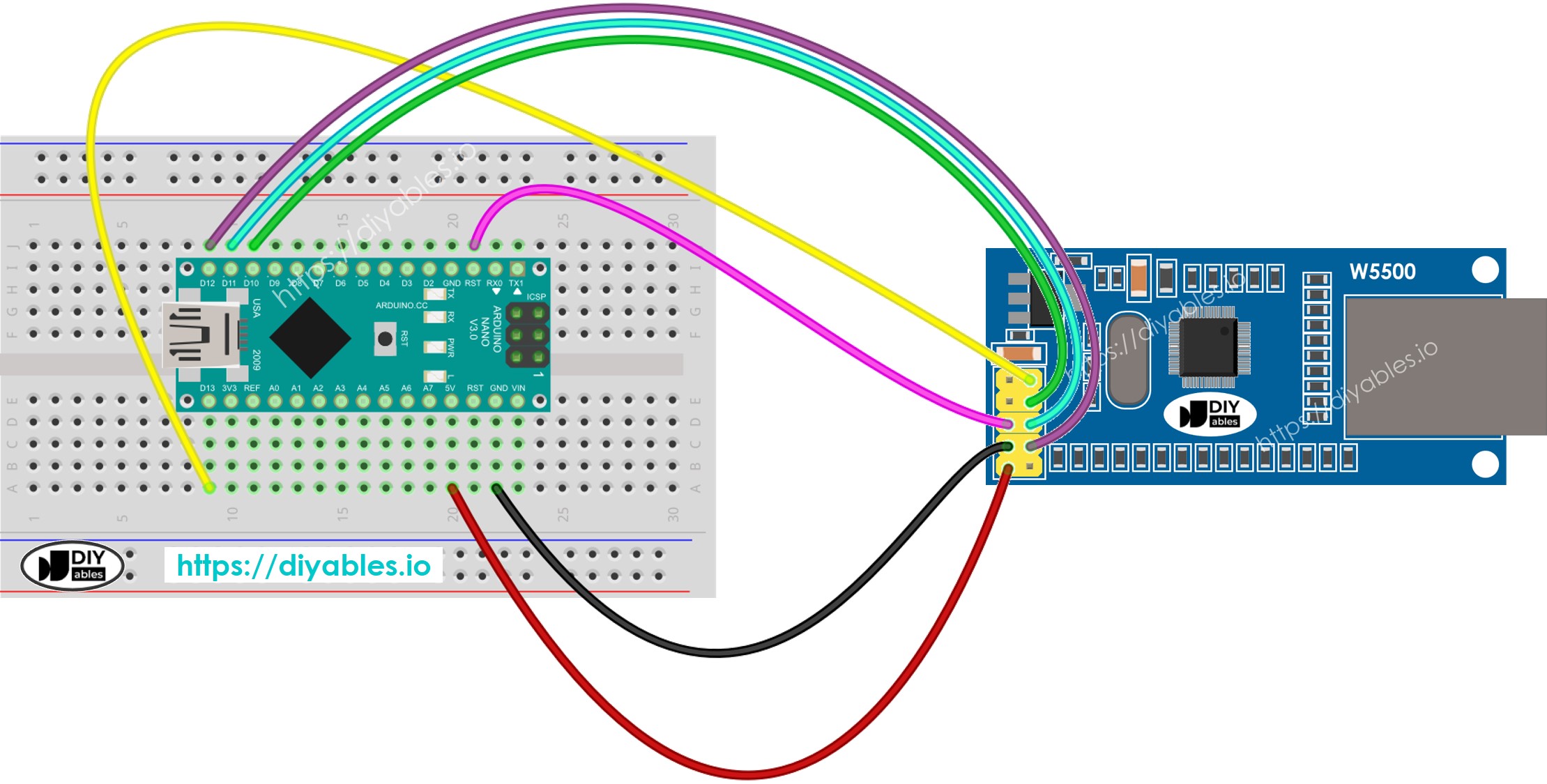
Deze afbeelding is gemaakt met Fritzing. Klik om de afbeelding te vergroten.
image source: diyables.io
Arduino Nano code voor Ethernet Module - HTTP-verzoek via Ethernet
Deze code werkt als een webclient. Het verzendt HTTP-verzoeken naar de webserver op http://example.com/.
/*
* Deze Arduino Nano code is ontwikkeld door newbiely.nl
* Deze Arduino Nano code wordt zonder enige beperking aan het publiek beschikbaar gesteld.
* Voor volledige instructies en schema's, bezoek:
* https://newbiely.nl/tutorials/arduino-nano/arduino-nano-ethernet
*/
#include <SPI.h>
#include <Ethernet.h>
// replace the MAC address below by the MAC address printed on a sticker on the Arduino Shield 2
byte mac[] = { 0xDE, 0xAD, 0xBE, 0xEF, 0xFE, 0xEF };
EthernetClient client;
int HTTP_PORT = 80;
String HTTP_METHOD = "GET"; // or POST
char HOST_NAME[] = "example.com";
String PATH_NAME = "/";
void setup() {
Serial.begin(9600);
delay(1000);
Serial.println("Arduino Nano - Ethernet Tutorial");
// initialize the Ethernet shield using DHCP:
if (Ethernet.begin(mac) == 0) {
Serial.println("Failed to obtaining an IP address");
// check for Ethernet hardware present
if (Ethernet.hardwareStatus() == EthernetNoHardware)
Serial.println("Ethernet shield was not found");
// check for Ethernet cable
if (Ethernet.linkStatus() == LinkOFF)
Serial.println("Ethernet cable is not connected.");
while (true)
;
}
// connect to web server on port 80:
if (client.connect(HOST_NAME, HTTP_PORT)) {
// if connected:
Serial.println("Connected to server");
// make a HTTP request:
// send HTTP header
client.println(HTTP_METHOD + " " + PATH_NAME + " HTTP/1.1");
client.println("Host: " + String(HOST_NAME));
client.println("Connection: close");
client.println(); // end HTTP header
while (client.connected()) {
if (client.available()) {
// read an incoming byte from the server and print it to serial monitor:
char c = client.read();
Serial.print(c);
}
}
// the server's disconnected, stop the client:
client.stop();
Serial.println();
Serial.println("disconnected");
} else { // if not connected:
Serial.println("connection failed");
}
}
void loop() {
}
Snelle Stappen
- Verbind het Ethernet-module met de Arduino Nano zoals aangegeven in het bekabelingsschema.
- Sluit de Arduino Nano via een USB-kabel aan op uw computer.
- Verbind het Ethernet-module met uw router of switch via een Ethernet-kabel.
- Open de Arduino IDE op uw computer.
- Selecteer het juiste Arduino Nano bord en de correcte COM-poort.
- Klik op het Libraries-icoon in de linkerzijbalk van de Arduino IDE.
- Zoek op “Ethernet” en vind de Ethernet library van Various.
- Klik op de Installeren-knop om de Ethernet library te installeren.
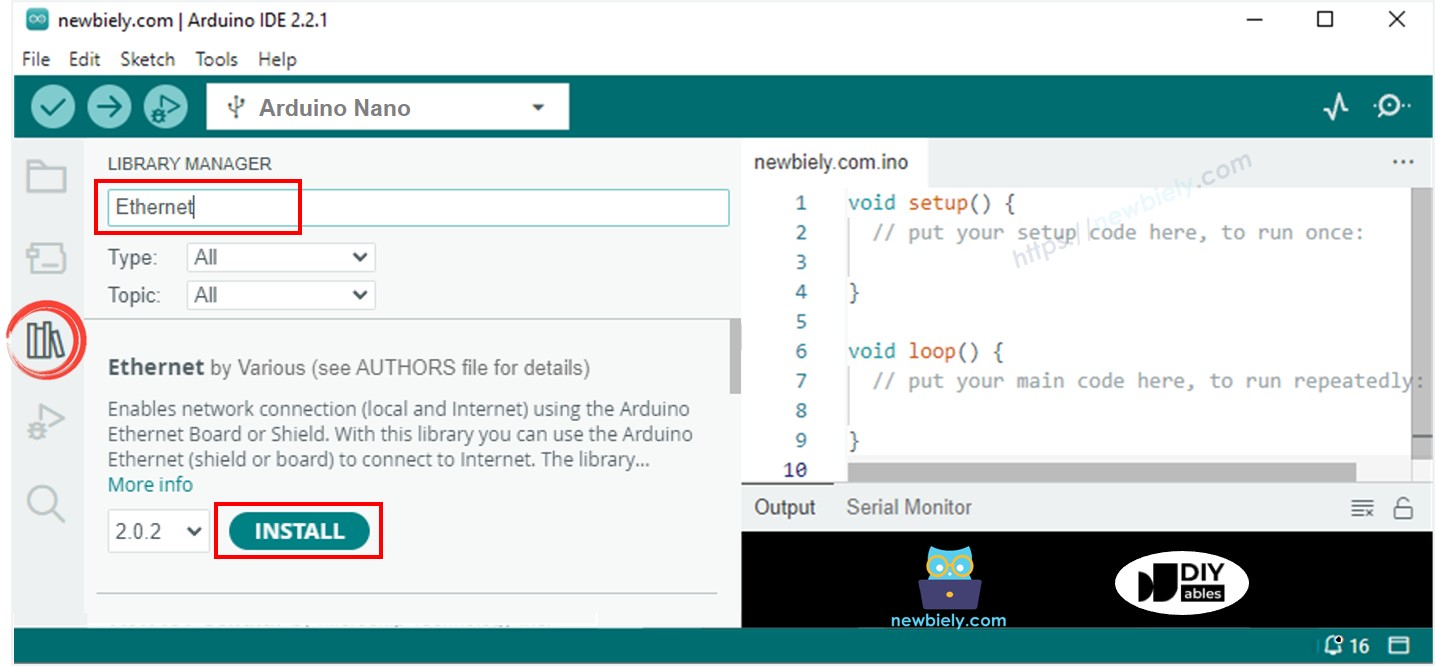
- Open de Seriële Monitor in de Arduino IDE.
- Kopieer de gegeven code en plak deze in de Arduino IDE.
- Druk op de Upload-knop in de Arduino IDE om de code naar de Arduino Nano te sturen.
- Bekijk de Seriële Monitor voor de output, die het resultaat zoals hieronder zal tonen.
8
Serial.println("Hello World!");
Message (Enter to send message to 'Arduino Nano' on 'COM15')
New Line
9600 baud
Arduino Nano - Ethernet Tutorial
Connected to server
HTTP/1.1 200 OK
Accept-Ranges: bytes
Age: 208425
Cache-Control: max-age=604800
Content-Type: text/html; charset=UTF-8
Date: Fri, 12 Jul 2024 07:08:42 GMT
Etag: "3147526947"
Expires: Fri, 19 Jul 2024 07:08:42 GMT
Last-Modified: Thu, 17 Oct 2019 07:18:26 GMT
Server: ECAcc (lac/55B8)
Vary: Accept-Encoding
X-Cache: HIT
Content-Length: 1256
Connection: close
<!doctype html>
<html>
<head>
<title>Example Domain</title>
<meta charset="utf-8" />
<meta http-equiv="Content-type" content="text/html; charset=utf-8" />
<meta name="viewport" content="width=device-width, initial-scale=1" />
</head>
<body>
<div>
<h1>Example Domain</h1>
<p>This domain is for use in illustrative examples in documents. You may use this
domain in literature without prior coordination or asking for permission.</p>
<p><a href="https://www.iana.org/domains/example">More information...</a></p>
</div>
</body>
</html>
disconnected
※ Notiz:
Als een ander apparaat op hetzelfde netwerk hetzelfde MAC-adres gebruikt, kan het module mogelijk niet correct functioneren.
Arduino Nano code voor Ethernet Module - Web Server
De code hieronder verandert de Arduino Nano in een webserver. Deze server levert een eenvoudige webpagina aan internetbrowsers.
/*
* Deze Arduino Nano code is ontwikkeld door newbiely.nl
* Deze Arduino Nano code wordt zonder enige beperking aan het publiek beschikbaar gesteld.
* Voor volledige instructies en schema's, bezoek:
* https://newbiely.nl/tutorials/arduino-nano/arduino-nano-ethernet
*/
#include <SPI.h>
#include <Ethernet.h>
// replace the MAC address below by the MAC address printed on a sticker on the Arduino Shield 2
byte mac[] = { 0xDE, 0xAD, 0xBE, 0xEF, 0xFE, 0xEF };
EthernetServer server(80);
void setup() {
Serial.begin(9600);
delay(1000);
Serial.println("Arduino Nano - Ethernet Tutorial");
// initialize the Ethernet shield using DHCP:
if (Ethernet.begin(mac) == 0) {
Serial.println("Failed to obtaining an IP address");
// check for Ethernet hardware present
if (Ethernet.hardwareStatus() == EthernetNoHardware)
Serial.println("Ethernet shield was not found");
// check for Ethernet cable
if (Ethernet.linkStatus() == LinkOFF)
Serial.println("Ethernet cable is not connected.");
while (true)
;
}
server.begin();
Serial.print("Arduino Nano - Web Server IP Address: ");
Serial.println(Ethernet.localIP());
}
void loop() {
// listen for incoming clients
EthernetClient client = server.available();
if (client) {
Serial.println("new client");
// an HTTP request ends with a blank line
bool currentLineIsBlank = true;
while (client.connected()) {
if (client.available()) {
char c = client.read();
Serial.write(c);
// if you've gotten to the end of the line (received a newline
// character) and the line is blank, the HTTP request has ended,
// so you can send a reply
if (c == '\n' && currentLineIsBlank) {
// send a standard HTTP response header
client.println("HTTP/1.1 200 OK");
client.println("Content-Type: text/html");
client.println("Connection: close"); // the connection will be closed after completion of the response
client.println();
client.println("<!DOCTYPE HTML>");
client.println("<html>");
client.println("<body>");
client.println("<h1>Arduino Nano - Web Server with Ethernet</h1>");
client.println("</body>");
client.println("</html>");
break;
}
if (c == '\n') {
// you're starting a new line
currentLineIsBlank = true;
} else if (c != '\r') {
// you've gotten a character on the current line
currentLineIsBlank = false;
}
}
}
// give the web browser time to receive the data
delay(1);
// close the connection:
client.stop();
Serial.println("client disconnected");
}
}
Snelle Stappen
- Kopieer de bovenstaande code en plak deze in de Arduino IDE.
- Klik op de Upload-knop in de Arduino IDE om de code naar uw Arduino Nano te sturen.
- Controleer de resultaten in de Seriële Monitor, die als volgt zal weergeven:
8
Serial.println("Hello World!");
Message (Enter to send message to 'Arduino Nano' on 'COM15')
New Line
9600 baud
Arduino Nano - Ethernet Tutorial
Arduino Nano - Web Server IP Adres: 192.168.0.2
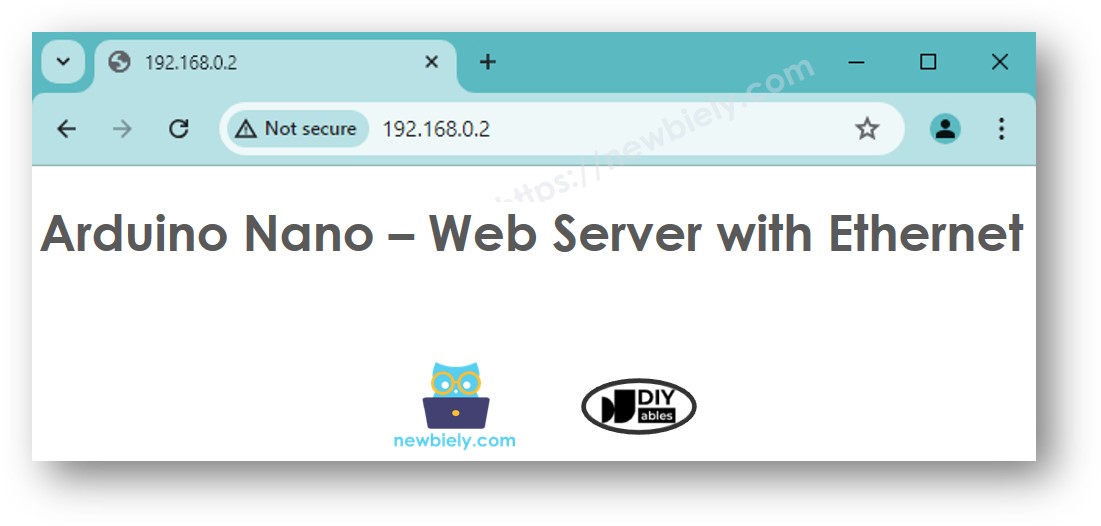
- Kopieer het hierboven getoonde IP-adres en plak dit in de adresbalk van uw webbrowser. U ziet dan een eenvoudige webpagina die door de Arduino Nano wordt weergegeven.
Gerelateerde Tutorials
📱 Aanbevolen apps
 English for KidsSpelenderwijs Engels leren voor jonge kinderen.Ontdek het opGoogle PlayBeschikbaar in deApp Store
 Bubble NoteZelfverwijderende notities – schrijf ze als berichten.Ontdek het opGoogle PlayBeschikbaar in deApp Store
 Didn't BuyVersla impulsaankopen en bespaar meer.Ontdek het opGoogle PlayBeschikbaar in deApp Store
 Knowledge PathOefentoetsen om alles te leren.Ontdek het opGoogle PlayBeschikbaar in deApp Store