
Arduino Nano - Temperatuur en Vochtigheid Sensor - OLED

Deze tutorial legt uit hoe u de temperatuur en vochtigheid leest van een DHT11/DHT22 sensor en deze op een OLED weergeeft.
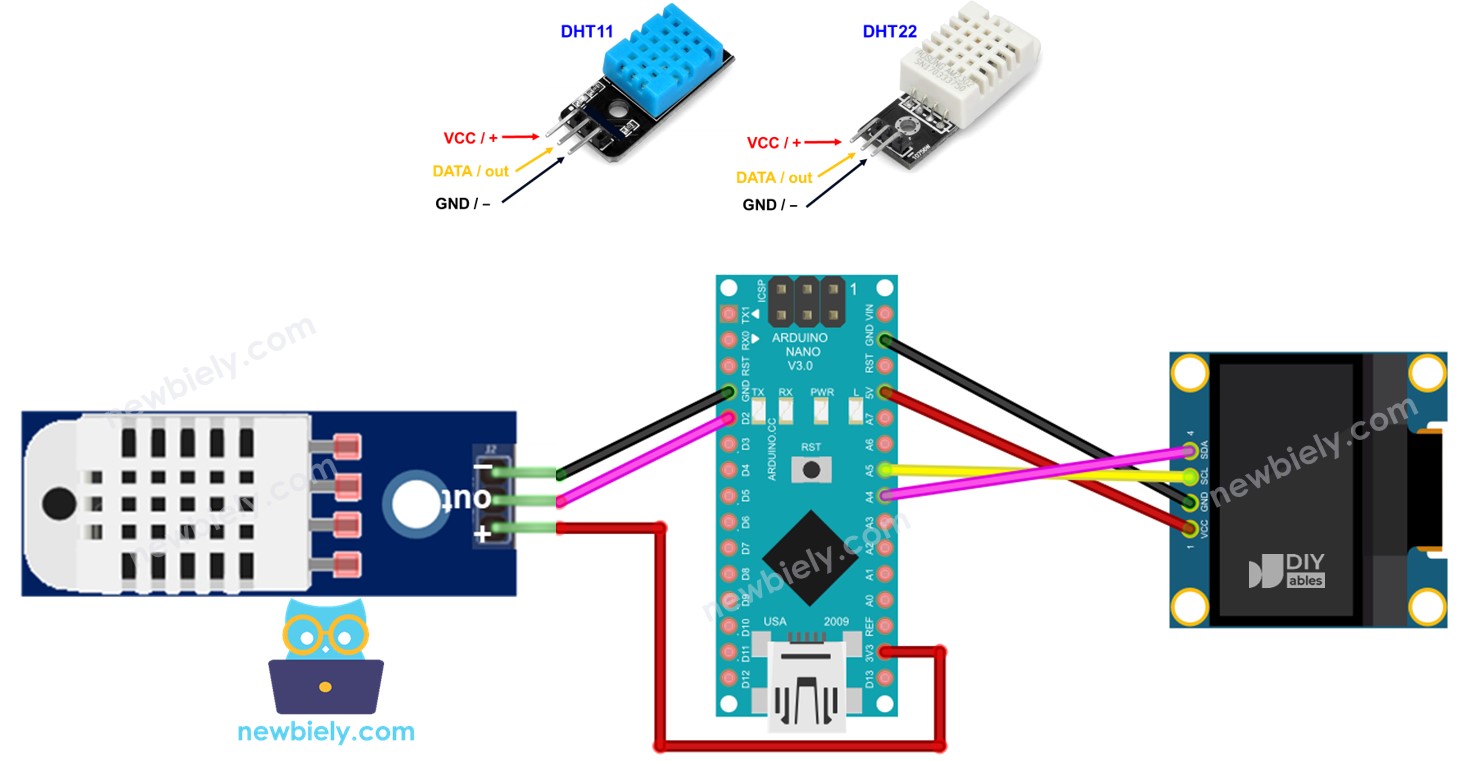
Arduino Nano DHT11/DHT22 temperatuur en vochtigheid sensor OLED display

Benodigde Hardware

1×Official Arduino Nano
1×Alternatief: DIYables ATMEGA328P Nano Development Board
1×USB A naar Mini-B USB kabel
1×SSD1306 I2C OLED-Display 128x64
1×SSD1306 I2C OLED-Display 128x32
1×DHT11 Temperatuur- en Vochtigheidssensor
1×Jumperdraden

U kunt ook de DHT22 sensor gebruiken in plaats van de DHT11 sensor.

1×(Aanbevolen) Schroefklem Uitbreidingsboard voor Arduino Nano
1×(Aanbevolen) Breakout Uitbreidingsboard voor Arduino Nano
1×(Aanbevolen) Stromsplitter voor Arduino Nano

Of u kunt de volgende kits kopen:

1×DIYables Sensorkit (30 sensoren/displays)
1×DIYables Sensorkit (18 sensoren/displays)
Openbaarmaking: Sommige van de links in deze sectie zijn Amazon-affiliate links. We kunnen een commissie ontvangen voor aankopen die via deze links worden gedaan, zonder extra kosten voor u. We waarderen uw steun.

Over het OLED display, DHT11 en DHT22 Temperatuur- en Vochtigheidssensor

Als u niet bekend bent met het OLED display, de DHT11 en DHT22 temperatuur- en vochtigheidssensor (pinout, werking, programmeren, etc.), kunnen de volgende tutorials u helpen:

Aansluitschema

Arduino Nano - DHT11 Module LCD Aansluiting
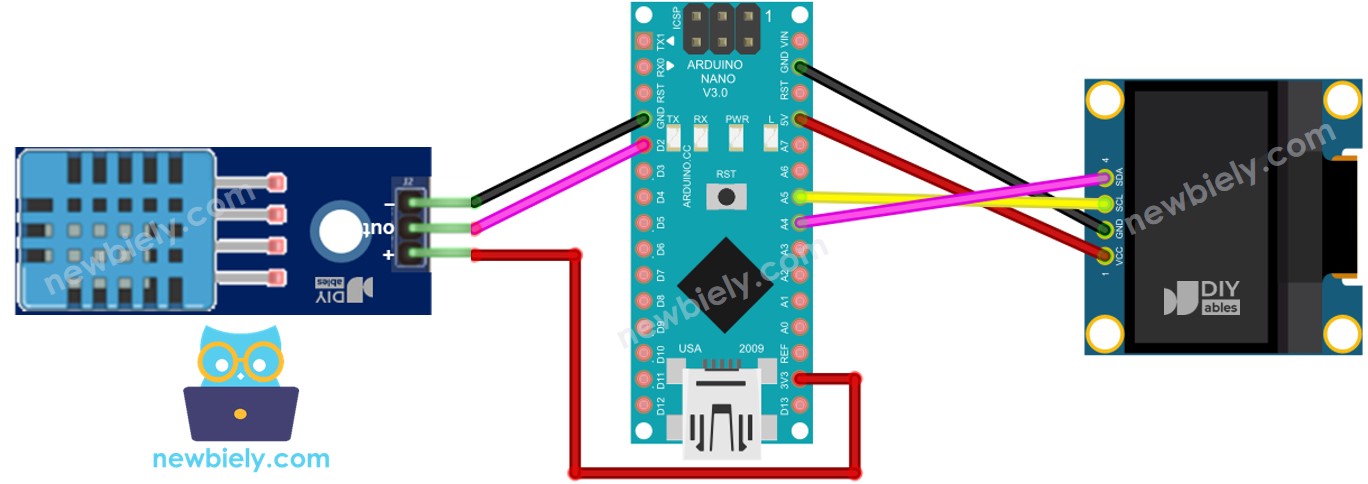
Arduino Nano DHT11 sensor OLED aansluitdiagram

This image is created using Fritzing. Click to enlarge image

Arduino Nano - DHT22 Module LCD Aansluiting
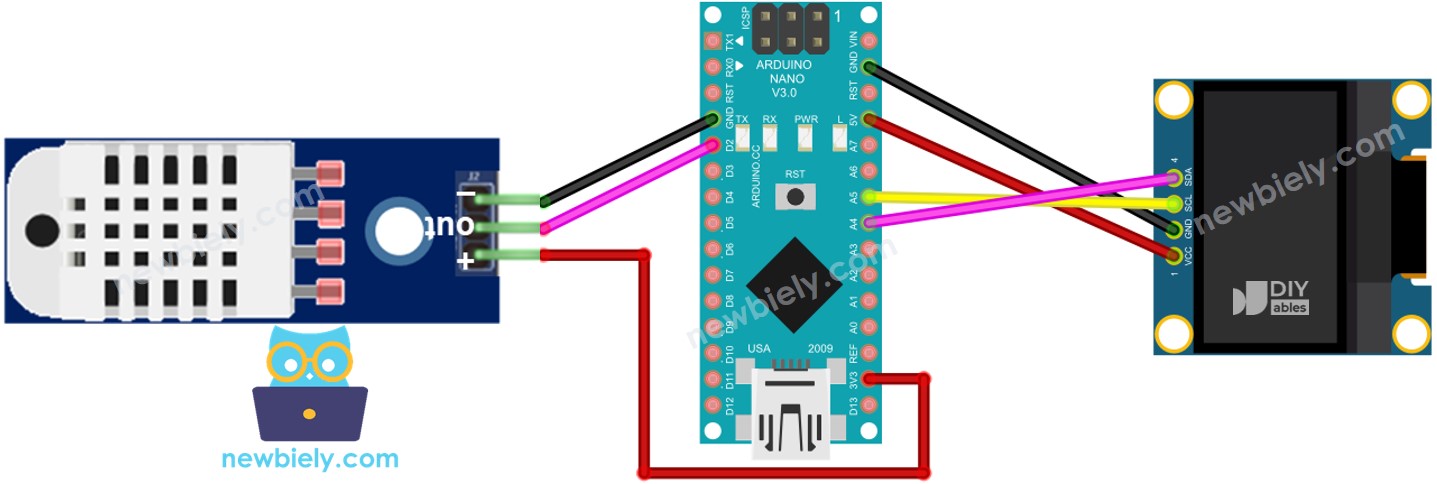
Arduino Nano DHT22 sensor OLED aansluitdiagram

This image is created using Fritzing. Click to enlarge image

Arduino Nano Code - DHT11 Sensor - OLED

/* * Deze Arduino Nano code is ontwikkeld door newbiely.nl * Deze Arduino Nano code wordt zonder enige beperking aan het publiek beschikbaar gesteld. * Voor volledige instructies en schema's, bezoek: * https://newbiely.nl/tutorials/arduino-nano/arduino-nano-temperature-humidity-sensor-oled */ #include <Wire.h> #include <Adafruit_GFX.h> #include <Adafruit_SSD1306.h> #include <DHT.h> #define OLED_WIDTH 128 // OLED display width, in pixels #define OLED_HEIGHT 64 // OLED display height, in pixels #define DHT_PIN 2 // The Arduino Nano pin connected to DHT11 sensor #define DHT_TYPE DHT11 Adafruit_SSD1306 oled(OLED_WIDTH, OLED_HEIGHT, &Wire, -1); // create SSD1306 display object connected to I2C DHT dht(DHT_PIN, DHT_TYPE); String temperature; String humidity; void setup() { Serial.begin(9600); // initialize OLED display with address 0x3C for 128x64 if (!oled.begin(SSD1306_SWITCHCAPVCC, 0x3C)) { Serial.println(F("SSD1306 allocation failed")); while (true) ; } delay(2000); // wait for initializing oled.clearDisplay(); // clear display oled.setTextSize(3); // text size oled.setTextColor(WHITE); // text color oled.setCursor(0, 10); // position to display dht.begin(); // initialize DHT11 the temperature and humidity sensor temperature.reserve(10); // to avoid fragmenting memory when using String humidity.reserve(10); // to avoid fragmenting memory when using String } void loop() { float humi = dht.readHumidity(); // read humidity float tempC = dht.readTemperature(); // read temperature // check if any reads failed if (isnan(humi) || isnan(tempC)) { temperature = "Failed"; humidity = "Failed"; } else { temperature = String(tempC, 1); // one decimal places temperature += char(247); // degree character temperature += "C"; humidity = String(humi, 1); // one decimal places humidity += "%"; } Serial.print(tempC); // print to Serial Monitor Serial.print("°C | " ); // print to Serial Monitor Serial.print(humi); // print to Serial Monitor Serial.println("%"); // print to Serial Monitor oledDisplayCenter(temperature, humidity); // display temperature and humidity on OLED } void oledDisplayCenter(String temperature, String humidity) { int16_t x1; int16_t y1; uint16_t width_T; uint16_t height_T; uint16_t width_H; uint16_t height_H; oled.getTextBounds(temperature, 0, 0, &x1, &y1, &width_T, &height_T); oled.getTextBounds(temperature, 0, 0, &x1, &y1, &width_H, &height_H); // display on horizontal and vertical center oled.clearDisplay(); // clear display oled.setCursor((SCREEN_WIDTH - width_T) / 2, SCREEN_HEIGHT / 2 - height_T - 5); oled.println(temperature); // text to display oled.setCursor((SCREEN_WIDTH - width_H) / 2, SCREEN_HEIGHT / 2 + 5); oled.println(humidity); // text to display oled.display(); }

Snelle Stappen

  • Klik op het Libraries icoon in de zijbalk van de Arduino IDE.
  • Zoek naar “SSD1306” en selecteer de SSD1306 bibliotheek van Adafruit.
  • Druk op de Installeren knop om de bibliotheek te installeren.
Arduino Nano OLED bibliotheek
  • U wordt gevraagd om aanvullende bibliotheekafhankelijkheden te installeren.
  • Klik op de Alles installeren knop om alle afhankelijkheden te voltooien.
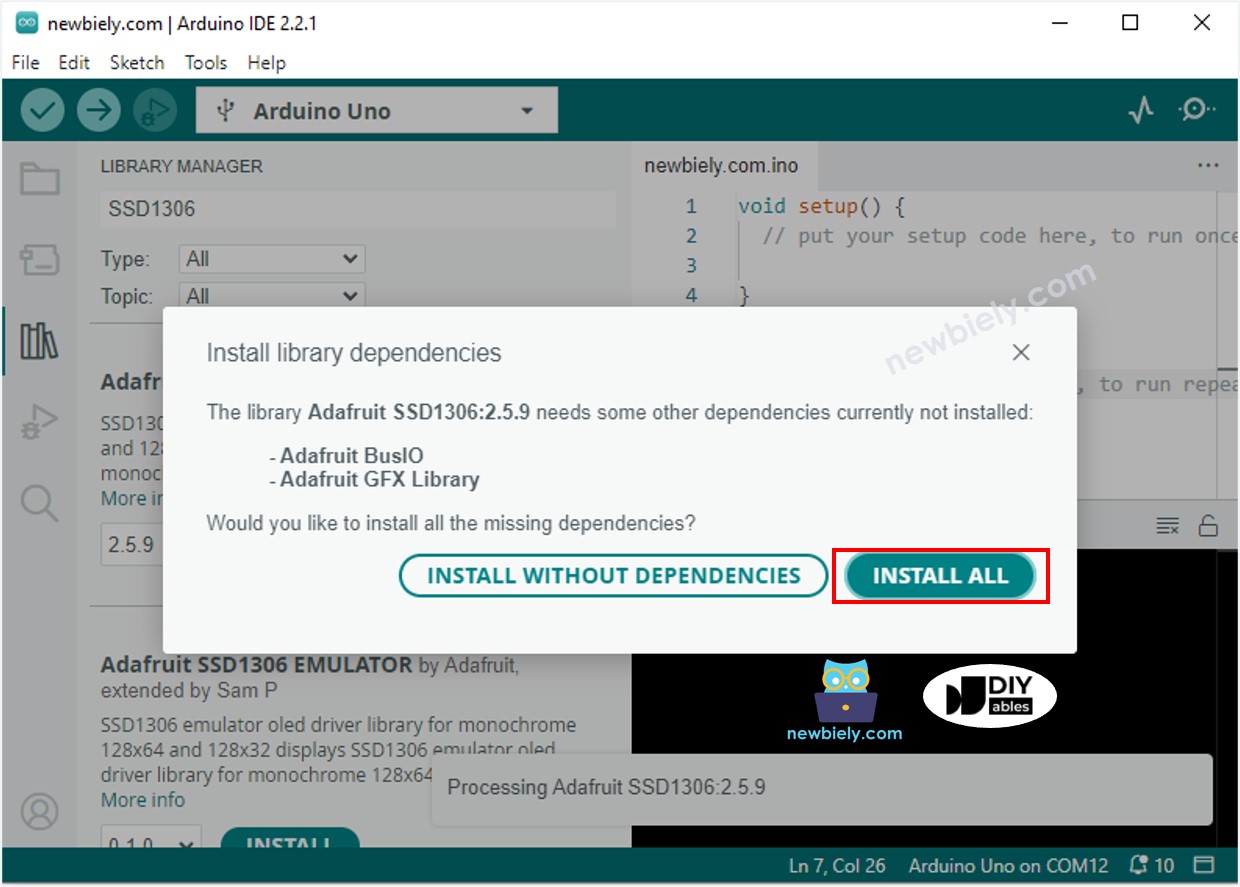
Arduino Nano Adafruit GFX sensor bibliotheek
  • Zoek naar “DHT” en selecteer de Adafruit DHT sensor bibliotheek.
  • Druk op de Installeren knop om de bibliotheek te installeren.
Arduino Nano DHT sensor bibliotheek
  • U wordt gevraagd om aanvullende bibliotheekafhankelijkheden te installeren.
  • Klik op de Alles installeren knop om alle afhankelijkheden te installeren.
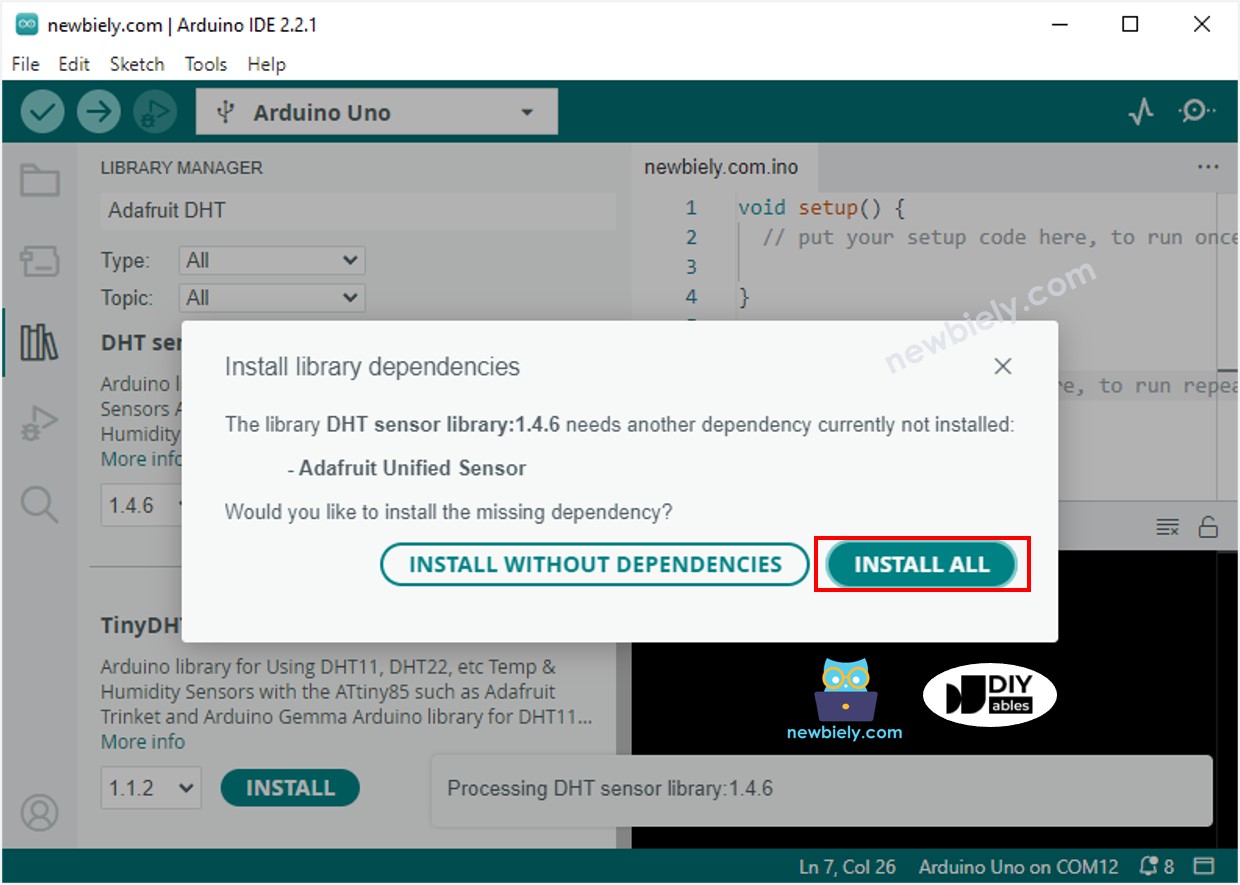
Arduino Nano Adafruit Unified sensor bibliotheek
  • Kopieer de bovenstaande code en open deze in de Arduino IDE.
  • Klik op de Uploaden knop in de Arduino IDE om de code naar de Arduino Nano te sturen.
  • Plaats de sensor in warm en koud water, of houd deze in uw hand.
  • Controleer het resultaat op het OLED display en de Seriële Monitor.

※ Notiz:

De betreffende code centreert de tekst automatisch zowel horizontaal als verticaal op een OLED display.

Arduino Nano Code - DHT22 Sensor - OLED

/* * Deze Arduino Nano code is ontwikkeld door newbiely.nl * Deze Arduino Nano code wordt zonder enige beperking aan het publiek beschikbaar gesteld. * Voor volledige instructies en schema's, bezoek: * https://newbiely.nl/tutorials/arduino-nano/arduino-nano-temperature-humidity-sensor-oled */ #include <Wire.h> #include <Adafruit_GFX.h> #include <Adafruit_SSD1306.h> #include <DHT.h> #define OLED_WIDTH 128 // OLED display width, in pixels #define OLED_HEIGHT 64 // OLED display height, in pixels #define DHT_PIN 2 // The Arduino Nano pin connected to DHT22 sensor #define DHT_TYPE DHT22 Adafruit_SSD1306 oled(OLED_WIDTH, OLED_HEIGHT, &Wire, -1); // create SSD1306 display object connected to I2C DHT dht(DHT_PIN, DHT_TYPE); String temperature; String humidity; void setup() { Serial.begin(9600); // initialize OLED display with address 0x3C for 128x64 if (!oled.begin(SSD1306_SWITCHCAPVCC, 0x3C)) { Serial.println(F("SSD1306 allocation failed")); while (true) ; } delay(2000); // wait for initializing oled.clearDisplay(); // clear display oled.setTextSize(3); // text size oled.setTextColor(WHITE); // text color oled.setCursor(0, 10); // position to display dht.begin(); // initialize DHT22 the temperature and humidity sensor temperature.reserve(10); // to avoid fragmenting memory when using String humidity.reserve(10); // to avoid fragmenting memory when using String } void loop() { float humi = dht.readHumidity(); // read humidity float tempC = dht.readTemperature(); // read temperature // check if any reads failed if (isnan(humi) || isnan(tempC)) { temperature = "Failed"; humidity = "Failed"; } else { temperature = String(tempC, 1); // one decimal places temperature += char(247); // degree character temperature += "C"; humidity = String(humi, 1); // one decimal places humidity += "%"; Serial.print(tempC); // print to Serial Monitor Serial.print("°C | " ); // print to Serial Monitor Serial.print(humi); // print to Serial Monitor Serial.println("%"); // print to Serial Monitor } oledDisplayCenter(temperature, humidity); // display temperature and humidity on OLED } void oledDisplayCenter(String temperature, String humidity) { int16_t x1; int16_t y1; uint16_t width_T; uint16_t height_T; uint16_t width_H; uint16_t height_H; oled.getTextBounds(temperature, 0, 0, &x1, &y1, &width_T, &height_T); oled.getTextBounds(temperature, 0, 0, &x1, &y1, &width_H, &height_H); // display on horizontal and vertical center oled.clearDisplay(); // clear display oled.setCursor((SCREEN_WIDTH - width_T) / 2, SCREEN_HEIGHT / 2 - height_T - 5); oled.println(temperature); // text to display oled.setCursor((SCREEN_WIDTH - width_H) / 2, SCREEN_HEIGHT / 2 + 5); oled.println(humidity); // text to display oled.display(); }

※ Notiz:

De code voor DHT11 en DHT22 is hetzelfde, behalve één regel. De bibliotheek die voor beide wordt gebruikt is ook hetzelfde.

Video Tutorial

We overwegen het maken van videotutorials. Als u videotutorials belangrijk vindt, abonneer u dan op ons YouTube-kanaal om ons te motiveren de video's te maken.

※ ONZE BERICHTEN

  • U bent welkom om de link naar deze tutorial te delen. Gebruik onze inhoud echter niet op andere websites. We hebben veel moeite en tijd gestoken in het maken van de inhoud, respecteer alstublieft ons werk!