
Arduino Nano - LM35 Temperatuursensor OLED
Deze tutorial legt uit hoe u met de Arduino Nano de temperatuur meet met een LM35 sensor en dit vervolgens op een OLED-scherm weergeeft.
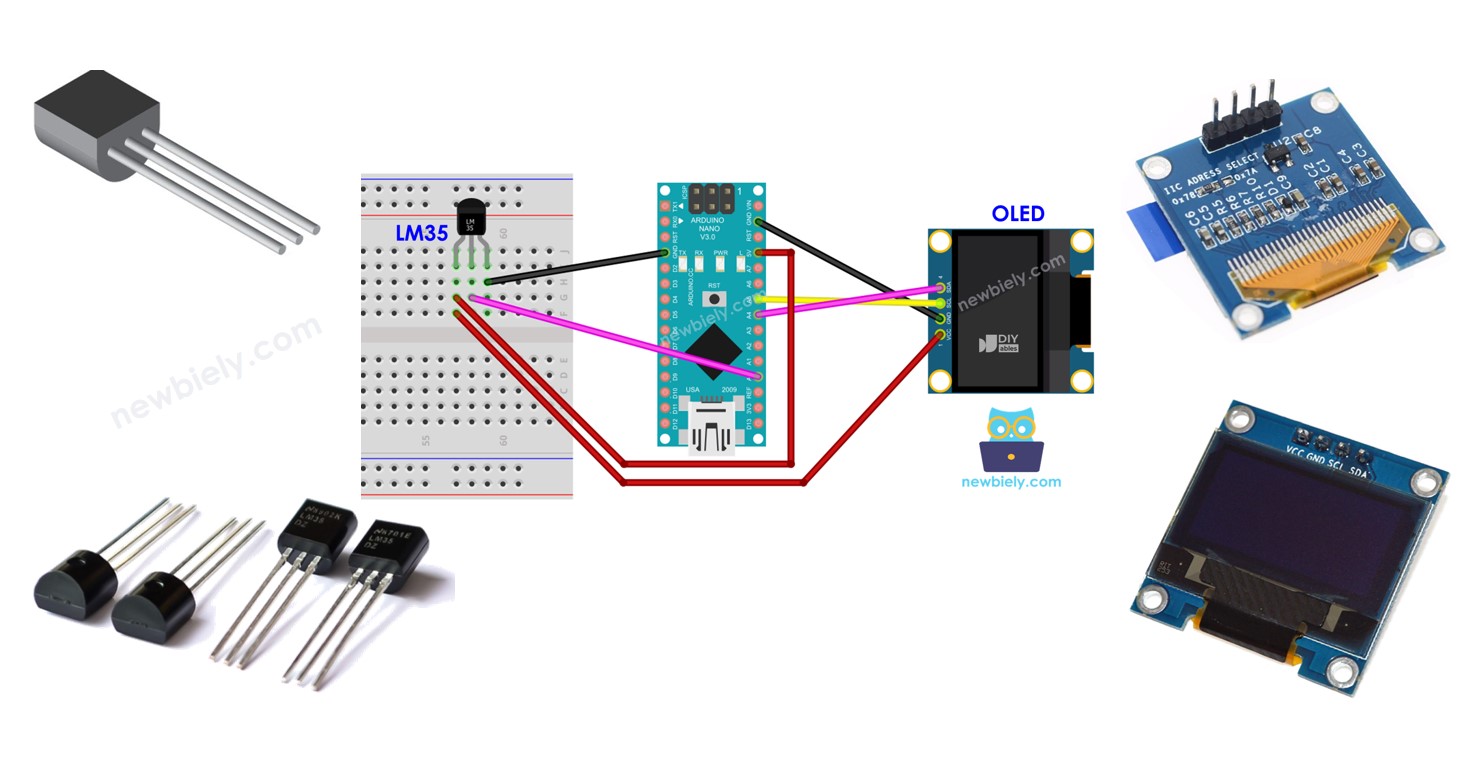
Hardware Benodigd
Of u kunt de volgende kits kopen:
| 1 | × | DIYables Sensorkit (18 sensoren/displays) |
Openbaarmaking: Sommige van de links in deze sectie zijn Amazon-affiliate links. We kunnen een commissie ontvangen voor aankopen die via deze links worden gedaan, zonder extra kosten voor u. We waarderen uw steun.
Aankoopadvies: Als u een groter OLED-display wilt, gebruik dan de 2.42 inch OLED Display 128x64.
Over OLED en LM35 Temperatuursensor
Als u niet bekend bent met OLED en de LM35 Temperatuursensor (inclusief pinout, werking, programmeren, enz.), kunnen de volgende tutorials u helpen:
- Arduino Nano - OLED tutorial
Bedradingsschema
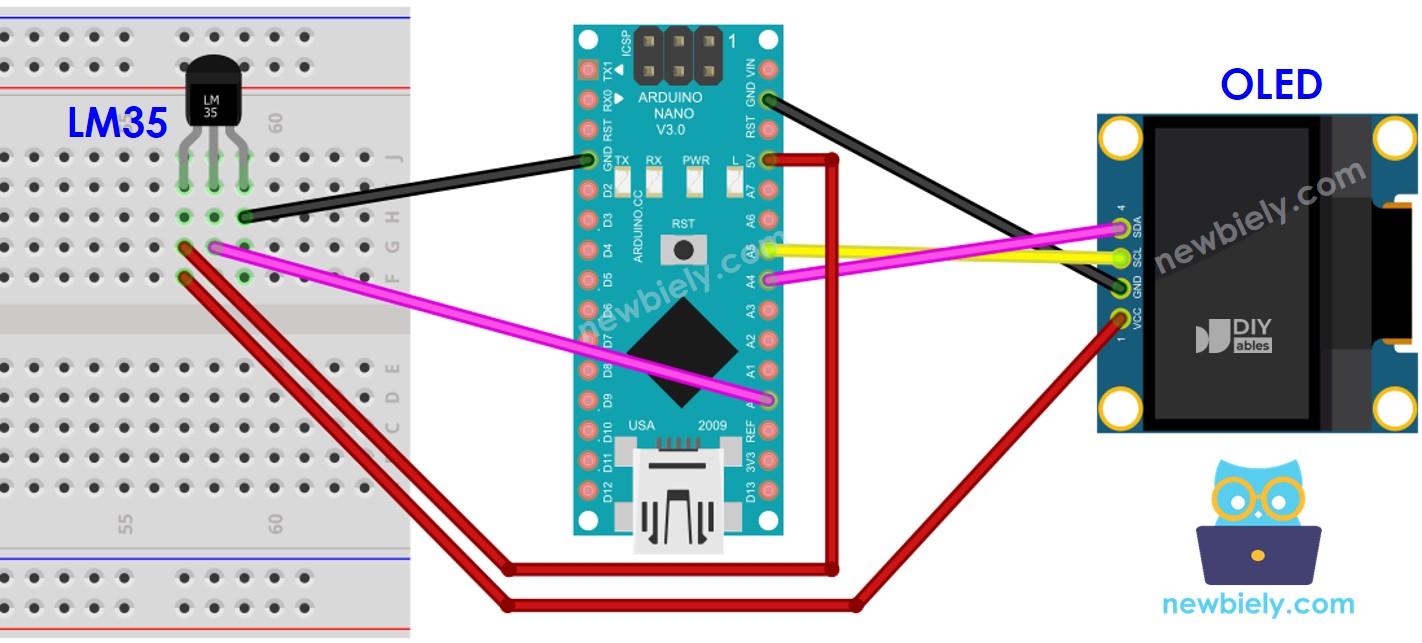
Deze afbeelding is gemaakt met Fritzing. Klik om de afbeelding te vergroten.
Arduino Nano Code - LM35 Temperatuursensor - OLED
/*
* Deze Arduino Nano code is ontwikkeld door newbiely.nl
* Deze Arduino Nano code wordt zonder enige beperking aan het publiek beschikbaar gesteld.
* Voor volledige instructies en schema's, bezoek:
* https://newbiely.nl/tutorials/arduino-nano/arduino-nano-lm35-temperature-sensor-oled
*/
#include <Wire.h>
#include <Adafruit_GFX.h>
#include <Adafruit_SSD1306.h>
#define OLED_WIDTH 128 // OLED display width, in pixels
#define OLED_HEIGHT 64 // OLED display height, in pixels
#define ADC_VREF_mV 5000.0 // in millivolt
#define ADC_RESOLUTION 1024.0
#define PIN_LM35 A0 // Arduio Nano pin connected to LM35 temperature sensor
Adafruit_SSD1306 oled(OLED_WIDTH, OLED_HEIGHT, &Wire, -1); // create SSD1306 display object connected to I2C
String temperature_str;
void setup() {
Serial.begin(9600);
// initialize OLED display with address 0x3C for 128x64
if (!oled.begin(SSD1306_SWITCHCAPVCC, 0x3C)) {
Serial.println(F("SSD1306 allocation failed"));
while (true);
}
delay(2000); // wait for initializing
oled.clearDisplay(); // clear display
oled.setTextSize(2); // text size
oled.setTextColor(WHITE); // text color
oled.setCursor(0, 10); // position to display
temperature_str.reserve(10); // to avoid fragmenting memory when using String
}
void loop() {
// get the ADC value from the LM35 temperature sensor
int adcVal = analogRead(PIN_LM35);
// convert the ADC value to voltage in millivolt
float milliVolt = adcVal * (ADC_VREF_mV / ADC_RESOLUTION);
// convert the voltage to the temperature in Celsius
float temperature_C = milliVolt / 10;
temperature_str = String(temperature_C, 2); // two decimal places
temperature_str += char(247) + String("C");
Serial.println(temperature_str); // print the temperature in Celsius to Serial Monitor
oled_display_center(temperature_str); // display temperature on OLED
}
void oled_display_center(String text) {
int16_t x1;
int16_t y1;
uint16_t width;
uint16_t height;
oled.getTextBounds(text, 0, 0, &x1, &y1, &width, &height);
// center the display both horizontally and vertically
oled.clearDisplay(); // clear display
oled.setCursor((OLED_WIDTH - width) / 2, (OLED_HEIGHT - height) / 2);
oled.println(text); // text to display
oled.display();
}
Snelle Stappen
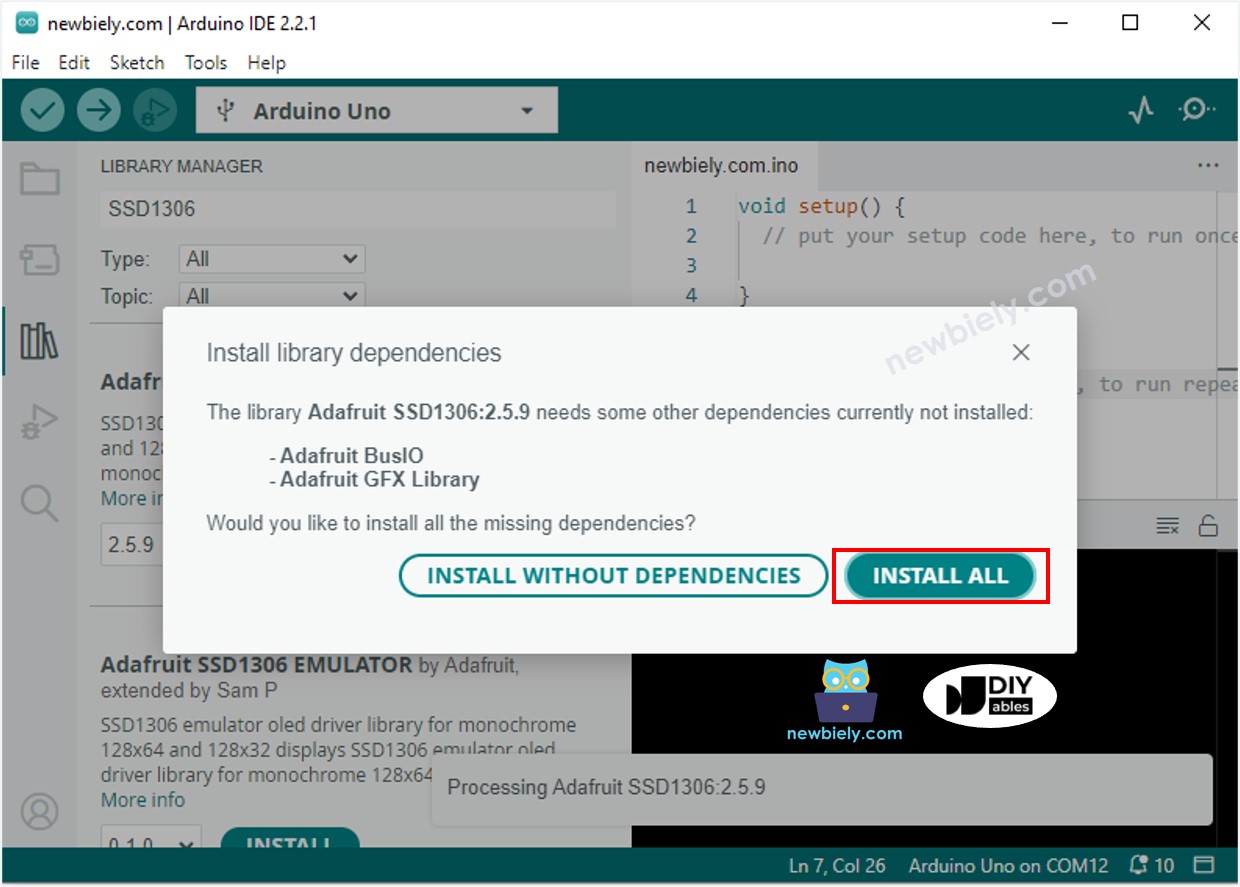
- Klik op het Libraries-icoon in de linkerzijbalk van de Arduino IDE.
- Zoek naar “SSD1306” en vind de SSD1306 bibliotheek van Adafruit.
- Druk vervolgens op de Install-knop om de installatie te voltooien.

- U krijgt een melding om extra bibliotheekafhankelijkheden te installeren.
- Klik op de Install All-knop om ze allemaal te installeren.
- Kopieer de code en open deze in de Arduino IDE.
- Klik op de Upload-knop in de Arduino IDE om de code naar de Arduino Nano te sturen.
- Plaats de sensor in heet en koud water, of houd hem in uw hand.
- Bekijk het resultaat op het OLED-scherm en in de Serial Monitor.
※ Notiz:
De code centreert de tekst zowel horizontaal als verticaal op het OLED-display.
Video Tutorial
We overwegen het maken van videotutorials. Als u videotutorials belangrijk vindt, abonneer u dan op ons YouTube-kanaal om ons te motiveren de video's te maken.
Opmerkingen
Gerelateerde Tutorials
📱 Aanbevolen apps
 English for KidsSpelenderwijs Engels leren voor jonge kinderen.Ontdek het opGoogle PlayBeschikbaar in deApp Store
 Bubble NoteZelfverwijderende notities – schrijf ze als berichten.Ontdek het opGoogle PlayBeschikbaar in deApp Store
 Didn't BuyVersla impulsaankopen en bespaar meer.Ontdek het opGoogle PlayBeschikbaar in deApp Store
 Knowledge PathOefentoetsen om alles te leren.Ontdek het opGoogle PlayBeschikbaar in deApp Store