Arduino Nano - DotStar LED Strip

In deze tutorial leren we hoe u Arduino Nano gebruikt om een DotStar RGB LED-strip aan te sturen. We behandelen in detail:

Hardware Benodigd

1×Official Arduino Nano
1×Alternatief: DIYables ATMEGA328P Nano Development Board
1×USB A naar Mini-B USB-kabel
1×DotStar RGB LED-Strip
1×1000uF condensator
1×470Ω weerstand
1×5V voeding
1×DC voedingsconnector
1×Jumper wires (meestal man tot man)
1×(Aanbevolen) Schroefklem Uitbreidingsboard voor Arduino Nano
1×(Aanbevolen) Breakout Uitbreidingsboard voor Arduino Nano
1×(Aanbevolen) Stromsplitter voor Arduino Nano

Of u kunt de volgende kits kopen:

1×DIYables Sensorkit (30 sensoren/displays)
1×DIYables Sensorkit (18 sensoren/displays)
Openbaarmaking: Sommige van de links in deze sectie zijn Amazon-affiliate links. We kunnen een commissie ontvangen voor aankopen die via deze links worden gedaan, zonder extra kosten voor u. We waarderen uw steun.

Over de DotStar RGB LED Strip

Pinout

De DotStar RGB LED Strip heeft vier pinnen:

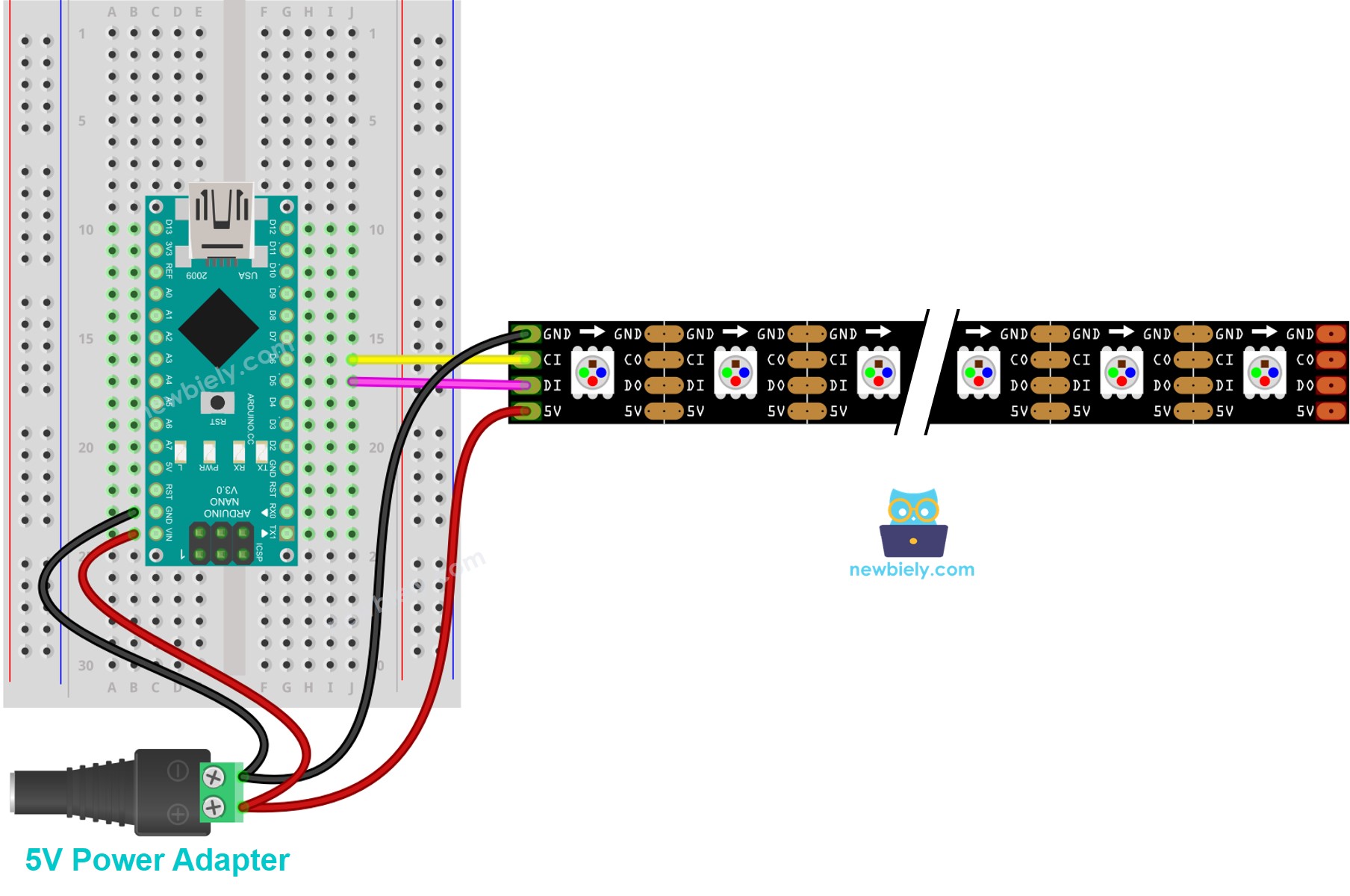
  • GND pin: moet worden verbonden met GND (0V)
  • CI pin: Clock-pin die het kloksignaal ontvangt. Deze moet worden aangesloten op een pin van de Arduino Nano.
  • DI pin: Data-pin die het besturingssignaal ontvangt. Deze moet worden aangesloten op een pin van de Arduino Nano.
  • 5V pin: moet worden aangesloten op 5V van een externe voeding
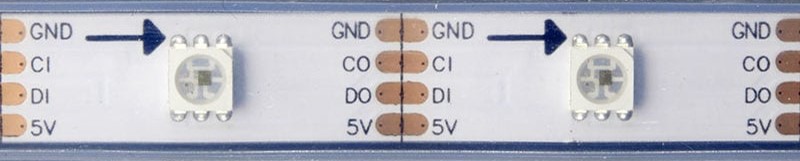
DotStar Pinout

Bedradingsschema

Arduino Nano DotStar RGB LED strip Bedradingsschema

This image is created using Fritzing. Click to enlarge image

Hoe te programmeren voor de DotStar RGB LED Strip

  • Voeg een DotStar bibliotheek toe
#include <Adafruit_DotStar.h> #include <SPI.h> // COMMENTAAR DIT UIT VOOR GEMMA OF TRINKET
  • Declareer een DotStar object
#define NUMPIXELS 144 // Aantal LEDs in de strip // Zo kunt u de LEDs bedienen vanaf twee willekeurige pinnen: #define DATAPIN D5 // Pin op Arduino Nano #define CLOCKPIN D6 // Pin op Arduino Nano Adafruit_DotStar strip(NUMPIXELS, DATAPIN, CLOCKPIN, DOTSTAR_BRG);
  • Initialiseer de DotStar
strip.begin(); // Initialiseer pinnen voor output strip.setBrightness(255); strip.show(); // Zet alle LEDs zo snel mogelijk uit
  • Stel de kleur (r, g, b) in van elke individuele LED (pixel).
strip.setPixelColor(pixel, g, r, b);
  • Stel de helderheid van de hele strip in.
strip.setBrightness(100); // waarde van 0 tot 255

※ Notiz:

  • DotStar.setBrightness() geldt voor alle pixels op de LED-strip. Om de helderheid van elke pixel apart in te stellen, kunnen we de kleurwaarde schalen.
  • De bij DotStar.setBrightness() en DotStar.setPixelColor() ingestelde waarden worden pas actief bij het aanroepen van DotStar.show().

Arduino Nano Code

De onderstaande code zet de pixels één voor één rood, met een vertraging tussen elke pixel.

/* * Deze Arduino Nano code is ontwikkeld door newbiely.nl * Deze Arduino Nano code wordt zonder enige beperking aan het publiek beschikbaar gesteld. * Voor volledige instructies en schema's, bezoek: * https://newbiely.nl/tutorials/arduino-nano/arduino-nano-dotstar-led-strip */ #include <Adafruit_DotStar.h> #include <SPI.h> // COMMENT OUT THIS LINE FOR GEMMA OR TRINKET #define NUMPIXELS 144 // Number of LEDs in strip // Here's how to control the LEDs from any two pins: #define DATAPIN D5 // The Arduino Nano pin #define CLOCKPIN D6 // The Arduino Nano pin Adafruit_DotStar strip(NUMPIXELS, DATAPIN, CLOCKPIN, DOTSTAR_BRG); void setup() { Serial.begin(9600); strip.begin(); // INITIALIZE NeoPixel strip object (REQUIRED) strip.show(); // Turn OFF all pixels ASAP strip.setBrightness(255); } void loop() { for (int pixel = 0; pixel < NUMPIXELS; pixel++) { // red color int r = 255; // CHANGE COLOR AS YOUR DESIRE int g = 0; // CHANGE COLOR AS YOUR DESIRE int b = 0; // CHANGE COLOR AS YOUR DESIRE strip.clear(); // turn off all pixel strip.setPixelColor(pixel, g, r, b); // turn on a single pixel strip.show(); delay(1000); // keep each pixel on 1 seconds } }

Snelle Stappen

  • Verbind de componenten volgens het bijgevoegde bedradingsschema.
  • Verbind de Arduino Nano met uw computer via een USB-kabel.
  • Start de Arduino IDE op uw computer.
  • Selecteer de Arduino Nano als board en het bijbehorende COM-poort.
  • Open de Library Manager door te klikken op het icoon Library Manager in de linker navigatiebalk van de Arduino IDE.
  • Zoek op “Adafruit DotStar” en vind de DotStar bibliotheek van Adafruit.
  • Klik op de Installeren-knop om de DotStar bibliotheek te installeren.
Arduino Nano Adafruit DotStar library
  • U wordt gevraagd om afhankelijkheden te installeren. Klik op de Installeer alles-knop.
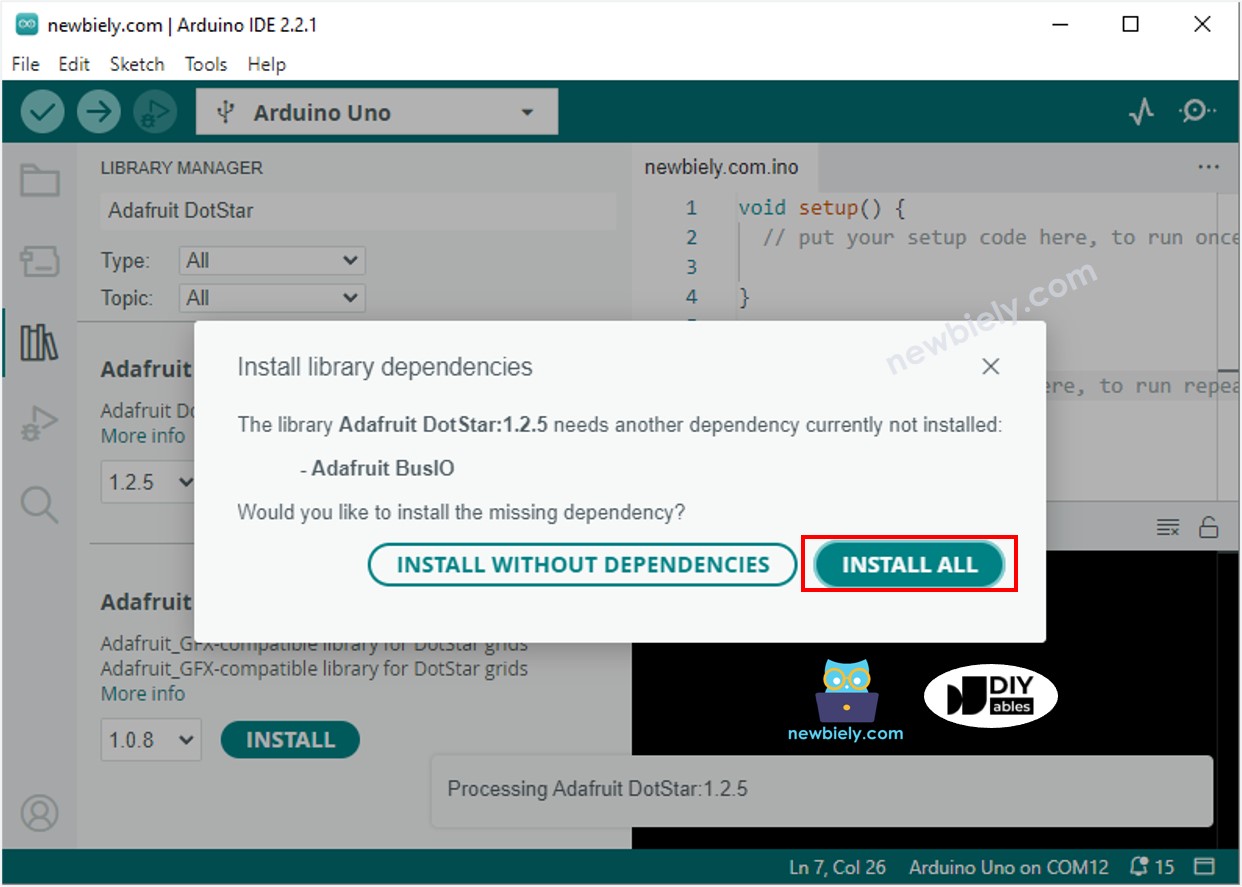
Arduino Nano Adafruit DotStar dependencies library
  • Kopieer bovenstaande code en open deze in de Arduino IDE.
  • Klik op de Upload-knop in de Arduino IDE om de code naar Arduino Nano te uploaden.
  • Bekijk het LED-effect.

Arduino Nano Code - LED Strip Komeet Effect

De onderstaande code maakt een komeet-effect voor de DotStar LED-strip:

/* * Deze Arduino Nano code is ontwikkeld door newbiely.nl * Deze Arduino Nano code wordt zonder enige beperking aan het publiek beschikbaar gesteld. * Voor volledige instructies en schema's, bezoek: * https://newbiely.nl/tutorials/arduino-nano/arduino-nano-dotstar-led-strip */ #include <Adafruit_DotStar.h> #include <SPI.h> // COMMENT OUT THIS LINE FOR GEMMA OR TRINKET #define COMET_LENGTH_ALL 30 // in pixel COMET_LENGTH_ALL = COMET_LENGTH_BODY + COMET_LENGTH_HEAD #define COMET_LENGTH_BODY 25 // in pixel #define COMET_LENGTH_HEAD 5 // in pixel #define TWO_COMET_DISTANCE 10 // in pixel #define COMET_SPEED 2000 // in millisecond, the time need to move through 144 pixels #define COMET_COLOR_R 204 // color #define COMET_COLOR_G 255 // color #define COMET_COLOR_B 255 // color #define COMET_BRIGHTNESS_MIN 1 #define COMET_BRIGHTNESS_MAX 200 #define COMET_BRIGHTNESS_HEAD 80 #define FLICKER_MAX 255 #define FLICKER_MIN 100 #define FLICKER_SPEED 800 // in millisecond #define NUMPIXELS 144 // Number of LEDs in strip // Here's how to control the LEDs from any two pins: #define DATAPIN D5 // The Arduino Nano pin #define CLOCKPIN D6 // The Arduino Nano pin Adafruit_DotStar strip(NUMPIXELS, DATAPIN, CLOCKPIN, DOTSTAR_BRG); int pos_head = 0; unsigned long cometTimeStart; unsigned long flickerTimeStart; unsigned long progress; unsigned long cometBrightness; unsigned long flickerBrightness; unsigned long TIME_PER_PIXEL; void setup() { Serial.begin(9600); strip.begin(); // INITIALIZE NeoPixel strip object (REQUIRED) strip.show(); // Turn OFF all pixels ASAP strip.setBrightness(255); TIME_PER_PIXEL = map(1, 0, NUMPIXELS, 0, COMET_SPEED); cometTimeStart = millis(); flickerTimeStart = millis(); } void loop() { progress = millis() - flickerTimeStart; if (progress >= 2 * FLICKER_SPEED) { progress = 2 * FLICKER_SPEED; flickerTimeStart = millis(); } if (progress > FLICKER_SPEED) progress = 2 * FLICKER_SPEED - progress; flickerBrightness = map(progress, 0, FLICKER_SPEED, FLICKER_MIN, FLICKER_MAX); strip.setBrightness(flickerBrightness); progress = millis() - cometTimeStart; if (progress >= TIME_PER_PIXEL) { pos_head++; pos_head %= (COMET_LENGTH_ALL + TWO_COMET_DISTANCE); int offset = COMET_LENGTH_ALL - pos_head; for (int pixel = 0; pixel < NUMPIXELS; pixel++) { int pos_offset = pixel + offset; pos_offset %= (COMET_LENGTH_ALL + TWO_COMET_DISTANCE); if (pos_offset < COMET_LENGTH_BODY) cometBrightness = map(pos_offset, 0, COMET_LENGTH_BODY - 1, COMET_BRIGHTNESS_MIN, COMET_BRIGHTNESS_MAX); else if (pos_offset >= COMET_LENGTH_BODY && pos_offset < COMET_LENGTH_ALL) cometBrightness = map(pos_offset - COMET_LENGTH_BODY + 1, 0, COMET_LENGTH_ALL - COMET_LENGTH_BODY, COMET_BRIGHTNESS_MAX, COMET_BRIGHTNESS_HEAD); else cometBrightness = 0; int r = (COMET_COLOR_R * cometBrightness) >> 8; int g = (COMET_COLOR_G * cometBrightness) >> 8; int b = (COMET_COLOR_B * cometBrightness) >> 8; strip.setPixelColor(pixel, g, r, b); } strip.show(); cometTimeStart = millis(); // new circle } }

※ Notiz:

Voor andere LED-effecten bieden wij ook een betaalde programmeerservice aan.

Video Tutorial

We overwegen het maken van videotutorials. Als u videotutorials belangrijk vindt, abonneer u dan op ons YouTube-kanaal om ons te motiveren de video's te maken.

Bekijk onze video-tutorial voor een visuele begeleiding bij dit project! De video biedt extra inzichten en helpt u sneller te begrijpen hoe alles werkt.

※ ONZE BERICHTEN

  • U bent welkom om de link naar deze tutorial te delen. Gebruik onze inhoud echter niet op andere websites. We hebben veel moeite en tijd gestoken in het maken van de inhoud, respecteer alstublieft ons werk!