
Arduino Nano - OLED Klok
Deze handleiding legt uit hoe u een OLED-klok maakt met behulp van de Arduino Nano, een RTC-module en een OLED-display. De tutorial bevat instructies voor zowel het DS3231 als het DS1307 RTC-module. In detail:
- Arduino Nano haalt het uur, de minuut en seconde op van een DS3231 RTC-module en toont deze op een OLED
- Arduino Nano haalt het uur, de minuut en seconde op van een DS1307 RTC-module en toont deze op een OLED
U kunt kiezen uit twee RTC-modules: DS3231 en DS1307. Voor meer informatie verwijzen wij u naar DS3231 vs DS1307.
Hardware Benodigd
Of u kunt de volgende kits kopen:
| 1 | × | DIYables Sensorkit (18 sensoren/displays) |
Aankoopadvies: Als u een groter OLED-display wilt, gebruik dan de 2.42 inch OLED Display 128x64.
Over OLED, DS3231 en DS1307 RTC-module
Als u niet bekend bent met OLED, DS3231 en DS1307 (pinout, werking, programmeren, enz.), kunnen de volgende tutorials u helpen:
Installeer OLED en RTC Libraries
- Klik op het icoon Libraries in de linkerzijbalk van de Arduino IDE.
- Zoek naar “SSD1306” en vind de SSD1306 bibliotheek van Adafruit.
- Druk op de knop Installeren om de installatie te voltooien.

- U krijgt een melding om enkele andere benodigde libraries te installeren.
- Klik op de knop Alles Installeren om ze allemaal te installeren.
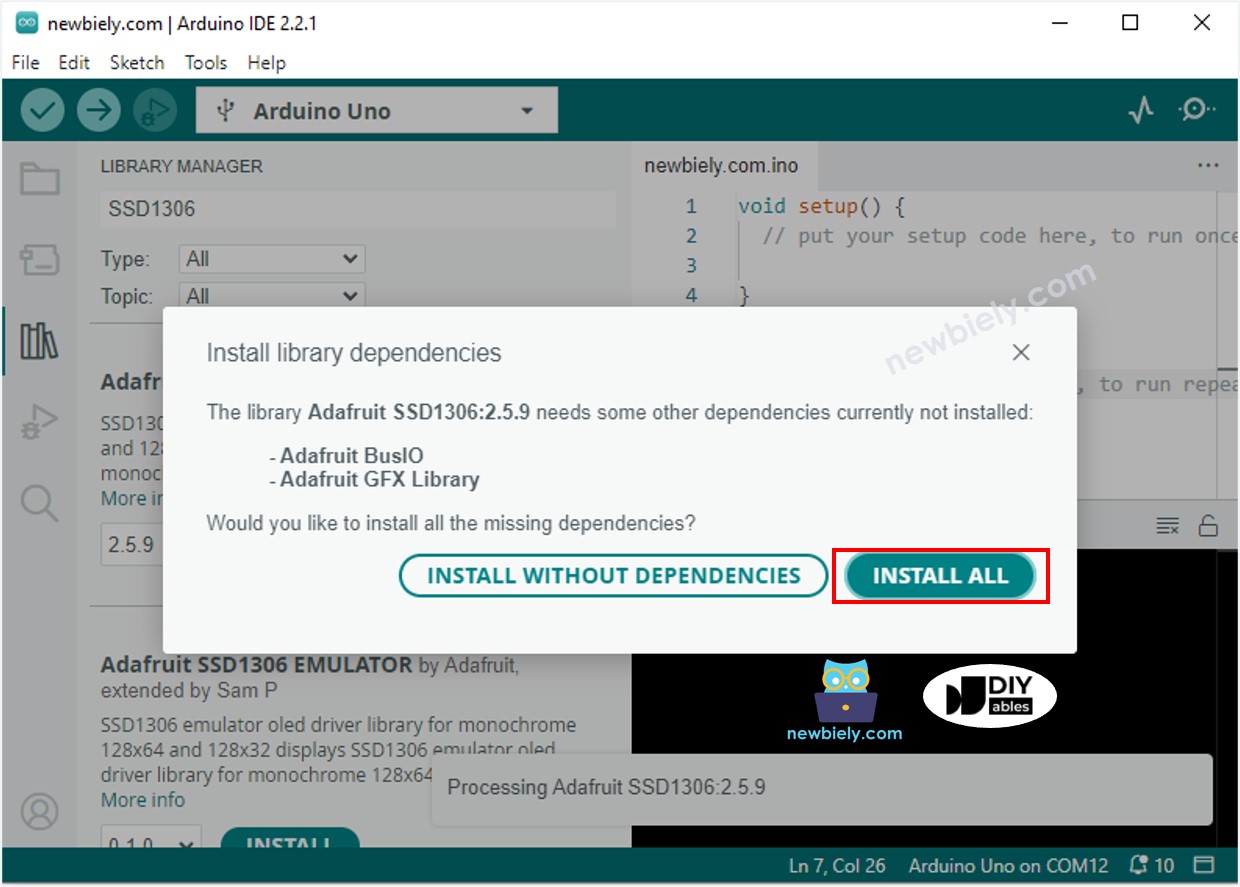
- Zoek naar “RTClib” en vind de RTC bibliotheek gemaakt door Adafruit. Deze bibliotheek is compatibel met zowel DS3231 als DS1307.
- Druk op de knop Installeren om de RTC bibliotheek te installeren.

Tijd uitlezen van DS3231 RTC-module en tonen op OLED
Bedradingsschema
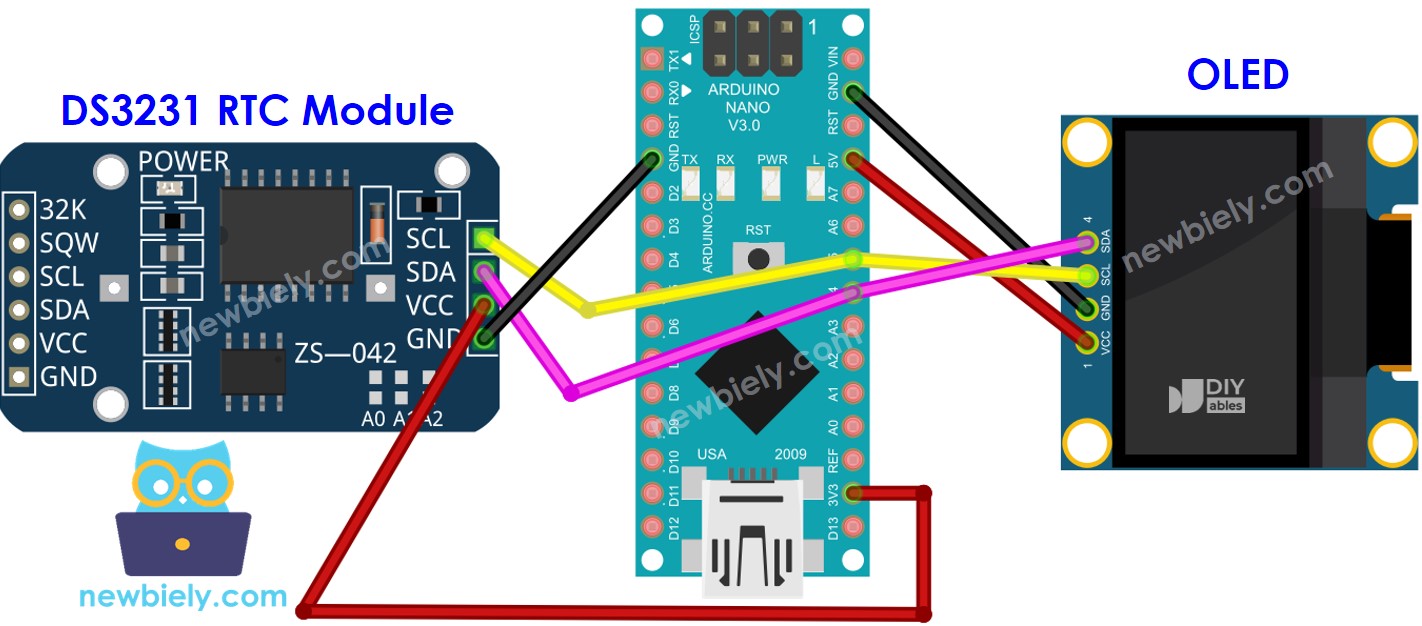
Deze afbeelding is gemaakt met Fritzing. Klik om de afbeelding te vergroten.
Arduino Nano Code - DS3231 en OLED
Snelle Stappen
- Kopieer de code en open deze in de Arduino IDE.
- Druk op de knop Uploaden in de Arduino IDE om de code naar de Arduino Nano te sturen.
- Plaats de sensor in heet en koud water of houd deze in uw hand.
- Bekijk de resultaten op het OLED-scherm.
Tijd uitlezen van DS1307 RTC-module en tonen op OLED
Bedradingsschema
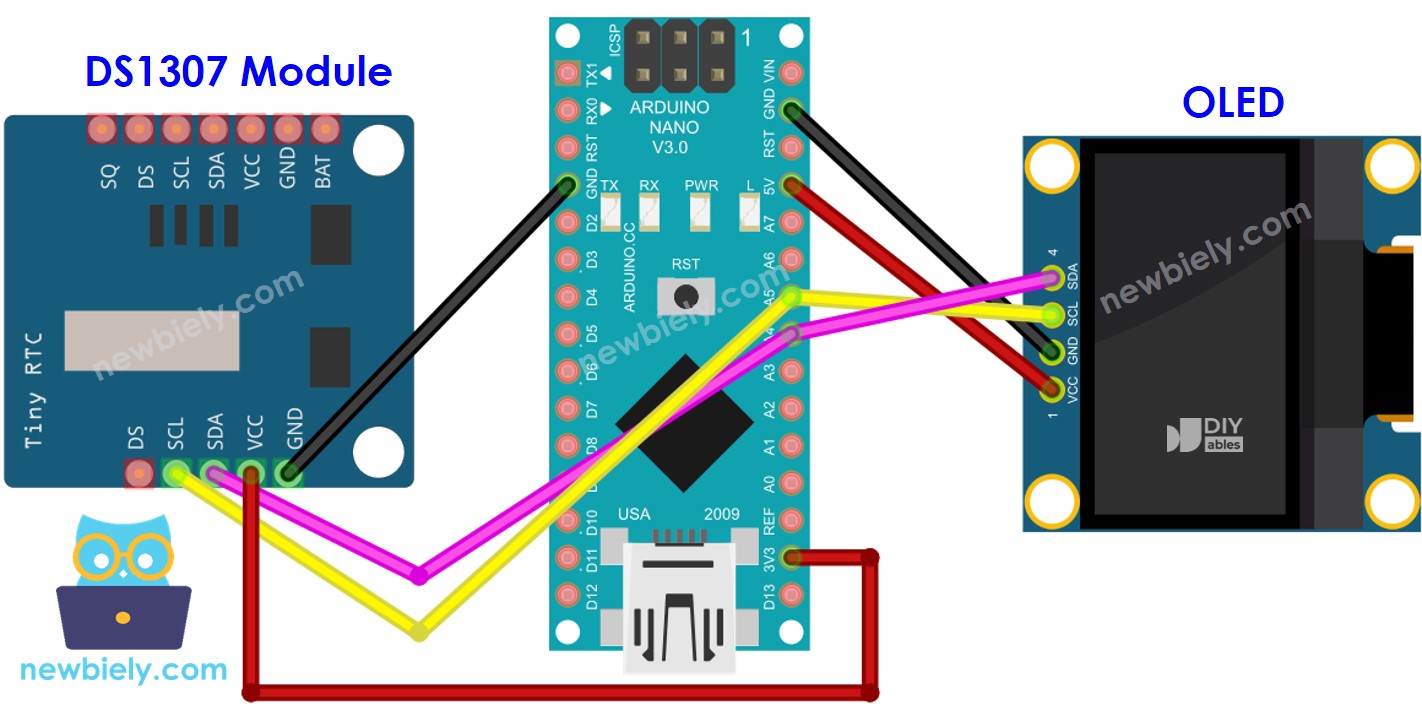
Deze afbeelding is gemaakt met Fritzing. Klik om de afbeelding te vergroten.
Arduino Nano Code - DS1307 en OLED
Snelle Stappen
- Kopieer de code en open deze in de Arduino IDE.
- Druk op de knop Uploaden in de Arduino IDE om de code naar de Arduino Nano te sturen.
- Plaats de sensor in heet en koud water, of houd deze in uw hand.
- Bekijk het resultaat op het OLED-scherm.
Video Tutorial
We overwegen het maken van videotutorials. Als u videotutorials belangrijk vindt, abonneer u dan op ons YouTube-kanaal om ons te motiveren de video's te maken.
Gerelateerde Tutorials
📱 Aanbevolen apps
 English for KidsSpelenderwijs Engels leren voor jonge kinderen.Ontdek het opGoogle PlayBeschikbaar in deApp Store
 Bubble NoteZelfverwijderende notities – schrijf ze als berichten.Ontdek het opGoogle PlayBeschikbaar in deApp Store
 Didn't BuyVersla impulsaankopen en bespaar meer.Ontdek het opGoogle PlayBeschikbaar in deApp Store
 Knowledge PathOefentoetsen om alles te leren.Ontdek het opGoogle PlayBeschikbaar in deApp Store