Arduino UNO R4 - Button - Debounce

Bij het programmeren van de Arduino Uno R4 om een button press event te detecteren, kunt u merken dat een enkele druk meerdere keren wordt gedetecteerd. Dit gebeurt omdat, vanwege mechanische factoren, de button of schakelaar snel meerdere keren kan schakelen tussen LOW en HIGH. Dit wordt "chattering" genoemd. Chattering kan ertoe leiden dat één button press wordt gedetecteerd als meerdere presses, wat fouten kan veroorzaken in sommige toepassingen. Deze tutorial legt uit hoe u dit probleem kunt oplossen, een proces dat bekend staat als het debounce van de button.
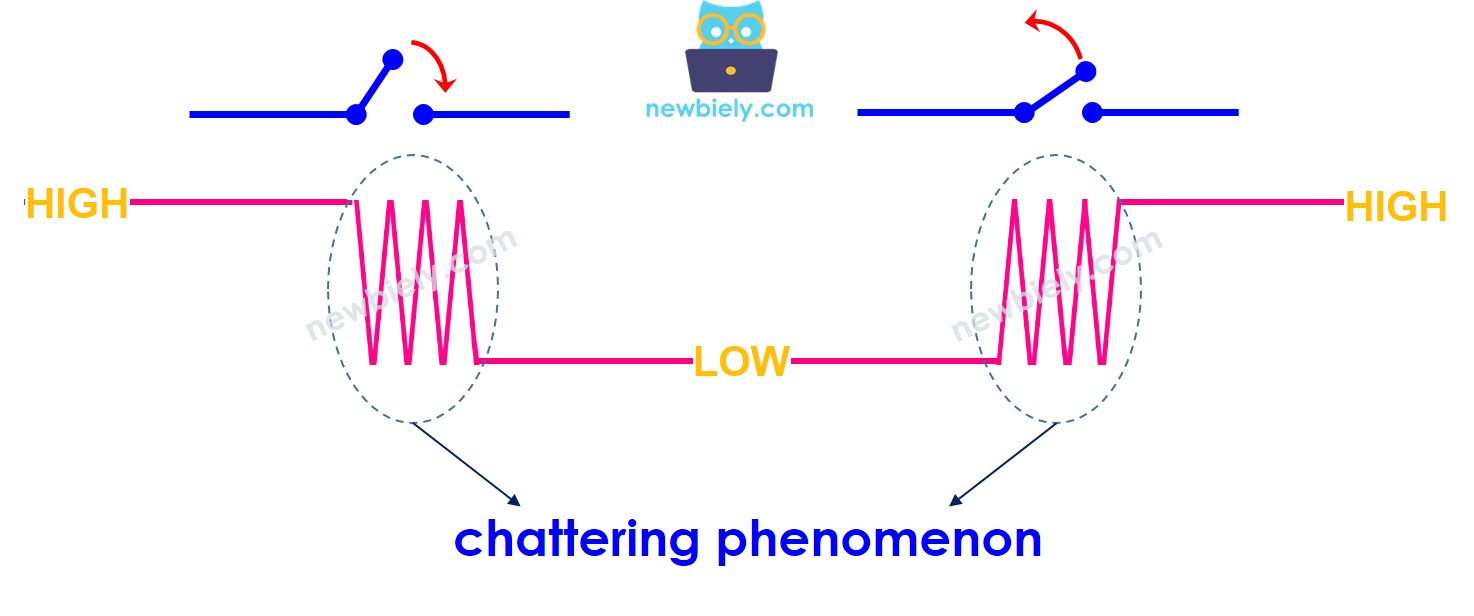
Arduino UNO R4 chattering phenomenon

Over Button

Leer over buttons (pinout, werking, programmering) in de volgende tutorials als u er niet bekend mee bent:

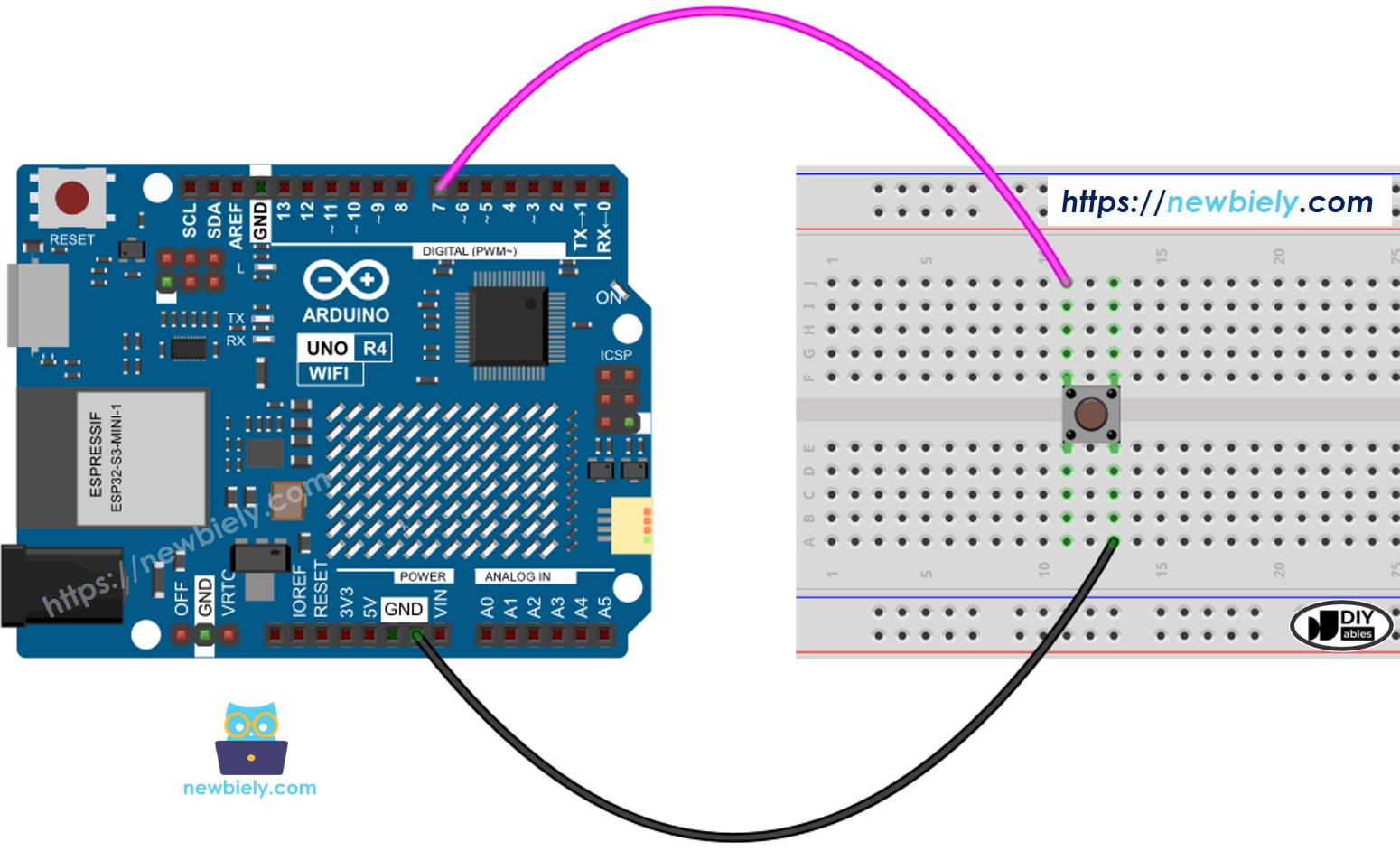
Bedradingsdiagram

Arduino UNO R4 Button Wiring Diagram

This image is created using Fritzing. Click to enlarge image

Laten we de Arduino UNO R4 code zonder en met debounce onderzoeken en vergelijken, en hun gedrag observeren.

Arduino Uno R4 - Button zonder Debounce

Voordat we leren over debouncing, laten we kijken naar de code zonder debounce en zien hoe deze zich gedraagt.

/* * Deze Arduino UNO R4 code is ontwikkeld door newbiely.nl * Deze Arduino UNO R4 code wordt zonder enige beperking aan het publiek beschikbaar gesteld. * Voor volledige instructies en schema's, bezoek: * https://newbiely.nl/tutorials/arduino-uno-r4/arduino-uno-r4-button-debounce */ #define BUTTON_PIN 7 // The Arduino UNO R4 pin connected to the button int button_state; // the current state of button int prev_button_state = LOW; // the previous state of button void setup() { // initialize serial communication at 9600 bits per second: Serial.begin(9600); // initialize the pushbutton pin as a pull-up input pinMode(BUTTON_PIN, INPUT_PULLUP); } void loop() { // read the state of the switch/button: button_state = digitalRead(BUTTON_PIN); if (prev_button_state == HIGH && button_state == LOW) Serial.println("The button is pressed"); else if (prev_button_state == LOW && button_state == HIGH) Serial.println("The button is released"); // save the last state prev_button_state = button_state; }

Snelle Stappen

Volg deze instructies stap voor stap:

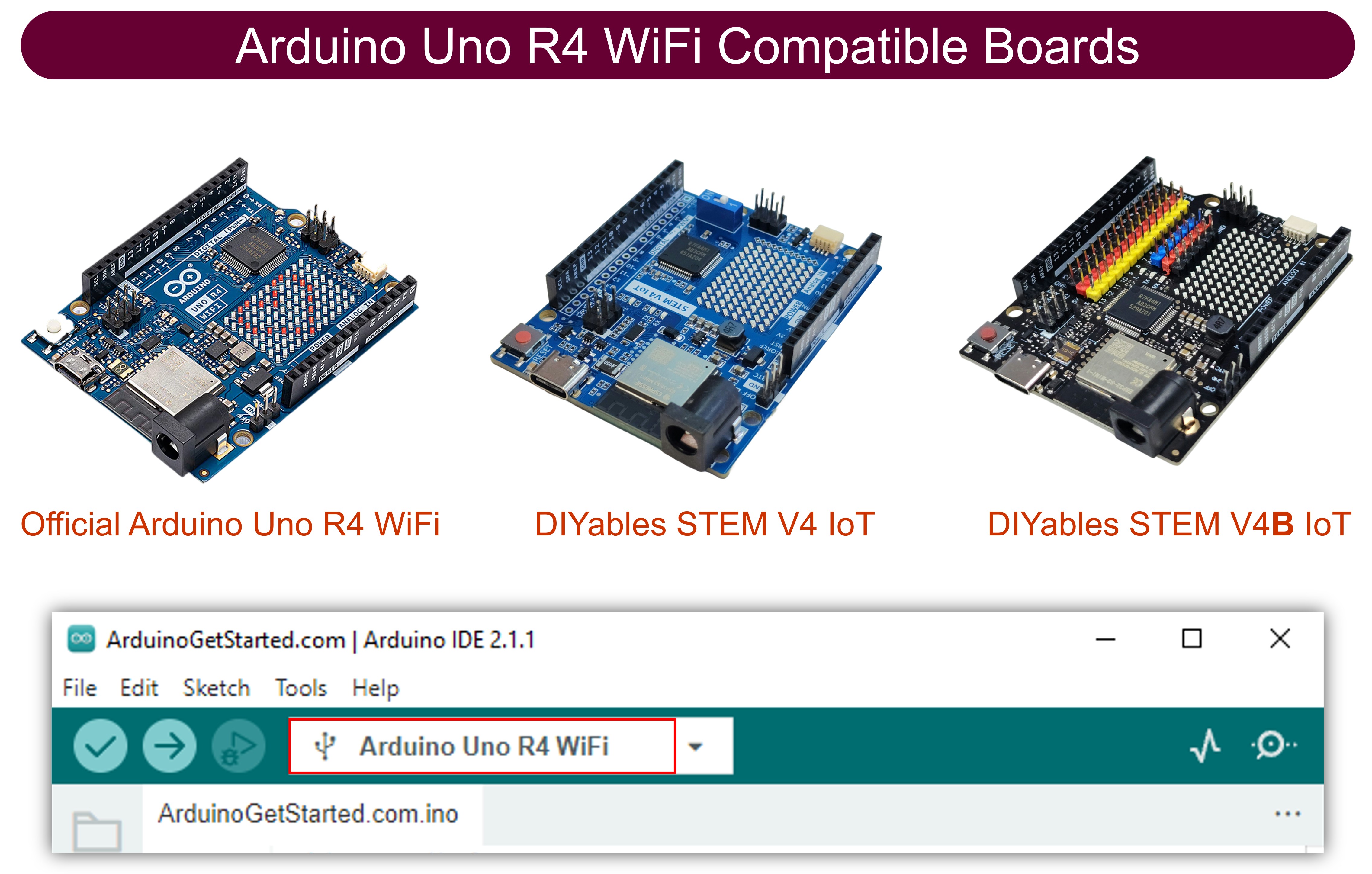
  • Als dit uw eerste keer is met de Arduino Uno R4 WiFi/Minima, raadpleeg dan de tutorial over het instellen van de omgeving voor Arduino Uno R4 WiFi/Minima in de Arduino IDE.
  • Sluit de componenten aan volgens het meegeleverde diagram.
  • Verbind het Arduino Uno R4 board met uw computer via een USB-kabel.
  • Start de Arduino IDE op uw computer.
  • Selecteer het juiste Arduino Uno R4 board (bijv. Arduino Uno R4 WiFi) en COM-poort.
  • Kopieer de bovenstaande code en open deze in de Arduino IDE.
  • Klik op de Upload knop in Arduino IDE om code naar Arduino UNO R4 te sturen.
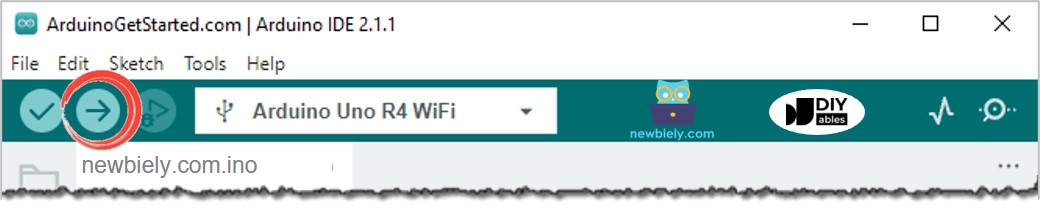
Arduino IDE Upload Code
  • Open de Serial Monitor.
  • Druk en houd de button enkele seconden ingedrukt, laat vervolgens los.
  • Controleer de Serial Monitor voor het resultaat.
COM6
Send
The button is pressed The button is pressed The button is pressed The button is released The button is released
Autoscroll Show timestamp
Clear output
9600 baud  
Newline  

Zoals u kunt zien, hebt u de button slechts eenmaal ingedrukt en losgelaten. De Arduino herkent het echter als meerdere presses en releases.

※ Notiz:

De waarde van DEBOUNCE_TIME varieert per toepassing. Elke toepassing kan een unieke waarde gebruiken.

Arduino Uno R4 - Button met Debounce

/* * Deze Arduino UNO R4 code is ontwikkeld door newbiely.nl * Deze Arduino UNO R4 code wordt zonder enige beperking aan het publiek beschikbaar gesteld. * Voor volledige instructies en schema's, bezoek: * https://newbiely.nl/tutorials/arduino-uno-r4/arduino-uno-r4-button-debounce */ #define BUTTON_PIN 7 // The Arduino UNO R4 pin connected to the button #define DEBOUNCE_TIME 50 // The debounce time; increase if the output flickers int last_steady_state = LOW; // the previous steady state from the input pin int last_flickerable_state = LOW; // the previous flickerable state from the input pin int current_state; // the current reading from the input pin unsigned long last_debounce_time = 0; // the last time the output pin was toggled void setup() { // initialize serial communication at 9600 bits per second: Serial.begin(9600); // initialize the pushbutton pin as a pull-up input pinMode(BUTTON_PIN, INPUT_PULLUP); } void loop() { // read the state of the switch/button: current_state = digitalRead(BUTTON_PIN); // If the switch/button changed, due to noise or pressing: if (current_state != last_flickerable_state) { // reset the debouncing timer last_debounce_time = millis(); // save the the last flickerable state last_flickerable_state = current_state; } if ((millis() - last_debounce_time) > DEBOUNCE_TIME) { // if the button state has changed: if (last_steady_state == HIGH && current_state == LOW) Serial.println("The button is pressed"); else if (last_steady_state == LOW && current_state == HIGH) Serial.println("The button is released"); // save the the last steady state last_steady_state = current_state; } }

Snelle Stappen

  • Kopieer de bovenstaande code en open deze in Arduino IDE.
  • Druk op de Upload knop in de Arduino IDE om de code naar de Arduino UNO R4 te sturen.
  • Open de Serial Monitor.
  • Houd de button enkele seconden ingedrukt voordat u loslaat.
  • Bekijk de Serial Monitor.
COM6
Send
The button is pressed The button is released
Autoscroll Show timestamp
Clear output
9600 baud  
Newline  

Zoals u kunt zien, hebt u de button eenmaal ingedrukt en losgelaten. De Arduino detecteert dit correct als één enkele press en release, waarmee alle chattering wordt weggenomen.

Wij Maakten Het Eenvoudig: Arduino UNO R4 Button Debounce Code met een Library

We maakten een eenvoudigere manier voor beginners die veel buttons gebruiken door een library te maken genaamd ezButton. U kunt hier meer over de ezButton library lezen.

Laten we enkele voorbeeldcodes bekijken.

Arduino UNO R4 Button Debounce Code voor Eén Button

/* * Created by ArduinoGetStarted.com * * This example code is in the public domain * * Tutorial page: https://arduinogetstarted.com/tutorials/arduino-button-library * * This example reads the state of a button with debounce and print it to Serial Monitor. */ #include <ezButton.h> ezButton button(7); // create ezButton object that attach to pin 7; void setup() { Serial.begin(9600); button.setDebounceTime(50); // set debounce time to 50 milliseconds } void loop() { button.loop(); // MUST call the loop() function first if(button.isPressed()) Serial.println("The button is pressed"); if(button.isReleased()) Serial.println("The button is released"); }

Arduino UNO R4 Button Debounce Code voor Meerdere Buttons

Laten we debounce toepassen voor 3 buttons. Hier is het bedradingsdiagram tussen Arduino UNO R4 en drie buttons:
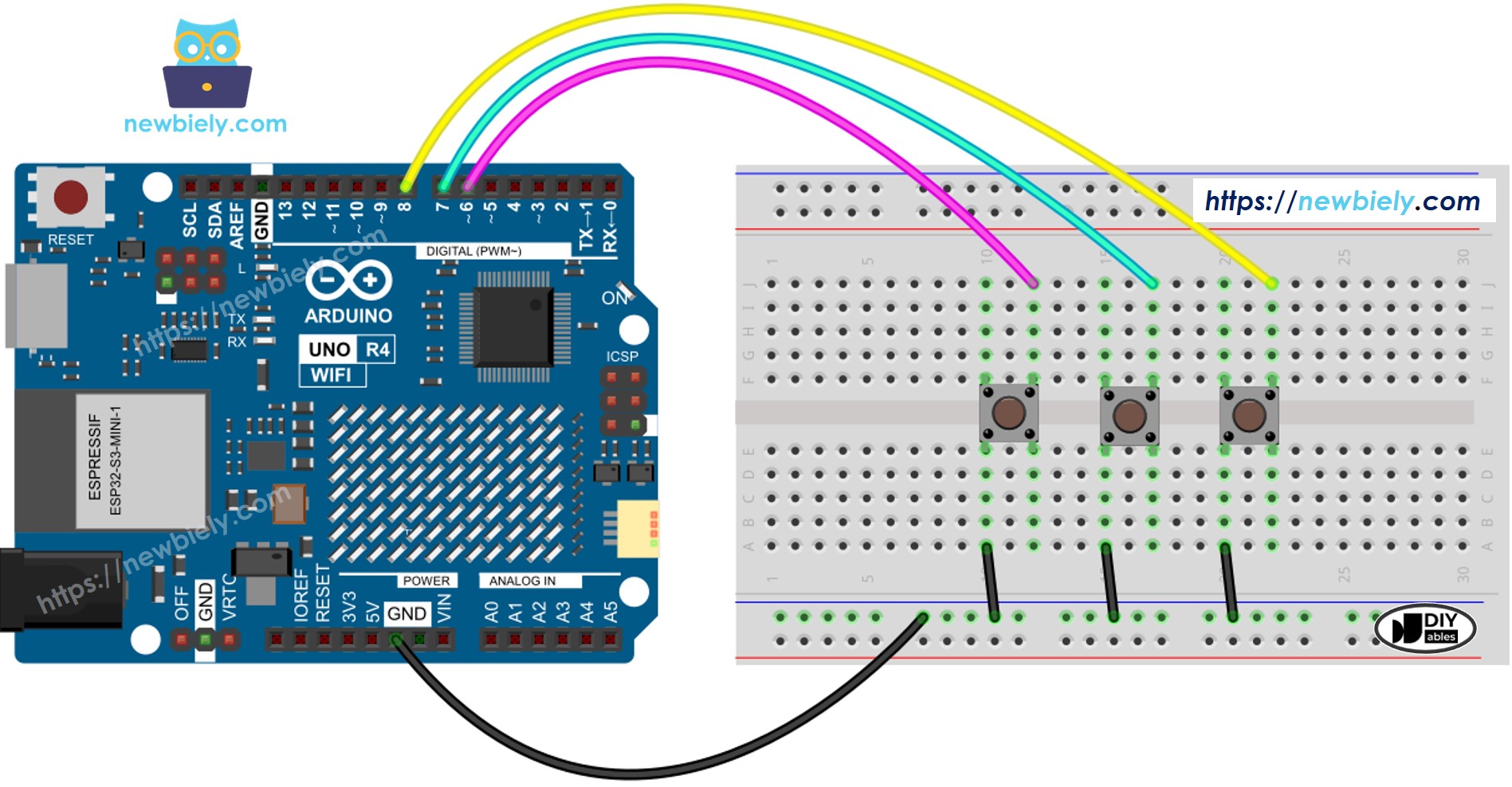
Arduino UNO R4 Button Library Wiring Diagram

This image is created using Fritzing. Click to enlarge image

Zie De beste manier om Arduino Uno R4 en andere componenten van stroom te voorzien.

/* * Deze Arduino UNO R4 code is ontwikkeld door newbiely.nl * Deze Arduino UNO R4 code wordt zonder enige beperking aan het publiek beschikbaar gesteld. * Voor volledige instructies en schema's, bezoek: * https://newbiely.nl/tutorials/arduino-uno-r4/arduino-uno-r4-button-debounce */ #include <ezButton.h> ezButton button_1(6); // initialize ezButton object connected to pin 6 ezButton button_2(7); // initialize ezButton object connected to pin 7 ezButton button_3(8); // initialize ezButton object connected to pin 8 void setup() { Serial.begin(9600); button_1.setDebounceTime(50); // configure debounce time for button_1 to 50ms button_2.setDebounceTime(50); // configure debounce time for button_2 to 50ms button_3.setDebounceTime(50); // configure debounce time for button_3 to 50ms } void loop() { button_1.loop(); // update button_1 state button_2.loop(); // update button_2 state button_3.loop(); // update button_3 state if(button_1.isPressed()) Serial.println("The button 1 is pressed"); if(button_1.isReleased()) Serial.println("The button 1 is released"); if(button_2.isPressed()) Serial.println("The button 2 is pressed"); if(button_2.isReleased()) Serial.println("The button 2 is released"); if(button_3.isPressed()) Serial.println("The button 3 is pressed"); if(button_3.isReleased()) Serial.println("The button 3 is released"); }

Video Tutorial

We overwegen het maken van videotutorials. Als u videotutorials belangrijk vindt, abonneer u dan op ons YouTube-kanaal om ons te motiveren de video's te maken.

※ ONZE BERICHTEN

  • U bent welkom om de link naar deze tutorial te delen. Gebruik onze inhoud echter niet op andere websites. We hebben veel moeite en tijd gestoken in het maken van de inhoud, respecteer alstublieft ons werk!