
Arduino UNO R4 - GPS
Deze handleiding laat u zien hoe u Arduino Uno R4 met GPS-module gebruikt. In detail leren we hoe u GPS-coördinaten (lengtegraad, breedtegraad, hoogte), GPS-snelheid (in kilometers per uur) en de huidige datum en tijd kunt verkrijgen van een NEO-6M GPS-module. We leren ook hoe u de afstand berekent van onze huidige GPS-locatie naar specifieke coördinaten, zoals die van Londen.
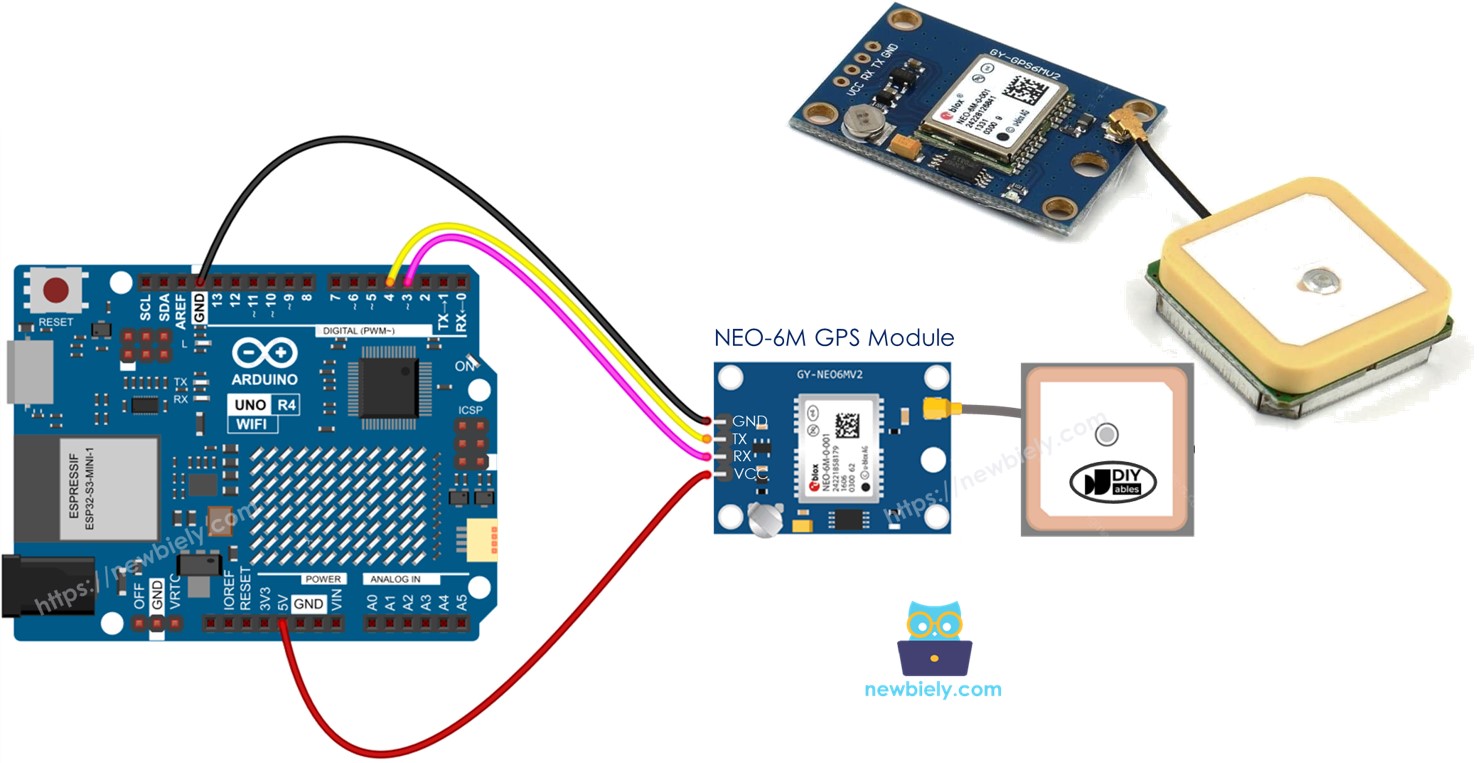
Benodigde Hardware
Of u kunt de volgende kits kopen:
| 1 | × | DIYables STEM V4 IoT Starterskit (Arduino inbegrepen) | |
| 1 | × | DIYables STEM V4B IoT Starterskit (Arduino inbegrepen) | |
| 1 | × | DIYables Sensorkit (18 sensoren/displays) |
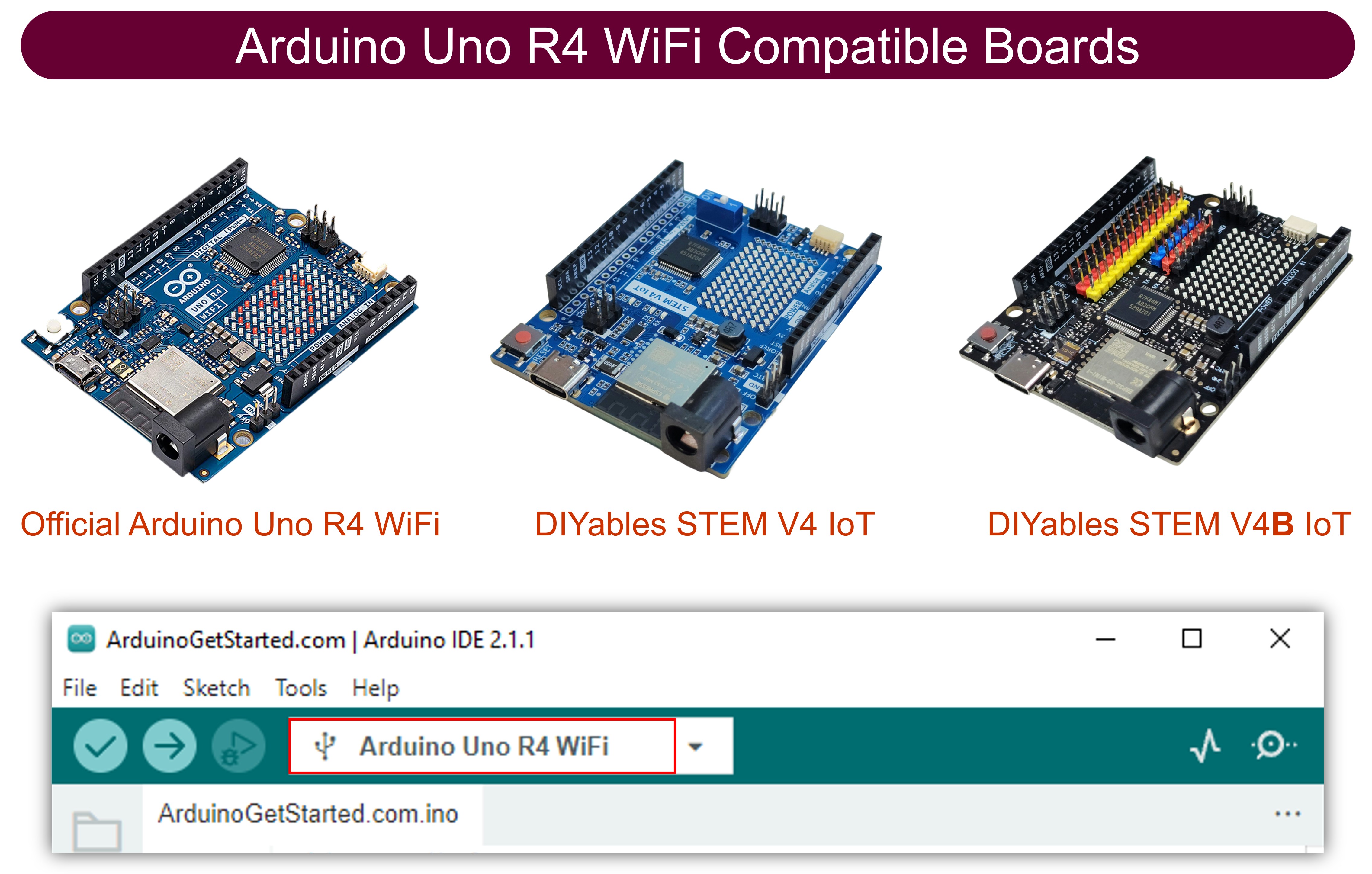
Over de NEO-6M GPS module
Pinout
De NEO-6M GPS-module heeft 4 pinnen:
- VCC pin: Sluit deze pin aan op VCC (5V).
- GND pin: Sluit deze pin aan op GND (0V).
- TX pin: Deze wordt gebruikt voor seriële communicatie. Sluit deze aan op de RX pin van de Serial (of SoftwareSerial) op Arduino UNO R4.
- RX pin: Deze wordt gebruikt voor seriële communicatie. Sluit deze aan op de TX pin van de Serial (of SoftwareSerial) op Arduino UNO R4.
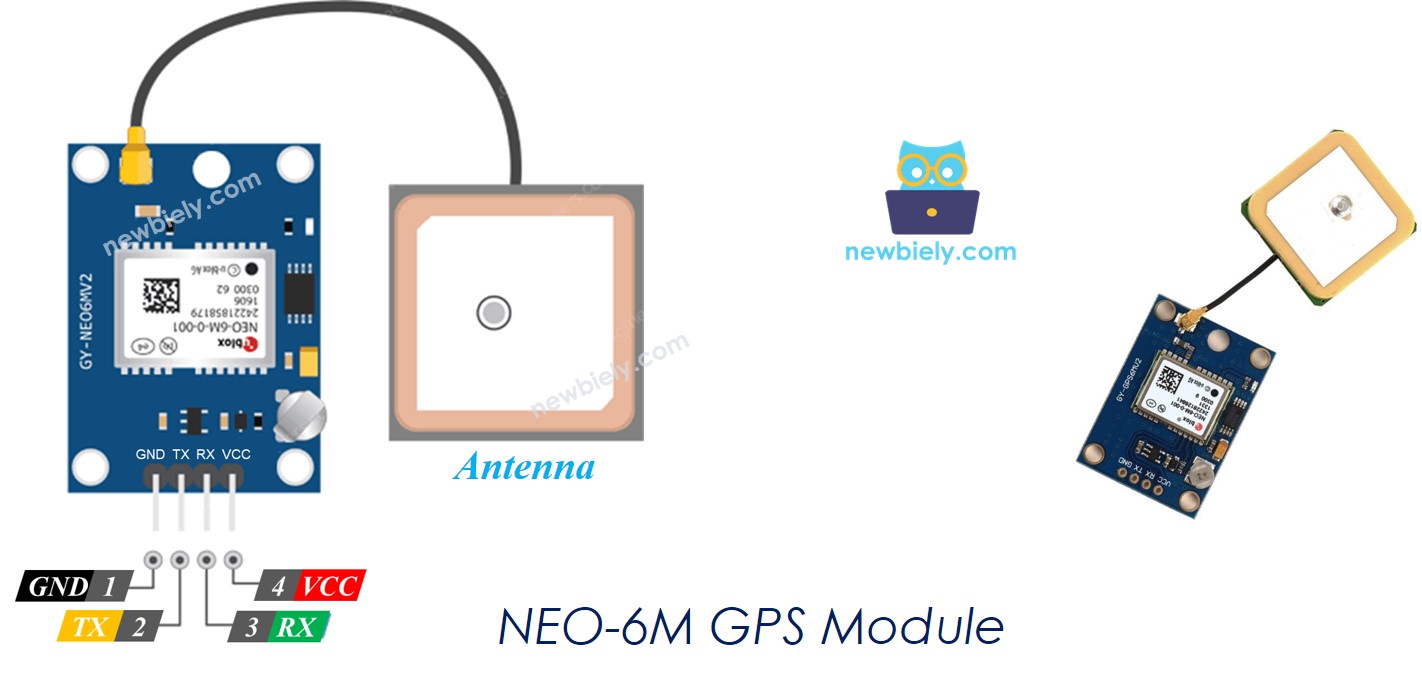
Bekabelingsschema
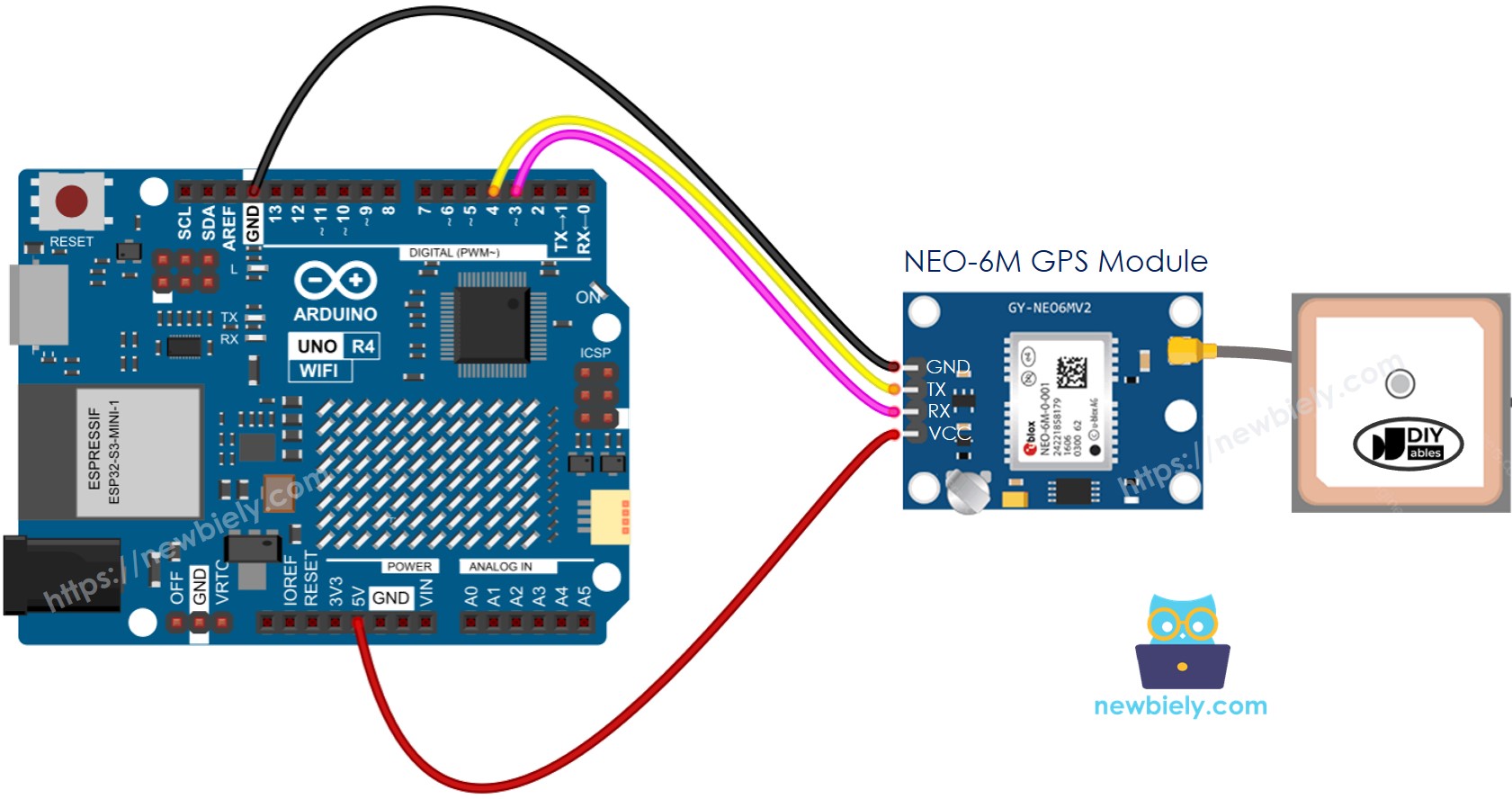
Deze afbeelding is gemaakt met Fritzing. Klik om de afbeelding te vergroten.
Let op dat het hierboven getoonde bekabelingsschema kan functioneren, maar niet wordt aanbevolen. De TX pin van de Arduino UNO R4 zendt een 5V signaal uit, terwijl de RX pin van de GPS-module slechts 3,3V aankan. Voor de veiligheid moet u een spanningsdeler gebruiken tussen de TX pin van de Arduino UNO R4 en de RX pin van de GPS-module. Deze opstelling wordt getoond in het onderstaande diagram.
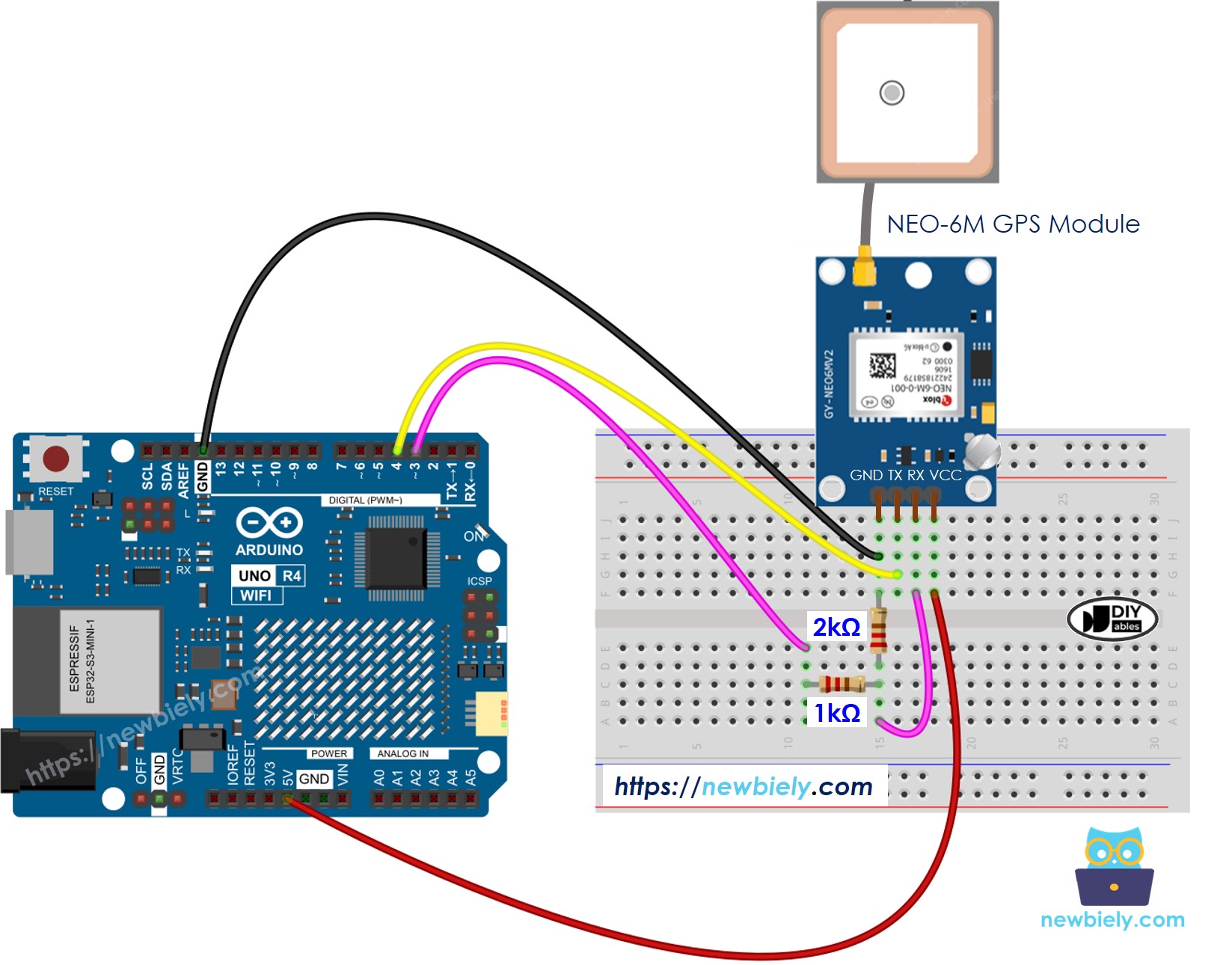
Deze afbeelding is gemaakt met Fritzing. Klik om de afbeelding te vergroten.
Zie De beste manier om Arduino Uno R4 en andere componenten van stroom te voorzien.
Arduino UNO R4 Code
GPS-coördinaten, snelheid (km/u) en datum/tijd uitlezen
Snelle Stappen
Volg deze instructies stap voor stap:
- Als dit uw eerste keer is met de Arduino Uno R4 WiFi/Minima, raadpleeg dan de handleiding over het instellen van de omgeving voor Arduino Uno R4 WiFi/Minima in de Arduino IDE.
- Sluit de Arduino Uno R4 aan op de GPS-module volgens het bijgeleverde diagram.
- Verbind het Arduino Uno R4 board met uw computer via een USB-kabel.
- Start de Arduino IDE op uw computer.
- Selecteer het juiste Arduino Uno R4 board (bijv. Arduino Uno R4 WiFi) en COM-poort.
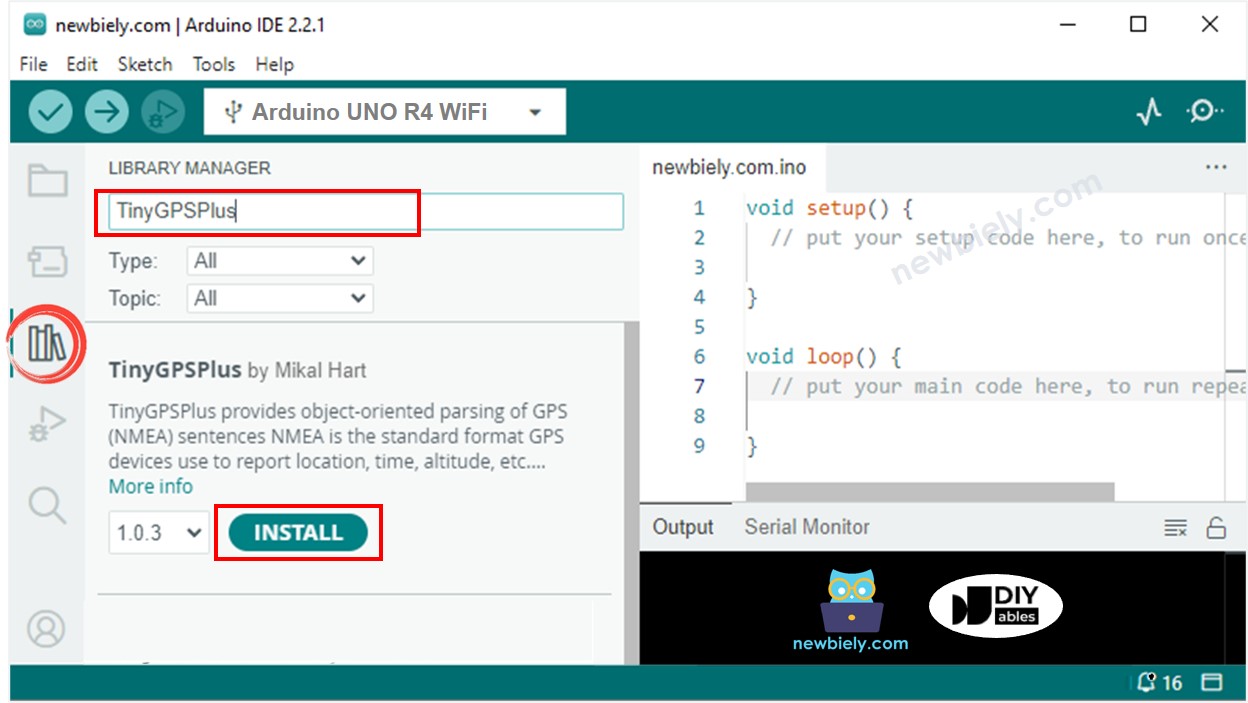
- Ga naar het Libraries icoon aan de linkerkant van de Arduino IDE.
- Type TinyGPSPlus in het zoekvak en zoek naar de TinyGPSPlus library van Mikal Hart.
- Klik op de Install knop om de TinyGPSPlus library toe te voegen.
- Kopieer de code en open deze in Arduino IDE.
- Klik op de Upload knop in Arduino IDE om de code naar Arduino UNO R4 te uploaden.
- Controleer het resultaat in de Serial Monitor.
Afstand berekenen van huidige locatie naar vooraf gedefinieerde locatie
Deze code berekent hoe ver u bent van Londen (breedtegraad: 51.508131, lengtegraad: -0.128002).
Snelle Stappen
- Kopieer de code en open deze in de Arduino IDE.
- Klik op de Upload knop in de Arduino IDE om de code naar de Arduino UNO R4 te verzenden.
- Controleer het resultaat in de Serial Monitor.
Video Tutorial
We overwegen het maken van videotutorials. Als u videotutorials belangrijk vindt, abonneer u dan op ons YouTube-kanaal om ons te motiveren de video's te maken.
Gerelateerde Tutorials
📱 Aanbevolen apps
 English for KidsSpelenderwijs Engels leren voor jonge kinderen.Ontdek het opGoogle PlayBeschikbaar in deApp Store
 Bubble NoteZelfverwijderende notities – schrijf ze als berichten.Ontdek het opGoogle PlayBeschikbaar in deApp Store
 Didn't BuyVersla impulsaankopen en bespaar meer.Ontdek het opGoogle PlayBeschikbaar in deApp Store
 Knowledge PathOefentoetsen om alles te leren.Ontdek het opGoogle PlayBeschikbaar in deApp Store