Arduino UNO R4 WiFi Bluetooth Meerdere Apps Voorbeeld - All-in-One BLE Tutorial

Overzicht

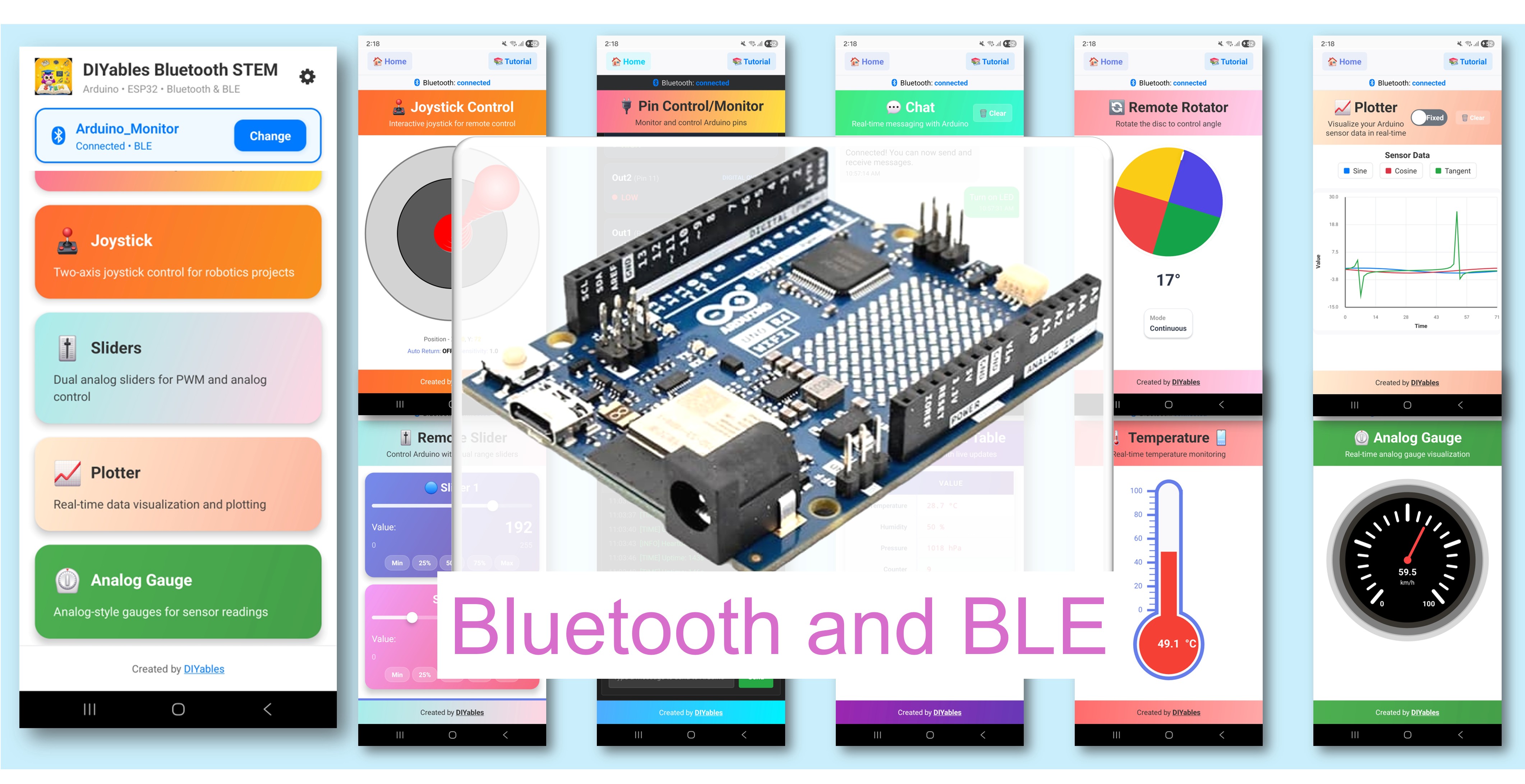
Het Bluetooth Meerdere Apps voorbeeld toont hoe u 9 Bluetooth apps tegelijkertijd kunt uitvoeren op een enkele Arduino UNO R4 WiFi met behulp van BLE. Ontworpen voor Arduino UNO R4 WiFi met gebruik van BLE (Bluetooth Low Energy) om Monitor, Chat, Slider, Joystick, Temperature, Plotter, Table, Analog Gauge en Rotator te combineren in één krachtige sketch. Alle apps delen een enkele BLE-verbinding en kunnen met elkaar communiceren. Perfect voor uitgebreide dashboards, complexe IoT-projecten en het leren van meerdere app-types tegelijk.

Opmerking: De Arduino UNO R4 WiFi ondersteunt alleen BLE (Bluetooth Low Energy). Het ondersteunt geen Classic Bluetooth. De DIYables Bluetooth App ondersteunt zowel BLE als Classic Bluetooth op Android, en BLE op iOS. Omdat dit board BLE gebruikt, werkt de app op zowel Android als iOS.

Arduino UNO R4 WiFi Bluetooth Meerdere Apps Voorbeeld - All-in-One BLE Tutorial

Functies

  • 9 Apps in één: Monitor, Chat, Slider, Joystick, Temperature, Plotter, Table, Analog Gauge, Rotator
  • Cross-App Interactie: Slider-waarde werkt gauge en tabel bij, joystick werkt tabel bij, etc.
  • Enkele BLE-verbinding: Alle apps delen efficiënt één verbinding
  • Real-Time Updates: Elke app werkt bij op zijn eigen interval
  • Uitgebreid Dashboard: Bekijk alle data van één apparaat
  • Werkt op Android & iOS: BLE wordt ondersteund op beide platforms
  • Geen koppeling vereist: BLE maakt automatisch verbinding zonder handmatige koppeling

Inbegrepen Apps

AppBeschrijvingUpdate Interval
MonitorTekstgebaseerde statusweergave5 seconden
ChatBidirectionele tekstberichtenOp verzoek
SliderWaarde-instelling (0-255)Bij wijziging
Joystick2D positie-besturingBij wijziging
TemperatureTemperatuur gauge (-10 tot 50°C)2 seconden
PlotterReal-time data grafiek100ms
TableGestructureerde data (10 rijen)5 seconden
Analog GaugeWijzerplaat-stijl gauge (0-100%)3 seconden
RotatorHoek-besturing (continue)Bij wijziging

Arduino UNO R4 WiFi Code

Snelle Stappen

Volg deze instructies stap voor stap:

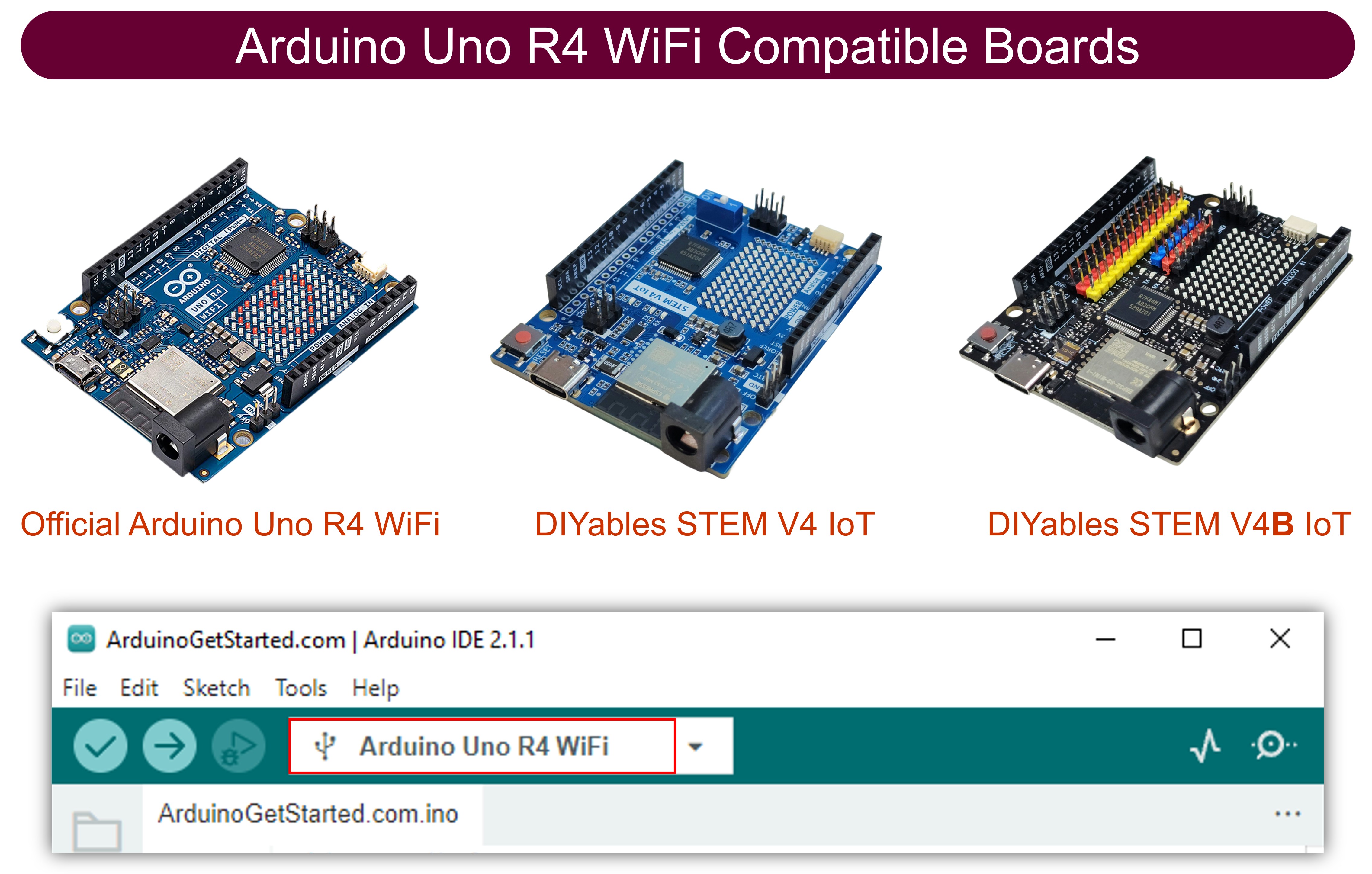
  • Als dit de eerste keer is dat u de Arduino UNO R4 WiFi gebruikt, raadpleeg dan de Arduino UNO R4 WiFi aan de slag gids.
  • Sluit de Arduino UNO R4 WiFi aan op uw computer met behulp van een USB-kabel.
  • Start de Arduino IDE op uw computer.
  • Selecteer het Arduino UNO R4 WiFi board en de juiste COM-poort.
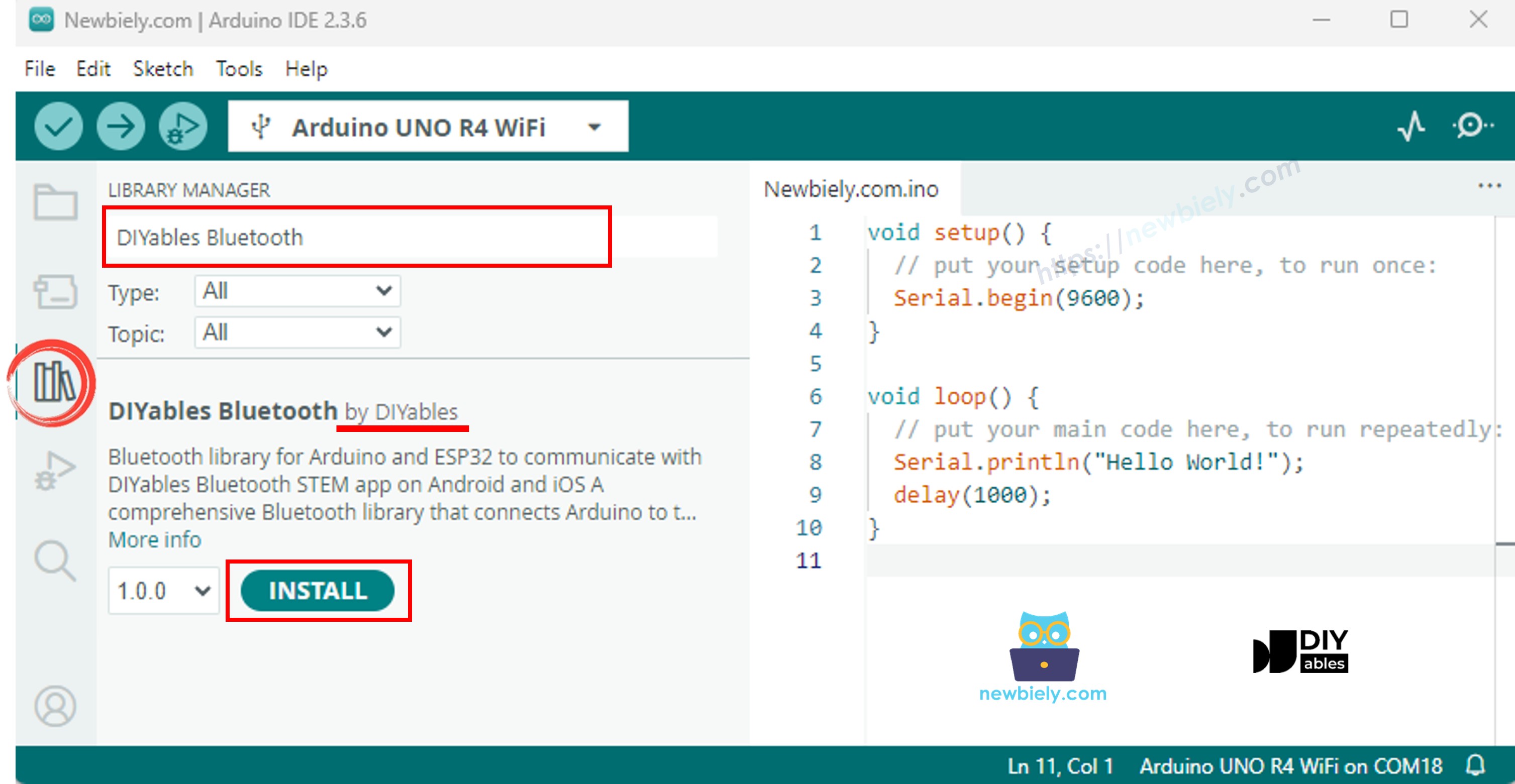
  • Navigeer naar het Libraries icoon in de linkerbalk van de Arduino IDE.
  • Zoek naar "DIYables Bluetooth", vind vervolgens de DIYables Bluetooth library door DIYables
  • Klik op de Install knop om de library te installeren.
Arduino UNO R4 DIYables Bluetooth library
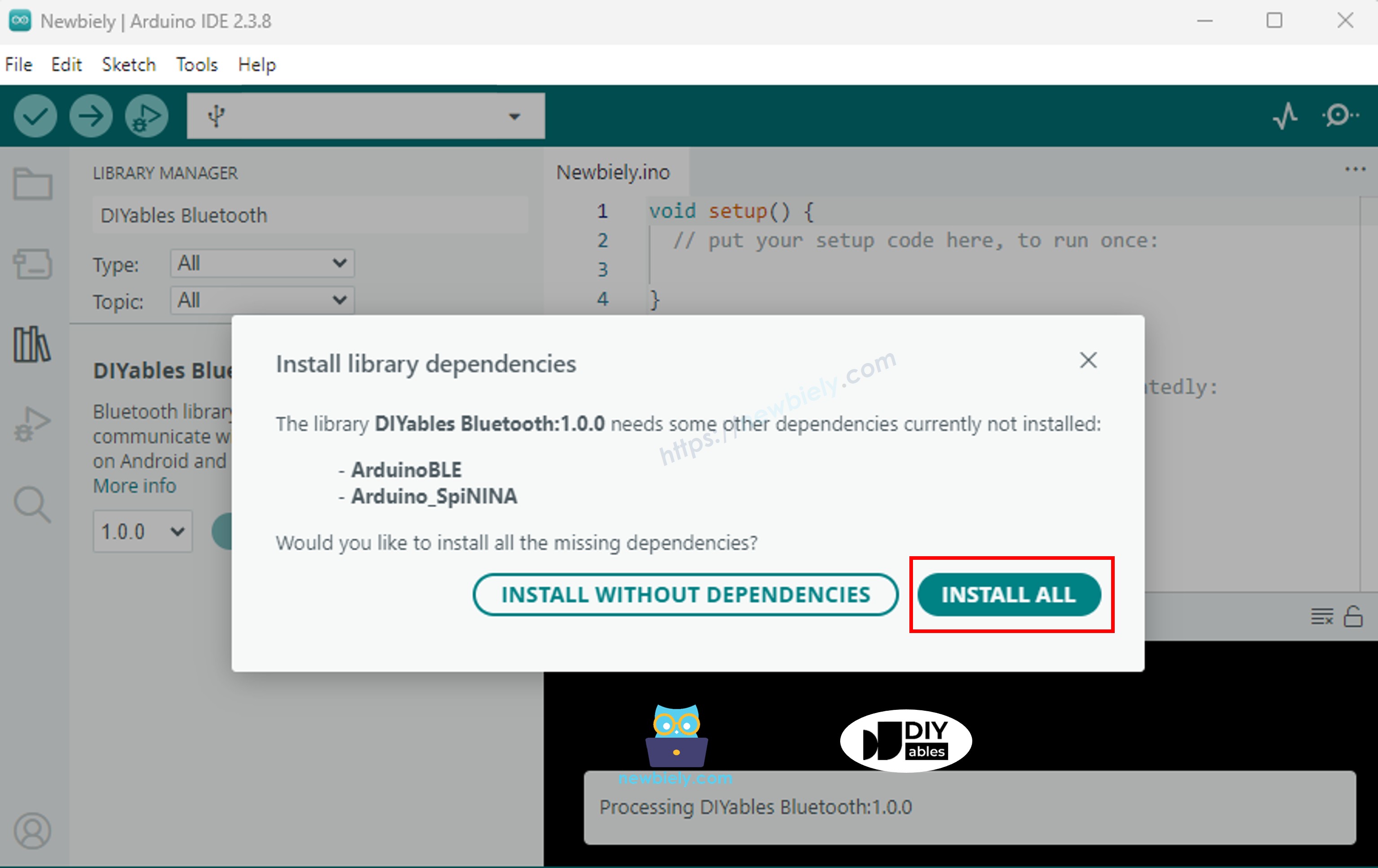
  • U wordt gevraagd om enkele andere library-afhankelijkheden te installeren
  • Klik op Install All om alle library-afhankelijkheden te installeren.
Arduino UNO R4 DIYables Bluetooth dependency

BLE Code

  • Ga in Arduino IDE naar File Examples DIYables Bluetooth ArduinoBLE_MultipleApps voorbeeld, of kopieer de bovenstaande code en plak deze in de editor van Arduino IDE
/* * DIYables Bluetooth Library - Multiple Apps Example (ArduinoBLE) * Works with DIYables Bluetooth STEM app on Android and iOS * * This example demonstrates how to use multiple Bluetooth apps simultaneously: * - Monitor: Real-time serial monitoring and logging * - Chat: Bi-directional text messaging * - Slider: Dual slider control (0-255 range) * - Joystick: Interactive joystick control (X, Y coordinates) * - Temperature: Temperature monitoring and display * - Plotter: Real-time data plotting (3 channels) * - Table: Two-column data table with real-time updates * - Analog Gauge: Circular gauge for sensor monitoring * - Rotator: Rotatable disc/knob control * - Pin Control: Digital pin control and monitoring * * Features: * - All apps run simultaneously on a single BLE connection * - Automatic message routing to appropriate app handlers * - Simplified callback system - no manual parsing needed * - All BLE protocol details handled by the library * - Compatible with DIYables Bluetooth Mobile App * * Compatible Boards: * - Arduino UNO R4 WiFi * - Arduino Nano 33 BLE / BLE Sense * - Arduino Nano 33 IoT * - Arduino MKR WiFi 1010 * - Arduino Nano RP2040 Connect * - Any board supporting the ArduinoBLE library * * Setup: * 1. Upload the sketch to your Arduino * 2. Open Serial Monitor (9600 baud) * 3. Open DIYables Bluetooth App on your phone * 4. Connect to "DIYables Multi-App" * 5. Navigate to different screens to test each app * * Tutorial: https://diyables.io/bluetooth-app * Author: DIYables */ #include <DIYables_BluetoothServer.h> #include <DIYables_BluetoothMonitor.h> #include <DIYables_BluetoothChat.h> #include <DIYables_BluetoothSlider.h> #include <DIYables_BluetoothJoystick.h> #include <DIYables_BluetoothTemperature.h> #include <DIYables_BluetoothPlotter.h> #include <DIYables_BluetoothTable.h> #include <DIYables_BluetoothAnalogGauge.h> #include <DIYables_BluetoothRotator.h> #include <platforms/DIYables_ArduinoBLE.h> // BLE Configuration const char* DEVICE_NAME = "DIYables Multi-App"; const char* SERVICE_UUID = "19B10000-E8F2-537E-4F6C-D104768A1214"; const char* TX_UUID = "19B10001-E8F2-537E-4F6C-D104768A1214"; const char* RX_UUID = "19B10002-E8F2-537E-4F6C-D104768A1214"; // Create Bluetooth instances DIYables_ArduinoBLE bluetooth(DEVICE_NAME, SERVICE_UUID, TX_UUID, RX_UUID); DIYables_BluetoothServer bluetoothServer(bluetooth); // Create app instances DIYables_BluetoothMonitor bluetoothMonitor; DIYables_BluetoothChat bluetoothChat; DIYables_BluetoothSlider bluetoothSlider(0, 255, 1); DIYables_BluetoothJoystick bluetoothJoystick(false, 5); DIYables_BluetoothTemperature bluetoothTemperature(-10.0, 50.0, "°C"); DIYables_BluetoothPlotter bluetoothPlotter; DIYables_BluetoothTable bluetoothTable; DIYables_BluetoothAnalogGauge bluetoothGauge(0.0, 100.0, "%"); DIYables_BluetoothRotator bluetoothRotator(ROTATOR_MODE_CONTINUOUS); // State variables int currentSlider1 = 128; int currentSlider2 = 64; int currentJoystickX = 0; int currentJoystickY = 0; float currentTemperature = 25.0; float currentGaugeValue = 50.0; float currentRotatorAngle = 0.0; int messageCount = 0; // Timing variables unsigned long lastMonitorUpdate = 0; unsigned long lastTempUpdate = 0; unsigned long lastPlotUpdate = 0; unsigned long lastTableUpdate = 0; unsigned long lastGaugeUpdate = 0; float plotPhase = 0; void setup() { Serial.begin(9600); delay(1000); Serial.println("DIYables Bluetooth - Multiple Apps Example"); // Initialize built-in LED pinMode(LED_BUILTIN, OUTPUT); digitalWrite(LED_BUILTIN, LOW); // Initialize Bluetooth server bluetoothServer.begin(); // Register all apps with the server bluetoothServer.addApp(&bluetoothMonitor); bluetoothServer.addApp(&bluetoothChat); bluetoothServer.addApp(&bluetoothSlider); bluetoothServer.addApp(&bluetoothJoystick); bluetoothServer.addApp(&bluetoothTemperature); bluetoothServer.addApp(&bluetoothPlotter); bluetoothServer.addApp(&bluetoothTable); bluetoothServer.addApp(&bluetoothGauge); bluetoothServer.addApp(&bluetoothRotator); Serial.print("Registered apps: "); Serial.println(bluetoothServer.getAppCount()); // Configure Plotter bluetoothPlotter.setPlotTitle("Sensor Data"); bluetoothPlotter.setAxisLabels("Time", "Value"); bluetoothPlotter.setYAxisRange(-1.5, 1.5); bluetoothPlotter.setMaxSamples(100); bluetoothPlotter.setLegendLabels("Sine", "Cosine", "Random"); // Configure Table rows bluetoothTable.addRow("Status"); bluetoothTable.addRow("Uptime"); bluetoothTable.addRow("Slider 1"); bluetoothTable.addRow("Slider 2"); bluetoothTable.addRow("Joystick X"); bluetoothTable.addRow("Joystick Y"); bluetoothTable.addRow("Temperature"); bluetoothTable.addRow("Gauge Value"); bluetoothTable.addRow("Rotator Angle"); bluetoothTable.addRow("Messages"); // Set up all callbacks setupCallbacks(); Serial.println("Waiting for Bluetooth connection..."); } void setupCallbacks() { // ---- Connection events ---- bluetoothServer.setOnConnected([]() { Serial.println("Bluetooth connected!"); digitalWrite(LED_BUILTIN, HIGH); bluetoothMonitor.send("=== DIYables Multi-App Connected ==="); bluetoothMonitor.send("All apps are ready!"); bluetoothChat.send("Hello! Arduino Multi-App is connected."); }); bluetoothServer.setOnDisconnected([]() { Serial.println("Bluetooth disconnected!"); digitalWrite(LED_BUILTIN, LOW); }); // ---- Monitor callbacks ---- bluetoothMonitor.onMonitorMessage([](const String& message) { Serial.println("Monitor cmd: " + message); if (message == "HELP") { bluetoothMonitor.send("Commands: STATUS, HELP, LED_ON, LED_OFF"); } else if (message == "STATUS") { bluetoothMonitor.send("Slider1=" + String(currentSlider1) + " Slider2=" + String(currentSlider2)); bluetoothMonitor.send("Joystick X=" + String(currentJoystickX) + " Y=" + String(currentJoystickY)); bluetoothMonitor.send("Temp=" + String(currentTemperature, 1) + "°C"); bluetoothMonitor.send("Gauge=" + String(currentGaugeValue, 1) + "%"); bluetoothMonitor.send("Rotator=" + String(currentRotatorAngle, 0) + "°"); } else if (message == "LED_ON") { digitalWrite(LED_BUILTIN, HIGH); bluetoothMonitor.send("LED turned ON"); } else if (message == "LED_OFF") { digitalWrite(LED_BUILTIN, LOW); bluetoothMonitor.send("LED turned OFF"); } else { bluetoothMonitor.send("Unknown: " + message + " (type HELP)"); } }); // ---- Chat callbacks ---- bluetoothChat.onChatMessage([](const String& message) { Serial.println("Chat: " + message); bluetoothChat.send("Echo: " + message); if (message.equalsIgnoreCase("ping")) { bluetoothChat.send("pong!"); } else if (message.equalsIgnoreCase("status")) { bluetoothChat.send("Uptime: " + String(millis() / 1000) + "s, Apps: " + String(bluetoothServer.getAppCount())); } }); // ---- Slider callbacks ---- bluetoothSlider.onSliderValue([](int slider1, int slider2) { currentSlider1 = slider1; currentSlider2 = slider2; Serial.print("Slider 1: "); Serial.print(slider1); Serial.print(", Slider 2: "); Serial.println(slider2); // Update gauge based on slider 1 currentGaugeValue = map(slider1, 0, 255, 0, 100); bluetoothGauge.send(currentGaugeValue); // Update table bluetoothTable.sendValueUpdate("Slider 1", String(slider1)); bluetoothTable.sendValueUpdate("Slider 2", String(slider2)); bluetoothTable.sendValueUpdate("Gauge Value", String(currentGaugeValue, 1) + "%"); }); bluetoothSlider.onGetConfig([]() { bluetoothSlider.send(currentSlider1, currentSlider2); }); // ---- Joystick callbacks ---- bluetoothJoystick.onJoystickValue([](int x, int y) { currentJoystickX = x; currentJoystickY = y; Serial.print("Joystick X: "); Serial.print(x); Serial.print(", Y: "); Serial.println(y); // Update table bluetoothTable.sendValueUpdate("Joystick X", String(x)); bluetoothTable.sendValueUpdate("Joystick Y", String(y)); }); bluetoothJoystick.onGetConfig([]() { bluetoothJoystick.send(currentJoystickX, currentJoystickY); }); // ---- Temperature callbacks ---- bluetoothTemperature.onTemperatureRequest([]() { bluetoothTemperature.send(currentTemperature); }); // ---- Plotter callbacks ---- bluetoothPlotter.onDataRequest([]() { Serial.println("Plotter data requested"); }); // ---- Table callbacks ---- bluetoothTable.onDataRequest([]() { Serial.println("Table data requested"); bluetoothTable.sendTableStructure(); updateAllTableValues(); }); // ---- Gauge callbacks ---- bluetoothGauge.onValueRequest([]() { bluetoothGauge.send(currentGaugeValue); }); // ---- Rotator callbacks ---- bluetoothRotator.onRotatorAngle([](float angle) { currentRotatorAngle = angle; Serial.print("Rotator: "); Serial.print(angle); Serial.println("°"); bluetoothTable.sendValueUpdate("Rotator Angle", String(angle, 0) + "°"); }); } void updateAllTableValues() { bluetoothTable.sendValueUpdate("Status", "Running"); unsigned long uptime = millis() / 1000; String uptimeStr; if (uptime >= 60) { uptimeStr = String(uptime / 60) + "m " + String(uptime % 60) + "s"; } else { uptimeStr = String(uptime) + "s"; } bluetoothTable.sendValueUpdate("Uptime", uptimeStr); bluetoothTable.sendValueUpdate("Slider 1", String(currentSlider1)); bluetoothTable.sendValueUpdate("Slider 2", String(currentSlider2)); bluetoothTable.sendValueUpdate("Joystick X", String(currentJoystickX)); bluetoothTable.sendValueUpdate("Joystick Y", String(currentJoystickY)); bluetoothTable.sendValueUpdate("Temperature", String(currentTemperature, 1) + " °C"); bluetoothTable.sendValueUpdate("Gauge Value", String(currentGaugeValue, 1) + "%"); bluetoothTable.sendValueUpdate("Rotator Angle", String(currentRotatorAngle, 0) + "°"); bluetoothTable.sendValueUpdate("Messages", String(messageCount)); } void loop() { bluetoothServer.loop(); if (!bluetooth.isConnected()) { delay(10); return; } // ---- Monitor: periodic status every 5 seconds ---- if (millis() - lastMonitorUpdate >= 5000) { lastMonitorUpdate = millis(); messageCount++; bluetoothMonitor.send("[INFO] Heartbeat #" + String(messageCount) + " - Uptime: " + String(millis() / 1000) + "s"); } // ---- Temperature: update every 2 seconds ---- if (millis() - lastTempUpdate >= 2000) { lastTempUpdate = millis(); // Simulate temperature with slight variation static float tempOffset = 0; tempOffset += random(-10, 11) / 10.0; if (tempOffset > 5.0) tempOffset = 5.0; if (tempOffset < -5.0) tempOffset = -5.0; currentTemperature = 25.0 + tempOffset; bluetoothTemperature.send(currentTemperature); bluetoothTable.sendValueUpdate("Temperature", String(currentTemperature, 1) + " °C"); } // ---- Plotter: update every 100ms ---- if (millis() - lastPlotUpdate >= 100) { lastPlotUpdate = millis(); float sine = sin(plotPhase); float cosine = cos(plotPhase); float noise = random(-50, 51) / 100.0; bluetoothPlotter.send(sine, cosine, noise); plotPhase += 0.1; if (plotPhase > 2 * PI) plotPhase = 0; } // ---- Table: update uptime every 5 seconds ---- if (millis() - lastTableUpdate >= 5000) { lastTableUpdate = millis(); unsigned long uptime = millis() / 1000; String uptimeStr; if (uptime >= 60) { uptimeStr = String(uptime / 60) + "m " + String(uptime % 60) + "s"; } else { uptimeStr = String(uptime) + "s"; } bluetoothTable.sendValueUpdate("Uptime", uptimeStr); bluetoothTable.sendValueUpdate("Messages", String(messageCount)); } // ---- Gauge: simulate sensor every 3 seconds ---- if (millis() - lastGaugeUpdate >= 3000) { lastGaugeUpdate = millis(); float sensorValue = 50.0 + 30.0 * sin(millis() / 10000.0); currentGaugeValue = sensorValue; bluetoothGauge.send(currentGaugeValue); bluetoothTable.sendValueUpdate("Gauge Value", String(currentGaugeValue, 1) + "%"); } delay(10); }
  • Klik op de Upload knop in Arduino IDE om de code naar de Arduino UNO R4 WiFi te uploaden
  • Open de Serial Monitor
  • Bekijk het resultaat in de Serial Monitor. Het ziet er als volgt uit:
COM6
Send
DIYables Bluetooth - Multiple Apps Example Waiting for Bluetooth connection...
Autoscroll Show timestamp
Clear output
9600 baud  
Newline  

Mobiele App

  • Installeer de DIYables Bluetooth App op uw smartphone: Android | iOS

Opmerking: De DIYables Bluetooth App ondersteunt zowel BLE als Classic Bluetooth op Android, en BLE op iOS. Omdat de Arduino UNO R4 WiFi BLE gebruikt, werkt de app op zowel Android als iOS. Handmatige koppeling is niet nodig voor BLE — gewoon scannen en verbinden.

  • Open de DIYables Bluetooth App
  • Wanneer u de app voor de eerste keer opent, zal deze om machtigingen vragen. Verleen de volgende machtigingen:
    • Nearby Devices machtiging (Android 12+) / Bluetooth machtiging (iOS) - vereist om Bluetooth-apparaten te scannen en verbinding te maken
    • Location machtiging (alleen Android 11 en lager) - vereist door oudere Android-versies om BLE-apparaten te scannen
  • Zorg ervoor dat Bluetooth is ingeschakeld op uw telefoon
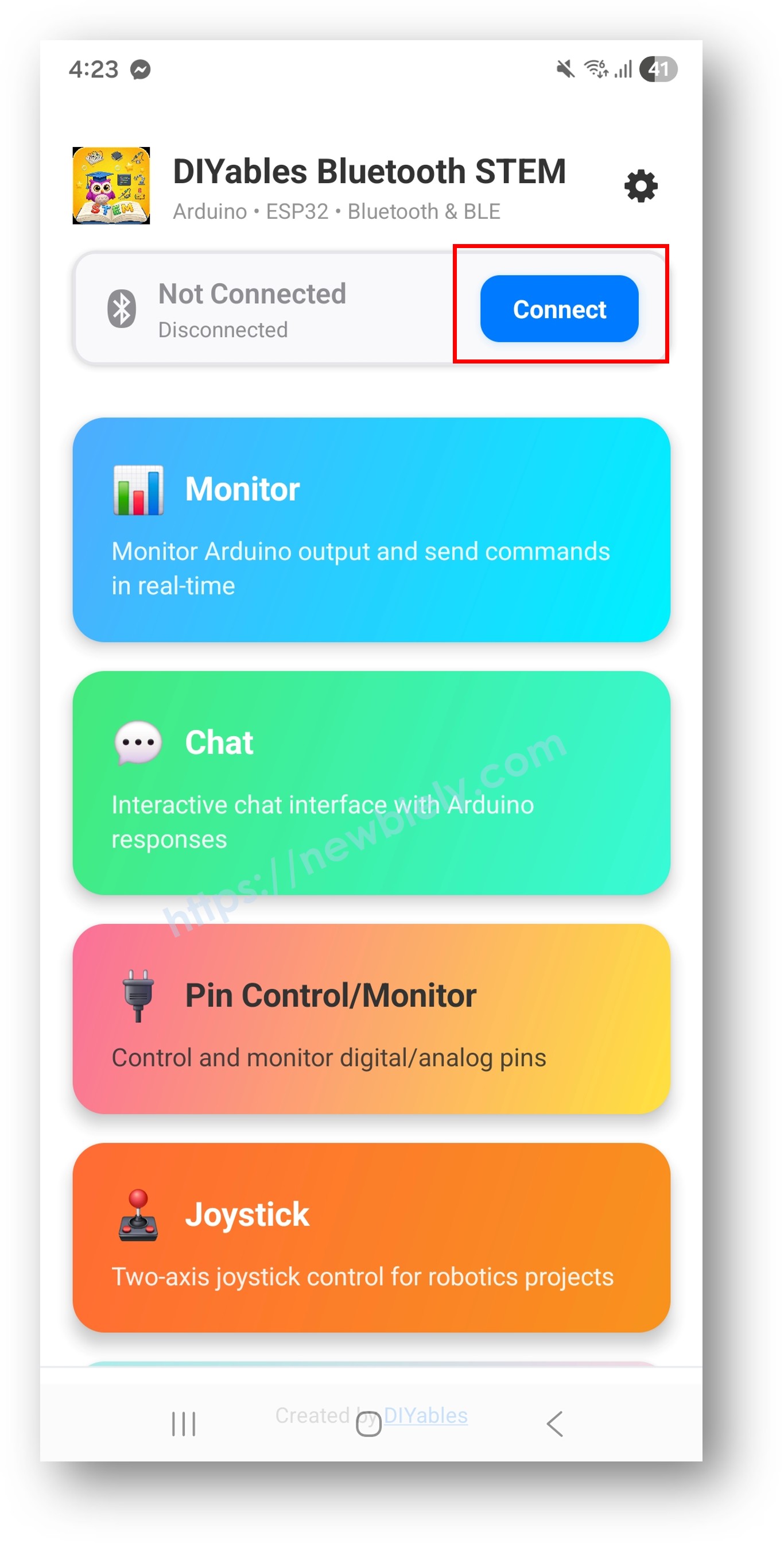
  • Tik op het startscherm op de Connect knop. De app scant naar BLE-apparaten.
DIYables Bluetooth App - Startscherm met Scan Knop
  • Zoek en tik op "DIYables Multi-App" in de scanresultaten om verbinding te maken.
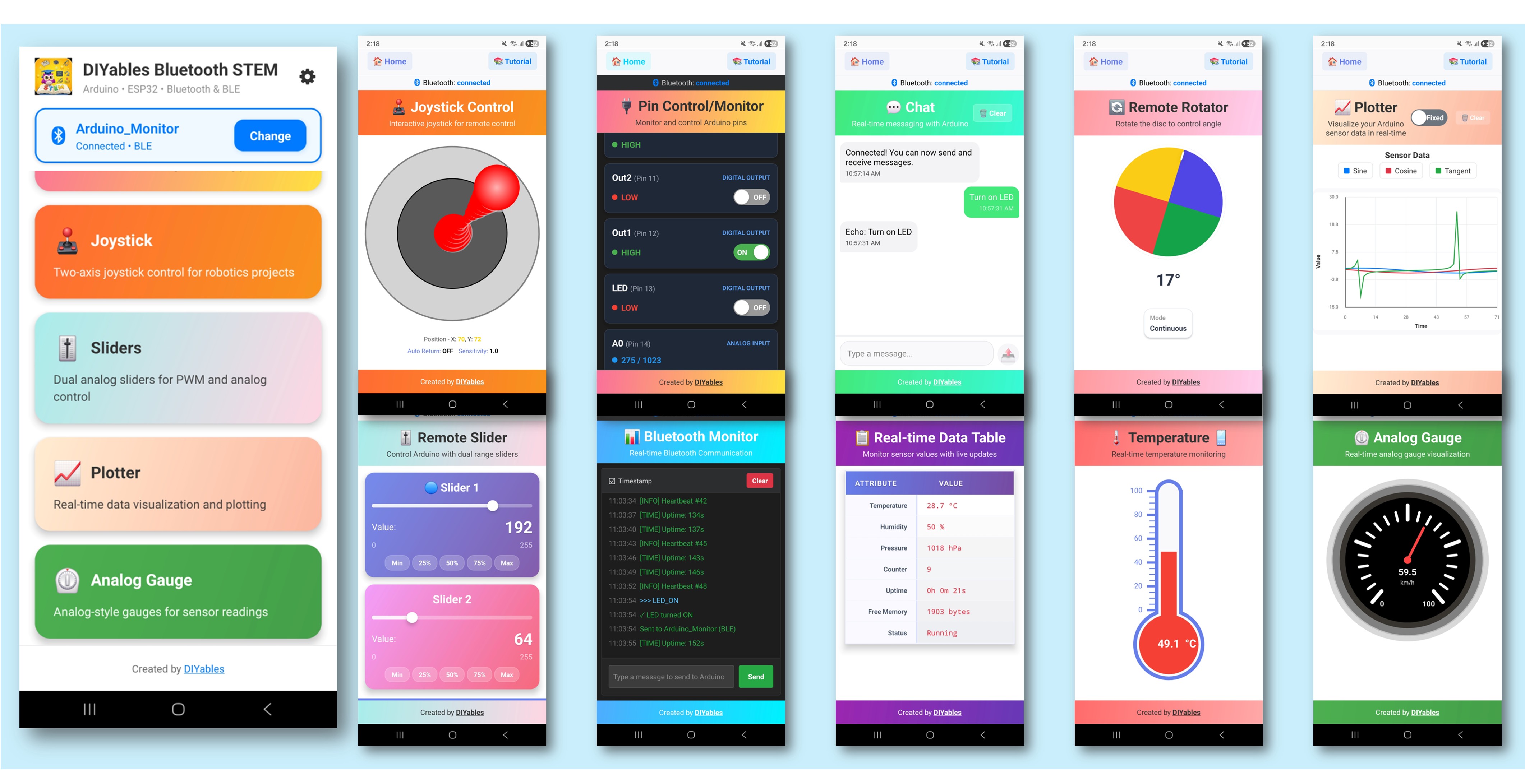
  • Eenmaal verbonden, gaat de app automatisch terug naar het startscherm. Het startscherm toont alle beschikbare apps. De 9 apps die in de Arduino-code zijn geïnitialiseerd zullen reageren en werken — andere apps op het startscherm zullen verschijnen maar zullen niet functioneren met deze sketch.
DIYables Bluetooth App - Startscherm met Meerdere Apps

Opmerking: U kunt op het instellingen-icoon op het startscherm tikken om apps op het startscherm te verbergen/tonen. Voor meer details, zie de DIYables Bluetooth App Gebruikershandleiding.

  • Tik op enkele van de volgende apps om te openen en te communiceren met de Arduino: Monitor, Chat, Slider, Joystick, Temperature, Plotter, Table, Analog Gauge, Rotator
  • Wissel vrij tussen apps — ze delen allemaal dezelfde BLE-verbinding

Kijk nu terug naar de Serial Monitor in Arduino IDE. U zult zien:

COM6
Send
Bluetooth connected! Monitor: System running, uptime: 5s Chat message: Hello Slider value: 128 Joystick: X=0.50, Y=-0.30 Temperature: 22.50 °C
Autoscroll Show timestamp
Clear output
9600 baud  
Newline  

Hoe het werkt

App Initialisatie

Elke app wordt gemaakt met zijn eigen configuratie en callbacks:

// Alle apps delen dezelfde Bluetooth server DIYables_BluetoothServer bluetoothServer(bluetooth); // Maak individuele apps aan DIYables_BluetoothMonitor bluetoothMonitor(bluetoothServer); DIYables_BluetoothChat bluetoothChat(bluetoothServer); DIYables_BluetoothSlider bluetoothSlider(bluetoothServer, 0, 255, 1); DIYables_BluetoothJoystick bluetoothJoystick(bluetoothServer, false, 5); DIYables_BluetoothTemperature bluetoothTemp(bluetoothServer, -10.0, 50.0, "°C"); DIYables_BluetoothPlotter bluetoothPlotter(bluetoothServer); DIYables_BluetoothTable bluetoothTable(bluetoothServer); DIYables_BluetoothAnalogGauge bluetoothGauge(bluetoothServer, 0.0, 100.0, "%"); DIYables_BluetoothRotator bluetoothRotator(bluetoothServer, ROTATOR_MODE_CONTINUOUS);

Cross-App Interactie

Apps kunnen met elkaar communiceren — wanneer één app invoer ontvangt, kan deze andere apps bijwerken:

// Slider werkt gauge en tabel bij bluetoothSlider.onSliderValue([](int value) { float percent = value * 100.0 / 255.0; bluetoothGauge.send(percent); bluetoothTable.sendValueUpdate("Slider 1", String(value)); }); // Joystick werkt tabel bij bluetoothJoystick.onJoystickValue([](float x, float y) { bluetoothTable.sendValueUpdate("Joystick X", String(x, 2)); bluetoothTable.sendValueUpdate("Joystick Y", String(y, 2)); }); // Rotator werkt tabel bij bluetoothRotator.onRotatorAngle([](float angle) { bluetoothTable.sendValueUpdate("Rotator Angle", String(angle, 1) + "°"); });

Update Timing

Elke app heeft zijn eigen update-interval om responsiviteit en bandbreedte in balans te houden:

void loop() { bluetoothServer.loop(); unsigned long now = millis(); // Plotter: snelste updates (100ms) if (now - lastPlotterTime >= 100) { ... } // Temperature: elke 2 seconden if (now - lastTempTime >= 2000) { ... } // Gauge: elke 3 seconden if (now - lastGaugeTime >= 3000) { ... } // Monitor, Table: elke 5 seconden if (now - lastMonitorTime >= 5000) { ... } if (now - lastTableTime >= 5000) { ... } }

Tabel Structuur

Het voorbeeld creëert een tabel met 10 rijen die data van alle apps toont:

RijLabelBeschrijving
0StatusVerbinding/uitvoering status
1UptimeTijd sinds opstarten
2Slider 1Huidige slider waarde
3Slider 2Tweede slider waarde
4Joystick XJoystick X positie
5Joystick YJoystick Y positie
6TemperatureHuidige temperatuur
7Gauge ValueHuidig gauge percentage
8Rotator AngleHuidige rotatie hoek
9MessagesChat berichten aantal

Creatieve Aanpassing - Pas de Code aan uw Project aan

Apps Toevoegen of Verwijderen

U heeft niet alle 9 apps nodig. Voeg simpelweg alleen de apps toe die u nodig heeft:

// Minimale setup: alleen Monitor en Slider DIYables_BluetoothMonitor bluetoothMonitor(bluetoothServer); DIYables_BluetoothSlider bluetoothSlider(bluetoothServer, 0, 100, 1); // Dat is alles! De app zal alleen deze twee tonen

Aangepaste Cross-App Logica

// Voorbeeld: Temperatuur alarm via Monitor void checkTemperatureAlarm(float temp) { if (temp > 40.0) { bluetoothMonitor.send("⚠️ HOGE TEMP ALARM: " + String(temp, 1) + "°C"); bluetoothChat.send("Temperatuur alarm geactiveerd!"); } }

Probleemoplossing

Veelvoorkomende Problemen

1. Kan het apparaat niet vinden in de app

  • Zorg ervoor dat de Arduino UNO R4 WiFi is ingeschakeld en de sketch is geüpload
  • Controleer of Bluetooth is ingeschakeld op uw telefoon
  • Op Android 11 en lager, schakel ook Locatiediensten in

2. Sommige apps worden niet getoond in het menu

  • Alle apps die zijn geïnitialiseerd verschijnen automatisch
  • Controleer dat elk app-object correct is aangemaakt
  • De app ontdekt beschikbare apps van de Arduino

3. Updates lijken langzaam

  • Elke app heeft verschillende update-intervallen — dit is zo ontworpen
  • BLE heeft beperkte bandbreedte; te veel snelle updates kunnen congestie veroorzaken
  • Verminder update-frequentie voor apps die geen real-time data nodig hebben

4. Cross-app updates werken niet

  • Controleer dat de callback-functies correct zijn ingesteld
  • Controleer dat tabelrijnamen exact overeenkomen (hoofdlettergevoelig)
  • Zorg ervoor dat het doel-app-object toegankelijk is in de callback scope

5. Geheugenproblemen of crashes

  • Het uitvoeren van 9 apps gebruikt aanzienlijk geheugen
  • Verwijder ongebruikte apps om resources vrij te maken
  • Verminder het aantal tabelrijen indien nodig

6. Upload mislukt of board niet herkend

  • Installeer het nieuwste Arduino UNO R4 board pakket via Board Manager
  • Probeer een andere USB-kabel of poort

Projectideeën

  • Uitgebreid IoT dashboard
  • Robot besturingspaneel (joystick + monitor + sliders)
  • Weerstation (temperature + gauge + plotter + table)
  • Huisautomatisering hub (sliders + pins + monitor + chat)
  • STEM leerplatform (alle apps voor experimenteren)

Volgende Stappen

Na het beheersen van het Meerdere Apps voorbeeld, verken individuele app-tutorials voor dieper begrip:

  1. Bluetooth Chat - Voor berichtgeving details
  2. Bluetooth Slider - Voor waarde-besturing details
  3. Bluetooth Plotter - Voor datavisualisatie details
  4. Bluetooth RTC - Voor tijdsynchronisatie (gebruikt ingebouwde hardware RTC)

Ondersteuning

Voor aanvullende hulp:

  • Controleer de API Reference documentatie
  • Arduino community forums

※ ONZE BERICHTEN

  • U bent welkom om de link naar deze tutorial te delen. Gebruik onze inhoud echter niet op andere websites. We hebben veel moeite en tijd gestoken in het maken van de inhoud, respecteer alstublieft ons werk!