
Arduino UNO R4 WiFi Bluetooth Chat Voorbeeld - Tweerichtings Berichten via BLE Tutorial
Overzicht
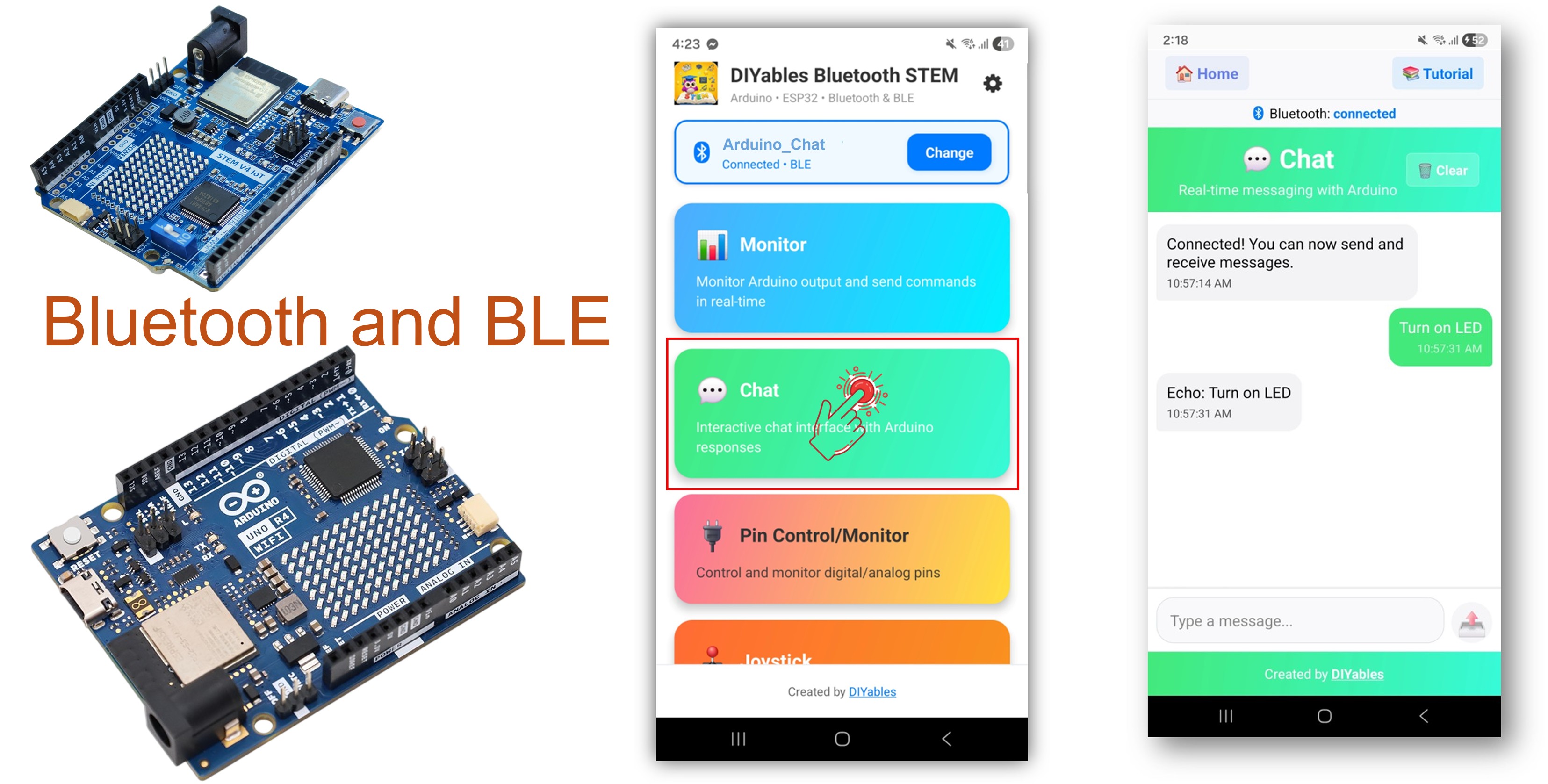
Het Bluetooth Chat voorbeeld biedt een tweerichtings tekstberichten-interface die toegankelijk is via de DIYables Bluetooth STEM app. Ontworpen voor Arduino UNO R4 WiFi met BLE (Bluetooth Low Energy) om in realtime tekstberichten te verzenden en ontvangen tussen uw Arduino en smartphone. Perfect voor commandoregel-interfaces, bediening op afstand via tekstcommando's, seriële bridges en interactieve debugging.
Opmerking: De Arduino UNO R4 WiFi ondersteunt alleen BLE (Bluetooth Low Energy). Het ondersteunt geen Classic Bluetooth. De DIYables Bluetooth App ondersteunt zowel BLE als Classic Bluetooth op Android, en BLE op iOS. Omdat dit board BLE gebruikt, werkt de app op zowel Android als iOS.
Eigenschappen
- Tweerichtings Berichten: Verzend en ontvang tekstberichten in realtime
- Commando Verwerking: Verwerk tekstcommando's vanuit de mobiele app
- Seriële Bridge: Doorstuur berichten tussen Serial Monitor en Bluetooth
- Aangepaste Reacties: Automatisch antwoorden met echo's of verwerkte data
- Werkt op Android & iOS: BLE wordt ondersteund op beide platforms
- Geen Pairing Vereist: BLE verbindt automatisch zonder handmatige koppeling
- Laag Stroomverbruik: BLE verbruikt minder stroom dan Classic Bluetooth
Hardware Vereist
Of u kunt de volgende kits kopen:
| 1 | × | DIYables STEM V4 IoT Starterskit (Arduino inbegrepen) | |
| 1 | × | DIYables STEM V4B IoT Starterskit (Arduino inbegrepen) | |
| 1 | × | DIYables Sensorkit (18 sensoren/displays) |
Arduino UNO R4 WiFi Code
Snelle Stappen
Volg deze instructies stap voor stap:
- Als dit uw eerste keer is met de Arduino UNO R4 WiFi, raadpleeg de Arduino UNO R4 WiFi aan de slag gids.
- Sluit het Arduino UNO R4 WiFi board aan op uw computer met een USB kabel.
- Start de Arduino IDE op uw computer.
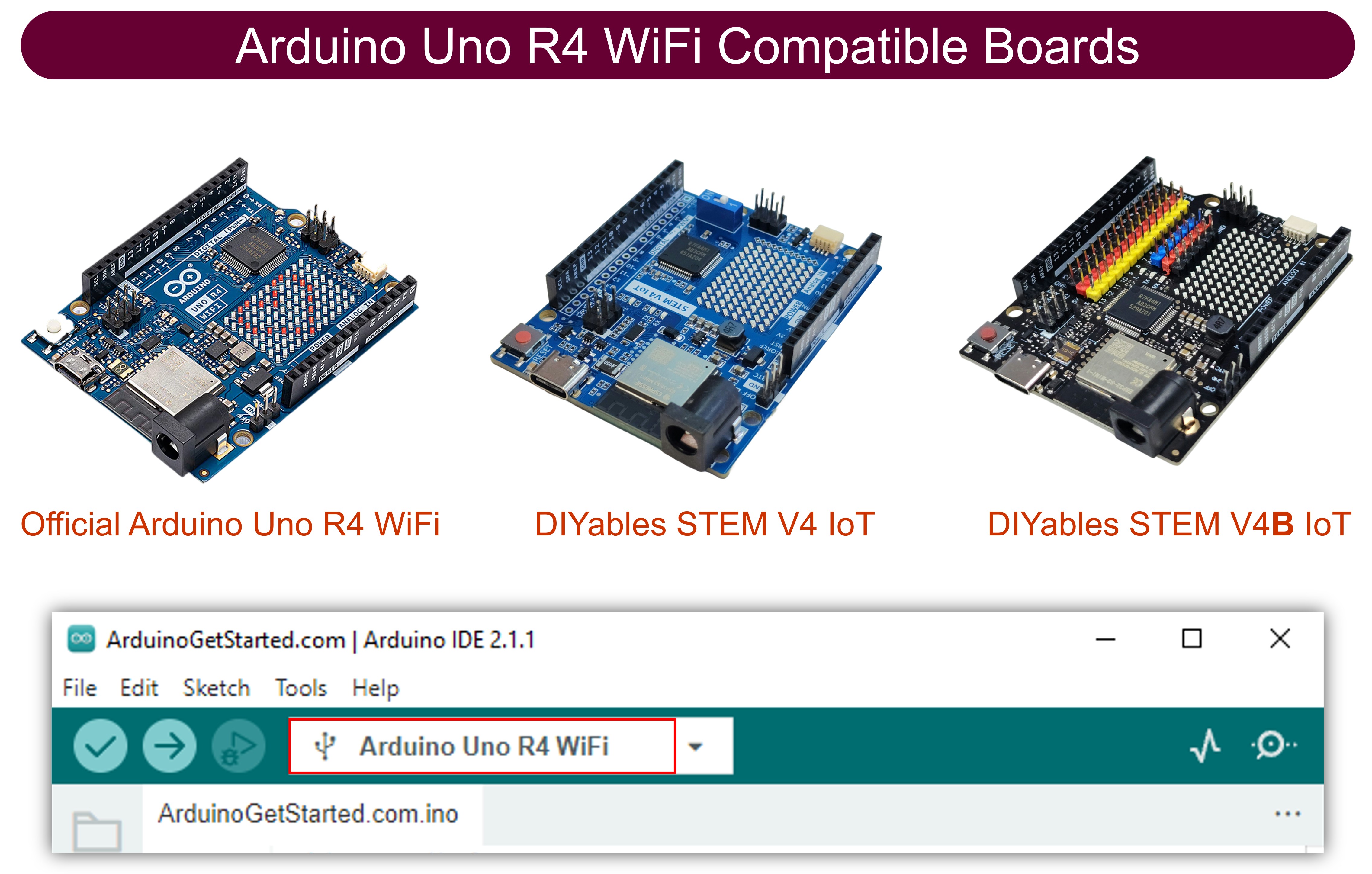
- Selecteer Arduino UNO R4 WiFi board en de juiste COM-poort.
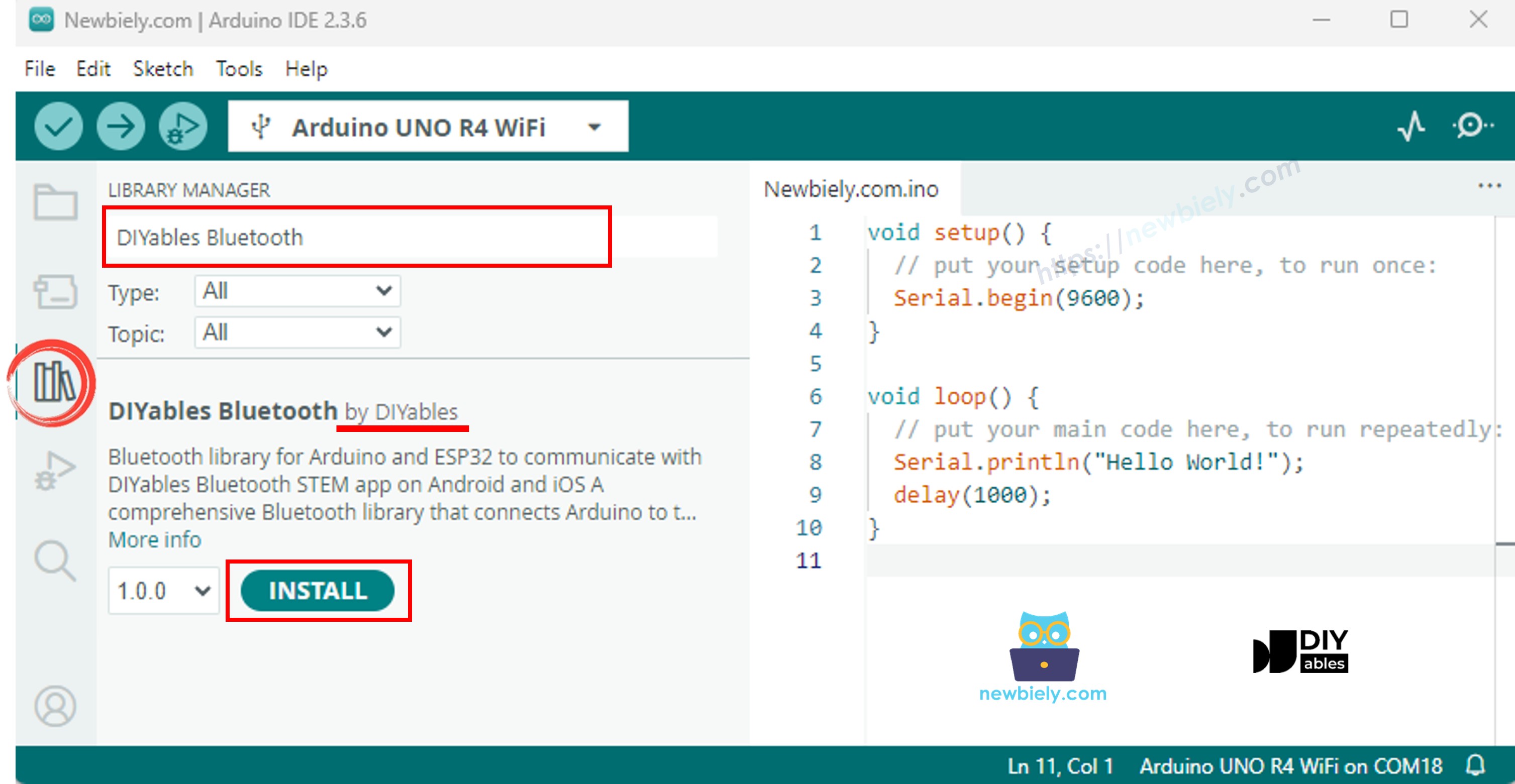
- Navigeer naar het Libraries icoon in de linker balk van de Arduino IDE.
- Zoek "DIYables Bluetooth", vind dan de DIYables Bluetooth bibliotheek door DIYables
- Klik op de Install knop om de bibliotheek te installeren.
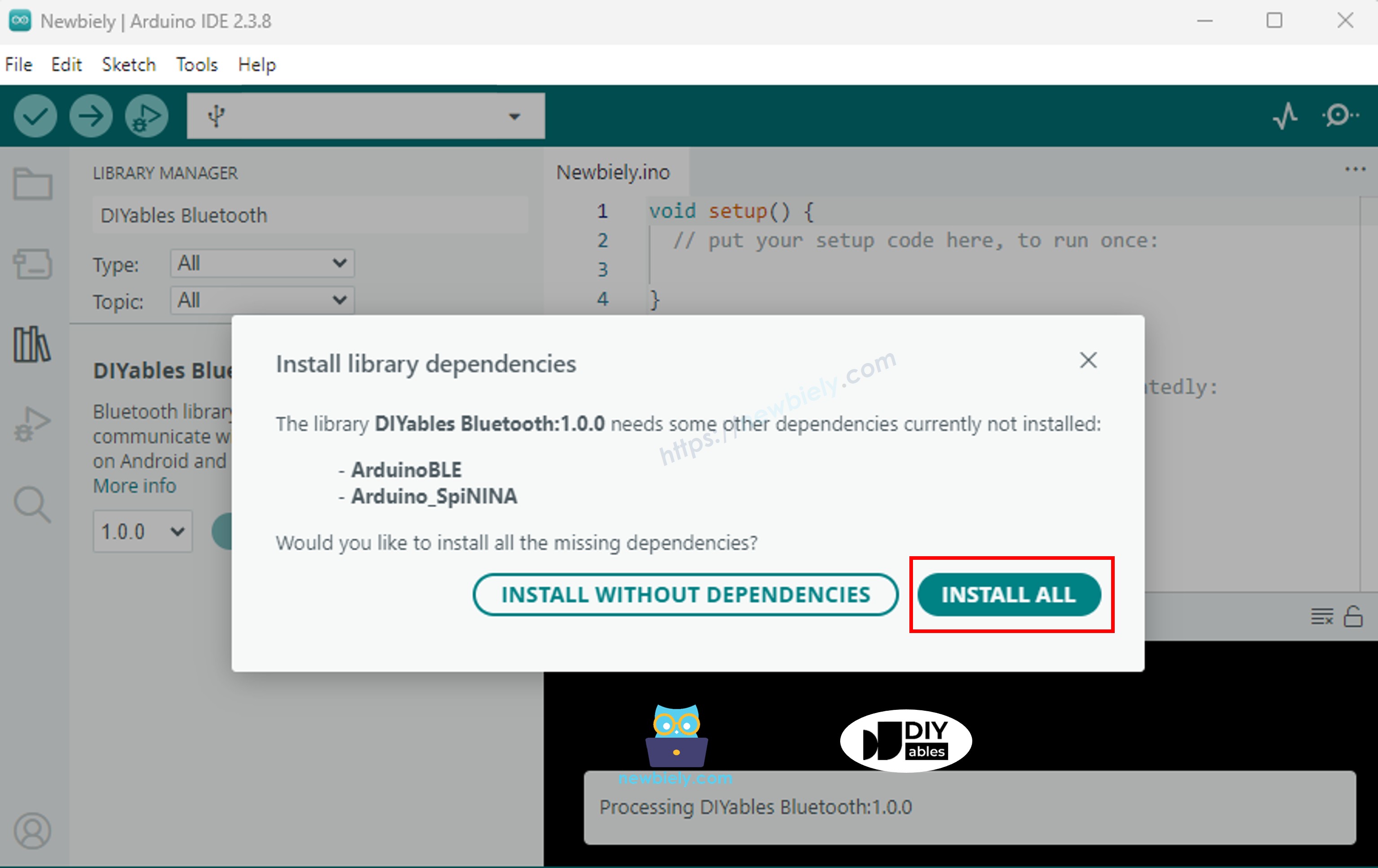
- U wordt gevraagd om enkele andere bibliotheekafhankelijkheden te installeren
- Klik op de Install All knop om alle bibliotheekafhankelijkheden te installeren.
BLE Code
- In Arduino IDE, ga naar File Examples DIYables Bluetooth ArduinoBLE_Chat voorbeeld, of kopieer de bovenstaande code en plak deze in de editor van Arduino IDE
- Klik op de Upload knop in Arduino IDE om de code naar Arduino UNO R4 WiFi te uploaden
- Open de Serial Monitor
- Bekijk het resultaat in Serial Monitor. Het ziet er als volgt uit:
Mobiele App
Opmerking: De DIYables Bluetooth App ondersteunt zowel BLE als Classic Bluetooth op Android, en BLE op iOS. Omdat de Arduino UNO R4 WiFi BLE gebruikt, werkt de app op zowel Android als iOS. Handmatige koppeling is niet nodig voor BLE — gewoon scannen en verbinden.
- Open de DIYables Bluetooth App
- Bij het eerste gebruik van de app worden er toestemmingen gevraagd. Verleen de volgende toestemmingen:
- Nearby Devices toestemming (Android 12+) / Bluetooth toestemming (iOS) - vereist om Bluetooth-apparaten te scannen en er verbinding mee te maken
- Locatie toestemming (alleen Android 11 en eerder) - vereist door oudere Android-versies om BLE-apparaten te scannen
- Zorg ervoor dat Bluetooth is ingeschakeld op uw telefoon
- Tik op het startscherm op de Connect knop. De app zal scannen naar BLE-apparaten.
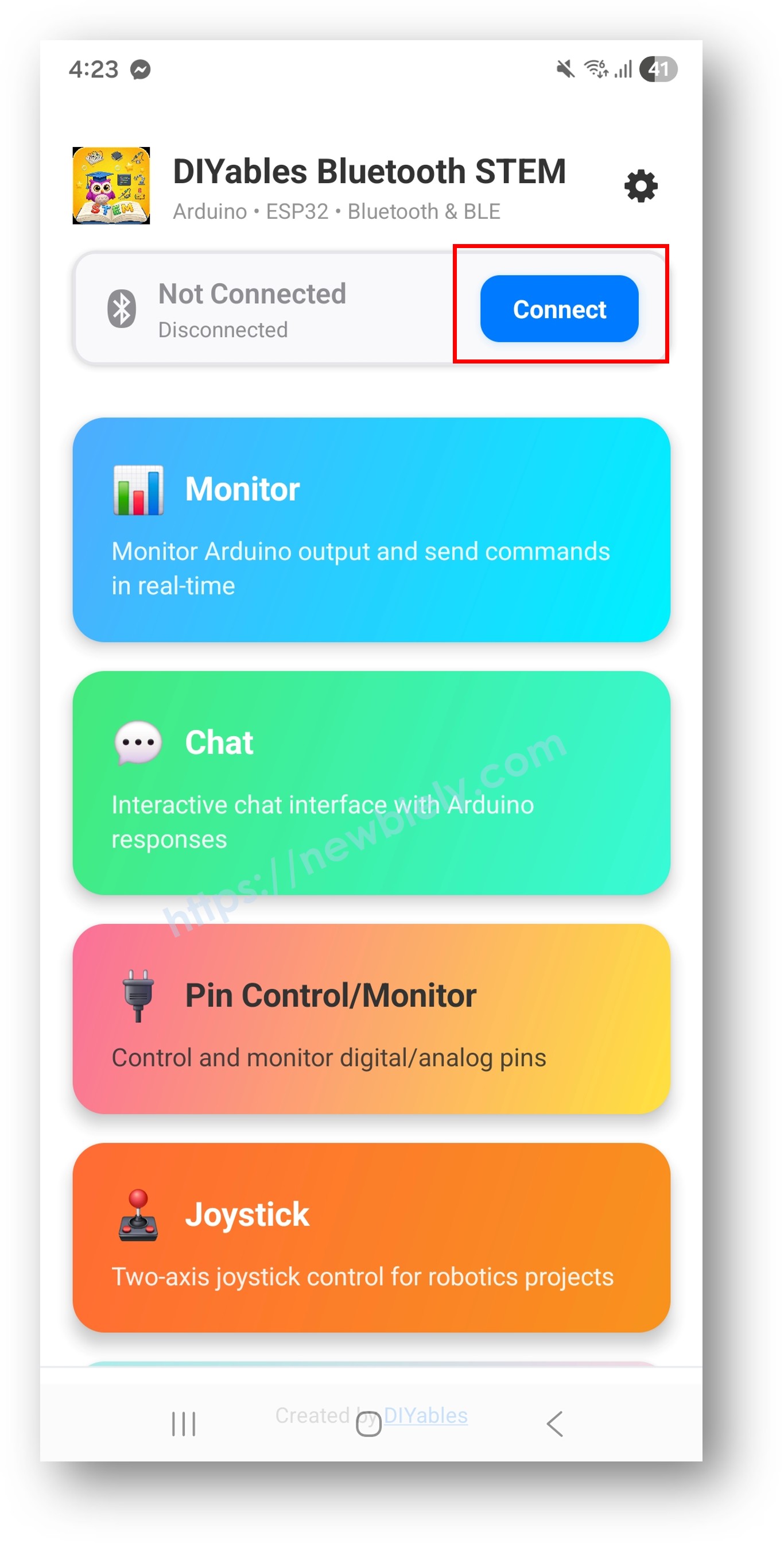
- Zoek en tik op "Arduino_Chat" in de scanresultaten om verbinding te maken.
- Eenmaal verbonden gaat de app automatisch terug naar het startscherm. Selecteer de Chat app uit het app-menu.
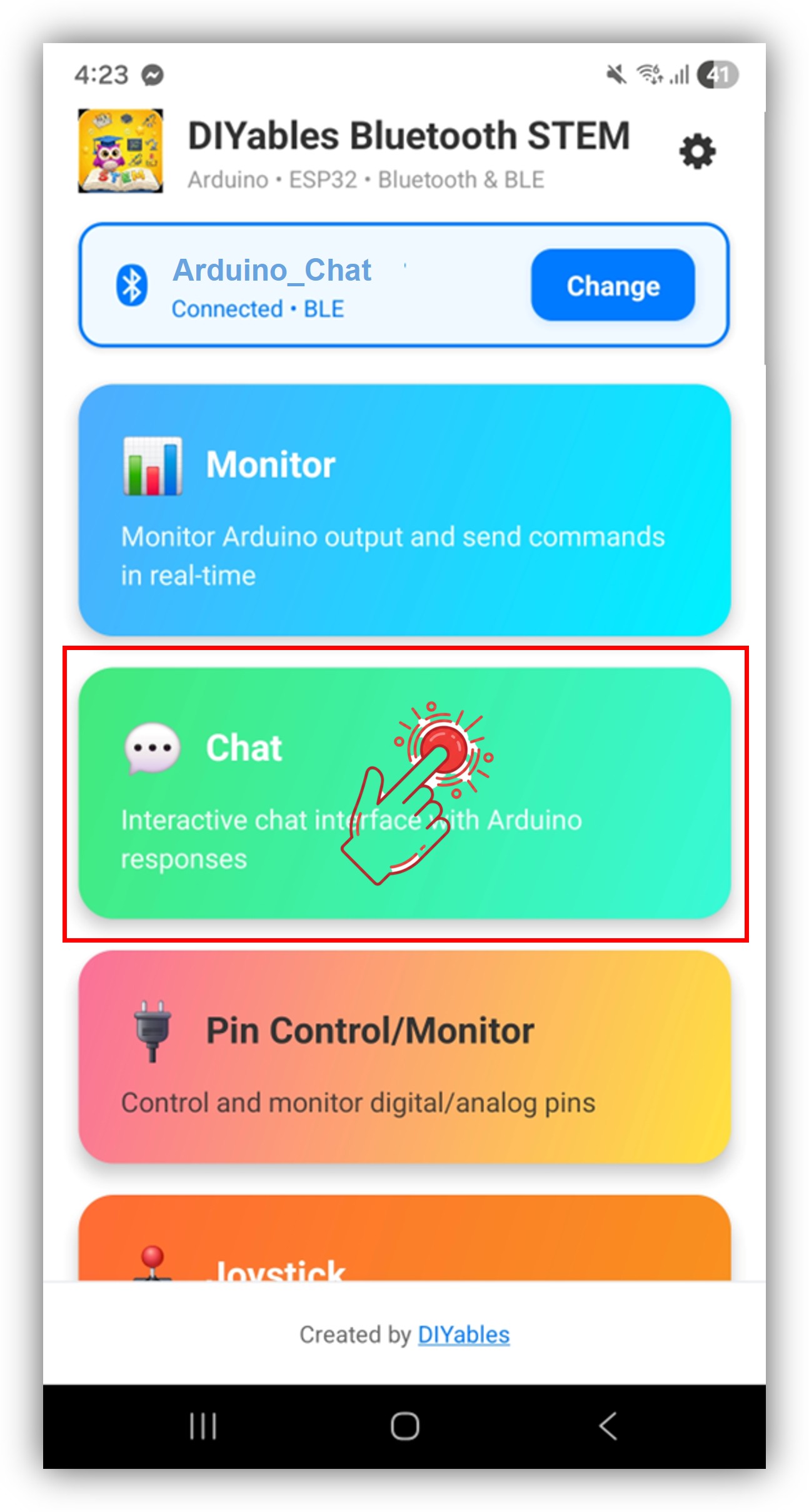
Opmerking: U kunt op het instellingen-icoon op het startscherm tikken om apps op het startscherm te verbergen/tonen. Voor meer details, zie de DIYables Bluetooth App Gebruikershandleiding.
- Typ een bericht in het chat-invoerveld en tik op verzenden
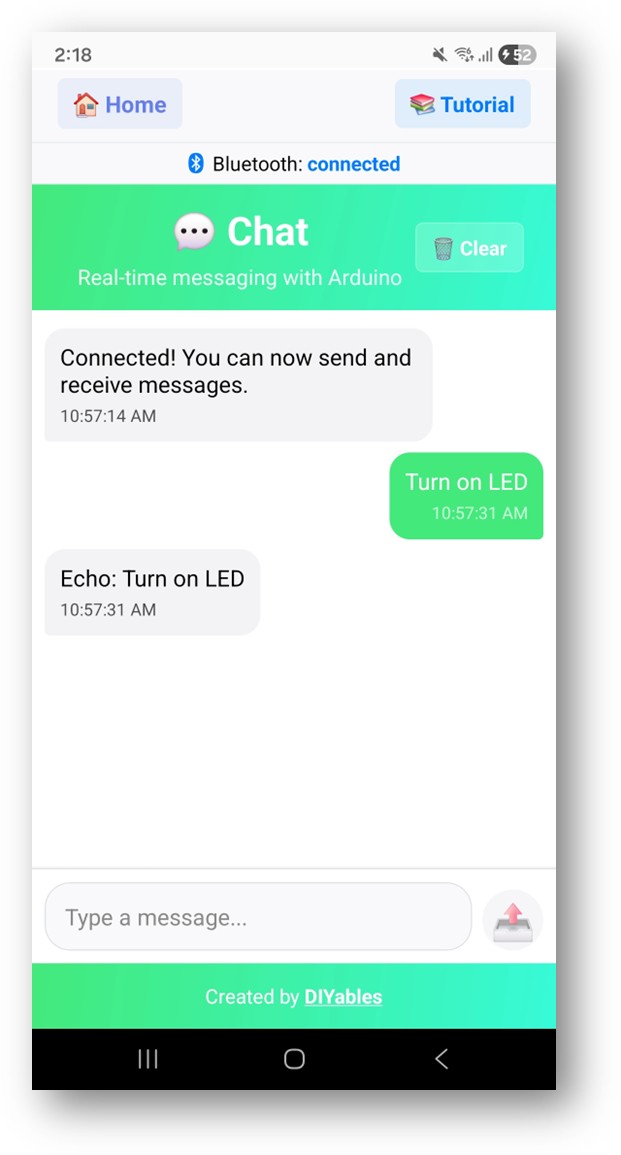
Kijk nu terug naar de Serial Monitor in Arduino IDE. U zult zien:
- De Arduino echoot uw bericht terug, en u kunt het antwoord zien in de app chat
Creatieve Aanpassing - Pas de Code Aan voor Uw Project
Chat Berichten Verwerken
Gebruik de onChatMessage() callback om berichten te ontvangen en verwerken die in de app getypt worden. U kunt aangepaste commando-woorden definiëren die logisch zijn voor uw project — de Arduino zal dienovereenkomstig reageren:
U kunt zoveel aangepaste commando's toevoegen als u nodig heeft door meer else if blokken toe te voegen. Voeg bijvoorbeeld LED_ON / LED_OFF toe om een pin te besturen, of READ om een sensor-uitlezing te activeren — elk woord dat u in de app typt wordt een commando.
Berichten Verzenden vanuit Arduino
Serial-naar-Bluetooth Bridge
Doorstuur berichten tussen Serial Monitor en Bluetooth:
Verbindingsgebeurtenissen Verwerken
Hoe de Chat te Gebruiken
App Interface
De chat-interface in de DIYables Bluetooth App biedt:
- Berichtenlijst: Toont verzonden en ontvangen berichten met tijdstempels
- Tekstinvoer: Typ berichten om naar de Arduino te verzenden
- Verzend Knop: Tik om het bericht te verzenden
Communicatieflow
- Typ een bericht in de app → Arduino ontvangt het via onChatMessage() callback
- Arduino verwerkt het bericht en stuurt optioneel een antwoord via bluetoothChat.send()
- Het antwoord verschijnt in het app chatvenster
Programmeervoorbeelden
Commandoverwerker met Relais Besturing
Sensor Query Systeem
Periodieke Status Updates
Geavanceerde Programmeertechnieken
Meerdere-Woorden Commando Parsing
Chat Logger met Tijdstempels
Videohandleiding
De onderstaande videodemo gebruikt de onderstaande code:
Probleemoplossing
Veelvoorkomende Problemen
1. Kan het apparaat niet vinden in de app
- Zorg ervoor dat de Arduino UNO R4 WiFi is ingeschakeld en de sketch is geüpload
- Controleer of Bluetooth op uw telefoon is ingeschakeld
- Op Android 11 en eerder, schakel ook Locatiediensten in
- Probeer Bluetooth op uw telefoon opnieuw op te starten
2. Berichten worden niet ontvangen door Arduino
- Controleer de Bluetooth-verbindingsstatus in de app
- Verifieer dat de onChatMessage callback correct is ingesteld
- Controleer Serial Monitor op foutmeldingen
3. Arduino antwoorden verschijnen niet in app
- Zorg ervoor dat bluetoothChat.send() wordt aangeroepen
- Controleer dat bluetoothServer.loop() wordt aangeroepen in de hoofdlus
- Verifieer dat de verbinding nog actief is met bluetooth.isConnected()
4. Serial Monitor toont onleesbare tekst
- Zorg ervoor dat de baudrate in Serial Monitor overeenkomt met Serial.begin(9600)
- Controleer dat het juiste board is geselecteerd in Arduino IDE
5. Verbinding valt vaak weg
- Ga dichter bij de Arduino staan (afstand verkleinen)
- Controleer op interferentie van andere BLE-apparaten
- Zorg voor stabiele USB-stroomvoorziening
6. Upload mislukt of board wordt niet herkend
- Installeer het nieuwste Arduino UNO R4 board pakket via Board Manager
- Probeer een andere USB-kabel of poort
- Druk op de reset-knop op het board voordat u uploadt
Projectideeën
Communicatie
- Tekstcommando-interface voor domotica
- Serial-naar-Bluetooth bridge voor draadloze debugging
- Remote sensor query systeem
- Interactieve quiz of trivia spel
Besturingssystemen
- Spraak-naar-tekst relais besturing
- Multi-apparaat commando router
- Configuratie manager via chat commando's
- Firmware versie reporter
Logging & Monitoring
- Gebeurtenislogger met tijdstempels
- Alarm notificatiesysteem
- Status rapport generator
- Diagnostische chat bot
Integratie met Andere Bluetooth Apps
Combineren met Bluetooth Monitor
Gebruik chat voor commando's en monitor voor continue uitvoer:
Combineren met Bluetooth Table
Chat commando's om te controleren welke data in de tabel wordt getoond:
Volgende Stappen
Na het beheersen van het Bluetooth Chat voorbeeld, probeer:
- Bluetooth Monitor - Voor eenrichtings status streaming
- Bluetooth Slider - Voor analoge waarde besturing
- Bluetooth Table - Voor gestructureerde data weergave
- Meerdere Bluetooth Apps - Chat combineren met andere apps
Ondersteuning
Voor aanvullende hulp:
- Controleer de API Reference documentatie
- Bezoek DIYables tutorials
- Arduino community forums
Gerelateerde Tutorials
📱 Aanbevolen apps
 English for KidsSpelenderwijs Engels leren voor jonge kinderen.Ontdek het opGoogle PlayBeschikbaar in deApp Store
 Bubble NoteZelfverwijderende notities – schrijf ze als berichten.Ontdek het opGoogle PlayBeschikbaar in deApp Store
 Didn't BuyVersla impulsaankopen en bespaar meer.Ontdek het opGoogle PlayBeschikbaar in deApp Store
 Knowledge PathOefentoetsen om alles te leren.Ontdek het opGoogle PlayBeschikbaar in deApp Store