Arduino UNO R4 WiFi Bluetooth Monitor Voorbeeld - Draadloze Seriële Monitor via BLE Tutorial
Overzicht
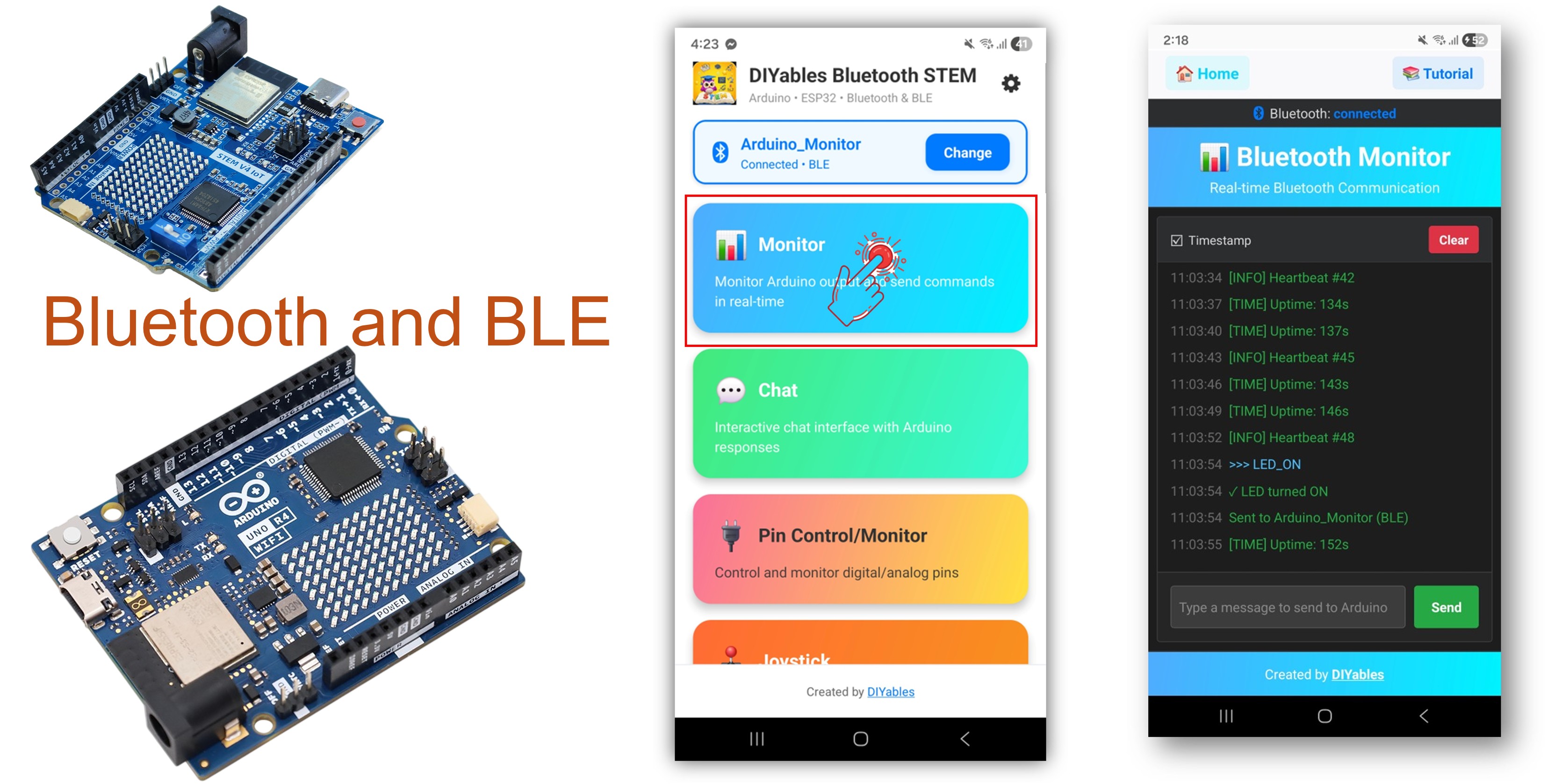
Het Bluetooth Monitor voorbeeld biedt een draadloze seriële monitor die toegankelijk is via de DIYables Bluetooth STEM app. Ontworpen voor Arduino UNO R4 WiFi met behulp van BLE (Bluetooth Low Energy) om real-time statusberichten, debug-uitvoer en sensormetingen draadloos naar uw smartphone te streamen. Ontvang ook tekstcommando's vanuit de app. Perfect voor draadloos debuggen, externe monitoring en systeemlogging.
Opmerking: De Arduino UNO R4 WiFi ondersteunt alleen BLE (Bluetooth Low Energy). Het ondersteunt geen Classic Bluetooth. De DIYables Bluetooth App ondersteunt zowel BLE als Classic Bluetooth op Android, en BLE op iOS. Omdat dit board BLE gebruikt, werkt de app op zowel Android als iOS.
Kenmerken
Draadloze Seriële Monitor: Stream tekstberichten naar uw telefoon
Tweerichtingscommunicatie: Verzend commando's van app naar Arduino
Real-Time Streaming: Continue uitvoer zoals Seriële Monitor
Commando-afhandeling: Verwerk tekstcommando's vanuit de app
Werkt op Android & iOS: BLE wordt ondersteund op beide platforms
Geen koppeling vereist: BLE verbindt automatisch zonder handmatige koppeling
Laag stroomverbruik: BLE verbruikt minder stroom dan Classic Bluetooth
Openbaarmaking: Sommige van de links in deze sectie zijn Amazon-affiliate links. We kunnen een commissie ontvangen voor aankopen die via deze links worden gedaan, zonder extra kosten voor u. We waarderen uw steun.
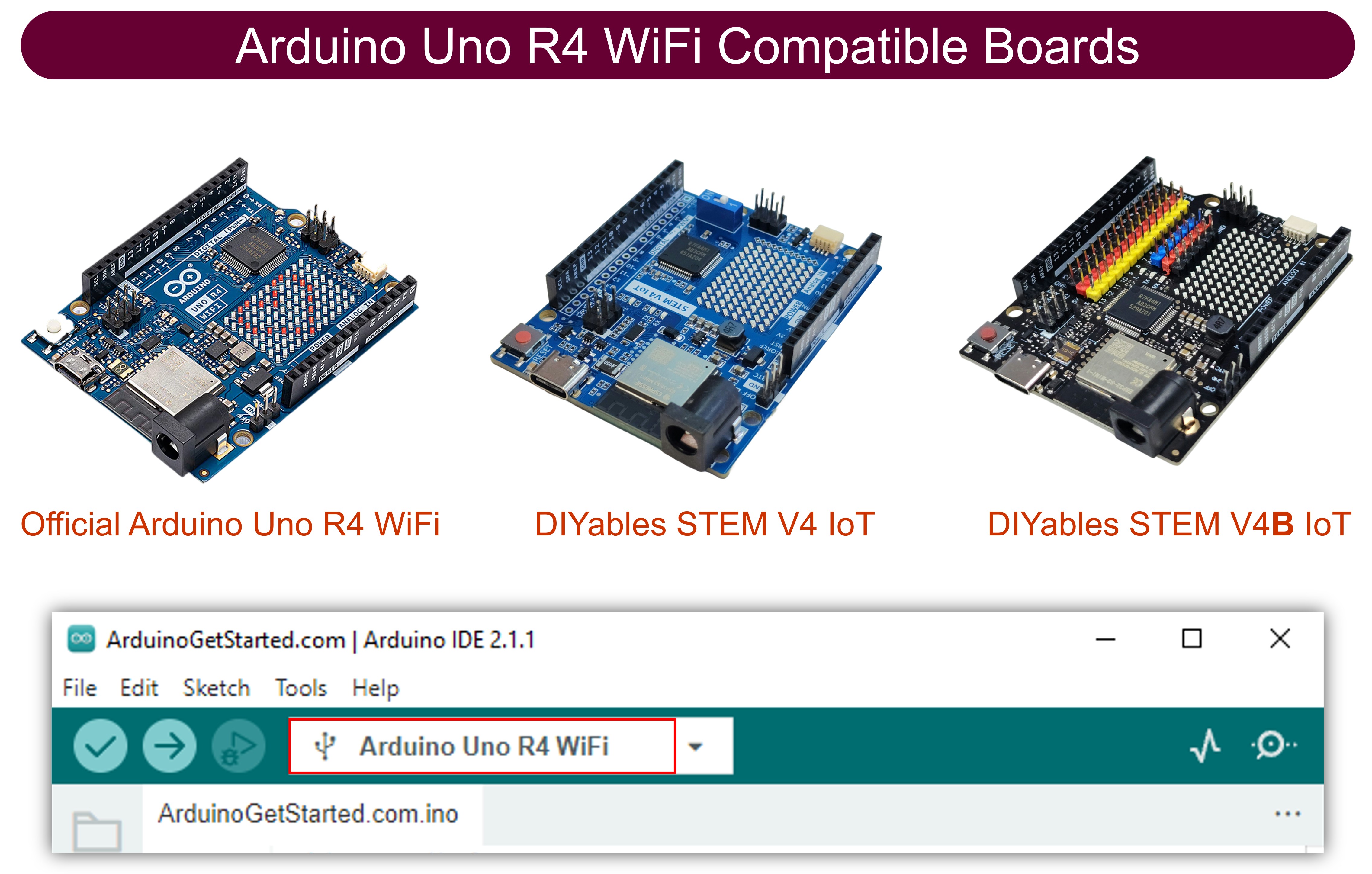
Sluit het Arduino UNO R4 WiFi board aan op uw computer met een USB-kabel.
Start de Arduino IDE op uw computer.
Selecteer Arduino UNO R4 WiFi board en de juiste COM-poort.
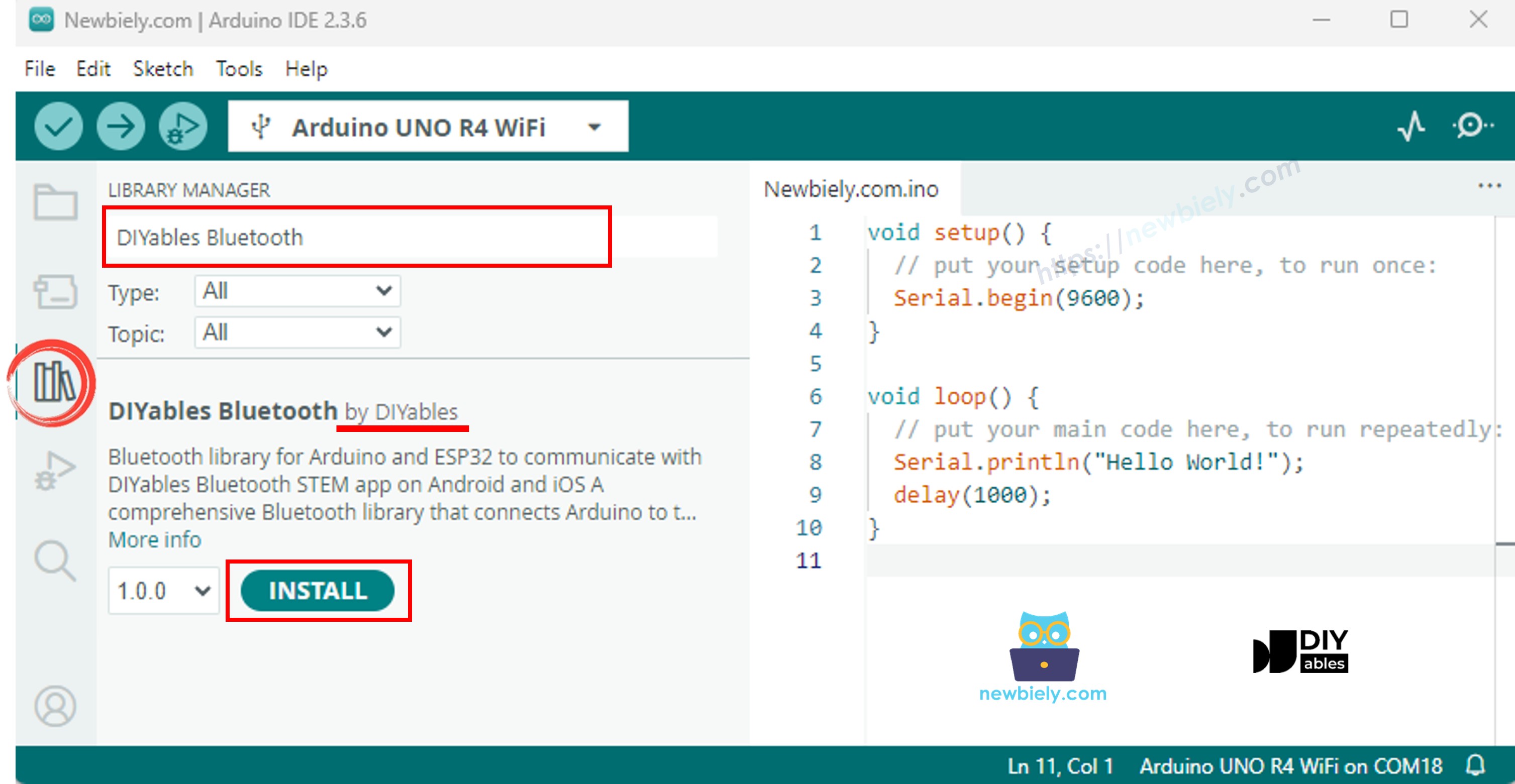
Navigeer naar het Libraries pictogram in de linkerbalk van de Arduino IDE.
Zoek "DIYables Bluetooth", zoek dan de DIYables Bluetooth bibliotheek van DIYables
Klik op de Install knop om de bibliotheek te installeren.
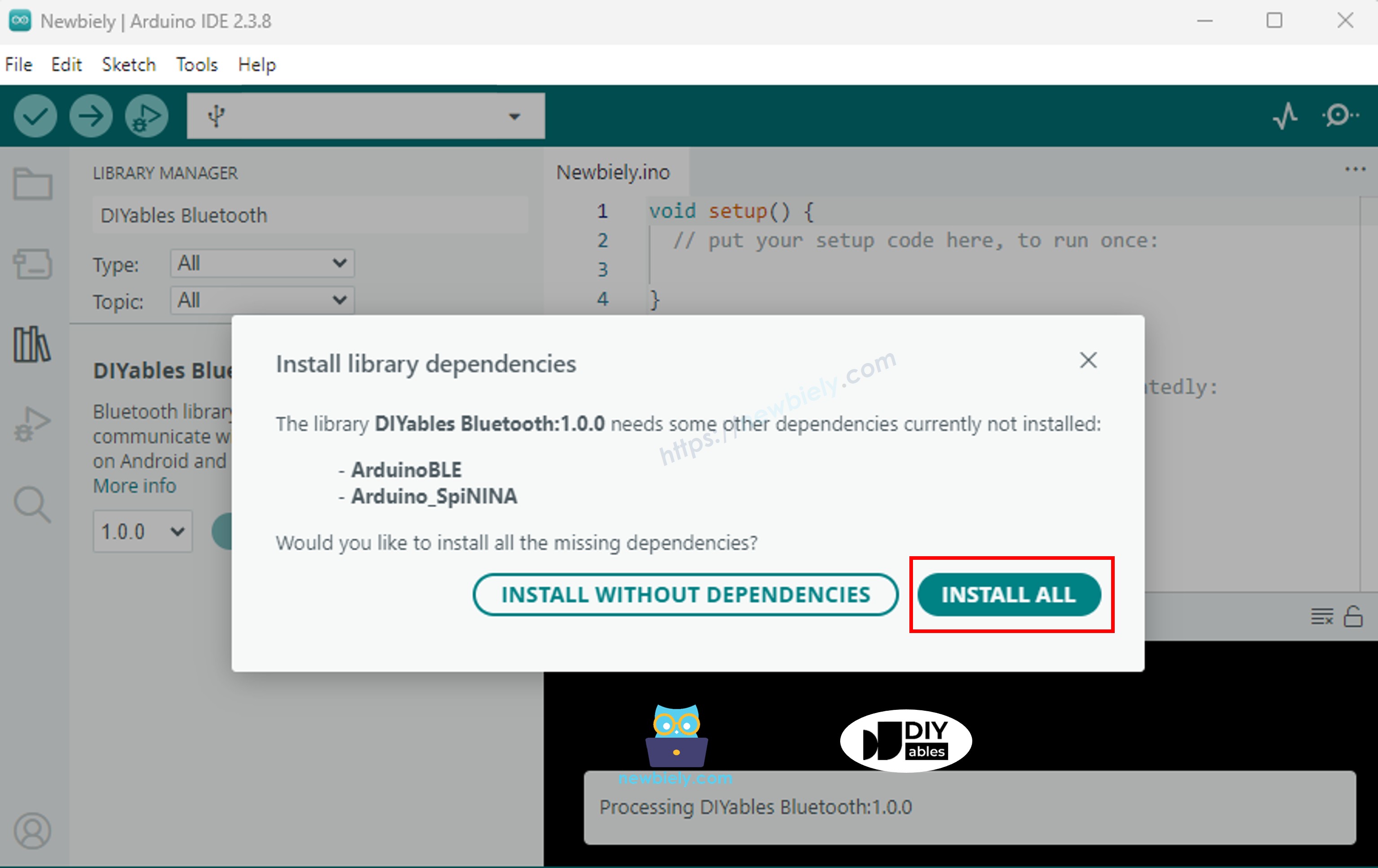
U wordt gevraagd om enkele andere bibliotheekafhankelijkheden te installeren
Klik op de Install All knop om alle bibliotheekafhankelijkheden te installeren.
BLE Code
Ga in Arduino IDE naar File Examples DIYables Bluetooth ArduinoBLE_Monitor voorbeeld, of kopieer de bovenstaande code en plak het in de editor van Arduino IDE
/* * DIYables Bluetooth Library - Bluetooth Monitor Example * Works with DIYables Bluetooth STEM app on Android and iOS * * This example demonstrates the Bluetooth Monitor feature: * - Send real-time status messages to the mobile app * - Display system information and sensor readings * - Receive and process commands from the app * - Perfect for debugging and system monitoring * * Compatible Boards: * - Arduino UNO R4 WiFi * - Arduino Nano 33 BLE / BLE Sense * - Arduino Nano 33 IoT * - Arduino MKR WiFi 1010 * - Arduino Nano RP2040 Connect * - Any board supporting the ArduinoBLE library * * Setup: * 1. Upload the sketch to your Arduino * 2. Open Serial Monitor to see connection status * 3. Use DIYables Bluetooth App to connect and view monitor output * * Tutorial: https://diyables.io/bluetooth-app * Author: DIYables */#include <DIYables_BluetoothServer.h>#include <DIYables_BluetoothMonitor.h>#include <platforms/DIYables_ArduinoBLE.h>// BLE Configurationconst char* DEVICE_NAME = "Arduino_Monitor";const char* SERVICE_UUID = "19B10000-E8F2-537E-4F6C-D104768A1214";const char* TX_UUID = "19B10001-E8F2-537E-4F6C-D104768A1214";const char* RX_UUID = "19B10002-E8F2-537E-4F6C-D104768A1214";// Create Bluetooth instancesDIYables_ArduinoBLE bluetooth(DEVICE_NAME, SERVICE_UUID, TX_UUID, RX_UUID);DIYables_BluetoothServer bluetoothServer(bluetooth);// Create Monitor app instanceDIYables_BluetoothMonitor bluetoothMonitor;// Variables for demounsignedlong lastUpdate = 0;constunsignedlong UPDATE_INTERVAL = 3000; // Send update every 3 secondsint messageCount = 0;bool ledState = false;voidsetup() {Serial.begin(9600);while (!Serial);Serial.println("DIYables Bluetooth - Monitor Example");// Initialize built-in LEDpinMode(LED_BUILTIN, OUTPUT);digitalWrite(LED_BUILTIN, LOW);// Initialize Bluetooth server with platform-specific implementation bluetoothServer.begin();// Add monitor app to server bluetoothServer.addApp(&bluetoothMonitor);// Set up connection event callbacks bluetoothServer.setOnConnected([]() {Serial.println("Bluetooth connected!"); bluetoothMonitor.send("=== Arduino Monitor Connected ==="); bluetoothMonitor.send("System Ready"); bluetoothMonitor.send("Type HELP for available commands"); bluetoothMonitor.send(""); }); bluetoothServer.setOnDisconnected([]() {Serial.println("Bluetooth disconnected!"); });// Set up message handler for incoming commands bluetoothMonitor.onMonitorMessage([](const String& message) {Serial.print("Received command: ");Serial.println(message); handleCommand(message); });Serial.println("Waiting for Bluetooth connection...");}void handleCommand(const String& cmd) {if (cmd == "HELP") { bluetoothMonitor.send("Available Commands:"); bluetoothMonitor.send(" LED_ON - Turn LED on"); bluetoothMonitor.send(" LED_OFF - Turn LED off"); bluetoothMonitor.send(" STATUS - Show system status"); bluetoothMonitor.send(" CLEAR - Clear monitor (if supported)"); bluetoothMonitor.send(" HELP - Show this help"); }elseif (cmd == "LED_ON") {digitalWrite(LED_BUILTIN, HIGH); ledState = true; bluetoothMonitor.send("✓ LED turned ON"); }elseif (cmd == "LED_OFF") {digitalWrite(LED_BUILTIN, LOW); ledState = false; bluetoothMonitor.send("✓ LED turned OFF"); }elseif (cmd == "STATUS") { showStatus(); }elseif (cmd == "CLEAR") {// App should handle clearing the display bluetoothMonitor.send(""); }else { bluetoothMonitor.send("✗ Unknown command: " + cmd); bluetoothMonitor.send("Type HELP for available commands"); }}void showStatus() { bluetoothMonitor.send("=== System Status ===");// LED Status bluetoothMonitor.send("LED State: " + String(ledState ? "ON" : "OFF"));// Uptimeunsignedlong uptime = millis() / 1000; bluetoothMonitor.send("Uptime: " + String(uptime / 3600) + "h " + String((uptime % 3600) / 60) + "m " + String(uptime % 60) + "s");// Free Memory (approximate for AVR) #ifdef __AVR__externint __heap_start, *__brkval;int freeMemory = (int) &freeMemory - (__brkval == 0 ? (int) &__heap_start : (int) __brkval); bluetoothMonitor.send("Free Memory: " + String(freeMemory) + " bytes"); #endif// Messages sent bluetoothMonitor.send("Messages Sent: " + String(messageCount)); bluetoothMonitor.send("====================");}void sendPeriodicUpdate() { messageCount++;// Example of different message typesif (messageCount % 3 == 0) {// Send status update bluetoothMonitor.send("[INFO] Heartbeat #" + String(messageCount)); } elseif (messageCount % 5 == 0) {// Send simulated sensor readingint sensorValue = random(0, 1024); bluetoothMonitor.send("[SENSOR] Reading: " + String(sensorValue) + " (random demo value)"); }else {// Send timestamp bluetoothMonitor.send("[TIME] Uptime: " + String(millis() / 1000) + "s"); }// Optionally log to Serial as wellSerial.print("Sent update #");Serial.println(messageCount);}voidloop() {// Handle Bluetooth server communications bluetoothServer.loop();// Send periodic updates (only when connected)if (bluetooth.isConnected() && millis() - lastUpdate >= UPDATE_INTERVAL) { lastUpdate = millis(); sendPeriodicUpdate(); }delay(10);}
Klik op de Upload knop in Arduino IDE om de code naar Arduino UNO R4 WiFi te uploaden
Open de Seriële Monitor
Bekijk het resultaat in de Seriële Monitor. Het ziet eruit zoals hieronder:
Newbiely | Arduino IDE 2.3.8
──
☐
✕
File
Edit
Sketch
Tools
Help
Arduino Uno R4 WiFi
Newbiely.ino
···
8Serial.println("Hello World!");
Output
Serial Monitor
Message (Enter to send message to 'Arduino Uno R4 WiFi' on 'COM15')
New Line
9600 baud
DIYables Bluetooth - Monitor Example
Waiting for Bluetooth connection...
Ln 11, Col 1
Arduino Uno R4 WiFi on COM15
2
Mobiele App
Installeer de DIYables Bluetooth App op uw smartphone: Android | iOS
Opmerking: De DIYables Bluetooth App ondersteunt zowel BLE als Classic Bluetooth op Android, en BLE op iOS. Omdat de Arduino UNO R4 WiFi BLE gebruikt, werkt de app op zowel Android als iOS. Handmatige koppeling is niet nodig voor BLE — scannen en verbinden is voldoende.
Open de DIYables Bluetooth App
Wanneer u de app voor de eerste keer opent, zal het om toestemmingen vragen. Verleen de volgende toestemmingen:
Nearby Devices toestemming (Android 12+) / Bluetooth toestemming (iOS) - vereist om Bluetooth-apparaten te scannen en verbinden
Location toestemming (alleen Android 11 en lager) - vereist door oudere Android-versies om BLE-apparaten te scannen
Zorg ervoor dat Bluetooth is ingeschakeld op uw telefoon
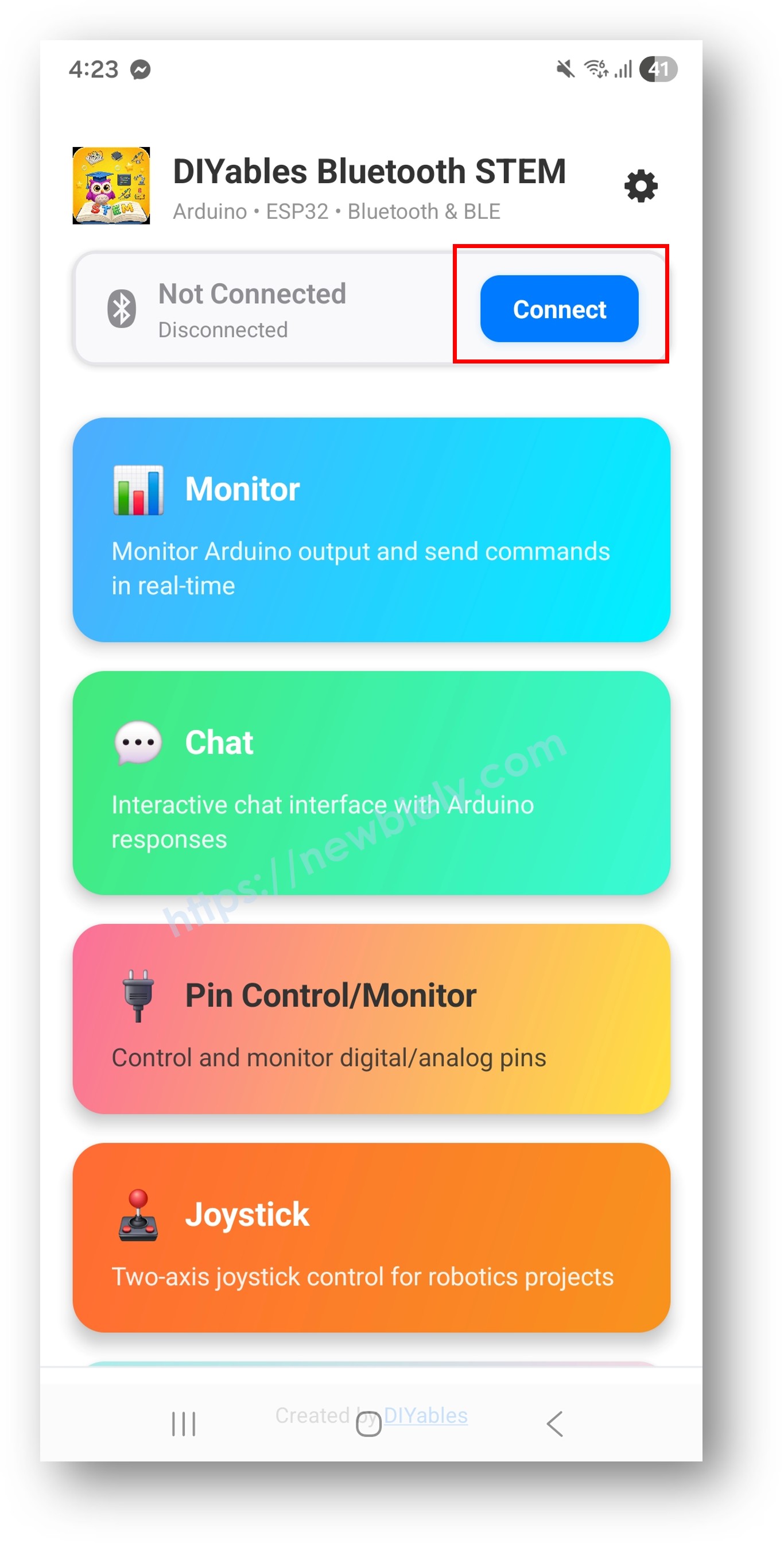
Tik op het startscherm op de Connect knop. De app zal scannen naar BLE-apparaten.
Zoek en tik op "Arduino_Monitor" in de scanresultaten om te verbinden.
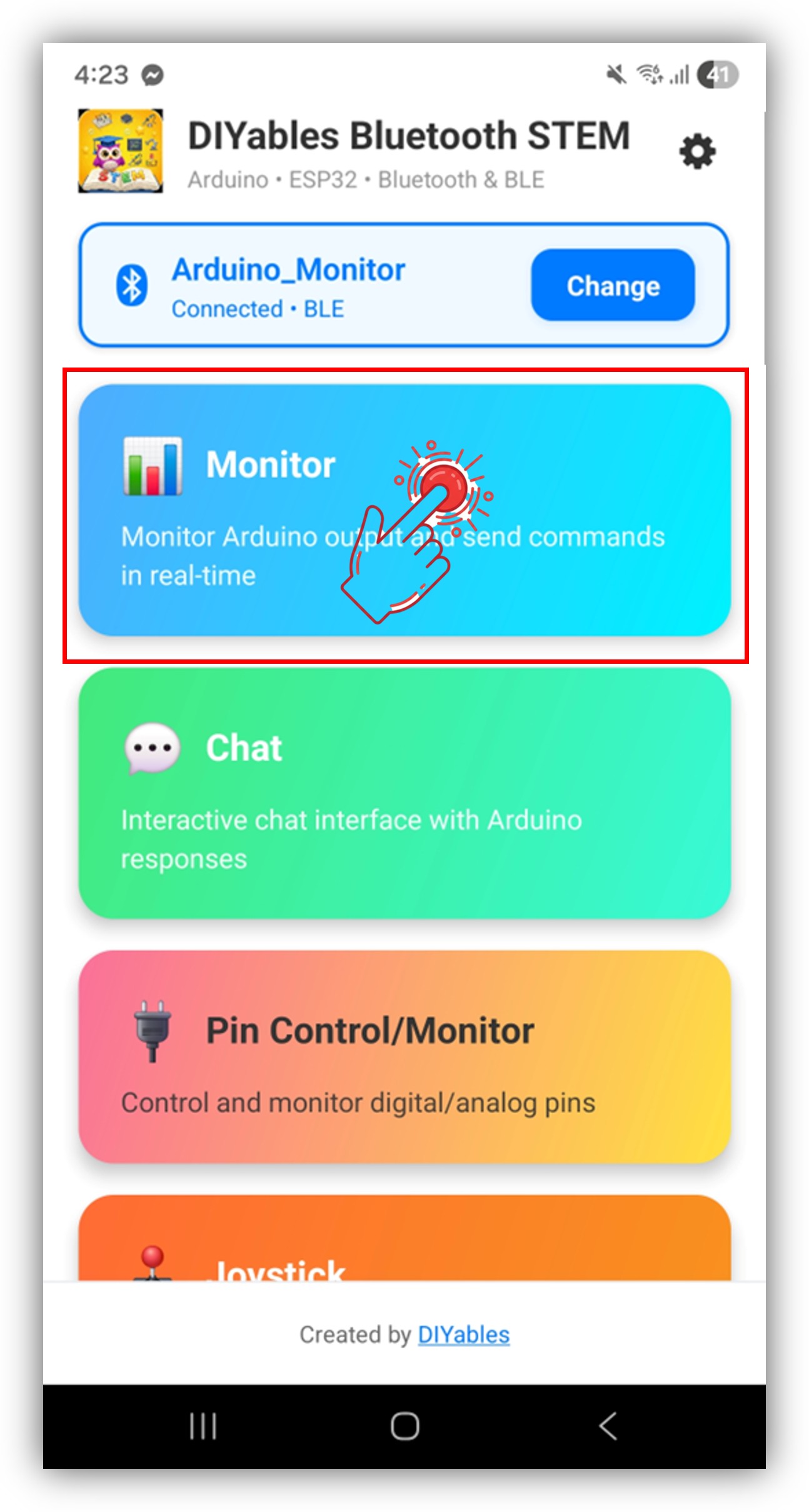
Eenmaal verbonden gaat de app automatisch terug naar het startscherm. Selecteer de Monitor app uit het app-menu.
Opmerking: U kunt tikken op het instellingen-icoon op het startscherm om apps te verbergen/tonen op het startscherm. Voor meer details, zie de DIYables Bluetooth App Gebruikershandleiding.
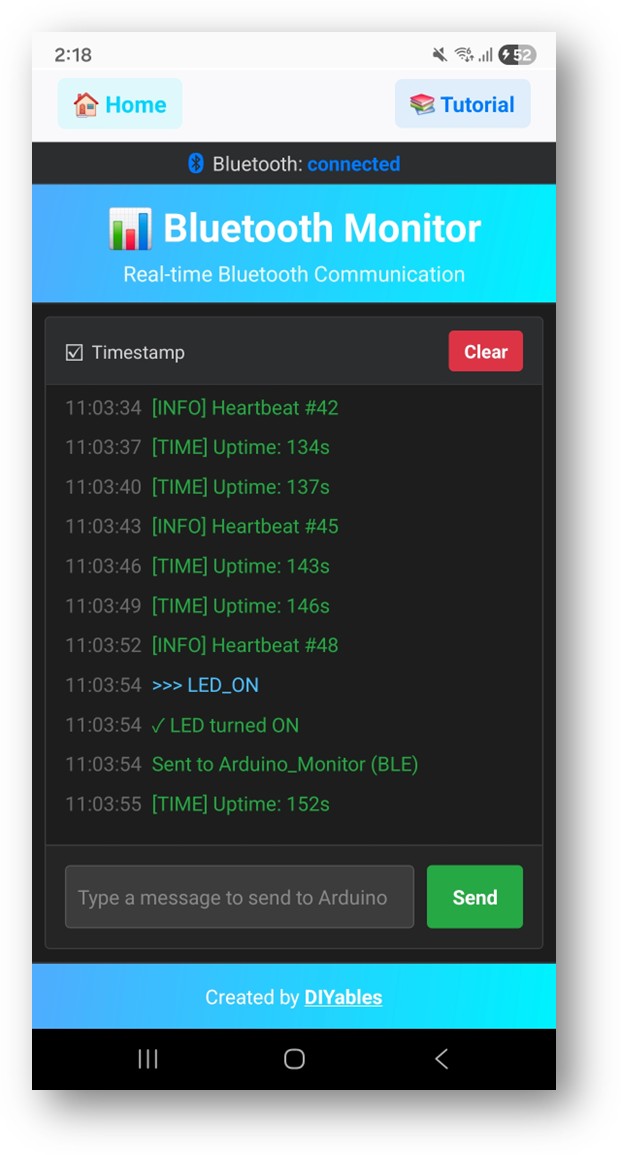
U zult statusberichten zien streamen in het monitor-display
Typ LED_ON in het invoerveld en tik op Send — de ingebouwde LED op de Arduino UNO R4 WiFi zal INSCHAKELEN, en de monitor toont een bevestigingsbericht
Kijk nu terug naar de Seriële Monitor in Arduino IDE. U zult zien:
Newbiely | Arduino IDE 2.3.8
──
☐
✕
File
Edit
Sketch
Tools
Help
Arduino Uno R4 WiFi
Newbiely.ino
···
8Serial.println("Hello World!");
Output
Serial Monitor
Message (Enter to send message to 'Arduino Uno R4 WiFi' on 'COM15')
New Line
9600 baud
Bluetooth connected!
Sent update #1
Sent update #2
Sent update #3
Ln 11, Col 1
Arduino Uno R4 WiFi on COM15
2
Creatieve Aanpassing - Pas de Code aan voor Uw Project
Berichten Verzenden
// Verzend tekstberichten naar de appbluetoothMonitor.send("System started");bluetoothMonitor.send("Temperature: " + String(temp, 1) + " °C");bluetoothMonitor.send("[ERROR] Sensor disconnected!");
Inkomende Commando's Afhandelen
Gebruik de onMonitorMessage() callback om commando's te ontvangen die in de Monitor app zijn getypt en erop te reageren:
U kunt zoveel aangepaste commando's toevoegen als u nodig heeft door meer elseif blokken toe te voegen. Voeg bijvoorbeeld RELAY_ON / RELAY_OFF toe om een relais te besturen, of READ om een sensormeting te activeren — elk woord dat u in de app typt wordt een commando.
U bent welkom om de link naar deze tutorial te delen. Gebruik onze inhoud echter niet op andere websites. We hebben veel moeite en tijd gestoken in het maken van de inhoud, respecteer alstublieft ons werk!

 English for KidsSpelenderwijs Engels leren voor jonge kinderen.Ontdek het opGoogle PlayBeschikbaar in deApp Store
 Bubble NoteZelfverwijderende notities – schrijf ze als berichten.Ontdek het opGoogle PlayBeschikbaar in deApp Store
 Didn't BuyVersla impulsaankopen en bespaar meer.Ontdek het opGoogle PlayBeschikbaar in deApp Store
 Knowledge PathOefentoetsen om alles te leren.Ontdek het opGoogle PlayBeschikbaar in deApp Store