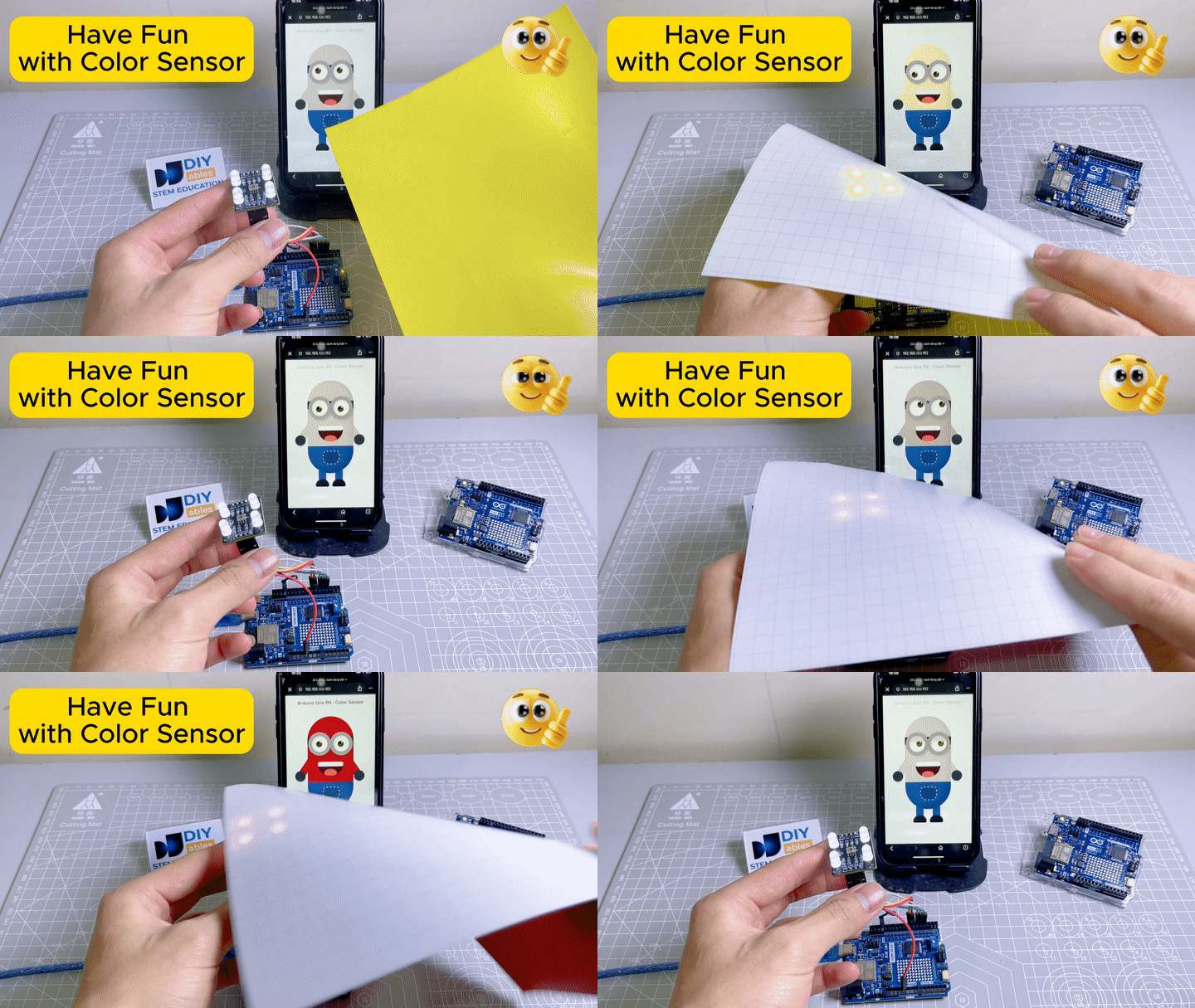
Dit leuke project combineert de TCS3200D/TCS230 kleur sensor met een web-gebaseerd Minion karakter. De Arduino UNO R4 WiFi leest kleuren van de sensor en stuurt de gedetecteerde kleur naar een webbrowser via WebSocket. De Minion op de webpagina verandert zijn huidkleur in real-time om overeen te komen met welke kleur u ook voor de sensor houdt! Om het eenvoudig te maken om de webinterface te bouwen en real-time communicatie af te handelen, zullen we de DIYables WebApps library gebruiken.
De Arduino UNO R4 leest RGB waarden van de TCS3200D/TCS230 kleur sensor
De Arduino converteert de RGB waarden naar een HEX kleurcode
De kleurcode wordt in real-time naar een webbrowser gestuurd via WebSocket
De webpagina toont een leuke geanimeerde Minion wiens lichaam, armen en oogleden van kleur veranderen
We bieden ook stap-voor-stap video-instructies onderaan deze handleiding.
Openbaarmaking: Sommige van de links in deze sectie zijn Amazon-affiliate links. We kunnen een commissie ontvangen voor aankopen die via deze links worden gedaan, zonder extra kosten voor u. We waarderen uw steun.
Over TCS3200D/TCS230 Kleur Sensor en DIYables WebApps
Leer meer over de TCS3200D/TCS230 kleur sensor, DIYables WebApps library, en hoe u aangepaste web apps kunt maken in de onderstaande handleidingen:
Voor elke meting selecteert het de rode, groene en blauwe filters één voor één met behulp van de S2/S3 pins, en meet vervolgens de pulsbreedte op de OUT pin.
De ruwe pulsbreedte waarden worden toegewezen aan 0-255 RGB waarden met behulp van kalibratie waarden (van de kalibratie stap).
De RGB waarden worden geconverteerd naar een HEX kleur string (bijv., #FF8000).
De HEX kleur string wordt naar de webbrowser gestuurd via WebSocket met behulp van de DIYables WebApps library.
De webpagina ontvangt de kleur en werkt het lichaam, armen en oogleden van de Minion in real-time bij naar die kleur.
Arduino UNO R4 Code - Kleur Sensor Minion Web App
De code bestaat uit 4 bestanden:
ColorSensor.ino - Hoofd Arduino sketch: leest de kleur sensor en stuurt de kleur naar de webpagina
CustomWebApp.h - Header bestand: definieert de aangepaste web app pagina klasse
CustomWebApp.cpp - Implementatie bestand: behandelt WebSocket communicatie met de "Color Sensor:" identifier
custom_page_html.h - Webpagina: bevat de geanimeerde Minion HTML/CSS/JavaScript die kleuren ontvangt en de huid van de Minion bijwerkt
ColorSensor.ino
/* * Deze Arduino UNO R4 code is ontwikkeld door newbiely.nl * Deze Arduino UNO R4 code wordt zonder enige beperking aan het publiek beschikbaar gesteld. * Voor volledige instructies en schema's, bezoek: * https://newbiely.nl/tutorials/arduino-uno-r4/arduino-uno-r4-color-sensor-via-web*/#include <DIYablesWebApps.h>#include"CustomWebApp.h"// CHANGE THESE TO YOUR WIFI DETAILSconstchar WIFI_SSID[] = "YOUR_WIFI_SSID";constchar WIFI_PASSWORD[] = "YOUR_WIFI_PASSWORD";intstatus = WL_IDLE_STATUS;// TCS3200 Pinsconstint S0 = 4, S1 = 3, S2 = 6, S3 = 5, sensorOut = 7;UnoR4ServerFactory serverFactory;DIYablesWebAppServerwebAppsServer(serverFactory, 80, 81);DIYablesHomePage homePage;CustomWebAppPage customPage;unsignedlong lastColorRead = 0;voidsetup() {Serial.begin(9600);// Initialize TCS3200 pinspinMode(S0, OUTPUT);pinMode(S1, OUTPUT);pinMode(S2, OUTPUT);pinMode(S3, OUTPUT);pinMode(sensorOut, INPUT);digitalWrite(S0, HIGH);digitalWrite(S1, LOW); // 20% frequency scalingwebAppsServer.addApp(&homePage);webAppsServer.addApp(&customPage);// Check for the WiFi moduleif (WiFi.status() == WL_NO_MODULE) {Serial.println("Communication with WiFi module failed!");// Stop program executionwhile (true); }String fv = WiFi.firmwareVersion();if (fv < WIFI_FIRMWARE_LATEST_VERSION) {Serial.println("Please upgrade the firmware"); }// Attempt to connect to WiFi networkwhile (status != WL_CONNECTED) {// Connect to WPA/WPA2 network (change if using open or WEP)status = WiFi.begin(WIFI_SSID, WIFI_PASSWORD);// Wait 10 seconds for connectiondelay(10000); }webAppsServer.begin();Serial.println("Color Web Server Ready!");}voidloop() {webAppsServer.loop();// Read color every 1 secondif (millis() - lastColorRead > 1000) {// Read Red colordigitalWrite(S2, LOW);digitalWrite(S3, LOW);int r = map(pulseIn(sensorOut, LOW), 31, 150, 255, 0);// Read Green colordigitalWrite(S2, HIGH);digitalWrite(S3, HIGH);int g = map(pulseIn(sensorOut, LOW), 35, 180, 255, 0);// Read Blue colordigitalWrite(S2, LOW);digitalWrite(S3, HIGH);int b = map(pulseIn(sensorOut, LOW), 30, 150, 255, 0);// Convert to HEX and send to Webchar hexColor[8]; sprintf(hexColor, "#%02X%02X%02X", constrain(r, 0, 255), constrain(g, 0, 255), constrain(b, 0, 255)); customPage.sendToWeb(String(hexColor));Serial.println("Sent to Minion: " + String(hexColor)); lastColorRead = millis(); }}
CustomWebApp.h
/* * Deze Arduino UNO R4 code is ontwikkeld door newbiely.nl * Deze Arduino UNO R4 code wordt zonder enige beperking aan het publiek beschikbaar gesteld. * Voor volledige instructies en schema's, bezoek: * https://newbiely.nl/tutorials/arduino-uno-r4/arduino-uno-r4-color-sensor-via-web*/#ifndef CUSTOM_WEBAPP_H#define CUSTOM_WEBAPP_H#include <DIYablesWebApps.h>/** * Simple Custom WebApp Page * * This is a template for creating your own custom web applications. * It provides basic controls like buttons and sliders that communicate * with your Arduino in real-time. */class CustomWebAppPage : public DIYablesWebAppPageBase {private:// WebSocket message identifier for this custom appstaticconstString APP_IDENTIFIER;public: CustomWebAppPage();// ========================================// REQUIRED METHODS - USED BY LIBRARY - DON'T CHANGE THESE!// ========================================void handleHTTPRequest(IWebClient& client) override;void handleWebSocketMessage(IWebSocket& ws, const char* message, uint16_tlength) override;const char* getPageInfo() constoverride;String getNavigationInfo() constoverride;// ========================================// YOUR METHODS - USE THESE IN YOUR CODE!// ========================================void onCustomMessageReceived(void (*callback)(const String& payload));void sendToWeb(const String& message);};#endif
CustomWebApp.cpp
/* * Deze Arduino UNO R4 code is ontwikkeld door newbiely.nl * Deze Arduino UNO R4 code wordt zonder enige beperking aan het publiek beschikbaar gesteld. * Voor volledige instructies en schema's, bezoek: * https://newbiely.nl/tutorials/arduino-uno-r4/arduino-uno-r4-color-sensor-via-web*/#include"CustomWebApp.h"#include"custom_page_html.h"// Define the static member - WebSocket message identifier for this custom appconstString CustomWebAppPage::APP_IDENTIFIER = "Color Sensor:";// Callback function for handling messages from web browservoid (*customMessageCallback)(const String& payload) = nullptr;CustomWebAppPage::CustomWebAppPage() : DIYablesWebAppPageBase("/custom") {}void CustomWebAppPage::handleHTTPRequest(IWebClient& client) {// Send the HTML page to web browser sendHTTPHeader(client); client.print(CUSTOM_PAGE_HTML);}void CustomWebAppPage::handleWebSocketMessage(IWebSocket& ws, const char* message, uint16_tlength) {String messageStr = String(message, length);Serial.print("Color Sensor WebApp received: ");Serial.println(messageStr);// Only handle messages that start with our app identifierif (messageStr.startsWith(APP_IDENTIFIER)) {String payload = messageStr.substring(APP_IDENTIFIER.length()); // Remove identifier// Call your callback function with the payloadif (customMessageCallback) { customMessageCallback(payload); } }}void CustomWebAppPage::onCustomMessageReceived(void (*callback)(const String& payload)) { customMessageCallback = callback;}void CustomWebAppPage::sendToWeb(const String& message) {// Send message to web browser with app identifierString fullMessage = APP_IDENTIFIER + message; broadcastToAllClients(fullMessage.c_str());}const char* CustomWebAppPage::getPageInfo() const {return"🔧 Color Sensor WebApp";}String CustomWebAppPage::getNavigationInfo() const {String result = "<a href=\""; result += getPagePath(); result += "\" class=\"app-card custom\" style=\"background: linear-gradient(135deg, #007bff 0%, #0056b3 100%);\">"; result += "<h3>🔧 Color Sensor WebApp</h3>"; result += "<p>Simple template for your own apps</p>"; result += "</a>";return result;}
Kalibreer eerst uw kleur sensor door de TCS3200D/TCS230 kalibratie gids te volgen. Noteer uw kalibratie waarden (redMin, redMax, greenMin, greenMax, blueMin, blueMax).
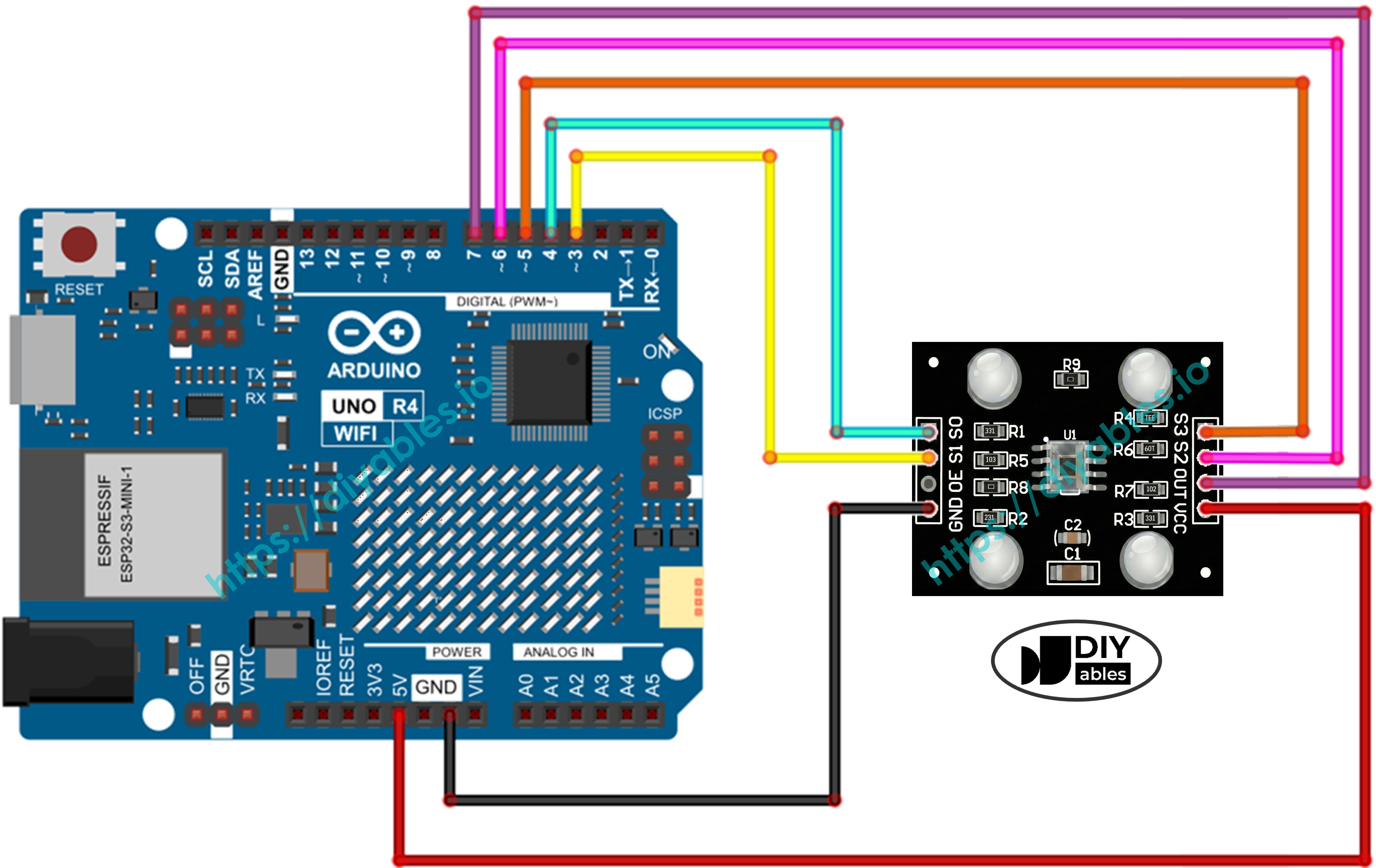
Bedraad de componenten volgens het bedradingsschema hierboven.
Verbind het Arduino Uno R4 WiFi board met uw computer via een USB kabel.
Start de Arduino IDE op uw computer.
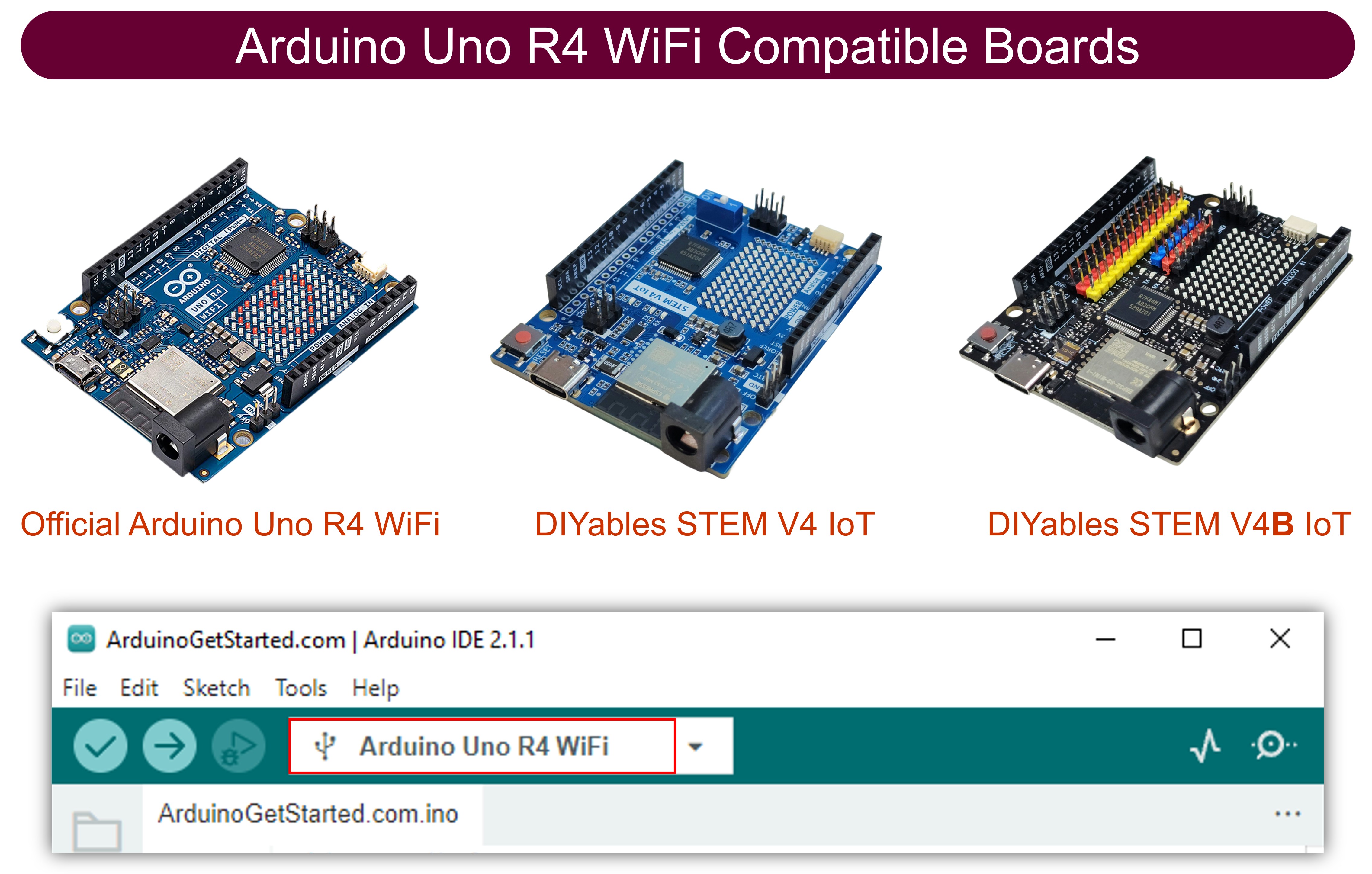
Selecteer het juiste Arduino Uno R4 board (bijv., Arduino Uno R4 WiFi) en COM poort.
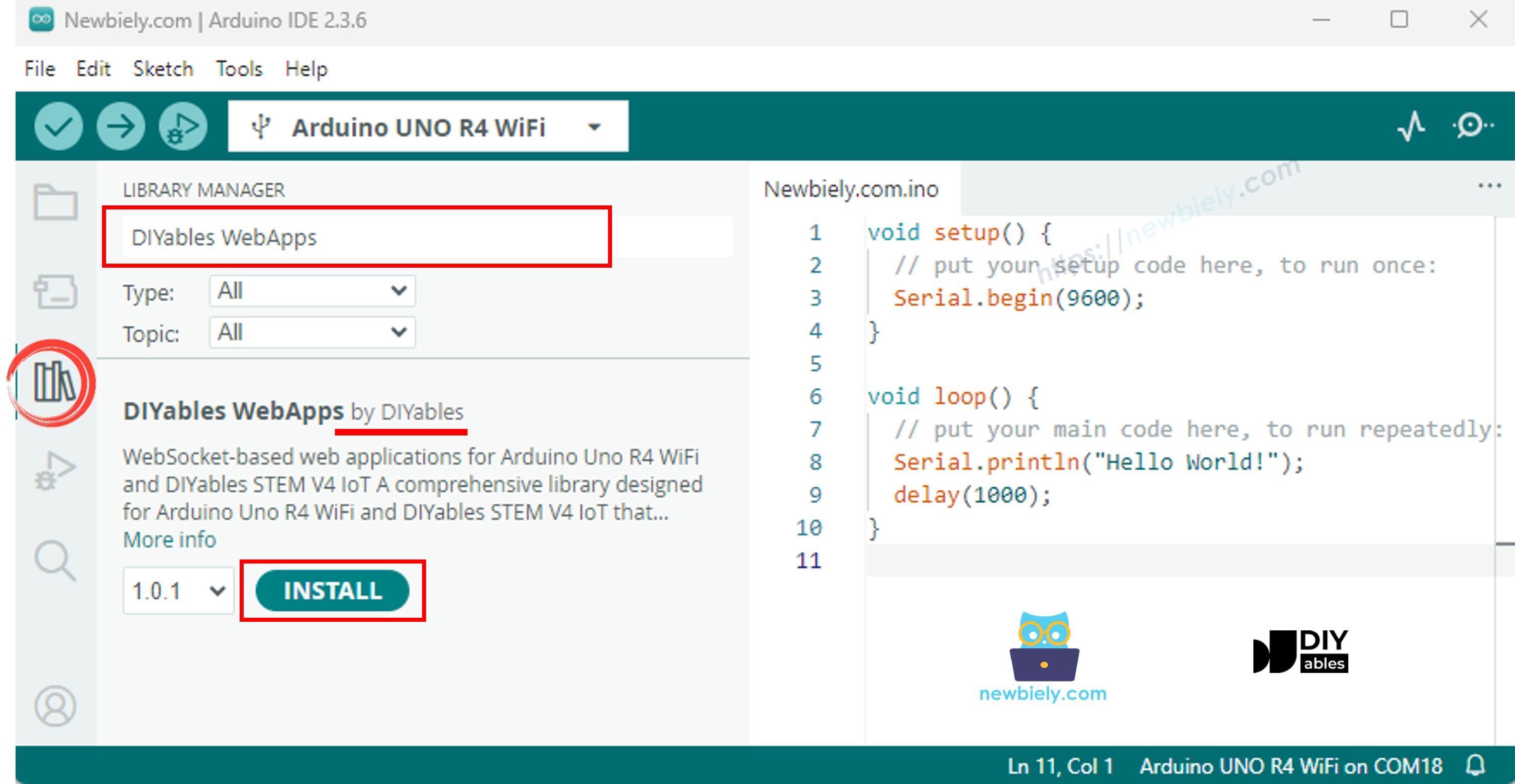
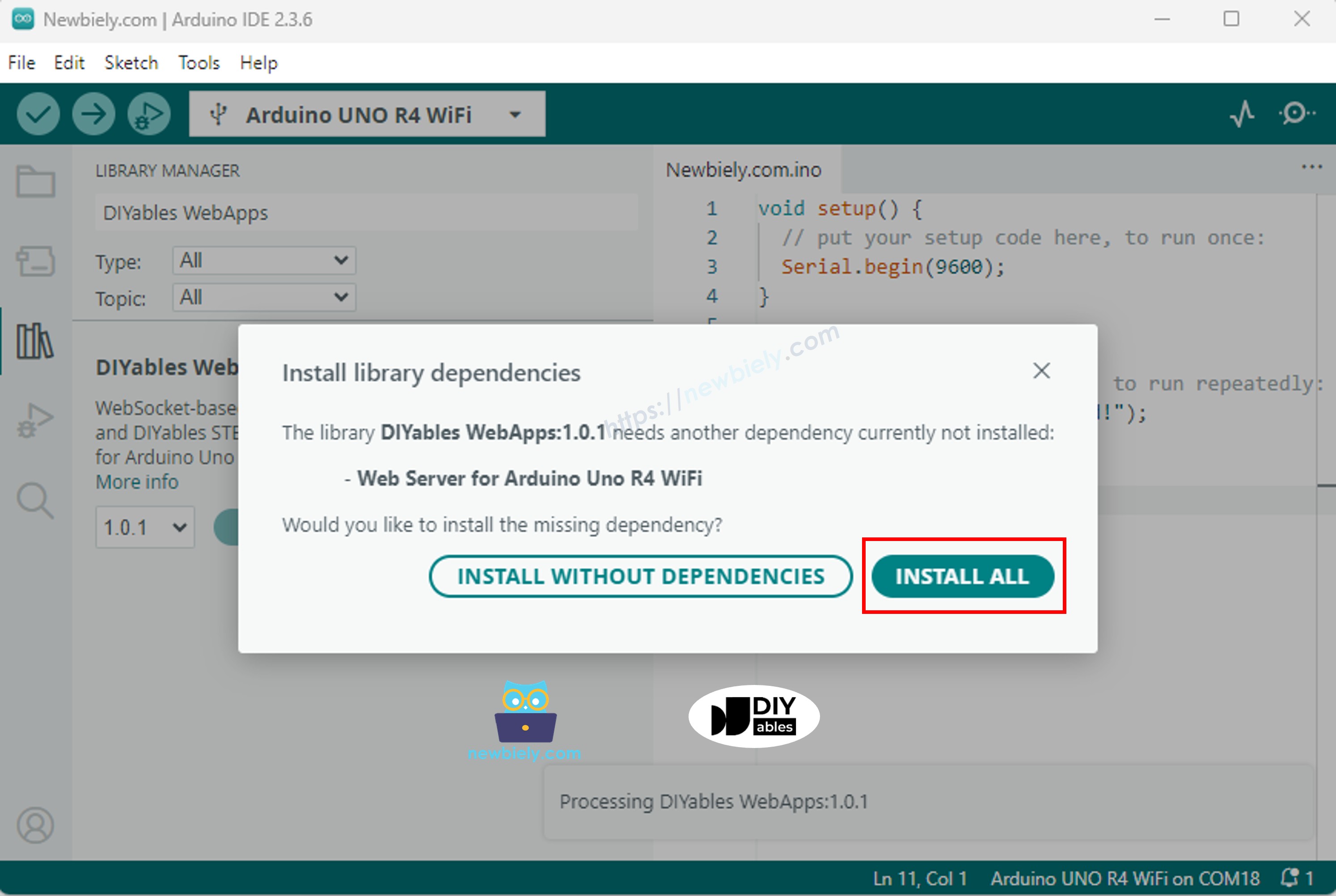
Navigeer naar het Libraries icoon in de linker balk van de Arduino IDE.
Zoek "DIYables WebApps", vind vervolgens de DIYables WebApps library van DIYables.
Klik op de Install knop om de library te installeren.
U wordt gevraagd om enkele andere library afhankelijkheden te installeren.
Klik op de Install All knop om alle library afhankelijkheden te installeren.
Maak een nieuwe sketch in Arduino IDE en noem deze ColorSensor.
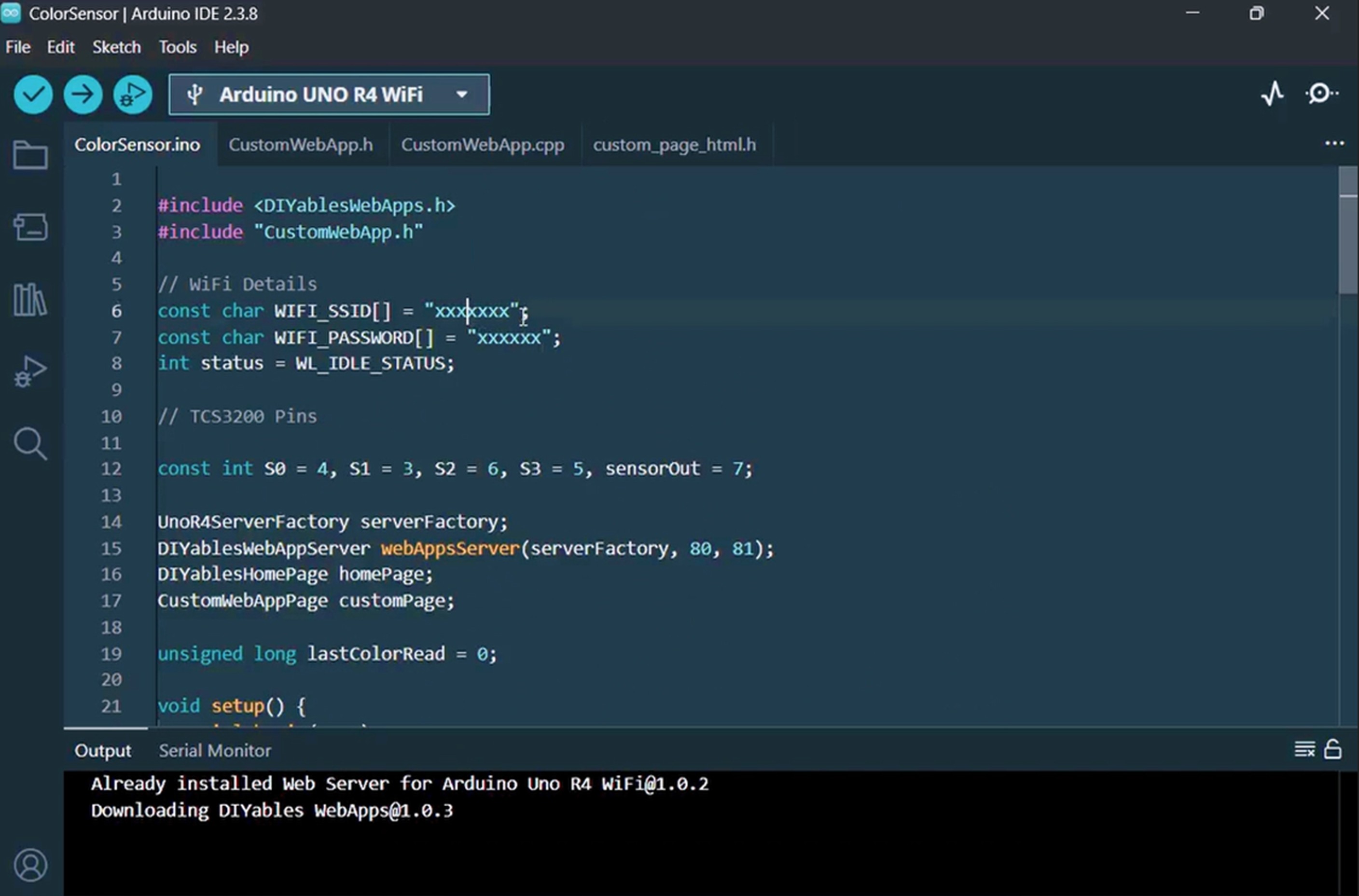
Kopieer en plak alle 4 bestanden hierboven in het Arduino IDE project. Het Arduino IDE project moet 4 bestanden hebben zoals hieronder getoond:
In het ColorSensor.ino bestand, werk de Wi-Fi details (SSID en wachtwoord) bij met uw eigen gegevens:
Werk de kalibratie waarden bij in de map() aanroepen binnen loop() met uw eigen kalibratie waarden van de kalibratie stap. Bijvoorbeeld, als uw kalibratie u redMin = 42, redMax = 210, greenMin = 55, greenMax = 185, blueMin = 60, blueMax = 172 heeft gegeven, verander de regels naar:
int r = map(pulseIn(sensorOut, LOW), 42, 210, 255, 0);int g = map(pulseIn(sensorOut, LOW), 55, 185, 255, 0);int b = map(pulseIn(sensorOut, LOW), 60, 172, 255, 0);
Klik op de Upload knop in Arduino IDE om de code naar Arduino UNO R4 te uploaden.
Open de Serial Monitor. U zult output zoals deze zien:
Newbiely | Arduino IDE 2.3.8
──
☐
✕
File
Edit
Sketch
Tools
Help
Arduino Uno R4 WiFi
Newbiely.ino
···
8Serial.println("Hello World!");
Output
Serial Monitor
Message (Enter to send message to 'Arduino Uno R4 WiFi' on 'COM15')
New Line
9600 baud
Color Web Server Ready!
INFO: Added app /
INFO: Added app /custom
DIYables WebApp Library
Platform: Arduino Uno R4 WiFi
Network connected!
IP address: 192.168.0.2
HTTP server started on port 80
WebSocket server started on port 81
==========================================
DIYables WebApp Ready!
==========================================
📱 Web Interface: http://192.168.0.2
🔗 WebSocket: ws://192.168.0.2:81
📋 Available Applications:
🏠 Home Page: http://192.168.0.2/
🔧 Color Sensor WebApp: http://192.168.0.2/custom
==========================================
Sent to Minion: #FFD200
Sent to Minion: #00C832
Sent to Minion: #0028FF
Ln 11, Col 1
Arduino Uno R4 WiFi on COM15
2
Als u niets ziet, herstart dan het Arduino board.
Noteer het weergegeven IP-adres en voer dit adres in de adresbalk van een webbrowser in op uw smartphone of PC.
Bijvoorbeeld: http://192.168.0.2
U zult de homepagina zien. Klik op de Color Sensor WebApp link.
Of u kunt de Minion pagina direct bereiken door het IP-adres gevolgd door /custom. Bijvoorbeeld: http://192.168.0.2/custom
U zult het geanimeerde Minion karakter op de webpagina zien.
Plaats een gekleurd object voor de TCS3200 sensor — de huidkleur van de Minion zal in real-time veranderen om overeen te komen met de gedetecteerde kleur!
U kunt de stap-voor-stap instructies in de onderstaande video bekijken.
Hoe De Code Werkt
Arduino Kant (ColorSensor.ino)
De hoofd sketch doet het volgende:
Initialiseert de TCS3200 sensor pins: S0, S1 zijn ingesteld voor 20% frequentie schaling. S2, S3 worden gebruikt om kleurfilters te selecteren.
Leest kleur elke 1 seconde: In de loop(), selecteert de Arduino de rode, groene en blauwe filters één voor één, leest de pulsbreedte met pulseIn(), en wijst de ruwe waarden toe aan 0-255 RGB waarden met behulp van uw kalibratie nummers.
Converteert naar HEX: De RGB waarden worden geformatteerd tot een HEX kleur string zoals #FF8000 met behulp van sprintf().
Stuurt naar webbrowser: De HEX string wordt naar alle verbonden web clients gestuurd via customPage.sendToWeb().
Webpagina Kant (custom_page_html.h)
De HTML pagina bevat:
Een geanimeerd Minion karakter volledig gebouwd met CSS — inclusief knipperende ogen, een lachende mond, en willekeurig bewegende pupillen.
WebSocket verbinding: De JavaScript verbindt met de Arduino's WebSocket server (poort 81) en luistert naar inkomende kleur berichten.
Kleur update: Wanneer een bericht zoals #FF8000 wordt ontvangen, maken het lichaam, armen en oogleden van de Minion een vloeiende overgang naar de nieuwe kleur met behulp van CSS transition.
Automatisch herverbinden: Als de WebSocket verbinding wegvalt, probeert de pagina automatisch elke 2 seconden opnieuw verbinding te maken.
Responsive design: De Minion schaalt automatisch om te passen bij verschillende schermformaten (telefoons, tablets, desktops).
Communicatie Protocol
Dit project gebruikt het DIYables WebApps aangepaste web app framework met de identifier "Color Sensor:":
Arduino stuurt: Color Sensor:#FF8000 (identifier + HEX kleur)
Webpagina ontvangt: Haalt de identifier weg en past de resterende HEX kleur #FF8000 toe op de Minion
U bent welkom om de link naar deze tutorial te delen. Gebruik onze inhoud echter niet op andere websites. We hebben veel moeite en tijd gestoken in het maken van de inhoud, respecteer alstublieft ons werk!

 English for KidsSpelenderwijs Engels leren voor jonge kinderen.Ontdek het opGoogle PlayBeschikbaar in deApp Store
 Bubble NoteZelfverwijderende notities – schrijf ze als berichten.Ontdek het opGoogle PlayBeschikbaar in deApp Store
 Didn't BuyVersla impulsaankopen en bespaar meer.Ontdek het opGoogle PlayBeschikbaar in deApp Store
 Knowledge PathOefentoetsen om alles te leren.Ontdek het opGoogle PlayBeschikbaar in deApp Store