
Arduino UNO R4 - Ethernet
Deze handleiding toont u hoe u de Arduino UNO R4 verbindt met internet of uw lokale netwerk met behulp van de W5500 Ethernet-module. We bespreken de volgende details:
- Hoe u de Arduino UNO R4 verbindt met de W5500 Ethernet-module
- Hoe u de Arduino UNO R4 programmeert om HTTP-verzoeken via Ethernet te maken
- Hoe u een eenvoudige webserver maakt op de Arduino UNO R4 via Ethernet
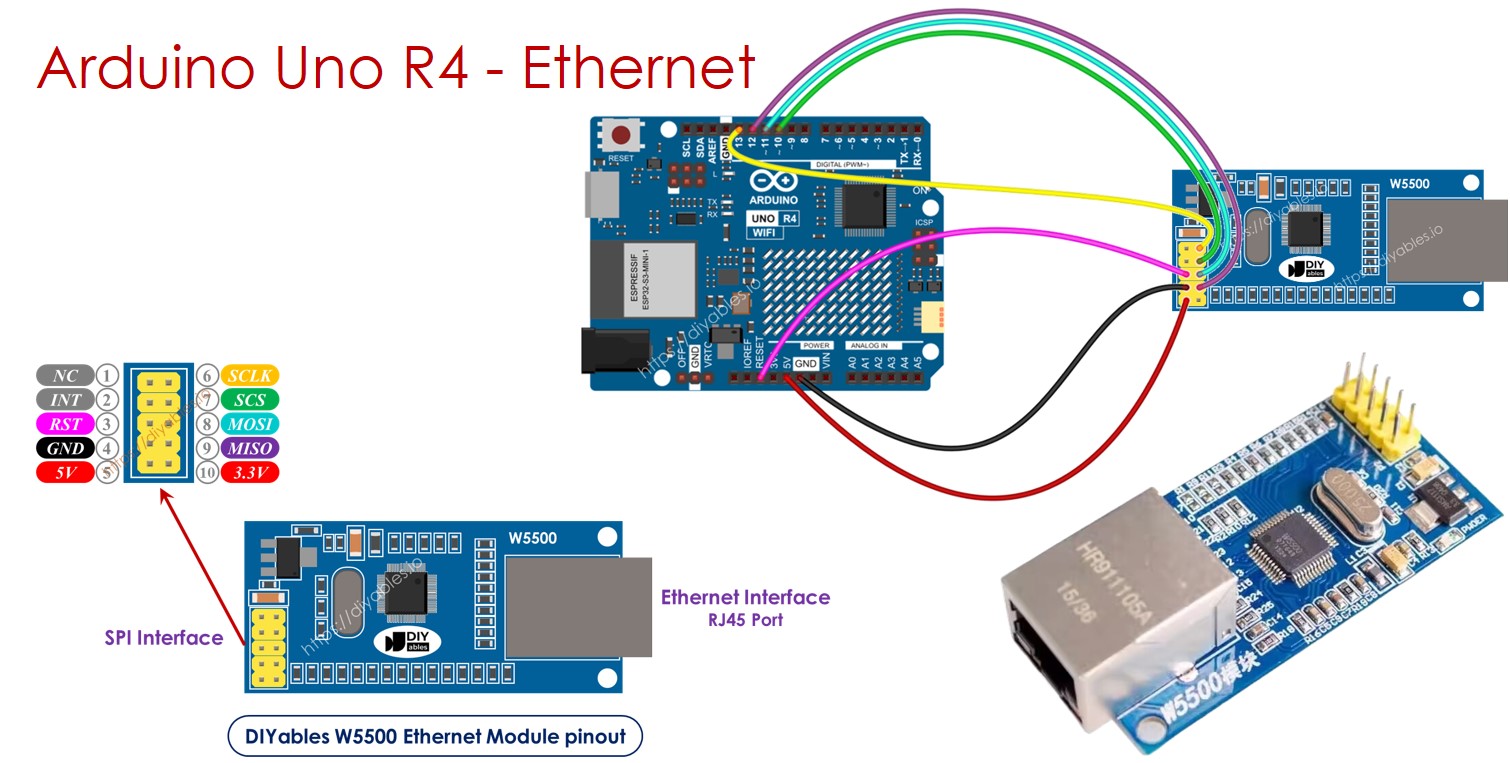
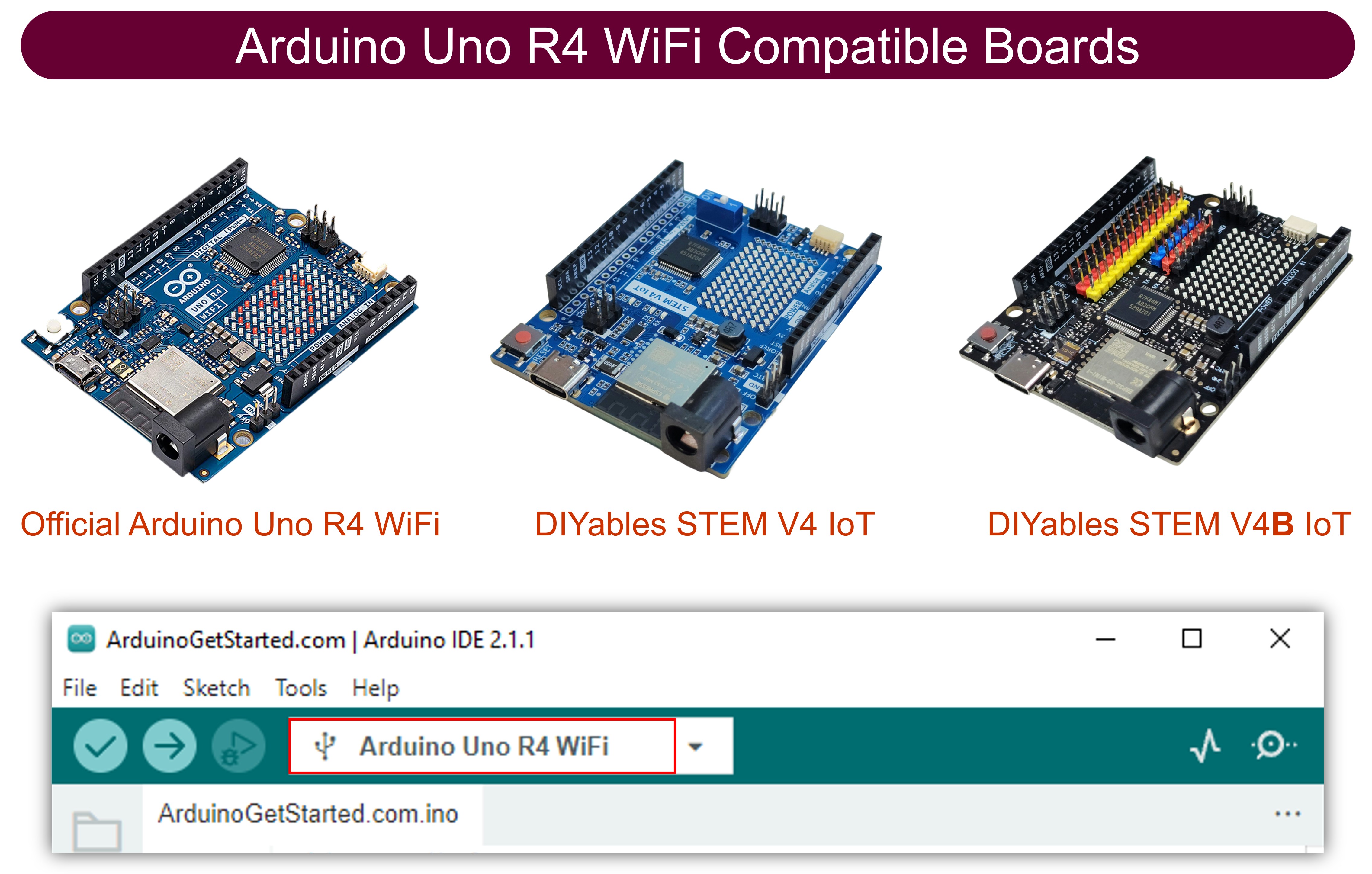
Hardware Vereist
Of u kunt de volgende kits kopen:
| 1 | × | DIYables STEM V4 IoT Starterskit (Arduino inbegrepen) | |
| 1 | × | DIYables STEM V4B IoT Starterskit (Arduino inbegrepen) | |
| 1 | × | DIYables Sensorkit (18 sensoren/displays) |
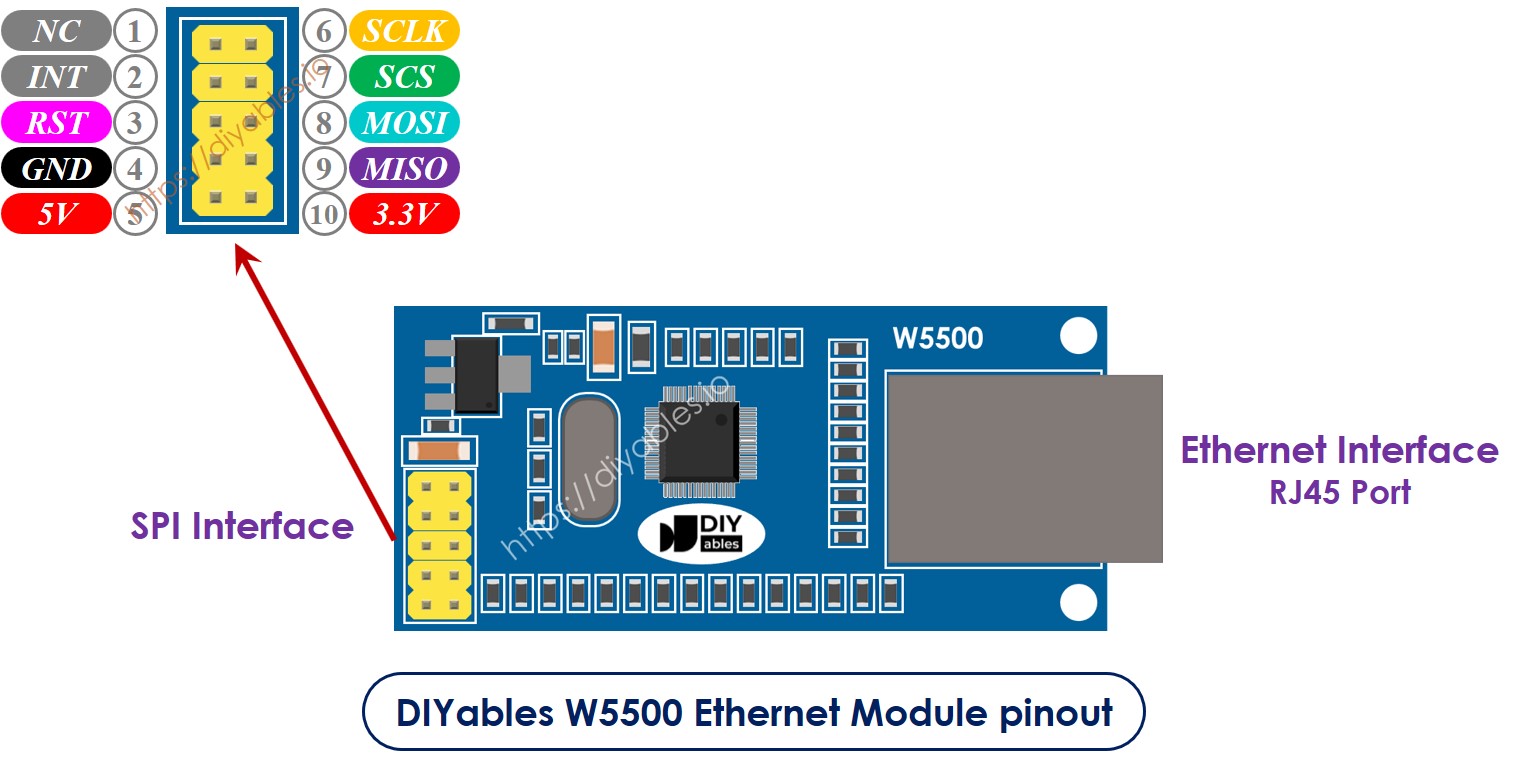
Over de W5500 Ethernet-module
De W5500 Ethernet-module biedt twee interfaces:
- RJ45 Ethernet interface: Verbind met een router of switch met behulp van een Ethernet-kabel.
- SPI interface: Verbind met een Arduino UNO R4 board via deze interface. Het bevat 10 pinnen:
- NC pin: Laat deze pin onverbonden.
- INT pin: Laat deze pin onverbonden.
- RST pin: Dit is de reset-pin. Verbind deze met de EN-pin op de Arduino UNO R4.
- GND pin: Verbind deze pin met de GND-pin op de Arduino UNO R4.
- 5V pin: Verbind deze pin met de 5V-pin op de Arduino UNO R4.
- 3.3V pin: Laat deze pin onverbonden.
- MISO pin: Verbind deze pin met de SPI MISO-pin op de Arduino UNO R4.
- MOSI pin: Verbind deze pin met de SPI MOSI-pin op de Arduino UNO R4.
- SCS pin: Verbind deze pin met de SPI CS-pin op de Arduino UNO R4.
- SCLK pin: Verbind deze pin met de SPI SCK-pin op de Arduino UNO R4.
Bedradingsdiagram tussen Arduino UNO R4 en W5500 Ethernet-module
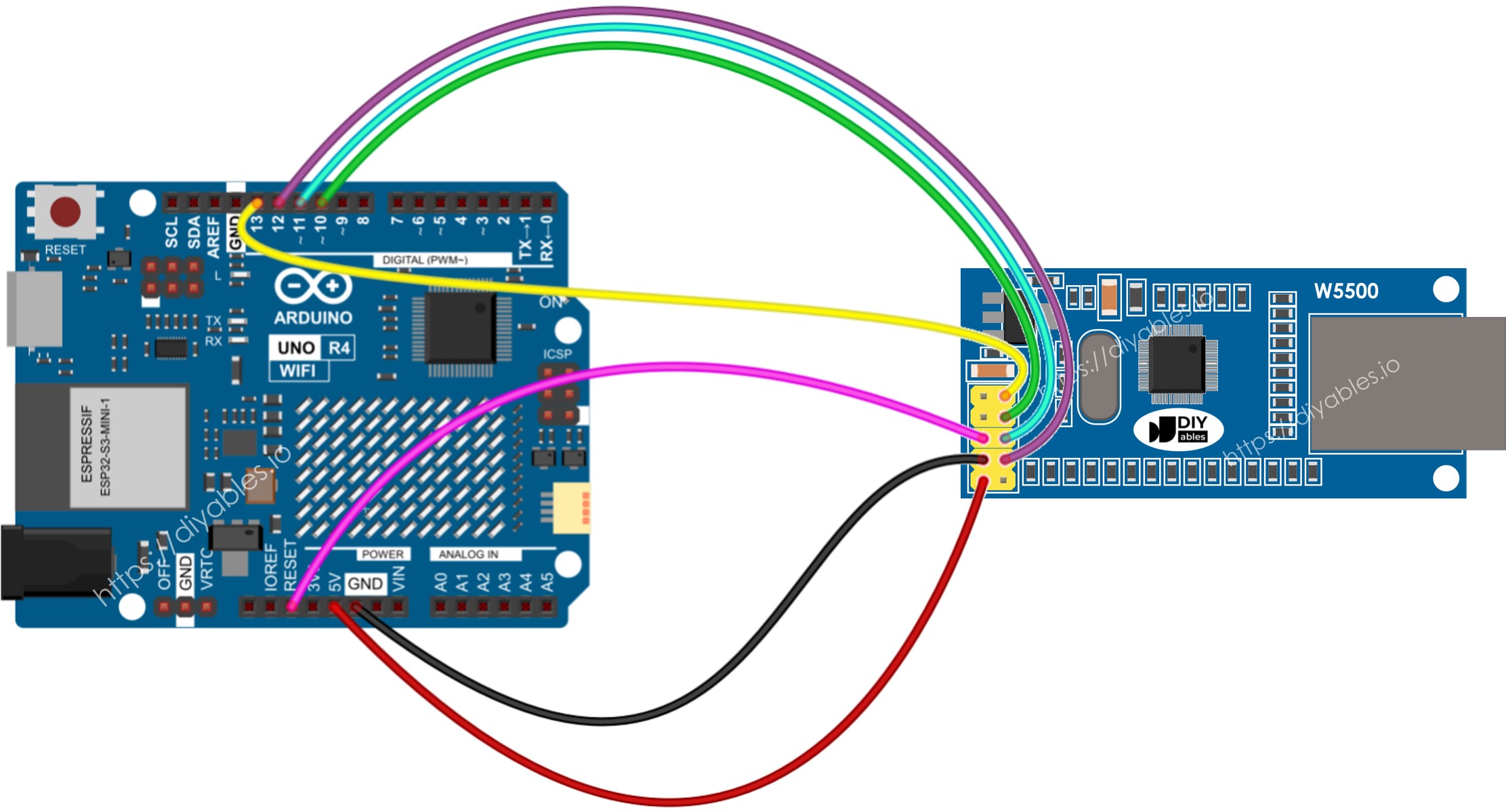
Deze afbeelding is gemaakt met Fritzing. Klik om de afbeelding te vergroten.
Zie De beste manier om Arduino Uno R4 en andere componenten van stroom te voorzien.
Arduino UNO R4 code voor Ethernet-module - HTTP-verzoeken maken via Ethernet
Deze code functioneert als een webclient. Het verzendt HTTP-verzoeken naar de webserver op http://example.com/.
Snelle Stappen
Volg deze instructies stap voor stap:
- Als dit uw eerste keer is met de Arduino Uno R4 WiFi/Minima, raadpleeg dan de tutorial over het instellen van de omgeving voor Arduino Uno R4 WiFi/Minima in de Arduino IDE.
- Verbind de Ethernet-module met uw Arduino UNO R4 volgens het verstrekte diagram
- Verbind de Ethernet-module met uw router of switch met behulp van een Ethernet-kabel.
- Verbind het Arduino Uno R4 board met uw computer met behulp van een USB-kabel.
- Open de Arduino IDE op uw computer.
- Selecteer het juiste Arduino Uno R4 board (bijv., Arduino Uno R4 Minima) en COM-poort.
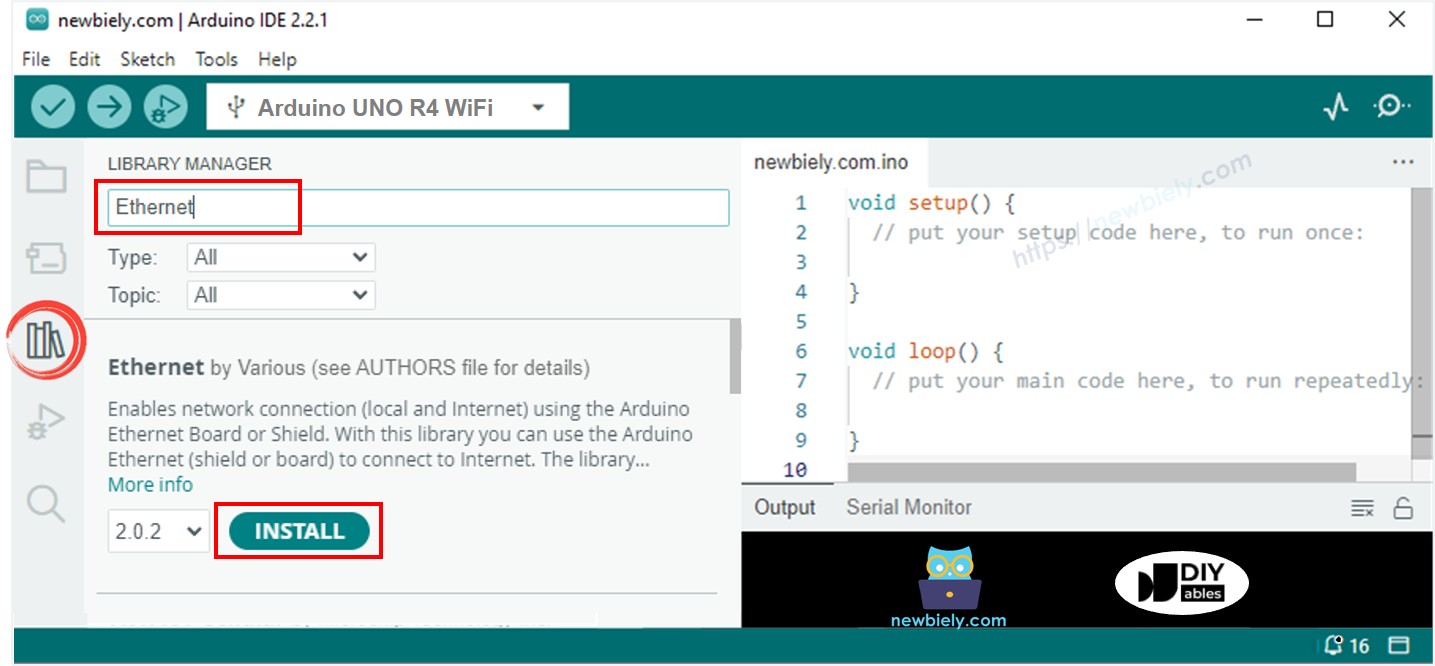
- Klik op het Libraries icoon aan de linkerkant van de Arduino IDE.
- In het zoekvak, typ "Ethernet" en zoek de Ethernet library door Various.
- Druk op de Install knop om de Ethernet library toe te voegen.
- Open de Serial Monitor in de Arduino IDE.
- Kopieer de gegeven code en plak deze in de Arduino IDE.
- Klik op de Upload knop in de Arduino IDE om de code naar de Arduino Uno R4 te verzenden.
- Om de output te bekijken, kijk naar de Serial Monitor waar de resultaten zullen worden weergegeven zoals aangegeven.
※ Notiz:
Als een ander apparaat op hetzelfde netwerk uw MAC-adres deelt, kunnen er problemen zijn.
Arduino UNO R4 code voor Ethernet-module - Webserver
De onderstaande code verandert de Arduino UNO R4 in een webserver. Deze server stuurt een eenvoudige webpagina naar internetbrowsers.
Snelle Stappen
- Kopieer de bovenstaande code en plak deze in Arduino IDE.
- Klik op de Upload knop in Arduino IDE om de code naar Arduino Uno R4 te uploaden.
- Controleer het resultaat op Serial Monitor, het zal als volgt weergeven:
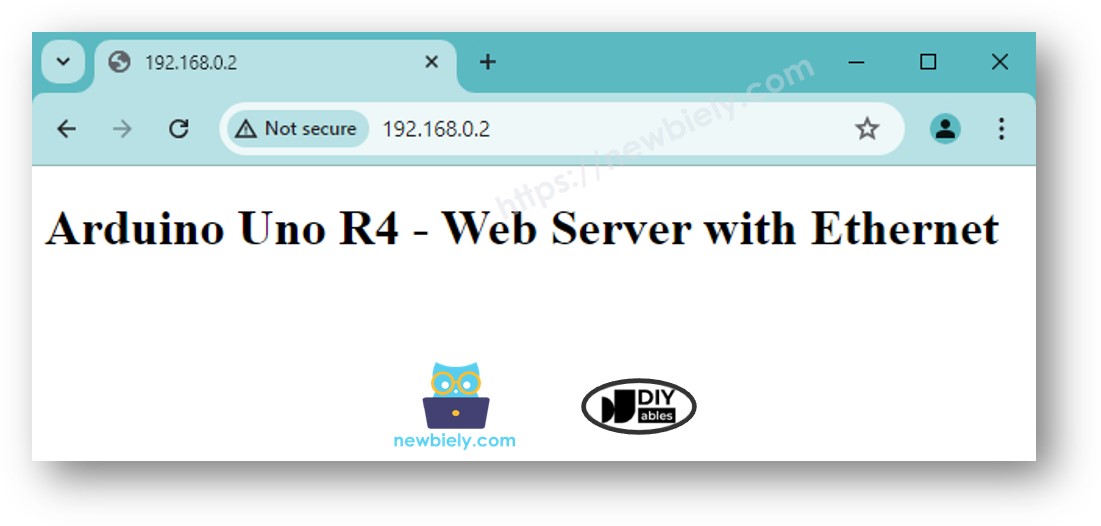
- Kopieer het hierboven gegeven IP-adres en voer het in de adresbalk van uw webbrowser in. U zult een eenvoudige webpagina zien die door de Arduino UNO R4 wordt weergegeven.
Gerelateerde Tutorials
📱 Aanbevolen apps
 English for KidsSpelenderwijs Engels leren voor jonge kinderen.Ontdek het opGoogle PlayBeschikbaar in deApp Store
 Bubble NoteZelfverwijderende notities – schrijf ze als berichten.Ontdek het opGoogle PlayBeschikbaar in deApp Store
 Didn't BuyVersla impulsaankopen en bespaar meer.Ontdek het opGoogle PlayBeschikbaar in deApp Store
 Knowledge PathOefentoetsen om alles te leren.Ontdek het opGoogle PlayBeschikbaar in deApp Store