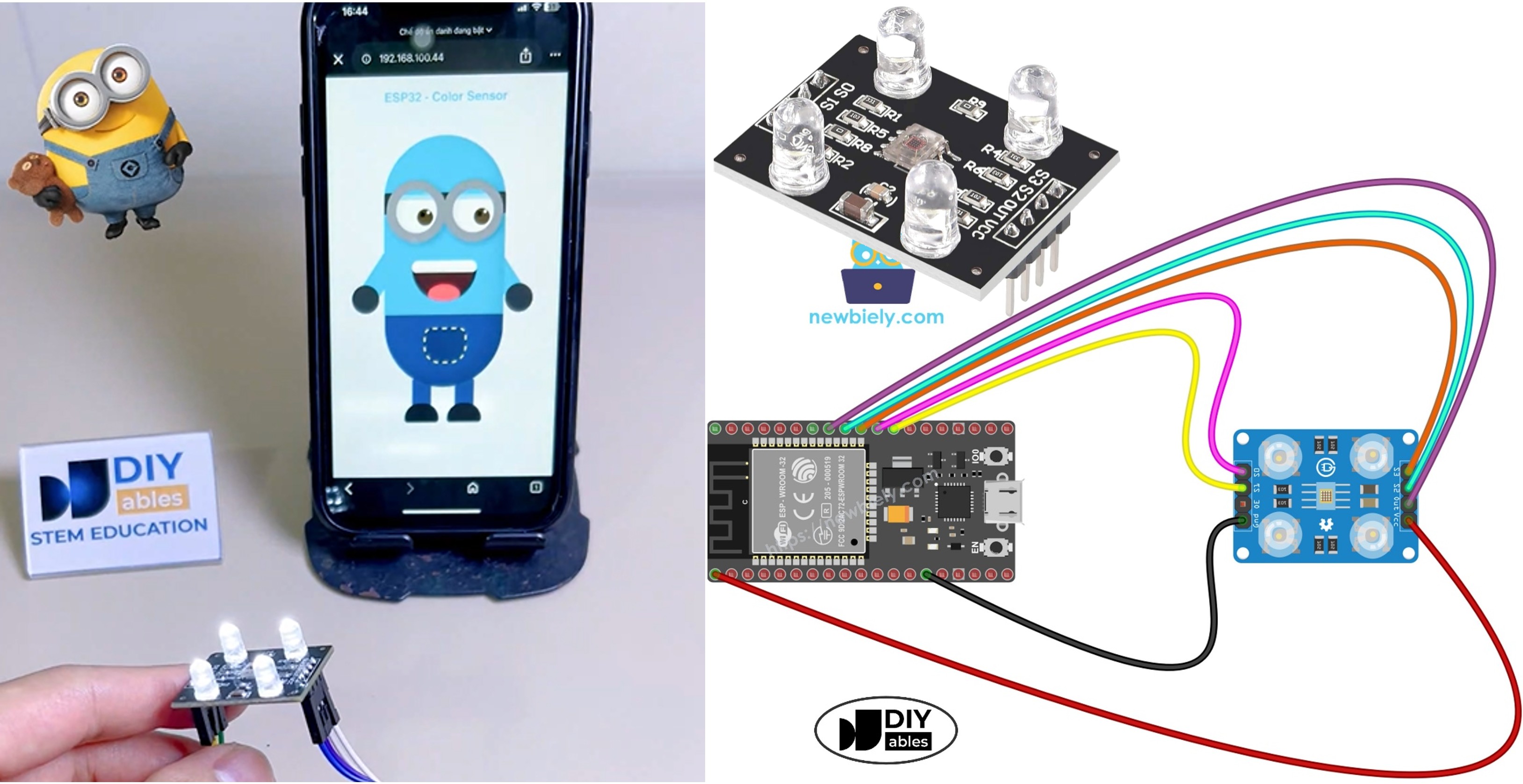
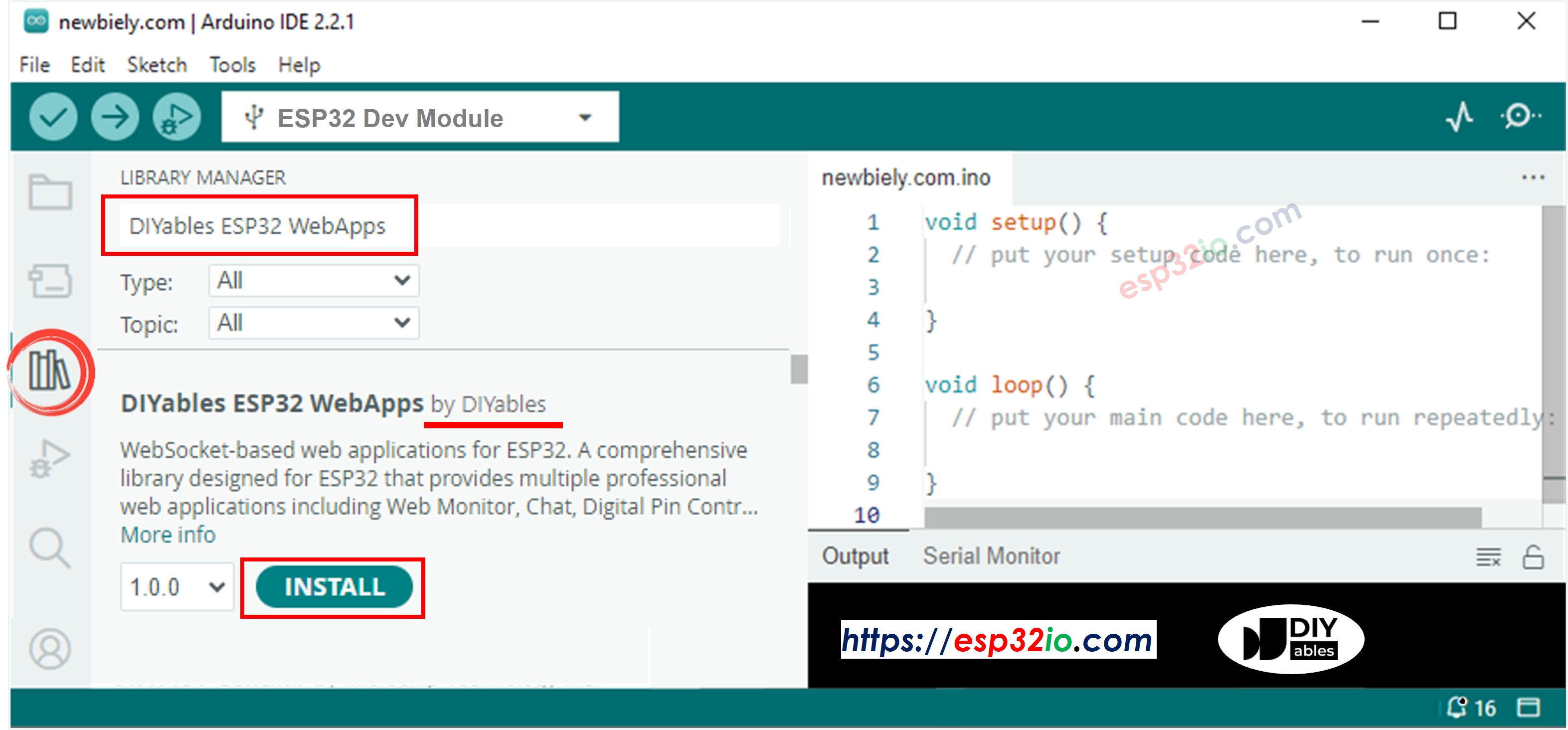
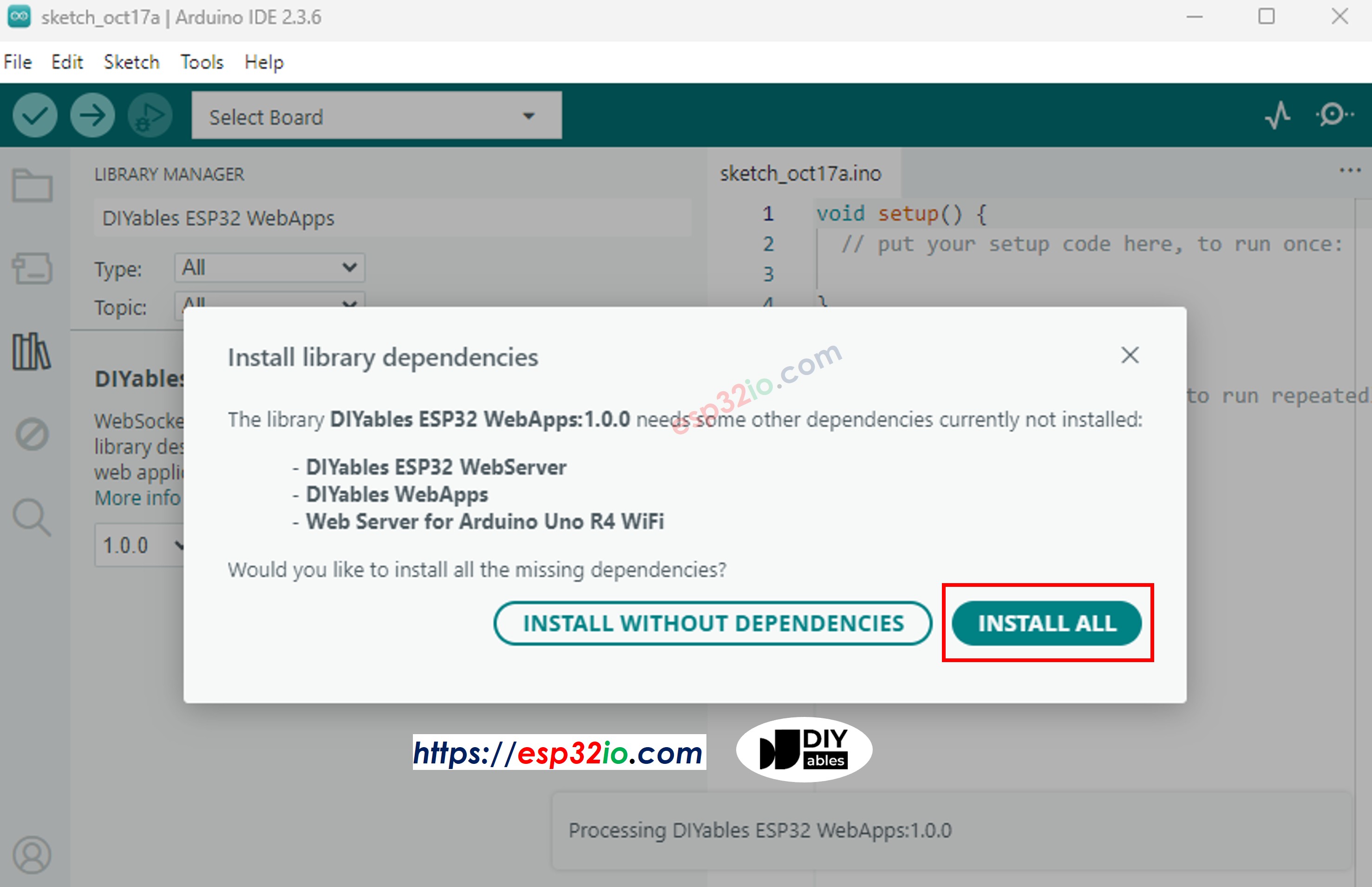
In dit leuke project koppelt u een TCS3200D/TCS230 kleursensor aan een ESP32 en streamt u de gedetecteerde kleuren in realtime naar een webbrowser. De webpagina bevat een speelse, geanimeerde Minion-figuur waarvan de huidskleur live wordt aangepast aan wat de sensor ziet. Om het bouwen van de webinterface en het beheren van de WebSocket-communicatie te vereenvoudigen, maakt dit project gebruik van de DIYables ESP32 WebApps bibliotheek.
Hier volgt een overzicht van wat er gebeurt:
De ESP32 leest RGB-kleurdata van de TCS3200D/TCS230 sensor
De RGB-waarden worden omgezet naar een HEX-kleurcode (bijv. #FF8000)
De HEX-code wordt via WebSocket naar de webbrowser gestreamd
Een leuke geanimeerde Minion op de webpagina past direct de kleuren van lichaam, armen en oogleden aan om overeen te komen
Er is ook een stap-voor-stap video walkthrough beschikbaar onderaan deze handleiding.
Openbaarmaking: Sommige van de links in deze sectie zijn Amazon-affiliate links. We kunnen een commissie ontvangen voor aankopen die via deze links worden gedaan, zonder extra kosten voor u. We waarderen uw steun.
Vereisten
Als u nieuw bent met de TCS3200D/TCS230 kleursensor of DIYables ESP32 WebApps, helpen de volgende tutorials u snel op weg:
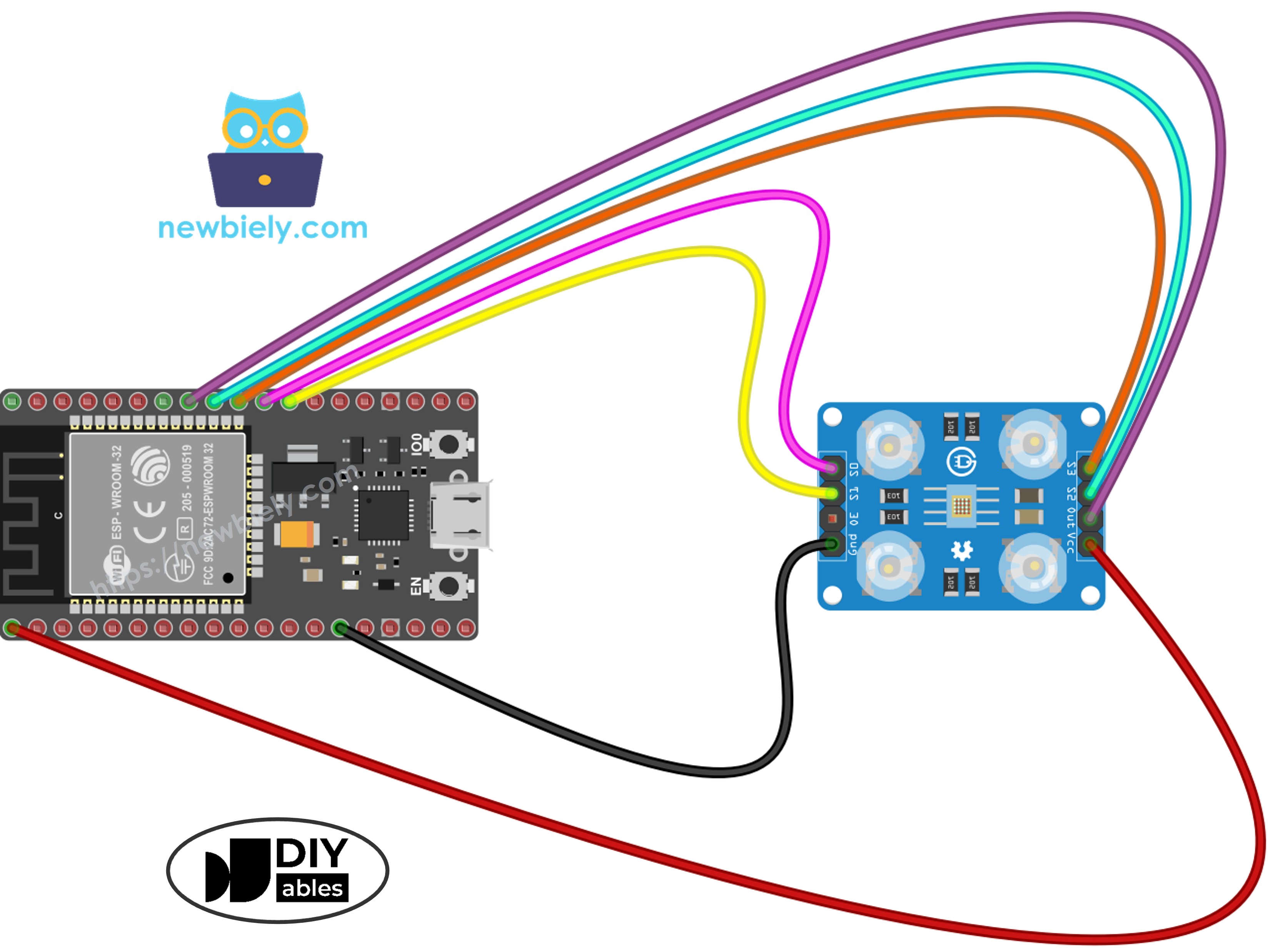
Het onderstaande schema toont hoe u de TCS3200 kleursensor aansluit op de ESP32:
TCS3200 Kleursensor
ESP32
VCC
5V (VIN)
GND
GND
S0
GPIO 17
S1
GPIO 16
S2
GPIO 18
S3
GPIO 5
OUT
GPIO 19
Deze afbeelding is gemaakt met Fritzing. Klik om de afbeelding te vergroten.
Als u niet weet hoe u ESP32 en andere componenten van stroom moet voorzien, vindt u instructies in de volgende tutorial: Hoe ESP32 van stroom te voorzien.
Hoe Het Werkt
Hier volgt het stapsgewijze verloop van dit project:
Elke seconde leest de ESP32 de kleursensor uit door te schakelen tussen de rode, groene en blauwe filters met de S2/S3 controlepinnen, terwijl de pulsduur op de OUT-pin wordt gemeten.
De ruwe pulsduurwaarden worden omgezet naar RGB-waarden van 0–255 met behulp van kalibratiegegevens (verkregen via de sensor kalibratiestap).
De RGB-waarden worden geformatteerd naar een HEX-kleurstring zoals #FF8000.
Deze kleurstring wordt via WebSocket naar alle verbonden webbrowsers uitgezonden met behulp van de DIYables ESP32 WebApps bibliotheek.
Op de webpagina ontvangt JavaScript de kleur en past deze direct toe op het lichaam, de armen en de oogleden van de Minion-figuur.
ESP32 Code - Kleursensor Minion Web App
Dit project bestaat uit 4 bestanden:
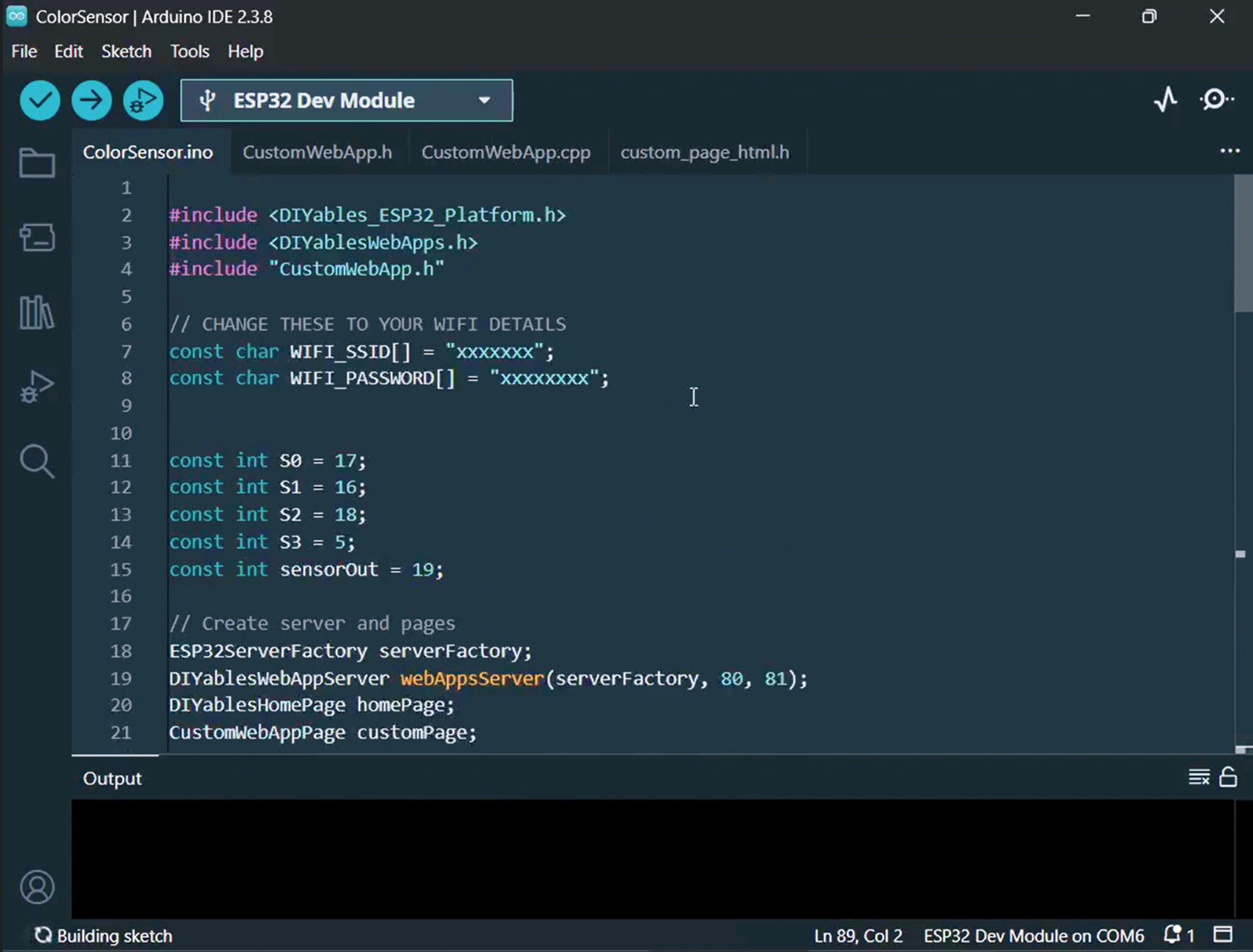
ColorSensorESP32.ino - Hoofd sketch: initialiseert de sensor, leest kleuren uit en stuurt ze naar de webpagina
CustomWebApp.h - Headerbestand: definieert de custom web app pagina klasse
CustomWebApp.cpp - Implementatiebestand: beheert WebSocket-berichten met de identifier "Color sensor:"
custom_page_html.h - Webpagina: de geanimeerde Minion gemaakt met HTML/CSS/JavaScript die reageert op inkomende kleuren
ColorSensorESP32.ino
/* * Deze ESP32 code is ontwikkeld door newbiely.nl * Deze ESP32 code wordt zonder enige beperking aan het publiek beschikbaar gesteld. * Voor volledige instructies en schema's, bezoek: * https://newbiely.nl/tutorials/esp32/esp32-color-sensor-via-web*/#include <DIYables_ESP32_Platform.h>#include <DIYablesWebApps.h>#include"CustomWebApp.h"// CHANGE THESE TO YOUR WIFI DETAILSconstchar WIFI_SSID[] = "YOUR_WIFI_SSID";constchar WIFI_PASSWORD[] = "YOUR_WIFI_PASSWORD";// Configure TCS3200 pins for ESP32constint S0 = 17;constint S1 = 16;constint S2 = 18;constint S3 = 5;constint sensorOut = 19;// Create server and pagesESP32ServerFactory serverFactory;DIYablesWebAppServerwebAppsServer(serverFactory, 80, 81);DIYablesHomePage homePage;CustomWebAppPage customPage;unsignedlong lastColorRead = 0;voidsetup() {Serial.begin(9600);delay(1000);Serial.println("Starting Custom WebApp...");// Initialize TCS3200 pinspinMode(S0, OUTPUT);pinMode(S1, OUTPUT);pinMode(S2, OUTPUT);pinMode(S3, OUTPUT);pinMode(sensorOut, INPUT);// Set frequency scaling to 20%digitalWrite(S0, HIGH);digitalWrite(S1, LOW);// Add pages to serverwebAppsServer.addApp(&homePage);webAppsServer.addApp(&customPage);// Start WiFi and web serverif (!webAppsServer.begin(WIFI_SSID, WIFI_PASSWORD)) {while (1) {Serial.println("Failed to connect to WiFi!");delay(1000); } }Serial.println("Custom WebApp ready!"); customPage.sendToWeb("Arduino is ready!");}voidloop() {// Handle web serverwebAppsServer.loop();// Send sensor data every 1 secondif (millis() - lastColorRead > 1000) {// Read Red colordigitalWrite(S2, LOW);digitalWrite(S3, LOW);int r = map(pulseIn(sensorOut, LOW), 31, 150, 255, 0);// Read Green colordigitalWrite(S2, HIGH);digitalWrite(S3, HIGH);int g = map(pulseIn(sensorOut, LOW), 35, 180, 255, 0);// Read Blue colordigitalWrite(S2, LOW);digitalWrite(S3, HIGH);int b = map(pulseIn(sensorOut, LOW), 30, 150, 255, 0);// Convert to HEX color and send to Webchar hexColor[8]; sprintf(hexColor, "#%02X%02X%02X", constrain(r, 0, 255), constrain(g, 0, 255), constrain(b, 0, 255)); customPage.sendToWeb(String(hexColor));Serial.println("Sent to Minion: " + String(hexColor)); lastColorRead = millis(); }}
CustomWebApp.h
/* * Deze ESP32 code is ontwikkeld door newbiely.nl * Deze ESP32 code wordt zonder enige beperking aan het publiek beschikbaar gesteld. * Voor volledige instructies en schema's, bezoek: * https://newbiely.nl/tutorials/esp32/esp32-color-sensor-via-web*/#ifndef CUSTOM_WEBAPP_H#define CUSTOM_WEBAPP_H#include <DIYablesWebApps.h>/** * Simple Custom WebApp Page * * This is a template for creating your own custom web applications. * It provides basic controls like buttons and sliders that communicate * with your Arduino in real-time. */class CustomWebAppPage : public DIYablesWebAppPageBase {private:// WebSocket message identifier for this custom appstaticconstString APP_IDENTIFIER;public: CustomWebAppPage();// ========================================// REQUIRED METHODS - USED BY LIBRARY - DON'T CHANGE THESE!// ========================================void handleHTTPRequest(IWebClient& client) override;void handleWebSocketMessage(IWebSocket& ws, const char* message, uint16_tlength) override;const char* getPageInfo() constoverride;String getNavigationInfo() constoverride;// ========================================// YOUR METHODS - USE THESE IN YOUR CODE!// ========================================void onCustomMessageReceived(void (*callback)(const String& payload));void sendToWeb(const String& message);};#endif
CustomWebApp.cpp
/* * Deze ESP32 code is ontwikkeld door newbiely.nl * Deze ESP32 code wordt zonder enige beperking aan het publiek beschikbaar gesteld. * Voor volledige instructies en schema's, bezoek: * https://newbiely.nl/tutorials/esp32/esp32-color-sensor-via-web*/#include"CustomWebApp.h"#include"custom_page_html.h"// Define the static member - WebSocket message identifier for this custom appconstString CustomWebAppPage::APP_IDENTIFIER = "Color sensor:";// Callback function for handling messages from web browservoid (*customMessageCallback)(const String& payload) = nullptr;CustomWebAppPage::CustomWebAppPage() : DIYablesWebAppPageBase("/custom") {}void CustomWebAppPage::handleHTTPRequest(IWebClient& client) {// Send the HTML page to web browser sendHTTPHeader(client); client.print(CUSTOM_PAGE_HTML);}void CustomWebAppPage::handleWebSocketMessage(IWebSocket& ws, const char* message, uint16_tlength) {String messageStr = String(message, length);Serial.print("Color sensor WebApp received: ");Serial.println(messageStr);// Only handle messages that start with our app identifierif (messageStr.startsWith(APP_IDENTIFIER)) {String payload = messageStr.substring(APP_IDENTIFIER.length()); // Remove identifier// Call your callback function with the payloadif (customMessageCallback) { customMessageCallback(payload); } }}void CustomWebAppPage::onCustomMessageReceived(void (*callback)(const String& payload)) { customMessageCallback = callback;}void CustomWebAppPage::sendToWeb(const String& message) {// Send message to web browser with app identifierString fullMessage = APP_IDENTIFIER + message; broadcastToAllClients(fullMessage.c_str());}const char* CustomWebAppPage::getPageInfo() const {return"🔧 Color sensor WebApp";}String CustomWebAppPage::getNavigationInfo() const {String result = "<a href=\""; result += getPagePath(); result += "\" class=\"app-card custom\" style=\"background: linear-gradient(135deg, #007bff 0%, #0056b3 100%);\">"; result += "<h3>🔧 Color sensor WebApp</h3>"; result += "<p>Simple template for your own apps</p>"; result += "</a>";return result;}
Vervang de kalibratiewaarden in de map()-functies binnen loop() door de getallen die u tijdens de kalibratie hebt genoteerd. Bijvoorbeeld bij redMin = 42, redMax = 210, greenMin = 55, greenMax = 185, blueMin = 60, blueMax = 172 worden de regels:
int r = map(pulseIn(sensorOut, LOW), 42, 210, 255, 0); int g = map(pulseIn(sensorOut, LOW), 55, 185, 255, 0); int b = map(pulseIn(sensorOut, LOW), 60, 172, 255, 0);
Klik op de Upload-knop om de code naar de ESP32 te flashen.
Open de Seriële Monitor. U zou zoiets moeten zien:
Newbiely | Arduino IDE 2.3.8
──
☐
✕
File
Edit
Sketch
Tools
Help
ESP32 Dev Module
Newbiely.ino
···
8Serial.println("Hello World!");
Output
Serial Monitor
Message (Enter to send message to 'ESP32 Dev Module' on 'COM15')
New Line
9600 baud
Starting Custom WebApp...
Custom WebApp ready!
INFO: Added app /
INFO: Added app /custom
DIYables ESP32 WebApp Library
Network connected!
IP address: 192.168.0.5
HTTP server started on port 80
WebSocket server started on port 81
==========================================
DIYables WebApp Ready!
==========================================
📱 Web Interface: http://192.168.0.5
🔗 WebSocket: ws://192.168.0.5:81
📋 Available Applications:
🏠 Home Page: http://192.168.0.5/
🔧 Color sensor WebApp: http://192.168.0.5/custom
==========================================
Sent to Minion: #FFD200
Sent to Minion: #00C832
Sent to Minion: #0028FF
Ln 11, Col 1
ESP32 Dev Module on COM15
2
Verschijnt er niets? Probeer dan de resetknop op de ESP32 in te drukken.
Kopieer het IP-adres dat in de Seriële Monitor wordt weergegeven en open dit in een webbrowser op uw telefoon of computer.
Bijvoorbeeld: http://192.168.0.5
Tik op de startpagina op de Color sensor WebApp kaart om de Minion-pagina te openen.
Of ga rechtstreeks naar http://[IP_ADRES]/custom.
U ziet de geanimeerde lachende Minion op uw scherm.
Houd een gekleurd object dichtbij de TCS3200 sensor — de huidskleur van de Minion past direct aan naar de gedetecteerde kleur!
U kunt de stap-voor-stap video handleiding hieronder volgen.
De Code Begrijpen
ESP32 Kant (ColorSensorESP32.ino)
De hoofd sketch voert de volgende taken uit:
Stelt de TCS3200 sensor in: Configureert S0/S1 voor 20% frequentiescaling en bereidt S2/S3 voor filterselectie voor.
Meet elke seconde kleur: Binnen loop() doorloopt de ESP32 de rode, groene en blauwe kleurfilters, meet met pulseIn() de pulsbreedte en zet elke meting om naar een waarde van 0–255 met map() en uw kalibratiegegevens.
Formatteert als HEX: De drie RGB-waarden worden gecombineerd tot een HEX-string (bijv. #FF8000) met sprintf() en constrain().
Zend uit naar browsers: De HEX-kleur wordt naar elk verbonden webclient verzonden via customPage.sendToWeb().
Webpagina Kant (custom_page_html.h)
Het HTML-bestand bevat:
Een CSS-geanimeerde Minion: Het figuur heeft knipperende ogen, een lachende mond met tong die zwaait, en pupillen die willekeurig bewegen — allemaal aangestuurd door CSS-animaties en een kleine JavaScript interval.
WebSocket luisteraar: JavaScript opent een persistente verbinding met de WebSocket server van de ESP32 op poort 81 en verwerkt de binnenkomende kleurberichten.
Live kleurtoepassing: Elke ontvangen HEX-kleur wordt vloeiend toegepast op het lichaam, de armen en de oogleden van de Minion via een CSS transition voor een soepele visuele overgang.
Automatisch opnieuw verbinden: Als de WebSocket wordt verbroken, probeert de pagina elke 2 seconden opnieuw te verbinden zonder dat de gebruiker iets hoeft te doen.
Responsief ontwerp: De Minion schaalt automatisch mee naar elk schermformaat, van telefoons tot desktops.
Berichtprotocol
Dit project volgt het DIYables ESP32 WebApps custom app framework. Berichten bevatten de identifier "Color sensor:":
ESP32 stuurt: Color sensor:#FF8000 (identifier prefix + HEX kleurwaarde)
Browser ontvangt: JavaScript verwijdert de prefix Color sensor: en past de resterende string #FF8000 toe op de Minion
U bent welkom om de link naar deze tutorial te delen. Gebruik onze inhoud echter niet op andere websites. We hebben veel moeite en tijd gestoken in het maken van de inhoud, respecteer alstublieft ons werk!

 English for KidsSpelenderwijs Engels leren voor jonge kinderen.Ontdek het opGoogle PlayBeschikbaar in deApp Store
 Bubble NoteZelfverwijderende notities – schrijf ze als berichten.Ontdek het opGoogle PlayBeschikbaar in deApp Store
 Didn't BuyVersla impulsaankopen en bespaar meer.Ontdek het opGoogle PlayBeschikbaar in deApp Store
 Knowledge PathOefentoetsen om alles te leren.Ontdek het opGoogle PlayBeschikbaar in deApp Store