ESP32 Bluetooth Chat Voorbeeld - Tweerichtingsberichtgeving Interface Tutorial
Overzicht
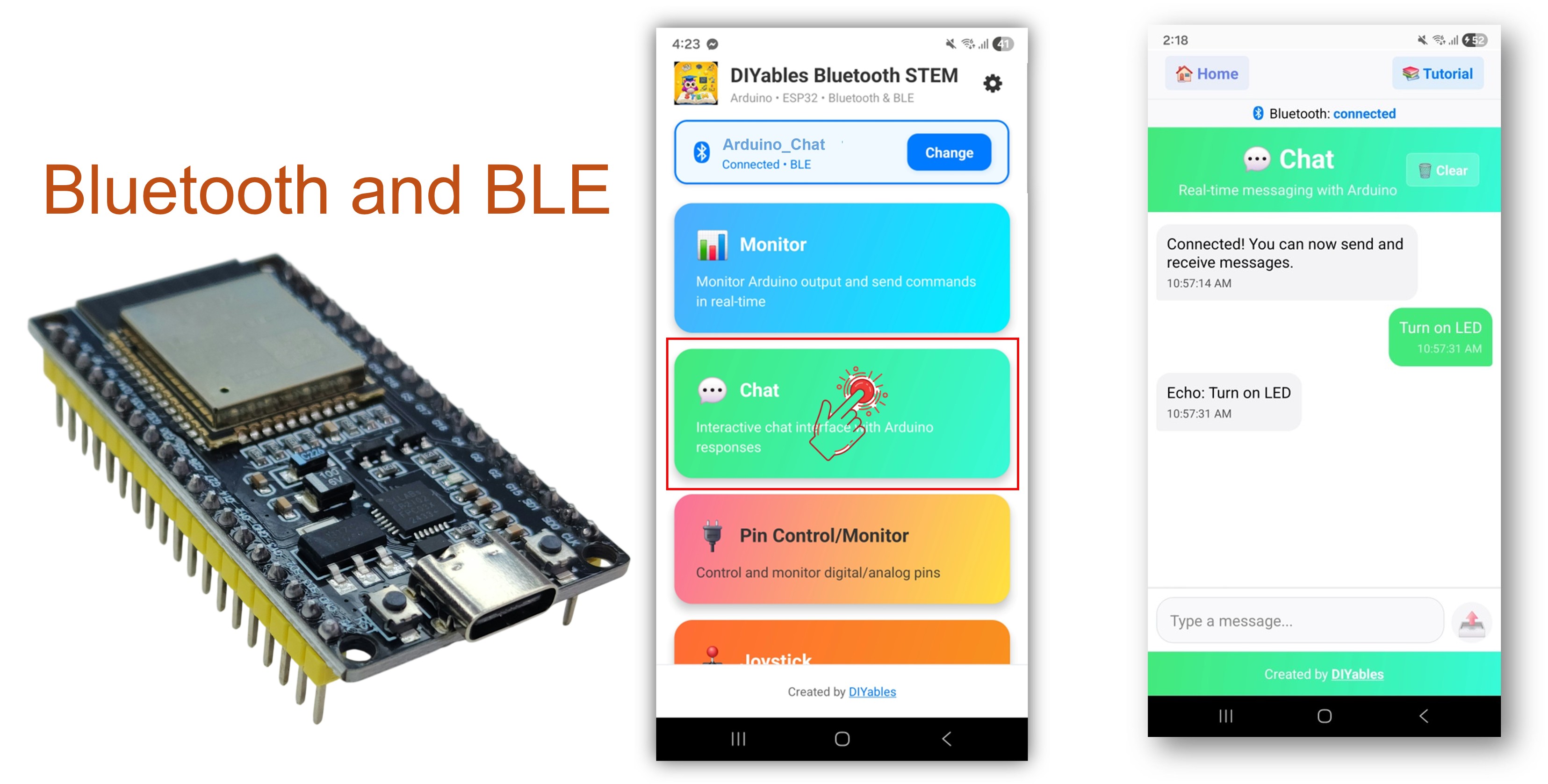
Met het Bluetooth Chat voorbeeld kunt u tweerichtings-verkeer van tekstberichten realiseren tussen uw ESP32 en een smartphone via de DIYables Bluetooth STEM app. Speciaal ontworpen voor ESP32 boards met ondersteuning voor zowel BLE (Bluetooth Low Energy) als Classic Bluetooth verbindingen. Stuur en ontvang tekstberichten in realtime, implementeer aangepaste commandoverwerking en verbind de Seriële Monitor met Bluetooth — ideaal voor debugging, afstandsbediening en interactieve projecten.
Dit voorbeeld ondersteunt twee Bluetooth-modi:
ESP32 BLE (Bluetooth Low Energy): Werkt op zowel Android als iOS
ESP32 Classic Bluetooth: Werkt alleen op Android. iOS ondersteunt geen Classic Bluetooth. Gebruik BLE als u iOS-ondersteuning nodig heeft.
Kenmerken
Tweerichtingsberichtgeving: Stuur en ontvang tekstberichten in realtime
Echo Modus: Ontvangen berichten worden automatisch teruggestuurd naar de app
Commandoverwerking: Verwerk aangepaste tekstcommando’s (ping, status, time, heap)
Periodieke berichten: Verstuur automatische statusupdates met configureerbare intervallen
Serieel-naar-Bluetooth brug: Typ berichten in Serial Monitor en verstuur ze naar de app
BLE & Classic Bluetooth: Kies de Bluetooth-modus die bij uw project past
Cross-platform: BLE werkt op Android en iOS; Classic Bluetooth werkt alleen op Android
Laag stroomverbruik optie: BLE verbruikt minder energie dan Classic Bluetooth
Openbaarmaking: Sommige van de links in deze sectie zijn Amazon-affiliate links. We kunnen een commissie ontvangen voor aankopen die via deze links worden gedaan, zonder extra kosten voor u. We waarderen uw steun.
Verbind het ESP32 board met uw computer via een USB-kabel.
Start de Arduino IDE op uw computer.
Selecteer het juiste ESP32 board en COM-poort.
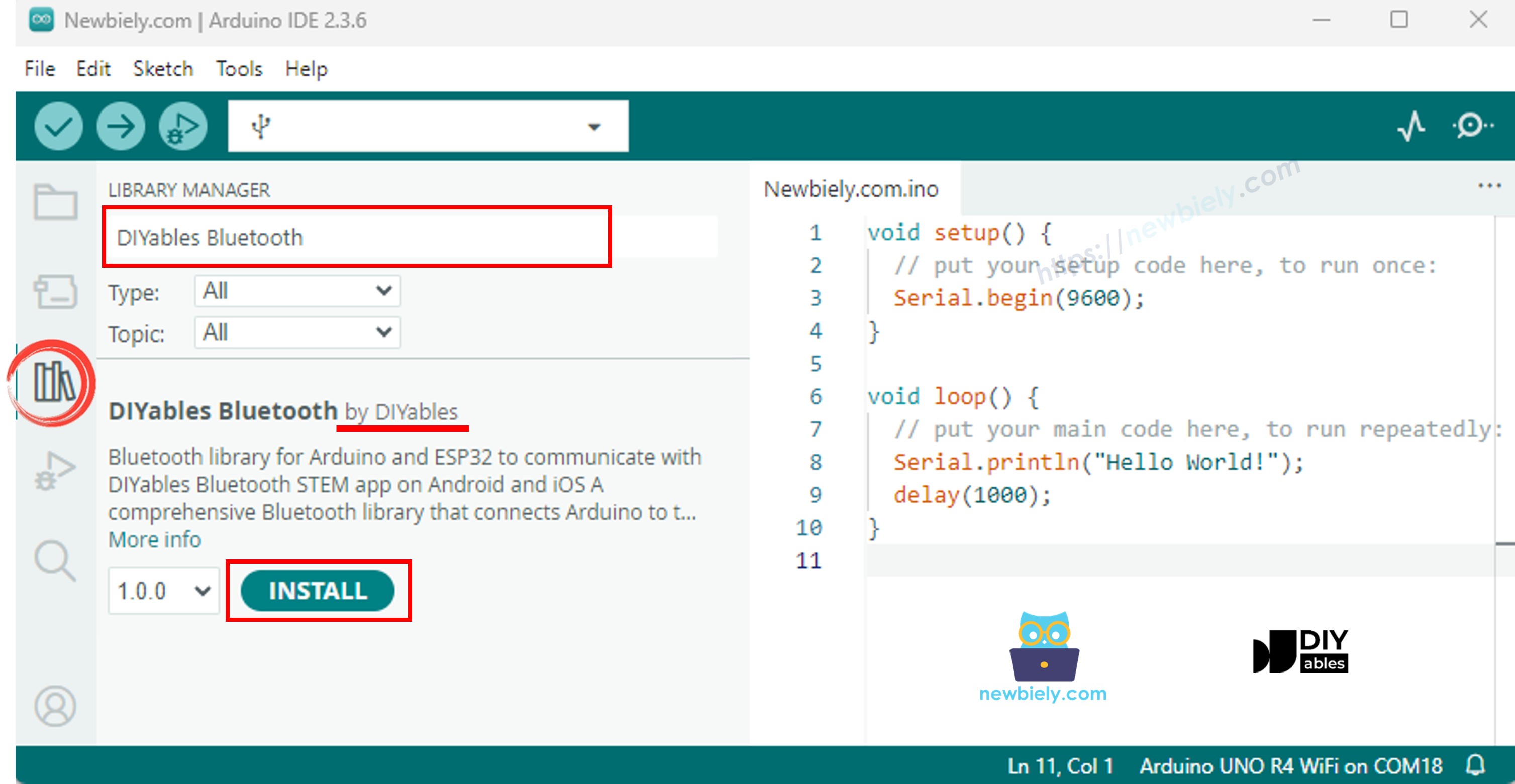
Ga naar het Bibliotheek-icoon in de linker balk van de Arduino IDE.
Zoek op "DIYables Bluetooth" en vind de DIYables Bluetooth bibliotheek van DIYables.
Klik op de knop Installeren om de bibliotheek te installeren.
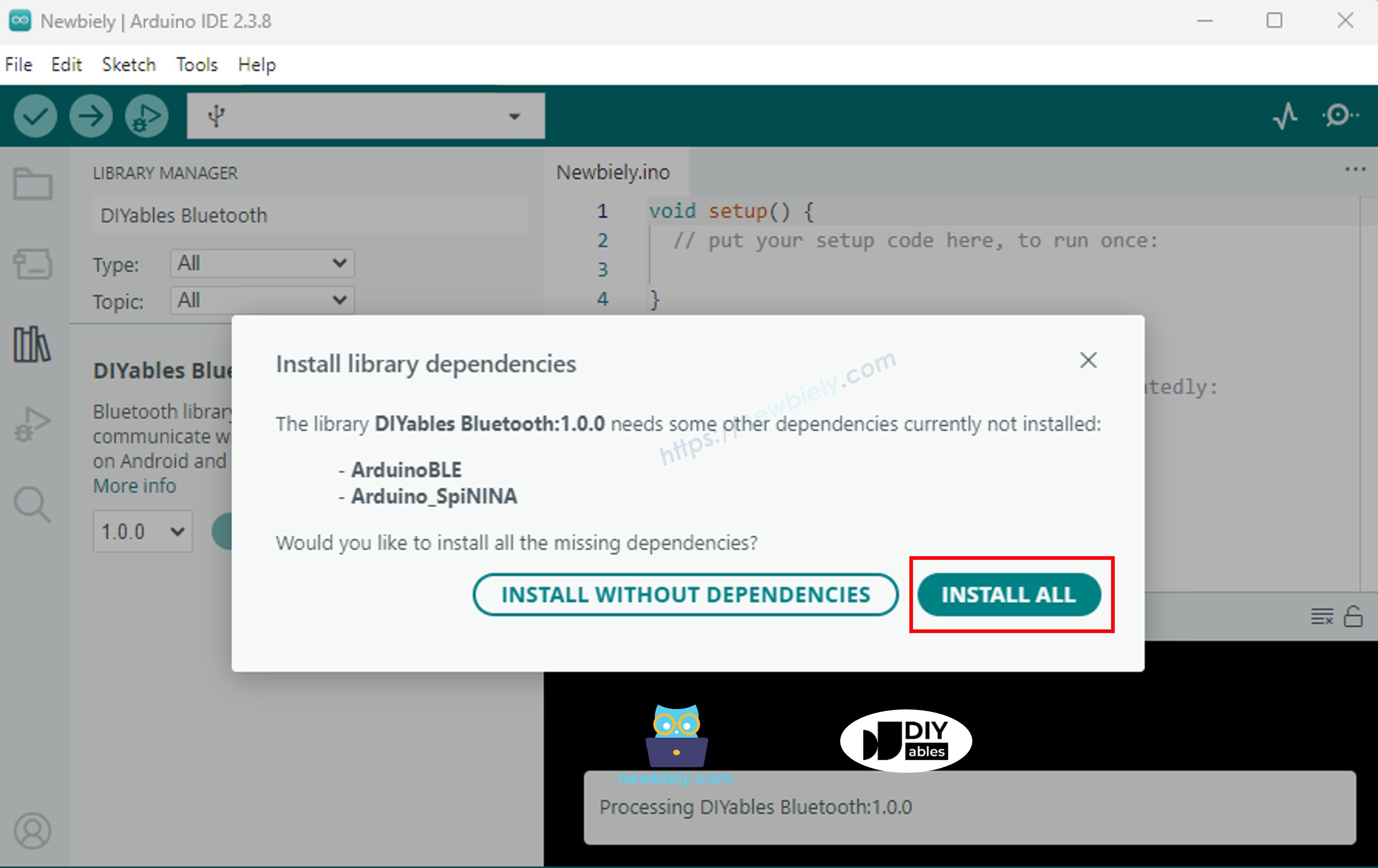
Er wordt gevraagd om extra afhankelijkheidsbibliotheken te installeren.
Klik op de knop Alles installeren om alle benodigde bibliotheken te installeren.
Kies een van onderstaande Bluetooth-modi die bij uw behoeften past:
ESP32 Classic Bluetooth Code (werkt alleen met app op Android)
Let op: Classic Bluetooth wordt NIET ondersteund op iOS. Heeft u iOS-ondersteuning nodig, gebruik dan de BLE-code hieronder.
In de Arduino IDE, ga naar Bestand Voorbeelden DIYables Bluetooth Esp32Bluetooth_Chat voorbeeld, of kopieer bovenstaande code en plak deze in de editor van de Arduino IDE
/* * DIYables Bluetooth Library - ESP32 Classic Bluetooth Chat Example * Works with DIYables Bluetooth STEM app on Android * Note: Classic Bluetooth is NOT supported on iOS. Use BLE examples for iOS support. * * This example demonstrates the Bluetooth Chat feature: * - Two-way text messaging via Bluetooth * - Receive messages from mobile app * - Send messages to mobile app * * Compatible Boards: * - ESP32 (all variants with Classic Bluetooth) * - ESP32-WROOM-32 * - ESP32-DevKitC * - ESP32-WROVER * * Note: Select "Huge APP (3MB No OTA/1MB SPIFFS)" partition scheme * in Arduino IDE: Tools > Partition Scheme * * Setup: * 1. Upload the sketch to your ESP32 * 2. Open Serial Monitor (115200 baud) to see connection status and messages * 3. Use DIYables Bluetooth App to connect and chat * * Tutorial: https://diyables.io/bluetooth-app * Author: DIYables */#include <DIYables_BluetoothServer.h>#include <DIYables_BluetoothChat.h>#include <platforms/DIYables_Esp32Bluetooth.h>// Create Bluetooth instancesDIYables_Esp32Bluetooth bluetooth("ESP32_Chat");DIYables_BluetoothServer bluetoothServer(bluetooth);// Create Chat app instanceDIYables_BluetoothChat bluetoothChat;// Variables for periodic messagesunsignedlong lastMessageTime = 0;constunsignedlong MESSAGE_INTERVAL = 10000; // Send message every 10 secondsint messageCount = 0;voidsetup() {Serial.begin(115200);delay(1000);Serial.println("DIYables Bluetooth - ESP32 Chat Example");// Initialize Bluetooth server with platform-specific implementation bluetoothServer.begin();// Add chat app to server bluetoothServer.addApp(&bluetoothChat);// Set up connection event callbacks bluetoothServer.setOnConnected([]() {Serial.println("Bluetooth connected!"); bluetoothChat.send("Hello! ESP32 is ready to chat."); }); bluetoothServer.setOnDisconnected([]() {Serial.println("Bluetooth disconnected!"); messageCount = 0; });// Set up callback for received chat messages bluetoothChat.onChatMessage([](const String& message) {Serial.print("Received: ");Serial.println(message);// Echo the message backString response = "Echo: "; response += message; bluetoothChat.send(response);// You can add custom command handling hereif (message.equalsIgnoreCase("ping")) { bluetoothChat.send("pong!"); } elseif (message.equalsIgnoreCase("status")) { bluetoothChat.send("ESP32 is running normally"); } elseif (message.equalsIgnoreCase("time")) {String timeMsg = "Uptime: "; timeMsg += String(millis() / 1000); timeMsg += " seconds"; bluetoothChat.send(timeMsg); } elseif (message.equalsIgnoreCase("heap")) {String heapMsg = "Free heap: "; heapMsg += String(ESP.getFreeHeap()); heapMsg += " bytes"; bluetoothChat.send(heapMsg); } });Serial.println("Waiting for Bluetooth connection..."); Serial.println("Type 'ping', 'status', 'time', or'heap' in the app to test commands");}void loop() {// Handle Bluetooth server communications bluetoothServer.loop();// Send periodic status message (only when connected)if (bluetooth.isConnected() && millis() - lastMessageTime >= MESSAGE_INTERVAL) { lastMessageTime = millis(); messageCount++;String statusMsg = "Status update #"; statusMsg += String(messageCount); statusMsg += " - All systems operational"; bluetoothChat.send(statusMsg);Serial.print("Sent: ");Serial.println(statusMsg); }// Optional: Read from Serial and send to Bluetoothif (Serial.available()) {String serialMsg = Serial.readStringUntil('\n'); serialMsg.trim();if (serialMsg.length() > 0 && bluetooth.isConnected()) { bluetoothChat.send(serialMsg);Serial.print("Sent from Serial: ");Serial.println(serialMsg); } }delay(10);}
Klik op de knop Uploaden in Arduino IDE om de code naar ESP32 te uploaden
Open de Seriële Monitor
Bekijk het resultaat in de Seriële Monitor, het ziet er als volgt uit:
Newbiely | Arduino IDE 2.3.8
──
☐
✕
File
Edit
Sketch
Tools
Help
ESP32 Dev Module
Newbiely.ino
···
8Serial.println("Hello World!");
Output
Serial Monitor
Message (Enter to send message to 'ESP32 Dev Module' on 'COM15')
New Line
9600 baud
DIYables Bluetooth - ESP32 Chat Example
Waiting for Bluetooth connection...
Type 'ping', 'status', 'time', or 'heap' in the app to test commands
Ln 11, Col 1
ESP32 Dev Module on COM15
2
ESP32 BLE Code (werkt op app zowel Android als iOS)
In de Arduino IDE, ga naar Bestand Voorbeelden DIYables Bluetooth Esp32BLE_Chat voorbeeld, of kopieer bovenstaande code en plak deze in de editor van de Arduino IDE
/* * DIYables Bluetooth Library - ESP32 BLE Chat Example * Works with DIYables Bluetooth STEM app on Android and iOS * * This example demonstrates the Bluetooth Chat feature: * - Two-way text messaging via Bluetooth * - Receive messages from mobile app * - Send messages to mobile app * * Compatible Boards: * - ESP32-WROOM-32 * - ESP32-DevKitC * - ESP32-WROVER * - ESP32-S3 * - ESP32-C3 * - Any ESP32 board supporting BLE * * Note: Select "Huge APP (3MB No OTA/1MB SPIFFS)" partition scheme * in Arduino IDE: Tools > Partition Scheme * * Setup: * 1. Upload the sketch to your ESP32 * 2. Open Serial Monitor (115200 baud) to see connection status and messages * 3. Use DIYables Bluetooth App to connect and chat * * Tutorial: https://diyables.io/bluetooth-app * Author: DIYables */#include <DIYables_BluetoothServer.h>#include <DIYables_BluetoothChat.h>#include <platforms/DIYables_Esp32BLE.h>// BLE Configurationconst char* DEVICE_NAME = "ESP32BLE_Chat";const char* SERVICE_UUID = "19B10000-E8F2-537E-4F6C-D104768A1214";const char* TX_UUID = "19B10001-E8F2-537E-4F6C-D104768A1214";const char* RX_UUID = "19B10002-E8F2-537E-4F6C-D104768A1214";// Create Bluetooth instancesDIYables_Esp32BLE bluetooth(DEVICE_NAME, SERVICE_UUID, TX_UUID, RX_UUID);DIYables_BluetoothServer bluetoothServer(bluetooth);// Create Chat app instanceDIYables_BluetoothChat bluetoothChat;// Variables for periodic messagesunsignedlong lastMessageTime = 0;constunsignedlong MESSAGE_INTERVAL = 10000; // Send message every 10 secondsint messageCount = 0;voidsetup() {Serial.begin(115200);delay(1000);Serial.println("DIYables Bluetooth - ESP32 BLE Chat Example");// Initialize Bluetooth server with platform-specific implementation bluetoothServer.begin();// Add chat app to server bluetoothServer.addApp(&bluetoothChat);// Set up connection event callbacks bluetoothServer.setOnConnected([]() {Serial.println("Bluetooth connected!"); bluetoothChat.send("Hello! ESP32 BLE is ready to chat."); }); bluetoothServer.setOnDisconnected([]() {Serial.println("Bluetooth disconnected!"); messageCount = 0; });// Set up callback for received chat messages bluetoothChat.onChatMessage([](const String& message) {Serial.print("Received: ");Serial.println(message);// Echo the message backString response = "Echo: "; response += message; bluetoothChat.send(response);// Custom command handlingif (message.equalsIgnoreCase("ping")) { bluetoothChat.send("pong!"); } elseif (message.equalsIgnoreCase("status")) { bluetoothChat.send("ESP32 BLE is running normally"); } elseif (message.equalsIgnoreCase("time")) {String timeMsg = "Uptime: "; timeMsg += String(millis() / 1000); timeMsg += " seconds"; bluetoothChat.send(timeMsg); } elseif (message.equalsIgnoreCase("heap")) {String heapMsg = "Free heap: "; heapMsg += String(ESP.getFreeHeap()); heapMsg += " bytes"; bluetoothChat.send(heapMsg); } });Serial.println("Waiting for Bluetooth connection..."); Serial.println("Type 'ping', 'status', 'time', or'heap' in the app to test commands");}void loop() { bluetoothServer.loop(); if (bluetooth.isConnected() && millis() - lastMessageTime >= MESSAGE_INTERVAL) { lastMessageTime = millis(); messageCount++; String statusMsg = "Status update #"; statusMsg += String(messageCount); statusMsg += " - All systems operational"; bluetoothChat.send(statusMsg); Serial.print("Sent: "); Serial.println(statusMsg); } if (Serial.available()) { String serialMsg = Serial.readStringUntil('\n'); serialMsg.trim();if (serialMsg.length() > 0 && bluetooth.isConnected()) { bluetoothChat.send(serialMsg);Serial.print("Sent from Serial: ");Serial.println(serialMsg); } }delay(10);}
Klik op de knop Uploaden in Arduino IDE om de code naar ESP32 te uploaden
Open de Seriële Monitor
Bekijk het resultaat in de Seriële Monitor, het ziet er als volgt uit:
Newbiely | Arduino IDE 2.3.8
──
☐
✕
File
Edit
Sketch
Tools
Help
ESP32 Dev Module
Newbiely.ino
···
8Serial.println("Hello World!");
Output
Serial Monitor
Message (Enter to send message to 'ESP32 Dev Module' on 'COM15')
New Line
9600 baud
DIYables Bluetooth - ESP32 BLE Chat Example
Waiting for Bluetooth connection...
Type 'ping', 'status', 'time', or 'heap' in the app to test commands
Ln 11, Col 1
ESP32 Dev Module on COM15
2
Mobiele App
Installeer de DIYables Bluetooth App op uw smartphone: Android | iOS
Als u de ESP32 Classic Bluetooth code gebruikt, moet u de ESP32 eerst koppelen met uw Android-telefoon voor het openen van de app:
Ga in uw telefoon naar Instellingen > Bluetooth
Zorg dat Bluetooth aan staat
Uw telefoon zal beschikbare apparaten zoeken
Zoek en tik op "ESP32_Chat" in de lijst beschikbare apparaten
Bevestig het koppelingsverzoek (geen pincode vereist)
Wacht tot onder de apparaatnaam "Gekoppeld" staat
Als u de ESP32 BLE code gebruikt, is koppelen niet nodig, ga direct naar de volgende stap.
Open de DIYables Bluetooth App
Bij het eerste gebruik zal de app om permissies vragen. Geef deze toestemming:
Nabije apparaten toestemming (Android 12+) / Bluetooth toestemming (iOS) – nodig om Bluetooth-apparaten te zoeken en verbinden
Locatie toestemming (alleen Android 11 en lager) – nodig voor oudere Android versies om BLE-apparaten te scannen
Controleer of Bluetooth aan staat op uw telefoon
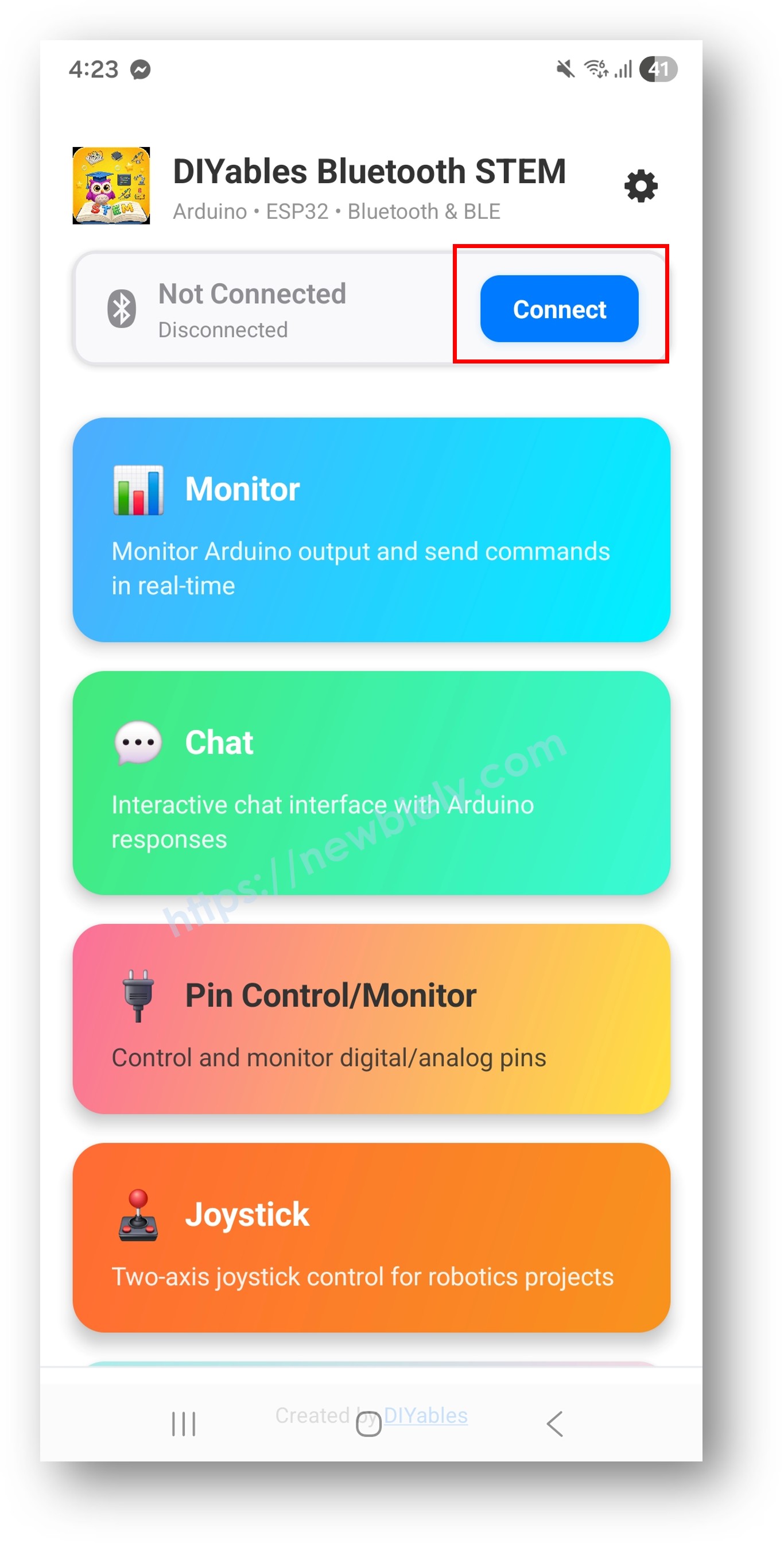
Tik op het startscherm op de knop Verbinden. De app zoekt naar zowel BLE- als Classic Bluetooth apparaten.
Zoek en tik op uw apparaat in de scan resultaten om verbinding te maken:
Voor Classic Bluetooth: tik op "ESP32_Chat"
Voor BLE: tik op "ESP32BLE_Chat"
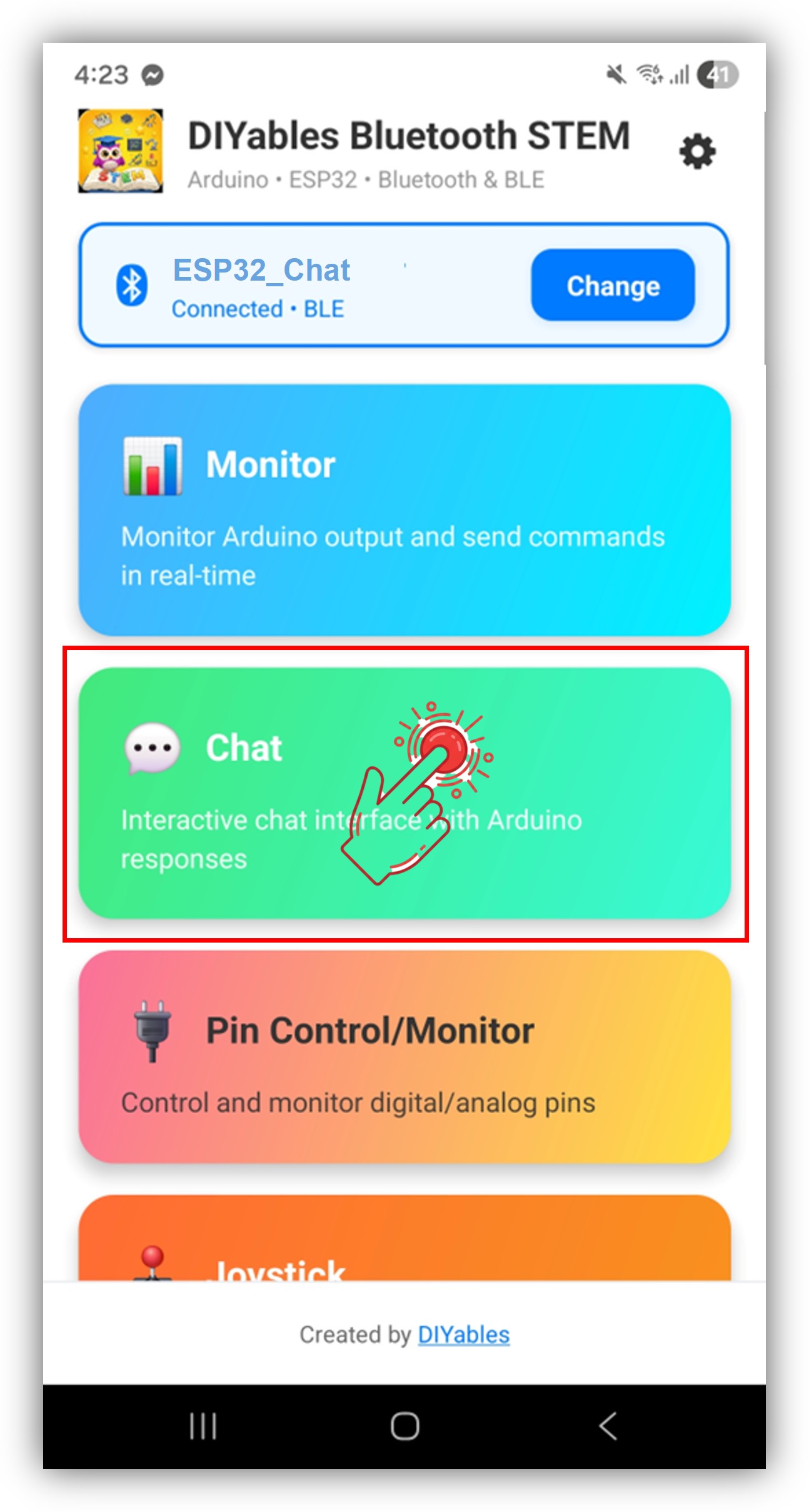
Na verbinden keert de app automatisch terug naar het startscherm. Selecteer de Chat app in het app-menu.
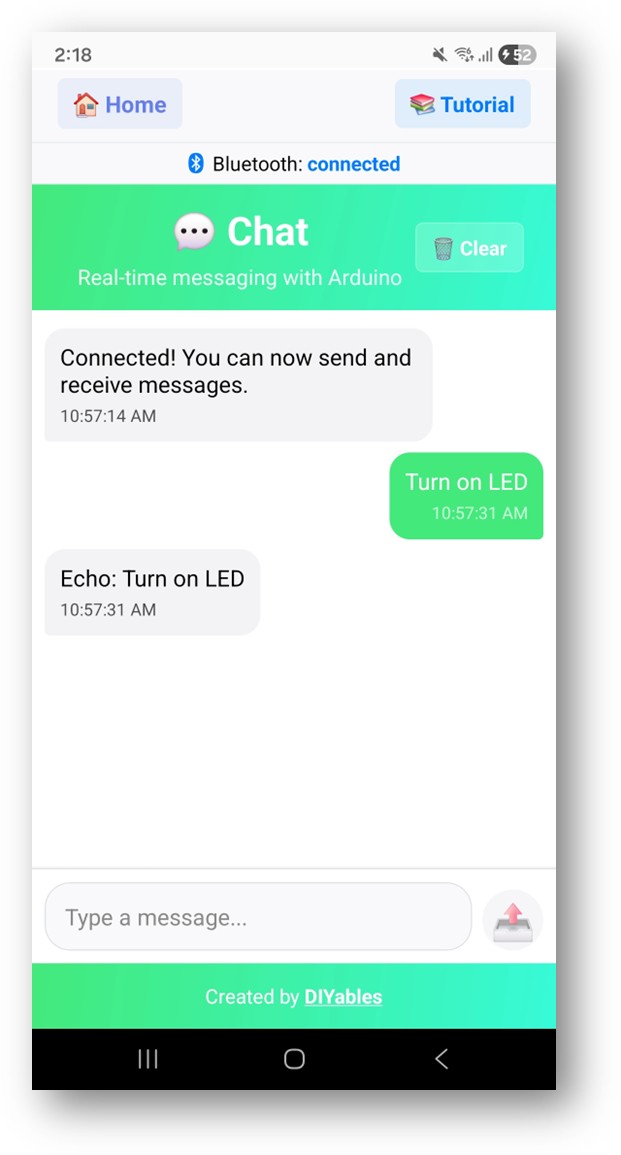
Typ een bericht in het tekstinvoerveld en tik op Verzenden
Kijk nu terug naar de Seriële Monitor in Arduino IDE. U zult zien:
Newbiely | Arduino IDE 2.3.8
──
☐
✕
File
Edit
Sketch
Tools
Help
ESP32 Dev Module
Newbiely.ino
···
8Serial.println("Hello World!");
Output
Serial Monitor
Message (Enter to send message to 'ESP32 Dev Module' on 'COM15')
New Line
9600 baud
Bluetooth connected!
Received: Hello
Received: ping
Received: status
Sent: Status update #1 - All systems operational
Ln 11, Col 1
ESP32 Dev Module on COM15
2
Typ berichten in de app en kijk hoe ze direct zichtbaar zijn in de Seriële Monitor
Probeer ingebouwde commando's: ping, status, time, heap
U kunt ook berichten typen in de Seriële Monitor die dan naar de app verzonden worden
Creatieve Aanpassing - Pas de Code aan uw Project aan
Berichten Ontvangen van de App
Gebruik de onChatMessage() callback om berichten te verwerken die vanuit de app worden ontvangen. U kunt zelf aangepaste commando’s definiëren die logisch zijn voor uw project — de ESP32 reageert daarop:
U kunt zoveel aangepaste commando’s toevoegen als nodig door meer elseif blokken toe te voegen. Bijvoorbeeld het toevoegen van RELAY_ON / RELAY_OFF om een relais aan te sturen, of READ om een sensorwaarde op te vragen — elk woord dat u in de app typt wordt een commando.
Berichten Verzenden naar de App
U kunt op elk moment tekstberichten van de ESP32 naar de app sturen:
// Stuur een eenvoudig tekstberichtbluetoothChat.send("Hello from ESP32!");// Stuur sensordata als tekstfloat temperature = 25.3;bluetoothChat.send("Temperature: " + String(temperature) + "°C");// Stuur statusupdatesbluetoothChat.send("System ready");
Verbinding Gebeurtenissen Afhandelen
U kunt detecteren wanneer de app verbinding maakt of verbreekt met de ESP32:
// Wordt aangeroepen bij verbindenbluetoothServer.setOnConnected([]() {Serial.println("Bluetooth connected!"); bluetoothChat.send("Welcome! ESP32 is ready to chat.");});// Wordt aangeroepen bij verbrekenbluetoothServer.setOnDisconnected([]() {Serial.println("Bluetooth disconnected!");});// Controleer verbinding op elk moment in uw codeif (bluetoothServer.isConnected()) { bluetoothChat.send("Still connected!");}
Serieel-naar-Bluetooth Brug
Stuur berichten die u in de Arduino IDE Seriële Monitor typt door naar de Bluetooth app:
voidloop() { bluetoothServer.loop();// Lees van Serial en stuur naar Bluetoothif (Serial.available()) {String serialMsg = Serial.readStringUntil('\n'); serialMsg.trim();if (serialMsg.length() > 0 && bluetooth.isConnected()) { bluetoothChat.send(serialMsg);Serial.print("Sent from Serial: ");Serial.println(serialMsg); } }delay(10);}
Hoe de Chat te Gebruiken
App Interface Bedieningselementen
De chatinterface in de DIYables Bluetooth App bevat:
Lijst met berichten: Scrollbare lijst met verzonden en ontvangen berichten
Tekstinvoer: Typ uw bericht onderaan
Verzendknop: Tik om het getypte bericht te verzenden
Automatisch scrollen: Scrollt automatisch naar het nieuwste bericht
Ingebouwde Commando's
De voorbeeldcode bevat de volgende ingebouwde commando's:
ping ? Reageert met "pong!"
status ? Geeft de status van de ESP32 weer
time ? Toont de uptime in seconden
heap ? Toont vrije heap-geheugen in bytes
Programmeervoorbeelden
Basic Echo Chat
voidsetup() {// Stel chat callback in bluetoothChat.onChatMessage([](const String& message) {Serial.print("Received: ");Serial.println(message);// Echo het bericht terug bluetoothChat.send("Echo: " + message); });}
Commando-gebaseerde LED-besturing
constint LED_PIN = 2; // Ingebouwde LEDconstint RED_PIN = 16;constint GREEN_PIN = 17;constint BLUE_PIN = 18;voidsetup() {pinMode(LED_PIN, OUTPUT);pinMode(RED_PIN, OUTPUT);pinMode(GREEN_PIN, OUTPUT);pinMode(BLUE_PIN, OUTPUT); bluetoothChat.onChatMessage([](constString& message) {String cmd = message; cmd.toUpperCase();if (cmd == "LED ON") {digitalWrite(LED_PIN, HIGH); bluetoothChat.send("LED is now ON"); } elseif (cmd == "LED OFF") {digitalWrite(LED_PIN, LOW); bluetoothChat.send("LED is now OFF"); } elseif (cmd == "RED") {digitalWrite(RED_PIN, HIGH);digitalWrite(GREEN_PIN, LOW);digitalWrite(BLUE_PIN, LOW); bluetoothChat.send("Red LED activated"); } elseif (cmd == "GREEN") {digitalWrite(RED_PIN, LOW);digitalWrite(GREEN_PIN, HIGH);digitalWrite(BLUE_PIN, LOW); bluetoothChat.send("Green LED activated"); } elseif (cmd == "BLUE") {digitalWrite(RED_PIN, LOW);digitalWrite(GREEN_PIN, LOW);digitalWrite(BLUE_PIN, HIGH); bluetoothChat.send("Blue LED activated"); } elseif (cmd == "OFF") {digitalWrite(RED_PIN, LOW);digitalWrite(GREEN_PIN, LOW);digitalWrite(BLUE_PIN, LOW); bluetoothChat.send("All LEDs off"); } elseif (cmd == "HELP") { bluetoothChat.send("Commands: LED ON, LED OFF, RED, GREEN, BLUE, OFF, HELP"); } else { bluetoothChat.send("Unknown command. Type HELP for list."); } });}
U bent welkom om de link naar deze tutorial te delen. Gebruik onze inhoud echter niet op andere websites. We hebben veel moeite en tijd gestoken in het maken van de inhoud, respecteer alstublieft ons werk!

 English for KidsSpelenderwijs Engels leren voor jonge kinderen.Ontdek het opGoogle PlayBeschikbaar in deApp Store
 Bubble NoteZelfverwijderende notities – schrijf ze als berichten.Ontdek het opGoogle PlayBeschikbaar in deApp Store
 Didn't BuyVersla impulsaankopen en bespaar meer.Ontdek het opGoogle PlayBeschikbaar in deApp Store
 Knowledge PathOefentoetsen om alles te leren.Ontdek het opGoogle PlayBeschikbaar in deApp Store