
ESP32 - Keypad - LCD
Deze handleiding legt uit hoe u de ESP32 gebruikt met een keypad en LCD-display. We leren in detail hoe u de ingedrukte toets op het LCD-scherm kunt weergeven.
Hardware Benodigd
Of u kunt de volgende kits kopen:
| 1 | × | DIYables Sensorkit (18 sensoren/displays) |
Aankoopadvies: De meeste LCD I2C-displays op de markt zijn 5V-displays. Ze werken mogelijk met dit board, maar dat is niet veilig en kan het board beschadigen. We raden u ten zeerste aan het hierboven aanbevolen 3.3V LCD I2C-display te gebruiken.
Over het Keypad en LCD
We hebben specifieke tutorials over keypad en LCD. Elke tutorial bevat gedetailleerde informatie en stapsgewijze instructies over hardware pinout, werkingsprincipe, bekabeling naar ESP32, ESP32 code... Leer er meer over via de volgende links:
Aansluitschema
- Aansluitschema tussen ESP32 en Keypad 3x4
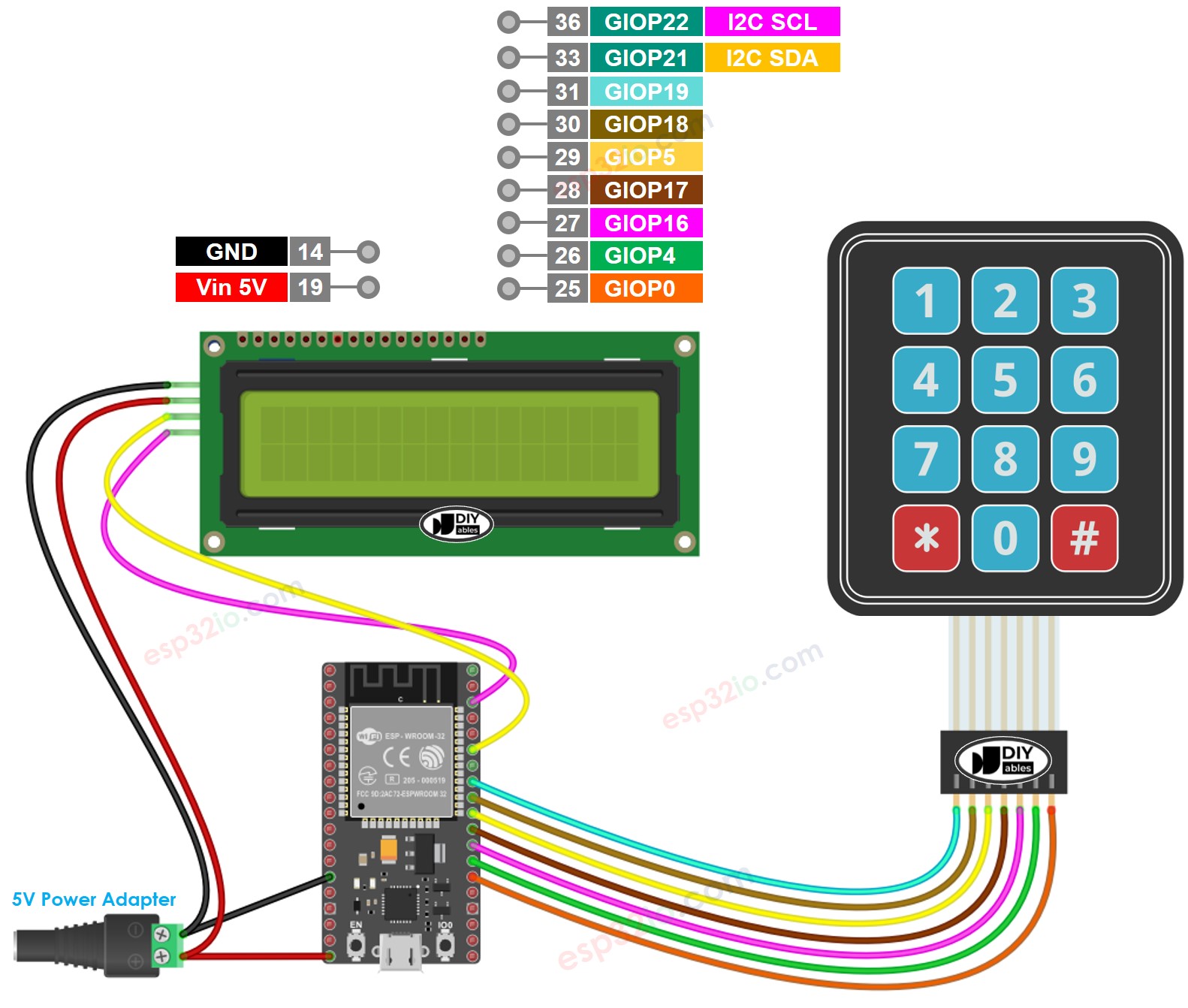
Deze afbeelding is gemaakt met Fritzing. Klik om de afbeelding te vergroten.
- Aansluitschema tussen ESP32 en Keypad 4x4
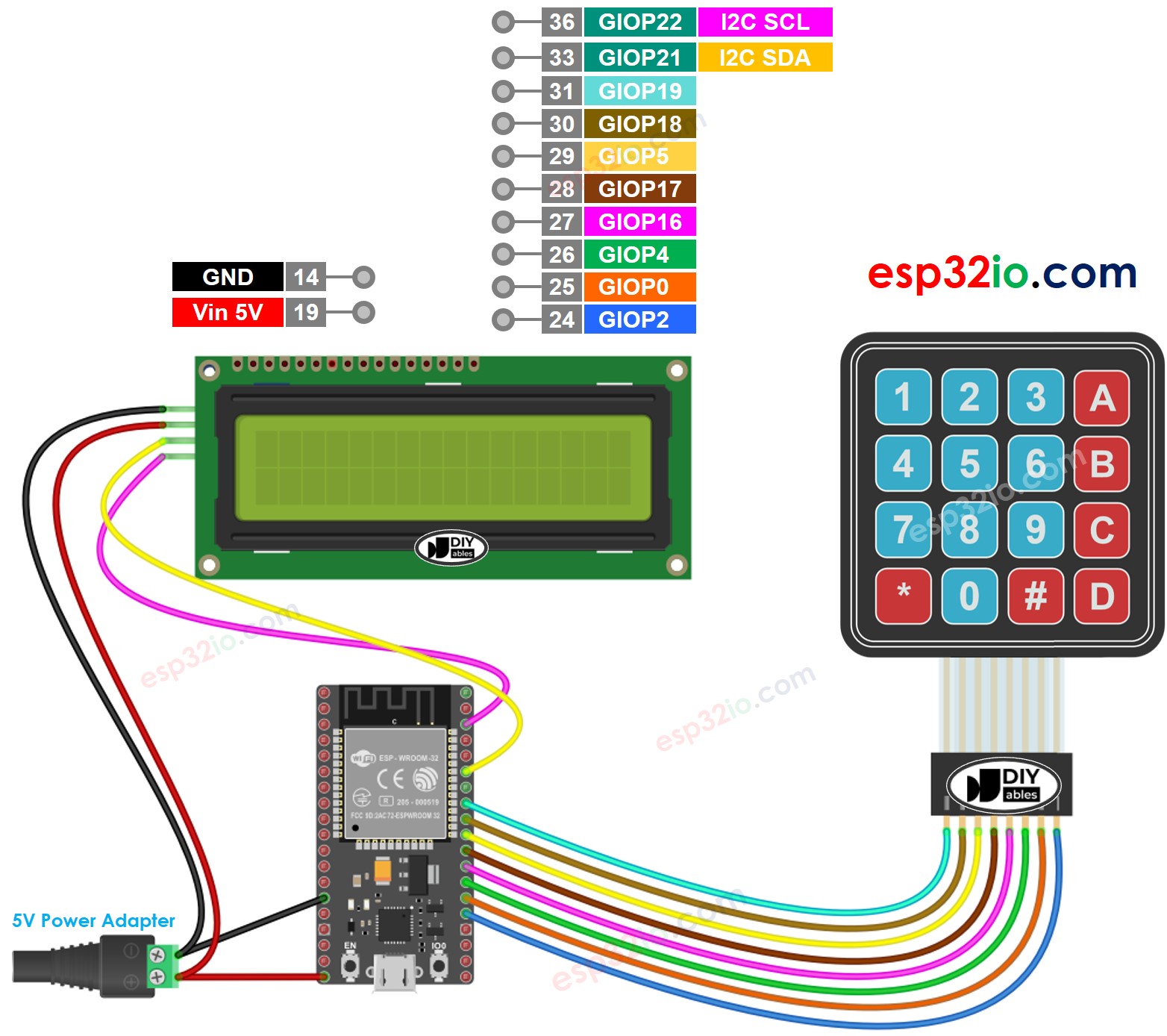
Deze afbeelding is gemaakt met Fritzing. Klik om de afbeelding te vergroten.
ESP32 Code - Keypad 3x4 - LCD I2C
※ Notiz:
Het LCD I2C-adres kan verschillen per fabrikant. In deze code gebruiken we het adres 0x27 dat is opgegeven door de fabrikant DIYables
Snelle Stappen
- Als u voor het eerst met ESP32 werkt, bekijk dan hoe u de omgeving voor ESP32 instelt in Arduino IDE.
- Maak de bekabeling zoals op de bovenstaande afbeelding.
- Verbind de ESP32 board met uw pc via een micro USB-kabel.
- Open Arduino IDE op uw pc.
- Selecteer het juiste ESP32 board (bijvoorbeeld ESP32 Dev Module) en de juiste COM-poort.
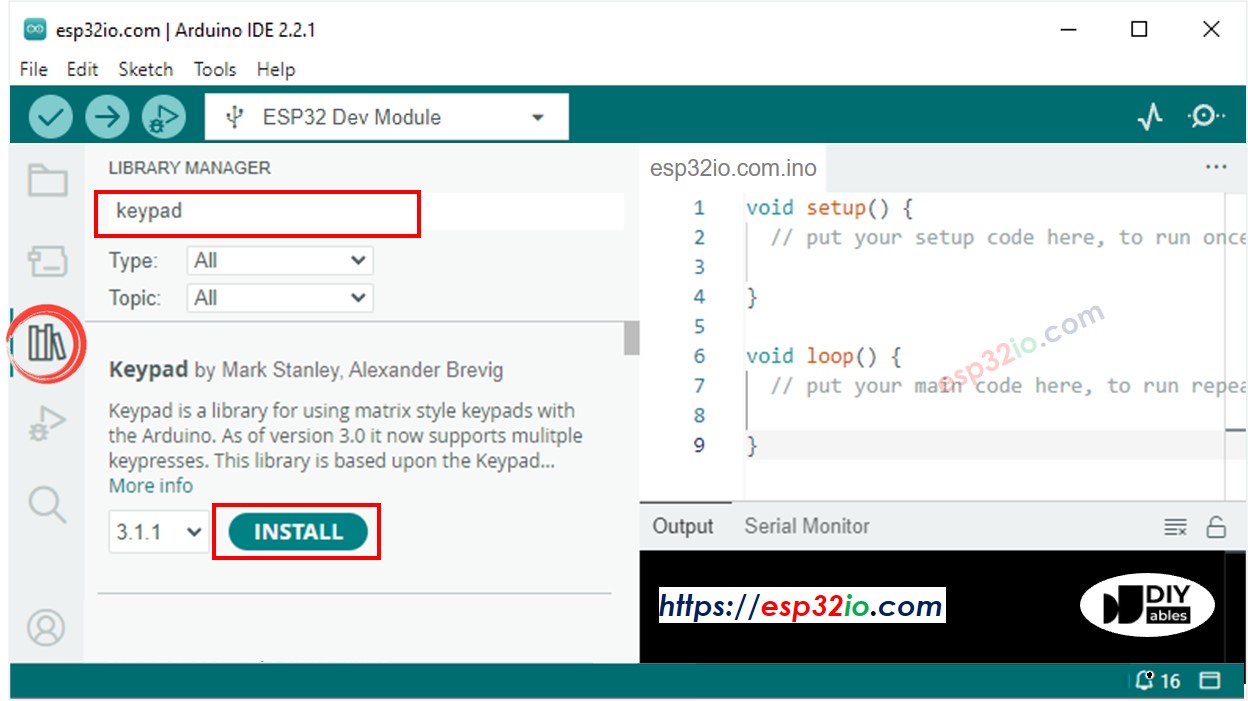
- Klik op het Libraries-icoon in de linkerzijbalk van Arduino IDE.
- Typ “keypad” in het zoekvak, zoek de keypad-library van Mark Stanley, Alexander Brevig.
- Klik op de Installeren-knop om de keypad-library te installeren.
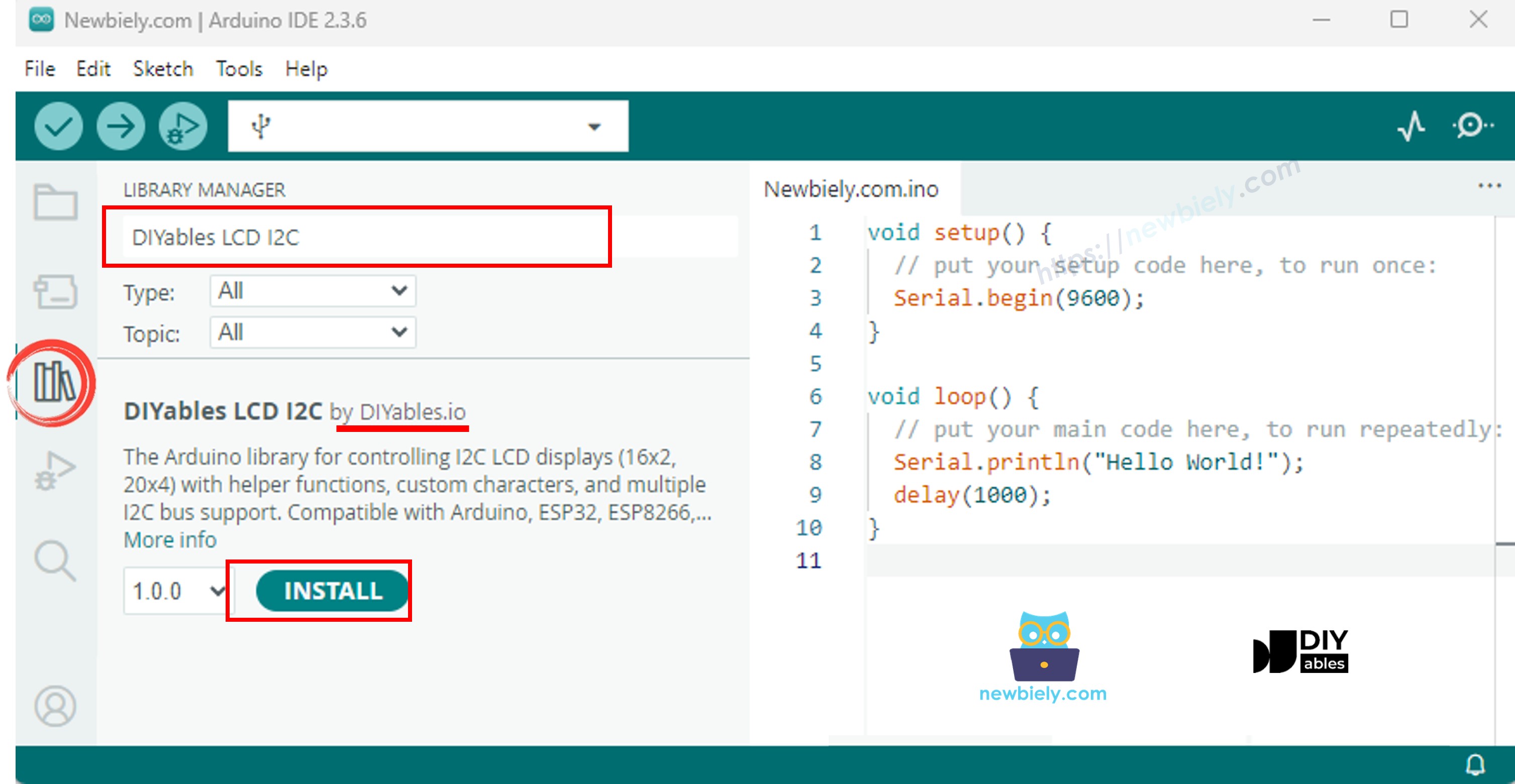
- Typ “DIYables LCD I2C” in het zoekvak, zoek de DIYables_LCD_I2C library van DIYables.
- Klik op de Installeren-knop om de DIYables_LCD_I2C library te installeren.
- Kopieer bovenstaande code en plak deze in Arduino IDE.
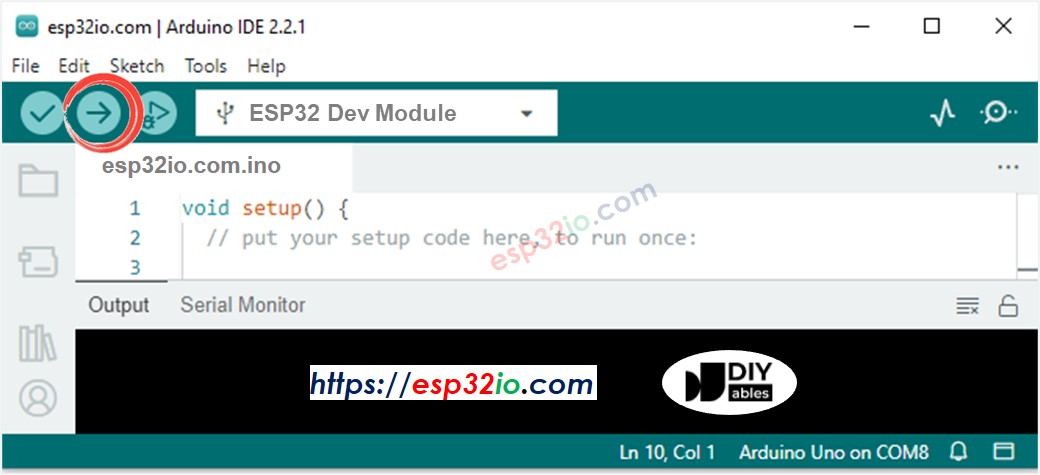
- Compileer en upload de code naar het ESP32 board door op de Uploaden-knop in Arduino IDE te klikken.
- Druk op enkele toetsen op het keypad.
- Bekijk het resultaat op het LCD-scherm.
Als het LCD niets weergeeft, zie dan Probleemoplossing bij LCD I2C.
Regel-voor-regel Code Uitleg
De bovenstaande ESP32-code bevat regel-voor-regel uitleg. Lees de commentaren in de code!
ESP32 Code - Keypad 4x4 - LCD I2C
Video Tutorial
We overwegen het maken van videotutorials. Als u videotutorials belangrijk vindt, abonneer u dan op ons YouTube-kanaal om ons te motiveren de video's te maken.
Bekijk onze video-tutorial voor een visuele begeleiding bij dit project! De video biedt extra inzichten om de combinatie van ESP32, keypad en LCD goed te begrijpen.
Reacties
Gerelateerde Tutorials
📱 Aanbevolen apps
 English for KidsSpelenderwijs Engels leren voor jonge kinderen.Ontdek het opGoogle PlayBeschikbaar in deApp Store
 Bubble NoteZelfverwijderende notities – schrijf ze als berichten.Ontdek het opGoogle PlayBeschikbaar in deApp Store
 Didn't BuyVersla impulsaankopen en bespaar meer.Ontdek het opGoogle PlayBeschikbaar in deApp Store
 Knowledge PathOefentoetsen om alles te leren.Ontdek het opGoogle PlayBeschikbaar in deApp Store