
ESP32 - DC Motor - Eindschakelaar
In deze ESP32 tutorial leert u hoe u de ESP32 gebruikt om een DC motor te besturen met een eindschakelaar en een L298N driver. Concreet leert u:
- Hoe u de DC motor stopt wanneer een eindschakelaar wordt ingedrukt
- Hoe u de draairichting van de DC motor verandert wanneer een eindschakelaar wordt ingedrukt
- Hoe u de draairichting van de DC motor verandert wanneer twee eindschakelaars worden ingedrukt
In deze tutorial over de ESP32 verkennen we hoe u de ESP32 kunt inzetten om een DC motor aan te sturen met behulp van een eindschakelaar en een L298N driver. We behandelen specifiek:
- Het stoppen van de DC motor bij contact met een eindschakelaar
- Het veranderen van de draairichting van de DC motor bij contact met een eindschakelaar
- Het veranderen van de draairichting van de DC motor wanneer twee eindschakelaars worden geactiveerd
Hardware Benodigd
Of u kunt de volgende kits kopen:
| 1 | × | DIYables Sensorkit (18 sensoren/displays) |
Over DC Motor en Eindschakelaar
Als u nog niets weet over DC motoren en eindschakelaars (pinout, werking, programmeren ...), leer er meer over in de volgende tutorials:
- ESP32 - Eindschakelaar tutorial
- ESP32 - Besturing DC Motor tutorial
Aansluitschema
Deze tutorial bevat ESP32 code voor twee situaties: één DC motor + één eindschakelaar, één DC motor + twee eindschakelaars.
- Aansluitschema tussen de DC motor en een eindschakelaar
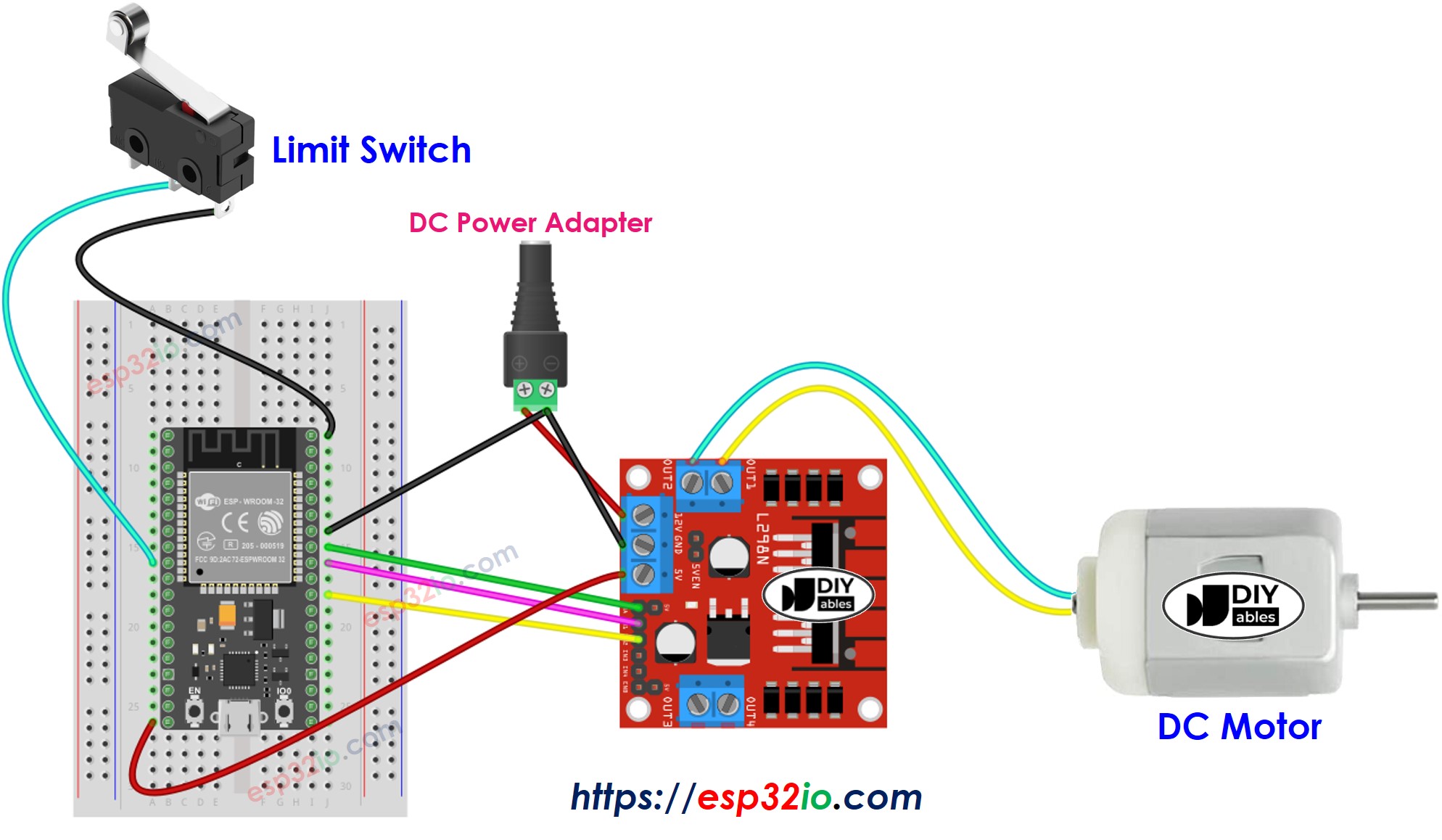
Deze afbeelding is gemaakt met Fritzing. Klik om de afbeelding te vergroten.
- Aansluitschema tussen de DC motor en twee eindschakelaars
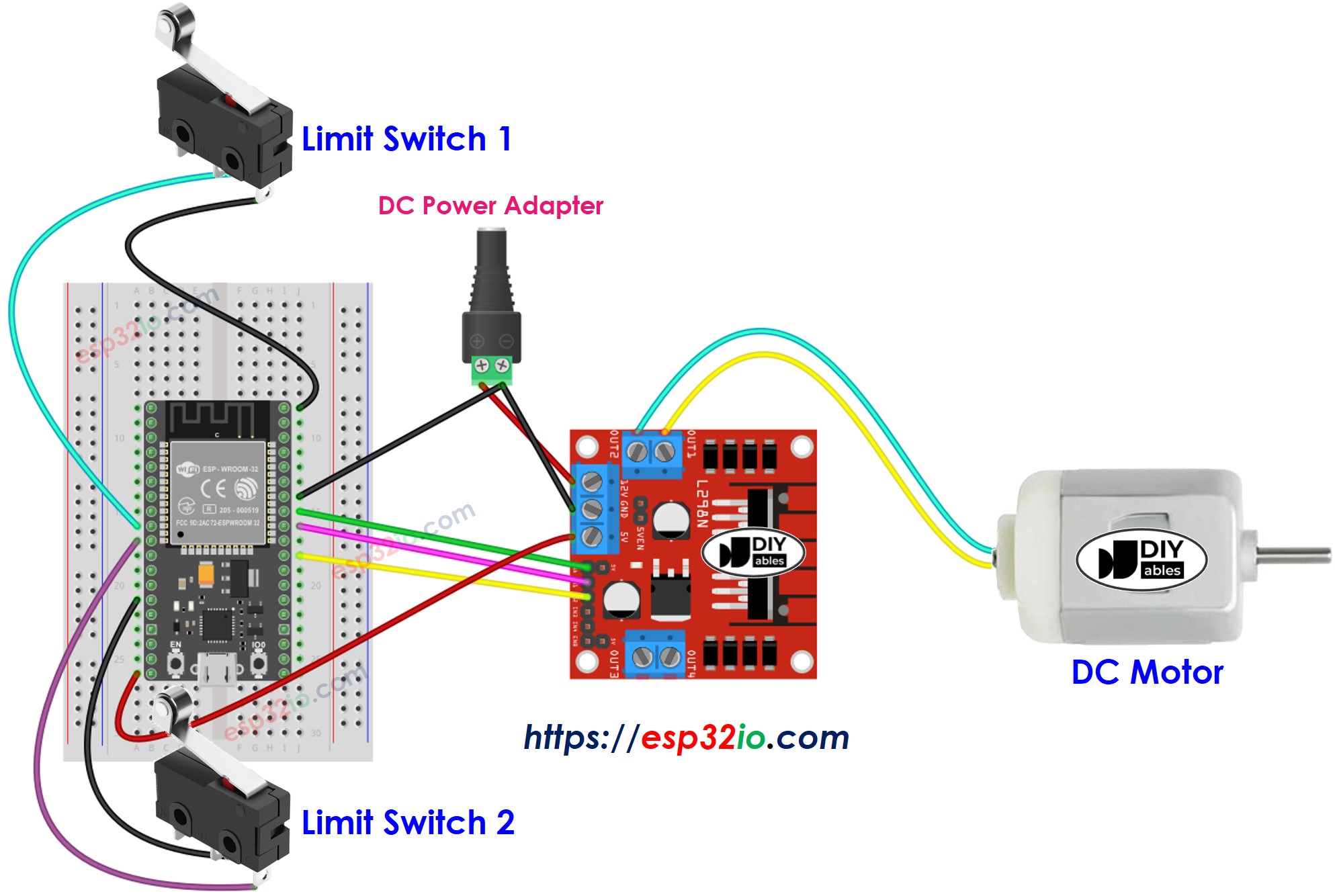
Deze afbeelding is gemaakt met Fritzing. Klik om de afbeelding te vergroten.
ESP32 Code - Stop DC Motor door Eindschakelaar
De onderstaande code laat een DC motor continu draaien en stopt deze direct wanneer de eindschakelaar wordt ingedrukt
Snelle Stappen
- Als dit uw eerste keer is met ESP32, zie hoe u de omgeving instelt voor ESP32 in Arduino IDE.
- Maak de bedrading volgens bovenstaande afbeelding.
- Verbind de ESP32 met uw PC via een micro USB-kabel
- Open Arduino IDE op uw PC.
- Selecteer het juiste ESP32 board (bijv. ESP32 Dev Module) en de juiste COM-poort.
- Verbind ESP32 met PC via USB-kabel
- Open Arduino IDE, selecteer het juiste board en poort
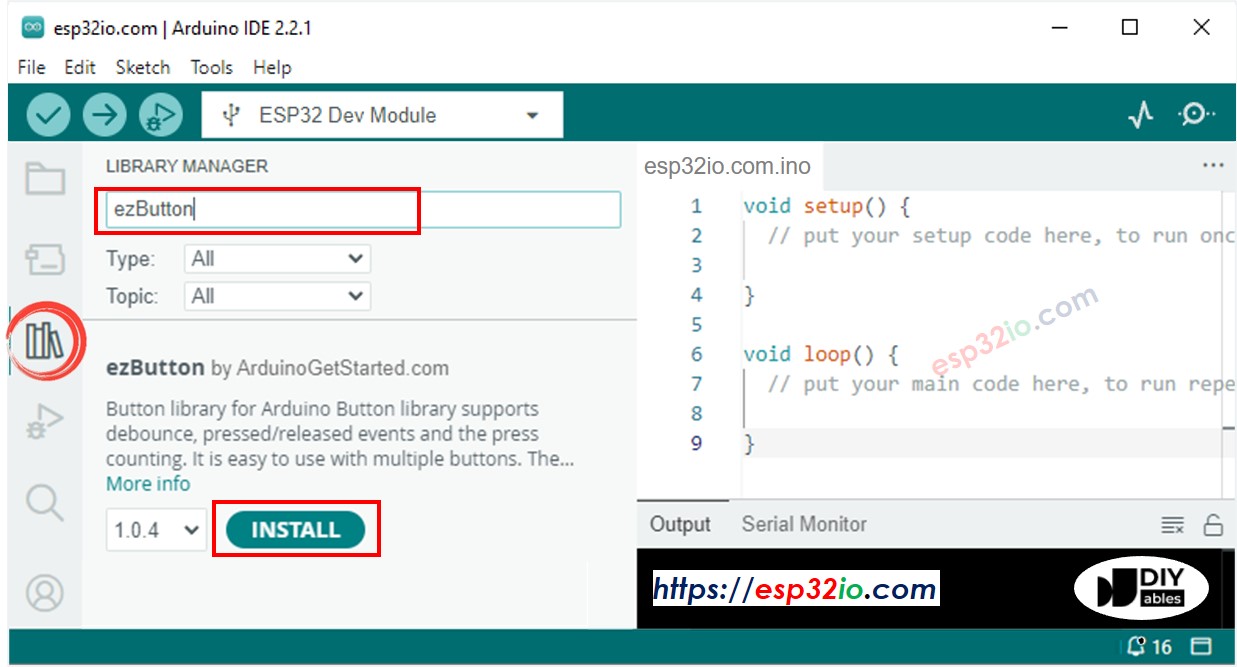
- Klik op het Bibliotheken-icoon in de linker balk van de Arduino IDE.
- Zoek op “ezButton” en vind de button bibliotheek van ArduinoGetStarted.com
- Klik op de Installeren knop om de ezButton bibliotheek te installeren.
- Kopieer bovenstaande code en open deze met Arduino IDE
- Klik op de Upload knop in Arduino IDE om de code naar de ESP32 te uploaden
- Als de bedrading correct is, ziet u de motor met de klok mee draaien.
- Druk op de eindschakelaar
- U zult zien dat de motor direct stopt
- Het resultaat in de Seriële Monitor ziet er zo uit
Code-uitleg
Lees de regel-voor-regel toelichting in de commentaarregels van de code!
ESP32 Code - Verander Draairichting van DC Motor door Eindschakelaar
De onderstaande code laat een DC motor continu draaien en verandert de draairichting wanneer de eindschakelaar wordt ingedrukt
Snelle Stappen
- Als dit uw eerste keer is met ESP32, zie hoe u de omgeving instelt voor ESP32 in Arduino IDE.
- Maak de bedrading volgens bovenstaande afbeelding.
- Verbind de ESP32 met uw PC via een micro USB-kabel
- Open Arduino IDE op uw PC.
- Selecteer het juiste ESP32 board (bijv. ESP32 Dev Module) en de juiste COM-poort.
- Kopieer bovenstaande code en open deze met Arduino IDE
- Klik op de Upload knop in Arduino IDE om de code naar de ESP32 te uploaden
- Als de bedrading correct is, ziet u de motor met de klok mee draaien.
- Druk op de eindschakelaar
- U zult zien dat de draairichting van de DC motor verandert naar tegen de klok in.
- Druk nogmaals op de eindschakelaar
- U zult zien dat de draairichting van de DC motor weer verandert naar met de klok mee
- Het resultaat in de Seriële Monitor ziet er zo uit
ESP32 Code - Verander Draairichting van DC Motor door twee Eindschakelaars
De onderstaande code laat een DC motor continu draaien en verandert de draairichting wanneer één van de twee eindschakelaars wordt ingedrukt
Snelle Stappen
- Als dit uw eerste keer is met ESP32, zie hoe u de omgeving instelt voor ESP32 in Arduino IDE.
- Maak de bedrading volgens bovenstaande afbeelding.
- Verbind de ESP32 met uw PC via een micro USB-kabel
- Open Arduino IDE op uw PC.
- Selecteer het juiste ESP32 board (bijv. ESP32 Dev Module) en de juiste COM-poort.
- Kopieer bovenstaande code en open deze met Arduino IDE
- Klik op de Upload knop in Arduino IDE om de code naar de ESP32 te uploaden
- Als de bedrading correct is, ziet u de motor met de klok mee draaien.
- Druk op eindschakelaar 1
- U zult zien dat de draairichting van de DC motor verandert naar tegen de klok in
- Druk op eindschakelaar 2
- U zult zien dat de draairichting van de DC motor verandert naar met de klok mee
- Het resultaat in de Seriële Monitor ziet er zo uit
Video Tutorial
We overwegen het maken van videotutorials. Als u videotutorials belangrijk vindt, abonneer u dan op ons YouTube-kanaal om ons te motiveren de video's te maken.
Bekijk onze video-tutorial voor een visuele begeleiding bij dit project! De video biedt extra inzichten en laat u stap voor stap zien hoe u dit project met ESP32 kunt uitvoeren.
Gerelateerde Tutorials
📱 Aanbevolen apps
 English for KidsSpelenderwijs Engels leren voor jonge kinderen.Ontdek het opGoogle PlayBeschikbaar in deApp Store
 Bubble NoteZelfverwijderende notities – schrijf ze als berichten.Ontdek het opGoogle PlayBeschikbaar in deApp Store
 Didn't BuyVersla impulsaankopen en bespaar meer.Ontdek het opGoogle PlayBeschikbaar in deApp Store
 Knowledge PathOefentoetsen om alles te leren.Ontdek het opGoogle PlayBeschikbaar in deApp Store