
ESP32 - Ultrasone Sensor - OLED
Deze tutorial legt uit hoe u met de ESP32 de afstand van een ultrasone sensor uitleest en deze op een OLED-scherm weergeeft.
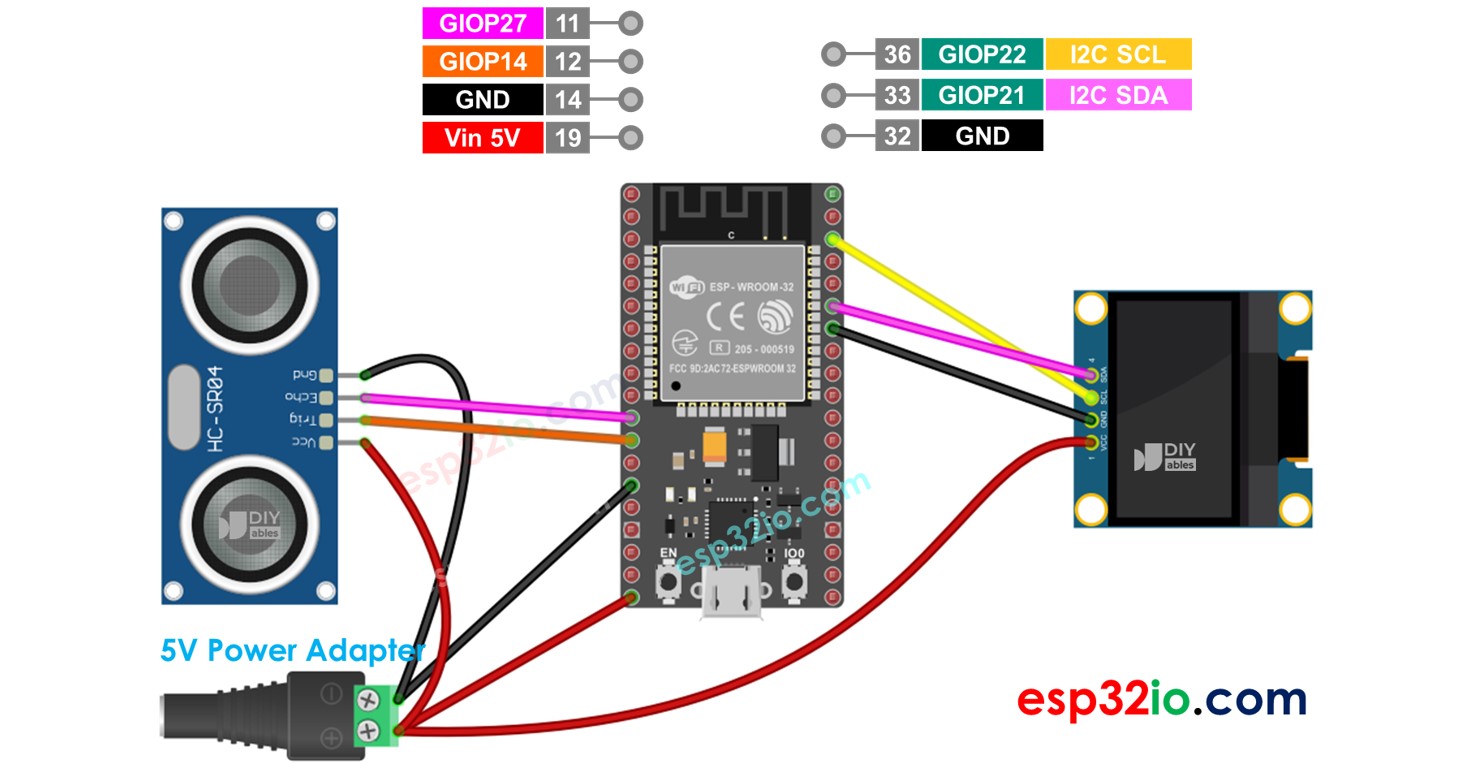
Hardware Benodigd
Of u kunt de volgende kits kopen:
| 1 | × | DIYables Sensorkit (18 sensoren/displays) |
Aankoopadvies: Als u een groter OLED-display wilt, gebruik dan de 2.42 inch OLED Display 128x64.
Over OLED en Ultrasone Sensor
We hebben specifieke tutorials over OLED en ultrasone sensoren. Elke tutorial bevat gedetailleerde informatie en stapsgewijze instructies over de hardware pinout, het werkingsprincipe, de bedradingsverbinding met ESP32, ESP32 code... Leer er meer over via de volgende links:
- ESP32 - OLED tutorial
- ESP32 - Ultrasone Sensor tutorial
Aansluitschema
- Het aansluitschema met voeding via USB-kabel
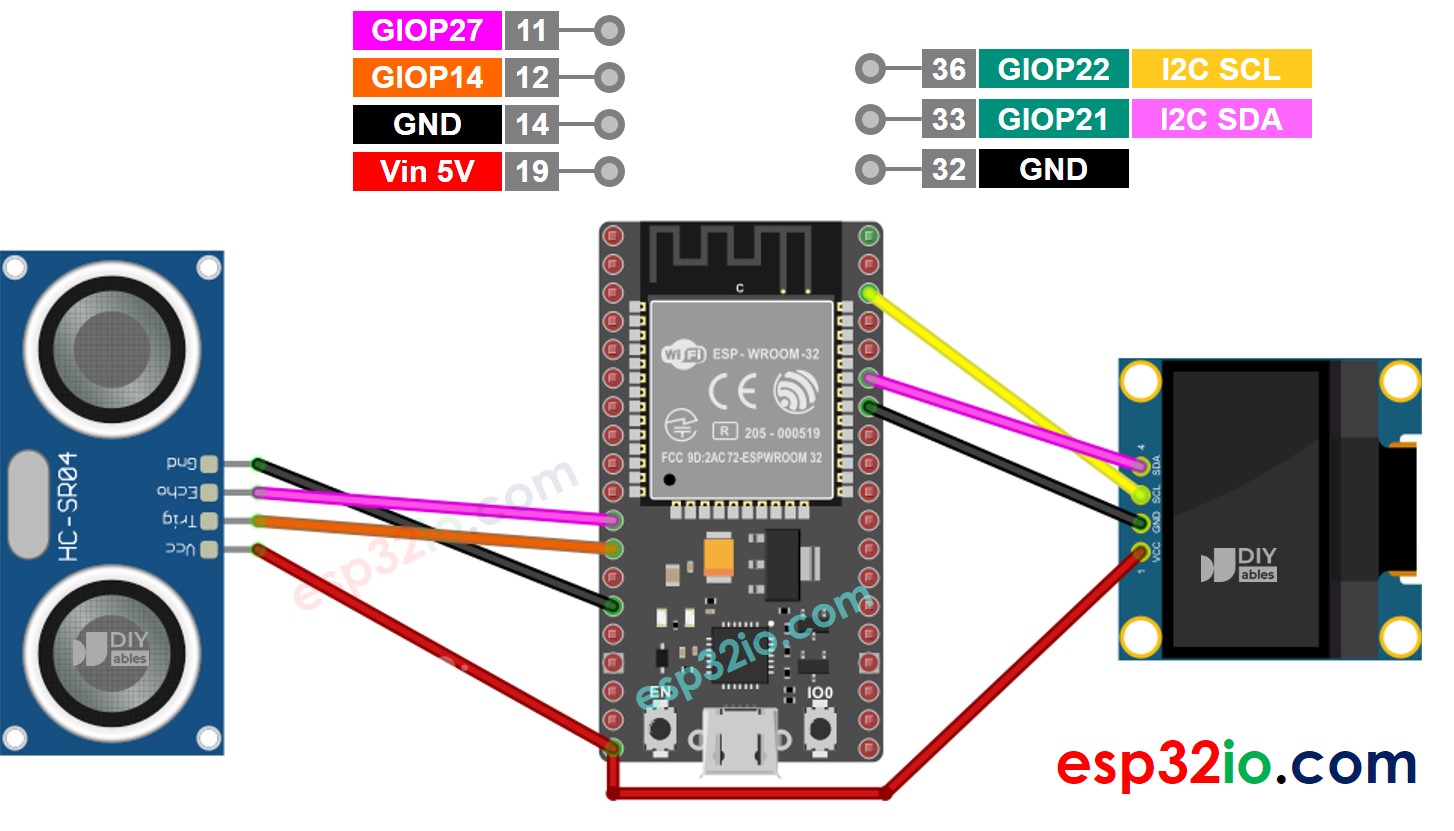
Deze afbeelding is gemaakt met Fritzing. Klik om de afbeelding te vergroten.
- Het aansluitschema met voeding via 5V adapter
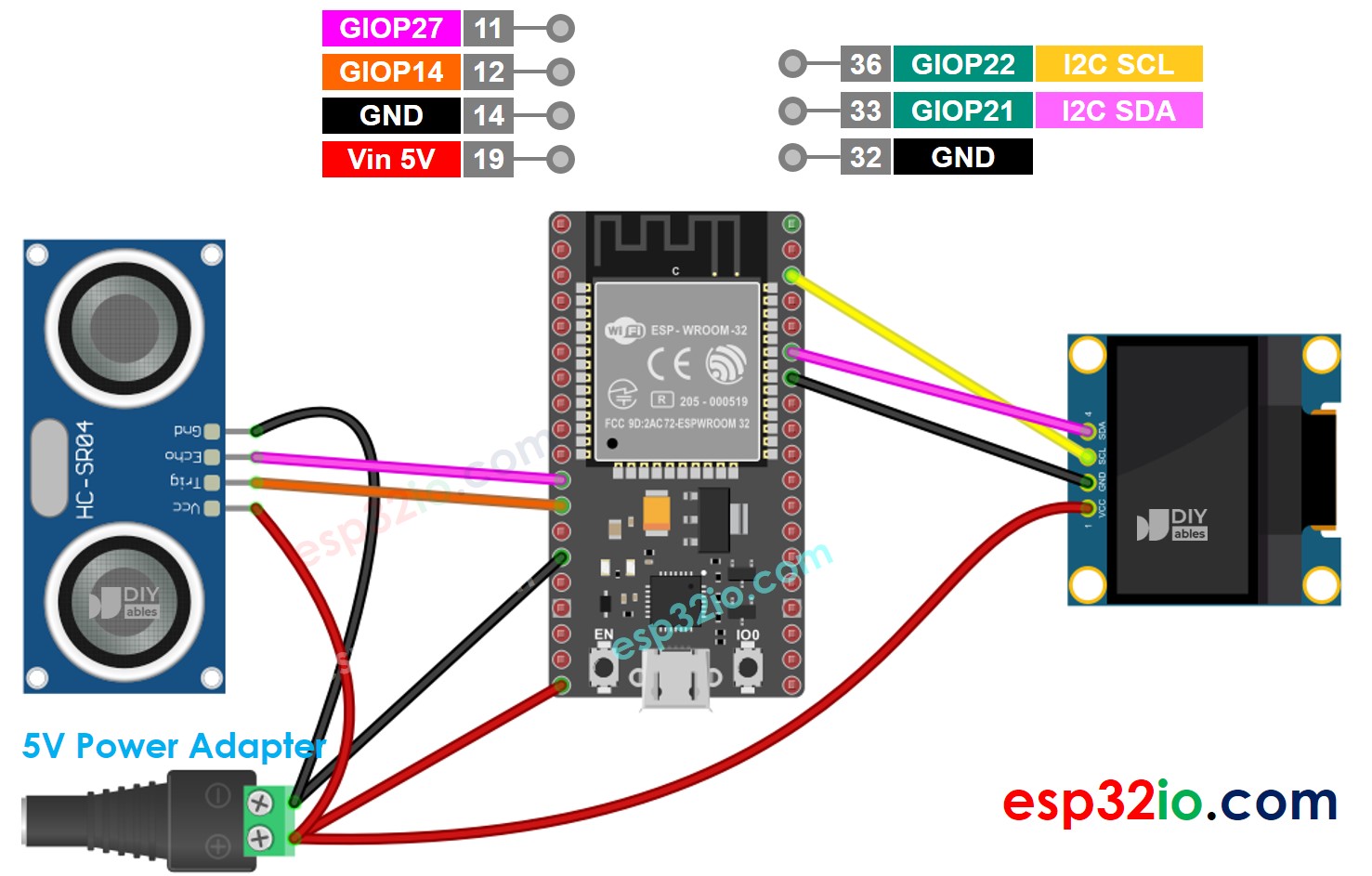
Deze afbeelding is gemaakt met Fritzing. Klik om de afbeelding te vergroten.
ESP32 Code - Ultrasone Sensor - OLED
Snelle Stappen
- Open de Arduino IDE.
- Klik op het Libraries icoon in de linker balk van de Arduino IDE.
- Zoek op “SSD1306” en vind de SSD1306-bibliotheek van Adafruit.
- Klik op de Installeren knop om deze bibliotheek te installeren.
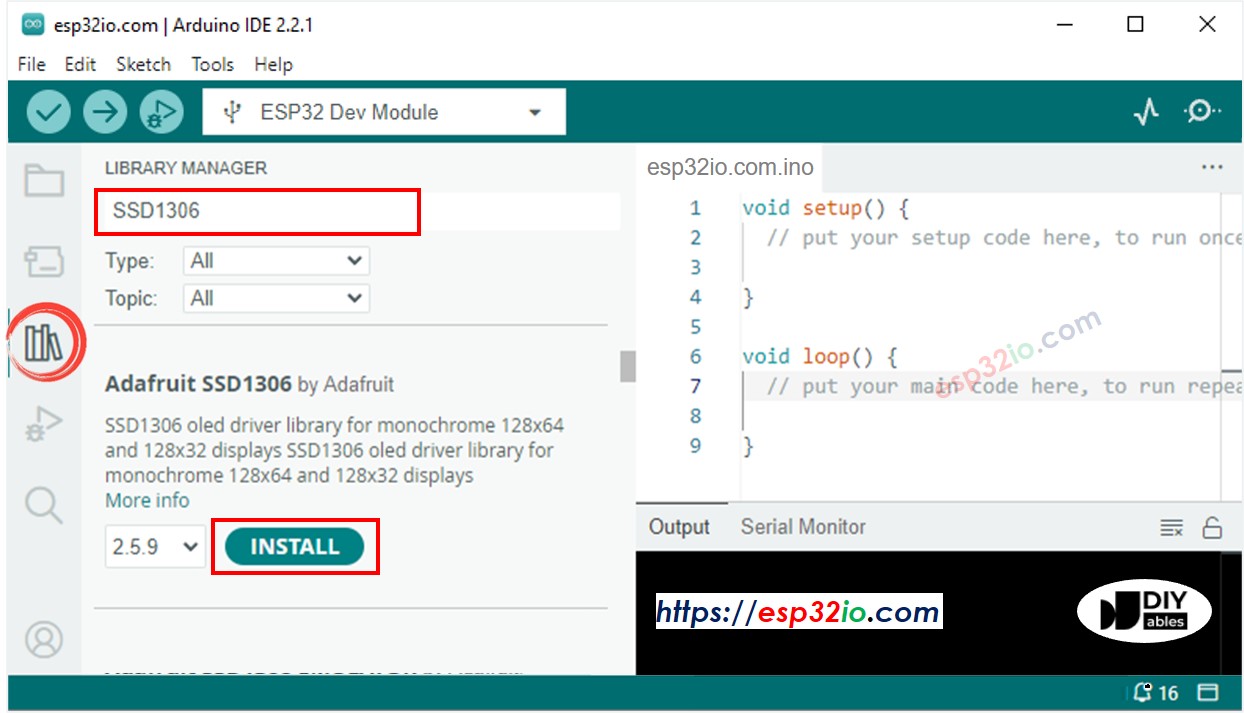
- U wordt gevraagd enkele andere bibliotheek afhankelijkheden te installeren.
- Klik op de Installeer Alles knop om alle afhankelijkheden te installeren.
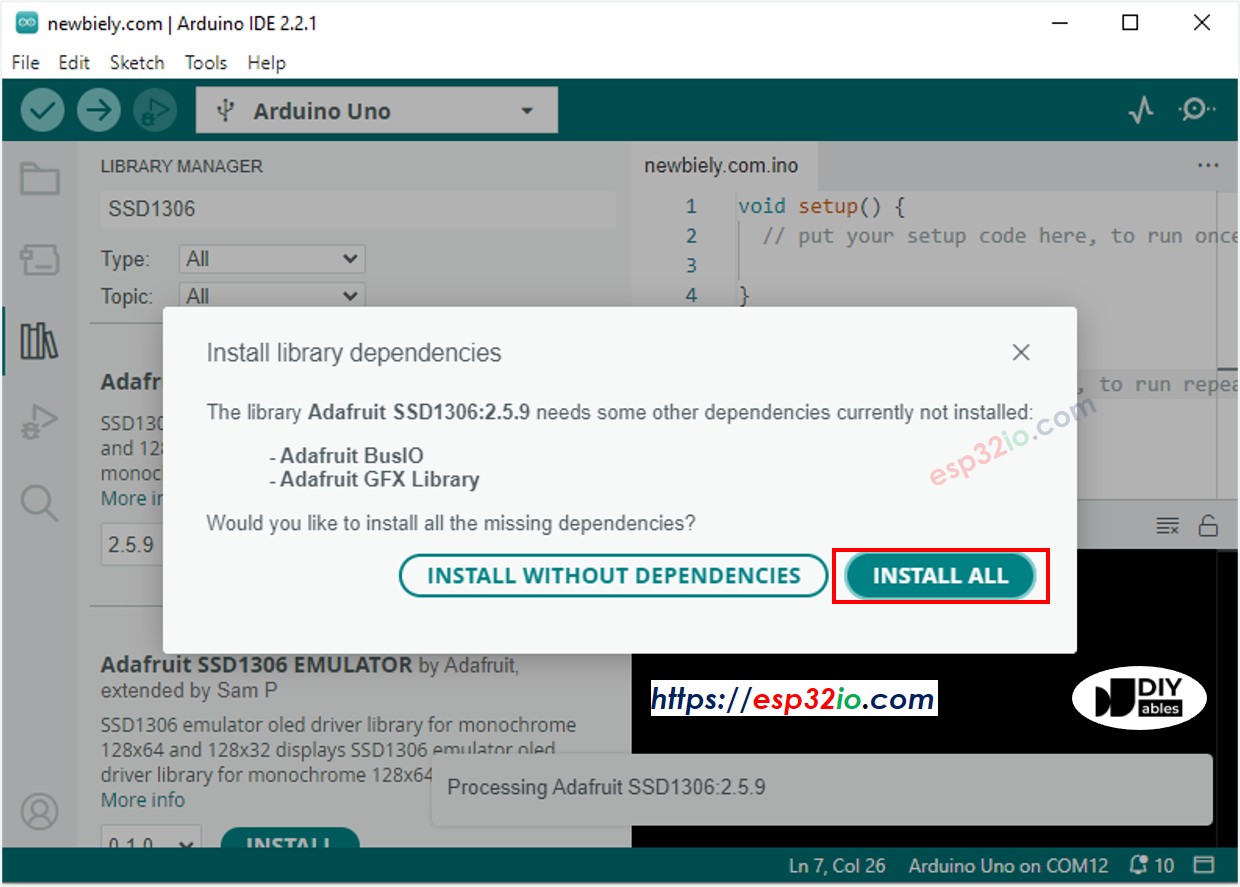
- Kopieer bovenstaande code en plak deze in de Arduino IDE.
- Compileer en upload de code naar de ESP32 module door op de Uploaden knop in de Arduino IDE te klikken.
- Beweeg uw hand voor de sensor.
- Bekijk het resultaat op het OLED-scherm en in de Seriële Monitor.
※ Notiz:
De bovenstaande code centreert de tekst automatisch horizontaal en verticaal op het OLED-display. Zie Hoe tekst verticaal/horizontaal centreren op OLED voor meer informatie.
Video Tutorial
We overwegen het maken van videotutorials. Als u videotutorials belangrijk vindt, abonneer u dan op ons YouTube-kanaal om ons te motiveren de video's te maken.
Gerelateerde Tutorials
📱 Aanbevolen apps
 English for KidsSpelenderwijs Engels leren voor jonge kinderen.Ontdek het opGoogle PlayBeschikbaar in deApp Store
 Bubble NoteZelfverwijderende notities – schrijf ze als berichten.Ontdek het opGoogle PlayBeschikbaar in deApp Store
 Didn't BuyVersla impulsaankopen en bespaar meer.Ontdek het opGoogle PlayBeschikbaar in deApp Store
 Knowledge PathOefentoetsen om alles te leren.Ontdek het opGoogle PlayBeschikbaar in deApp Store