
Arduino - Knop - Debounce

Wanneer een knop wordt ingedrukt/losgelaten of wanneer een schakelaar wordt omgezet, denken beginners vaak simpelweg dat de staat verandert van LOW naar HIGH of van HIGH naar LOW. In de praktijk is het echter niet precies zo. Door de mechanische en fysieke eigenschappen kan de staat van de knop (of schakelaar) meerdere keren snel wisselen tussen LOW en HIGH. Dit fenomeen wordt chattering genoemd. Het chattering-fenomeen zorgt ervoor dat een enkele druk vaak als meerdere drukken wordt gelezen, wat kan leiden tot storingen in bepaalde toepassingen. Deze handleiding laat zien hoe u dit fenomeen elimineert (ook wel debouncen van de input genoemd).
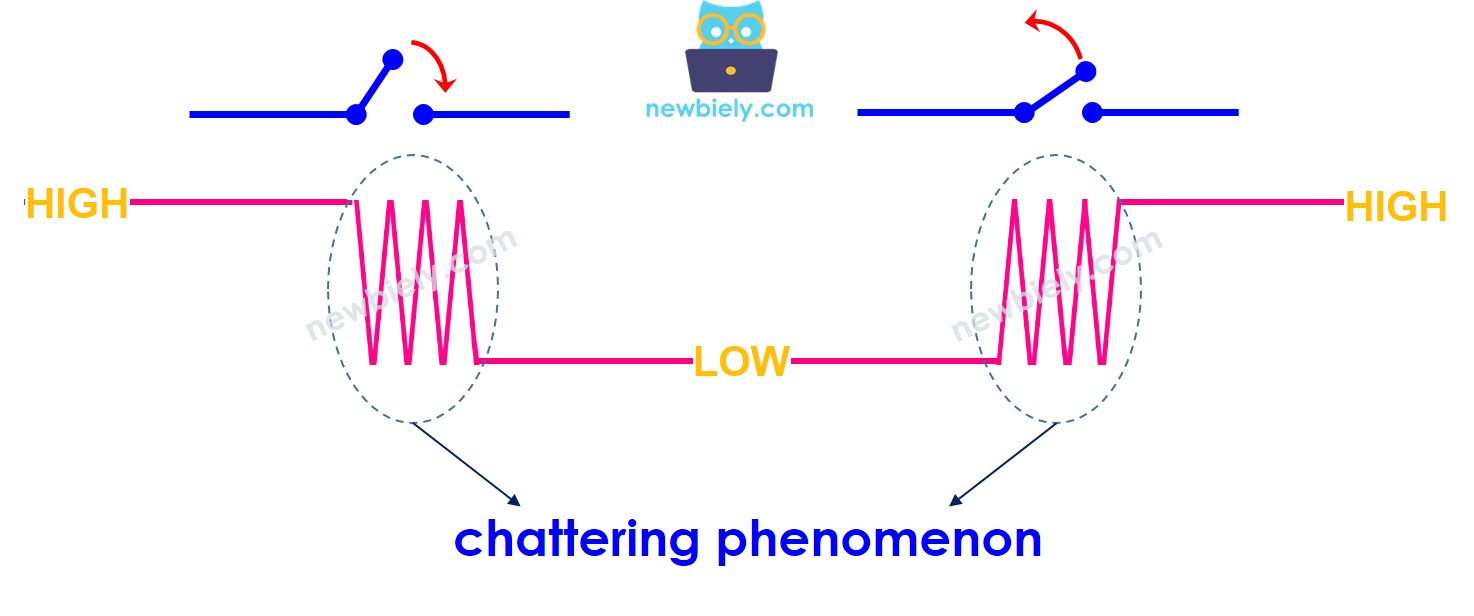
Arduino chattering phenomenon

Over de knop

Als u niet bekend bent met knoppen (pinout, hoe ze werken, hoe te programmeren ...), leer er dan meer over in de volgende tutorials:

Bedradingsschema
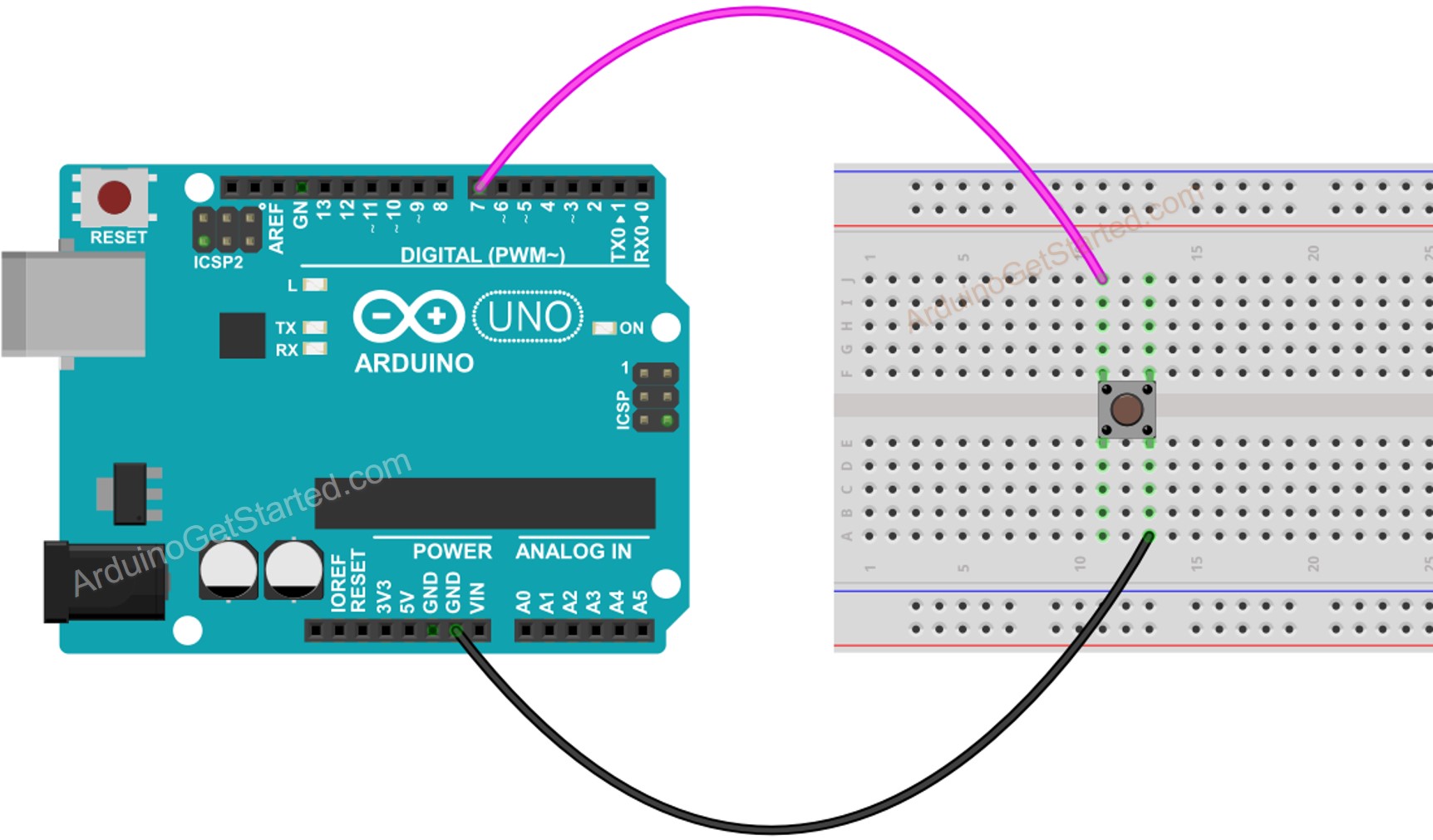
Arduino Knop Bedradingsschema

This image is created using Fritzing. Click to enlarge image

Laten we de Arduino-code vergelijken tussen ZONDER en MET debounce en het gedrag daarvan bekijken.

Knop uitlezen zonder Debounce

Voordat u over debounce leert, bekijkt u eerst de code zonder debounce en het gedrag ervan.

Snelle stappen

  • Verbind de Arduino met de pc via een USB-kabel
  • Open de Arduino IDE, selecteer het juiste board en de goede poort
  • Kopieer onderstaande code en open deze in de Arduino IDE
/* * Deze Arduino code is ontwikkeld door newbiely.nl * Deze Arduino code wordt zonder enige beperking aan het publiek beschikbaar gesteld. * Voor volledige instructies en schema's, bezoek: * https://newbiely.nl/tutorials/arduino/arduino-button-debounce */ // constants won't change. They're used here to set pin numbers: const int BUTTON_PIN = 7; // the number of the pushbutton pin // Variables will change: int lastState = LOW; // the previous state from the input pin int currentState; // the current reading from the input pin void setup() { // initialize serial communication at 9600 bits per second: Serial.begin(9600); // initialize the pushbutton pin as an pull-up input // the pull-up input pin will be HIGH when the switch is open and LOW when the switch is closed. pinMode(BUTTON_PIN, INPUT_PULLUP); } void loop() { // read the state of the switch/button: currentState = digitalRead(BUTTON_PIN); if(lastState == HIGH && currentState == LOW) Serial.println("The button is pressed"); else if(lastState == LOW && currentState == HIGH) Serial.println("The button is released"); // save the the last state lastState = currentState; }
  • Klik op de knop Upload in de Arduino IDE om de code naar de Arduino te uploaden
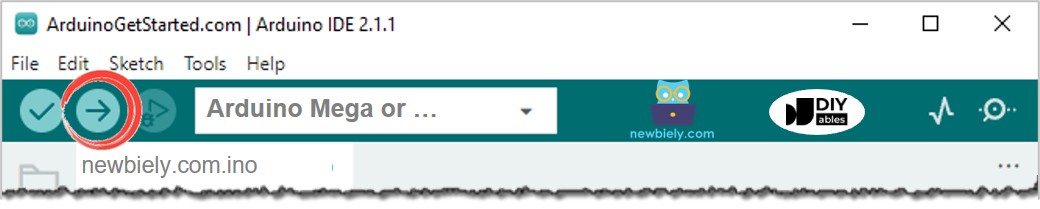
Arduino IDE Upload Code
  • Open de Seriële Monitor
  • Houd de knop enkele seconden ingedrukt en laat deze dan los
  • Bekijk het resultaat in de Seriële Monitor
COM6
Send
The button is pressed The button is pressed The button is pressed The button is released The button is released
Autoscroll Show timestamp
Clear output
9600 baud  
Newline  

⇒ Zoals u kunt zien, drukte en liet u de knop slechts één keer los. Arduino herkent dit echter als meerdere drukken en loslatingen.

Knop uitlezen met Debounce

Snelle stappen

  • Kopieer onderstaande code en open deze in de Arduino IDE
/* * Deze Arduino code is ontwikkeld door newbiely.nl * Deze Arduino code wordt zonder enige beperking aan het publiek beschikbaar gesteld. * Voor volledige instructies en schema's, bezoek: * https://newbiely.nl/tutorials/arduino/arduino-button-debounce */ // constants won't change. They're used here to set pin numbers: const int BUTTON_PIN = 7; // the number of the pushbutton pin const int DEBOUNCE_DELAY = 50; // the debounce time; increase if the output flickers // Variables will change: int lastSteadyState = LOW; // the previous steady state from the input pin int lastFlickerableState = LOW; // the previous flickerable state from the input pin int currentState; // the current reading from the input pin // the following variables are unsigned longs because the time, measured in // milliseconds, will quickly become a bigger number than can be stored in an int. unsigned long lastDebounceTime = 0; // the last time the output pin was toggled void setup() { // initialize serial communication at 9600 bits per second: Serial.begin(9600); // initialize the pushbutton pin as an pull-up input // the pull-up input pin will be HIGH when the switch is open and LOW when the switch is closed. pinMode(BUTTON_PIN, INPUT_PULLUP); } void loop() { // read the state of the switch/button: currentState = digitalRead(BUTTON_PIN); // check to see if you just pressed the button // (i.e. the input went from LOW to HIGH), and you've waited long enough // since the last press to ignore any noise: // If the switch/button changed, due to noise or pressing: if (currentState != lastFlickerableState) { // reset the debouncing timer lastDebounceTime = millis(); // save the the last flickerable state lastFlickerableState = currentState; } if ((millis() - lastDebounceTime) > DEBOUNCE_DELAY) { // whatever the reading is at, it's been there for longer than the debounce // delay, so take it as the actual current state: // if the button state has changed: if (lastSteadyState == HIGH && currentState == LOW) Serial.println("The button is pressed"); else if (lastSteadyState == LOW && currentState == HIGH) Serial.println("The button is released"); // save the the last steady state lastSteadyState = currentState; } }
  • Klik op de knop Upload in de Arduino IDE om de code naar de Arduino te uploaden
  • Open de Seriële Monitor
  • Houd de knop enkele seconden ingedrukt en laat deze dan los
  • Bekijk het resultaat in de Seriële Monitor
COM6
Send
The button is pressed The button is released
Autoscroll Show timestamp
Clear output
9600 baud  
Newline  

⇒ Zoals u ziet, drukte en liet u de knop slechts één keer los. Arduino herkent dit als één enkele druk en loslating. De chatter is geëlimineerd.

We maken het makkelijk - Arduino Knop Debounce Code met Bibliotheek

Om het nog eenvoudiger te maken voor beginners, vooral bij het gebruik van meerdere knoppen, hebben we een bibliotheek gemaakt, genaamd ezButton. U kunt hier meer leren over de ezButton bibliotheek.

Arduino Knop Debounce Code voor Eén Knop

/* * Created by ArduinoGetStarted.com * * This example code is in the public domain * * Tutorial page: https://arduinogetstarted.com/tutorials/arduino-button-library * * This example reads the state of a button with debounce and print it to Serial Monitor. */ #include <ezButton.h> ezButton button(7); // create ezButton object that attach to pin 7; void setup() { Serial.begin(9600); button.setDebounceTime(50); // set debounce time to 50 milliseconds } void loop() { button.loop(); // MUST call the loop() function first if(button.isPressed()) Serial.println("The button is pressed"); if(button.isReleased()) Serial.println("The button is released"); }

Arduino Knop Debounce Code voor Meerdere Knoppen

/* * Deze Arduino code is ontwikkeld door newbiely.nl * Deze Arduino code wordt zonder enige beperking aan het publiek beschikbaar gesteld. * Voor volledige instructies en schema's, bezoek: * https://newbiely.nl/tutorials/arduino/arduino-button-debounce */ #include <ezButton.h> ezButton button1(6); // maak ezButton object dat is verbonden met pin 6; ezButton button2(7); // maak ezButton object dat is verbonden met pin 7; ezButton button3(8); // maak ezButton object dat is verbonden met pin 8; void setup() { Serial.begin(9600); button1.setDebounceTime(50); // stel debounce tijd in op 50 milliseconden button2.setDebounceTime(50); // stel debounce tijd in op 50 milliseconden button3.setDebounceTime(50); // stel debounce tijd in op 50 milliseconden } void loop() { button1.loop(); // ROEP altijd eerst de loop() functie aan button2.loop(); // ROEP altijd eerst de loop() functie aan button3.loop(); // ROEP altijd eerst de loop() functie aan if(button1.isPressed()) Serial.println("Knop 1 is ingedrukt"); if(button1.isReleased()) Serial.println("Knop 1 is losgelaten"); if(button2.isPressed()) Serial.println("Knop 2 is ingedrukt"); if(button2.isReleased()) Serial.println("Knop 2 is losgelaten"); if(button3.isPressed()) Serial.println("Knop 3 is ingedrukt"); if(button3.isReleased()) Serial.println("Knop 3 is losgelaten"); }

Het bedradingsschema voor bovenstaande code:
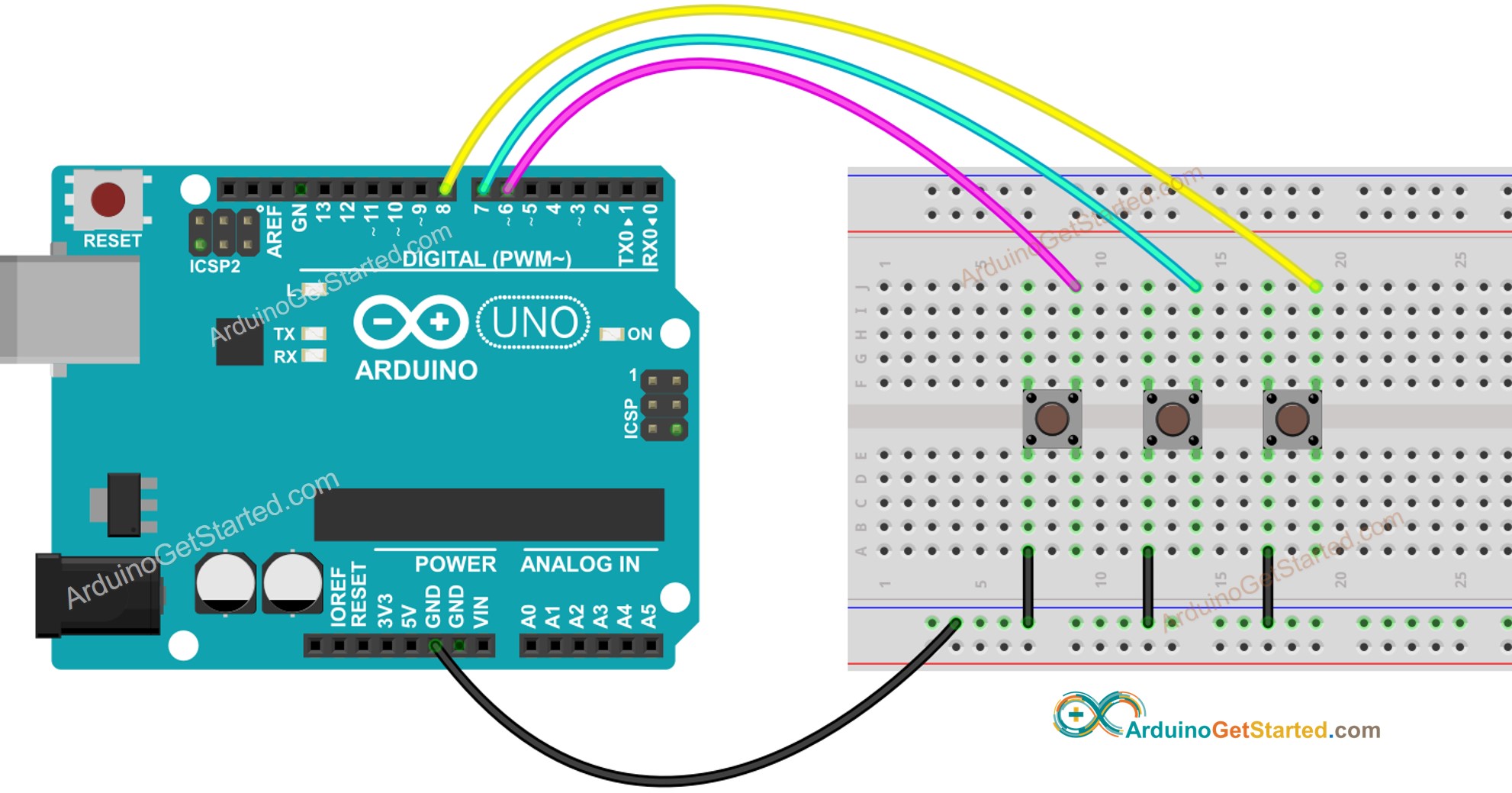
Arduino Knop Bibliotheek Bedradingsschema

This image is created using Fritzing. Click to enlarge image

Video Tutorial

We overwegen het maken van videotutorials. Als u videotutorials belangrijk vindt, abonneer u dan op ons YouTube-kanaal om ons te motiveren de video's te maken.

Extra kennis

  • De waarde van DEBOUNCE_DELAY hangt af van de toepassing. Verschillende toepassingen kunnen verschillende waarden gebruiken.

Uitbreidbaarheid

De debounce-methode kan worden toegepast op schakelaars, touch sensors ...

※ ONZE BERICHTEN

  • U bent welkom om de link naar deze tutorial te delen. Gebruik onze inhoud echter niet op andere websites. We hebben veel moeite en tijd gestoken in het maken van de inhoud, respecteer alstublieft ons werk!