Arduino - SSD1309 OLED Display 128x64 | 2.42 inch I2C OLED Tutorial

Een OLED (Organic Light-Emitting Diode) display heeft zelfoplichtende pixels die diepe zwarttinten, hoog contrast en brede kijkhoeken leveren — daardoor is het een uitstekende upgrade ten opzichte van traditionele LCD-schermen. De SSD1309 is de driver IC die vaak wordt gebruikt op 2.42-inch (soms aangeduid als 2.4-inch) 128×64 I2C OLED-modules.
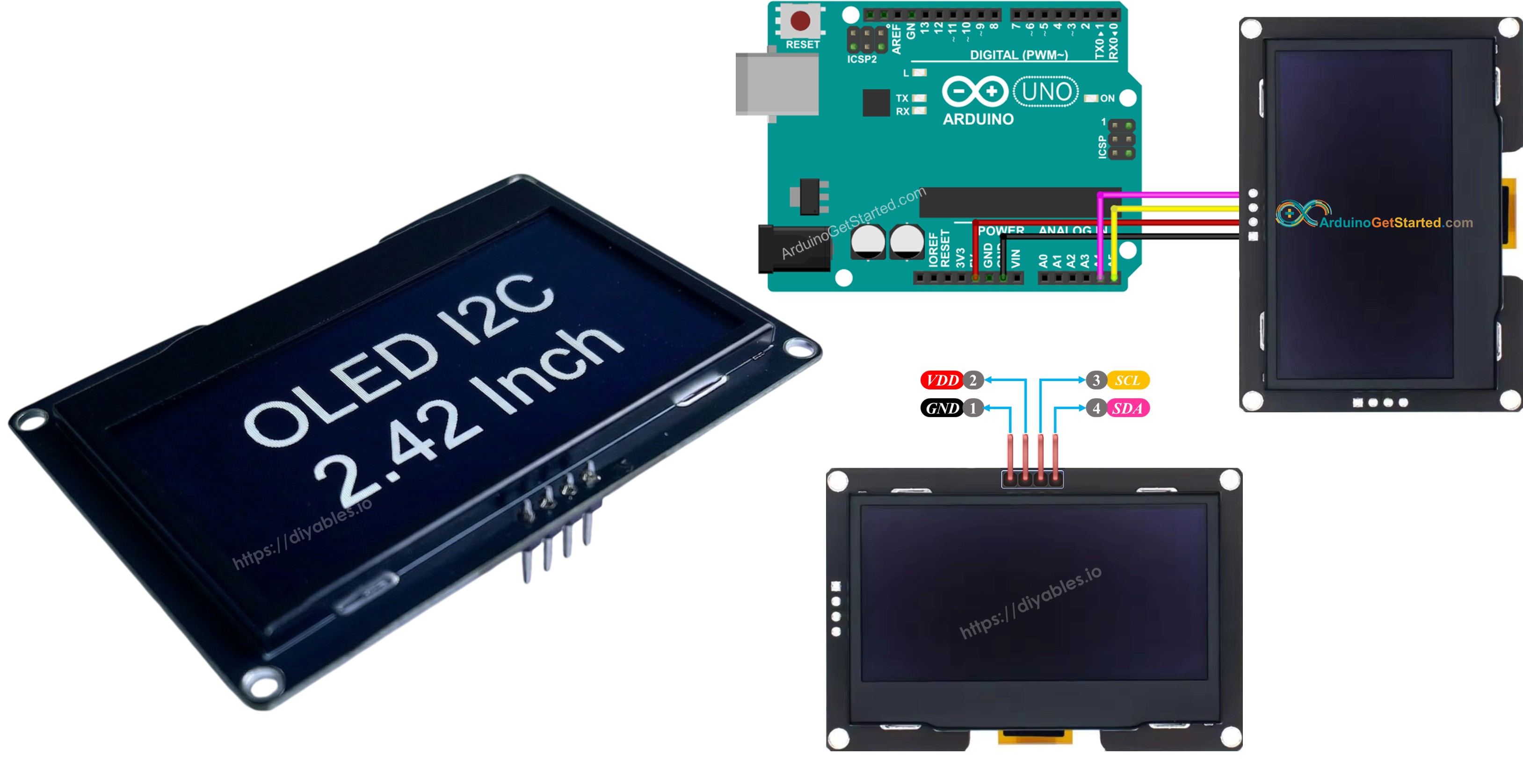
Arduino SSD1309 OLED Display

In deze stapsgewijze handleiding leert u hoe u het SSD1309 OLED 128×64 aansluit en programmeert met een Arduino-bord met behulp van de DIYables_OLED_SSD1309 bibliotheek. We behandelen specifiek:

Hardware Benodigd

1×Arduino Uno R3
1×USB 2.0 kabel type A/B
1×SSD1309 I2C OLED Display 128x64 (2.42 inch)
1×Jumperdraden
1×(Aanbevolen) Schroefklem Block Shield voor Arduino Uno
1×(Aanbevolen) Breadboard-Shield voor Arduino Uno
1×(Aanbevolen) Behuizing voor Arduino Uno
1×(Aanbevolen) Prototyping Basisplaat & Breadboard Kit voor Arduino Uno

Of u kunt de volgende kits kopen:

1×DIYables Sensorkit (30 sensoren/displays)
1×DIYables Sensorkit (18 sensoren/displays)
Openbaarmaking: Sommige van de links in deze sectie zijn Amazon-affiliate links. We kunnen een commissie ontvangen voor aankopen die via deze links worden gedaan, zonder extra kosten voor u. We waarderen uw steun.

Over het SSD1309 2.42-Inch OLED Display

De SSD1309 is een single-chip CMOS OLED driver IC ontworpen voor 128×64 dot-matrix panelen. Het is register-compatibel met de veelgebruikte SSD1306, waardoor veel bestaande codevoorbeelden met minimale aanpassingen bruikbaar zijn. De belangrijkste hardwareverschillen zijn:

  • Geen ingebouwde charge-pomp — de SSD1309 heeft een externe VCC-voedingsrail nodig, hoewel vrijwel alle breakout boards (inclusief 2.42- en 2.4-inch modules) zijn uitgerust met een onboard boost converter, waardoor dit voor u transparant is.
  • Hogere spanningsbestendigheid — de SSD1309 accepteert tot 16 V VCC, terwijl de SSD1306 beperkt is tot ongeveer 4,2 V.

De 2.42 inch (2.4 inch) OLED-module gebruikt meestal de SSD1309-driver en heeft een resolutie van 128×64 pixels met I2C-interface. De panellkleur (wit, blauw, geel, groen of dual-zone) wordt bepaald door het fysieke OLED-materiaal en is niet softwarematig aan te passen.

Deze handleiding communiceert met het display via de I2C bus, wat slechts twee signaaldraadjes (SDA en SCL) vereist en het mogelijk maakt om de bus te delen met andere I2C-apparaten.

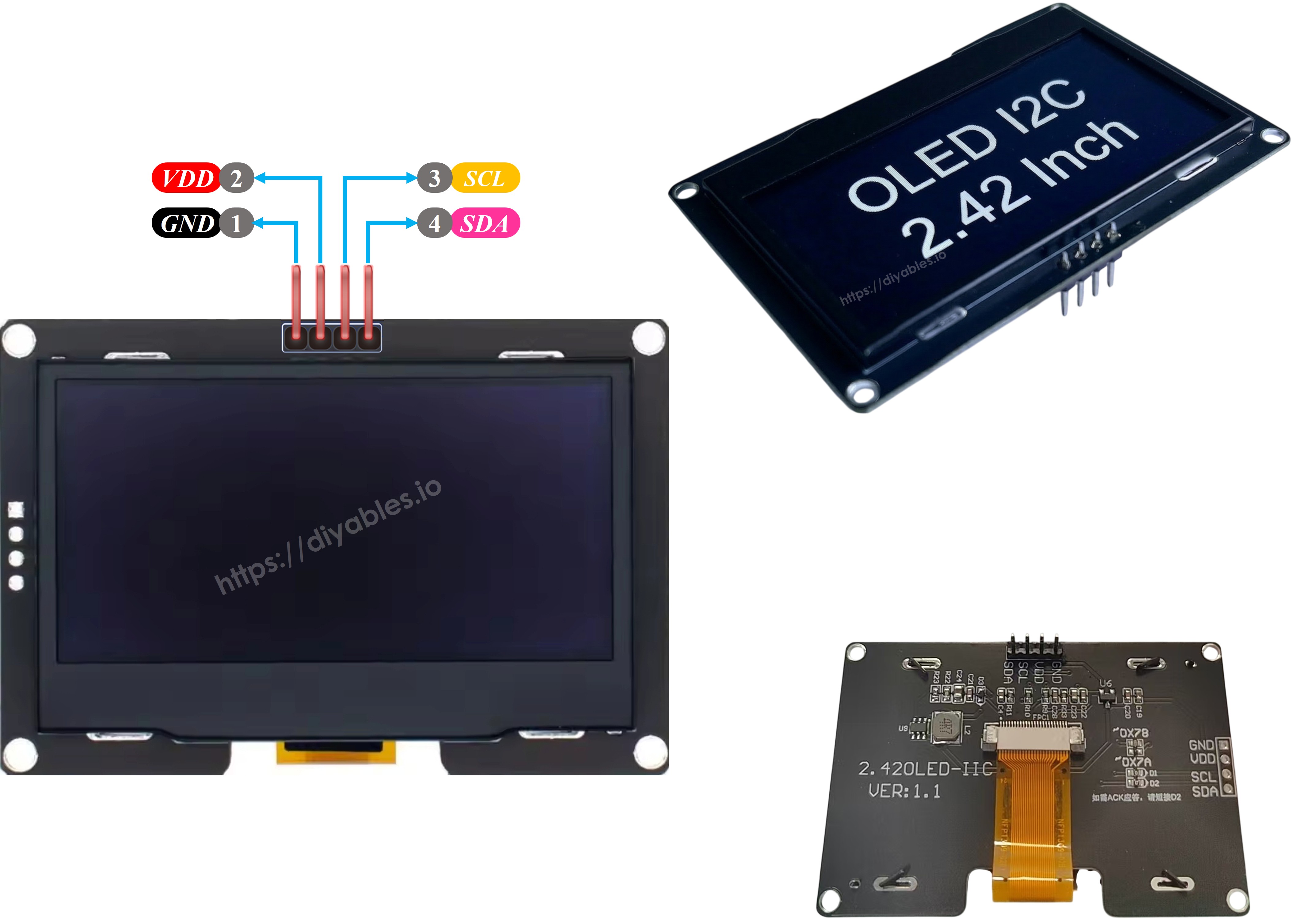
SSD1309 OLED Pinout (I2C Module)

De typische 2.42-inch SSD1309 I2C OLED-module heeft vier pinnen:

  • GND — Verbind met de aardingsrail van de Arduino.
  • VCC — Voedingsingang. Sluit aan op de Arduino 5 V (of 3,3 V afhankelijk van de onboard spanningsregelaar van de module).
  • SCL — I2C kloklijn.
  • SDA — I2C datalijn.
SSD1309 OLED Pinout

※ Notiz:

  • De volgorde van pinnen kan verschillen per fabrikant. Controleer altijd de labels die op uw module zijn gedrukt voordat u aansluit.
  • Deze handleiding is getest met de 2.42 inch SSD1309 OLED display van DIYables. Andere SSD1309-gebaseerde 2.4/2.42-inch modules werken doorgaans identiek.

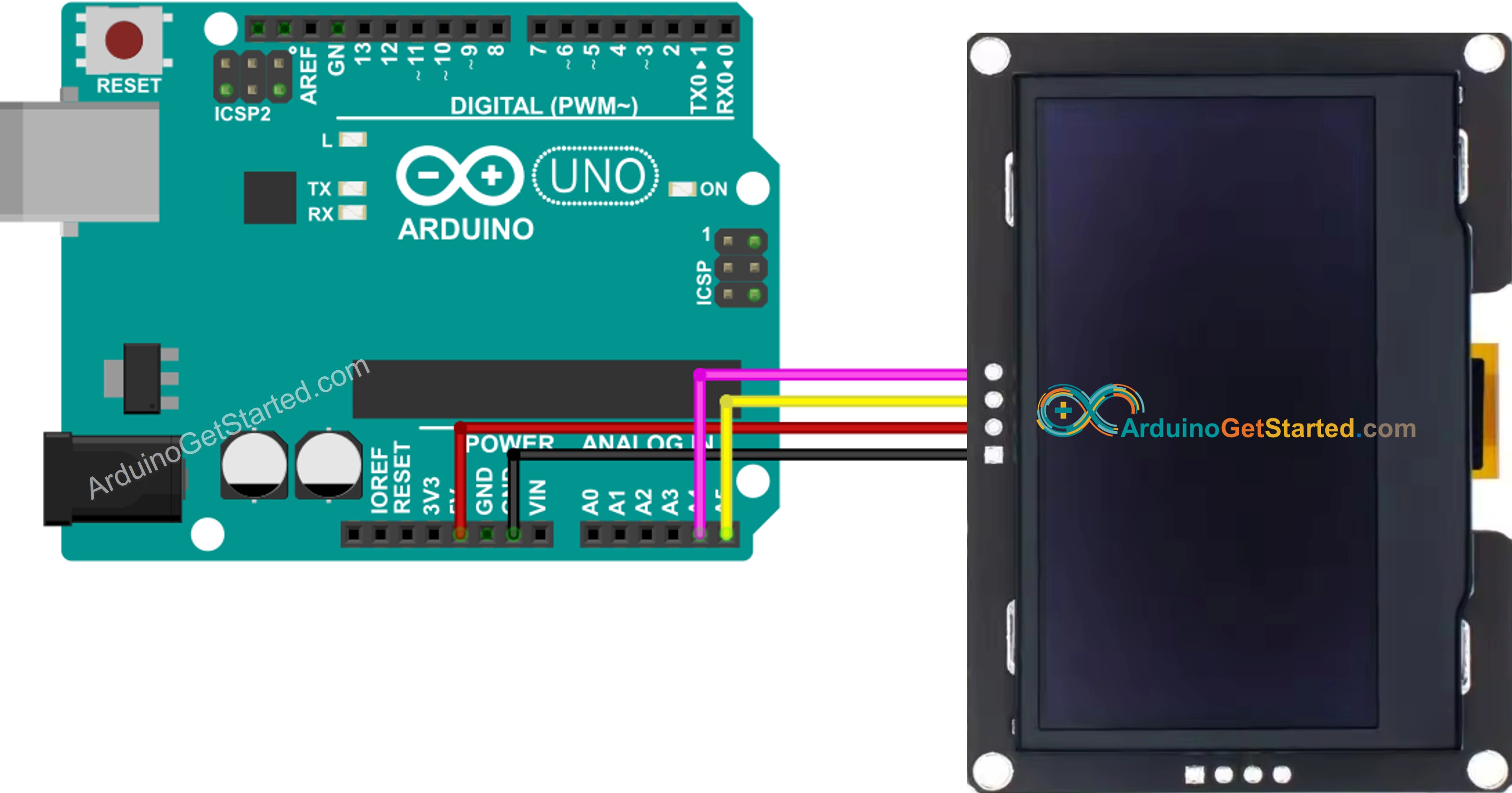
Aansluitschema — Arduino & SSD1309 OLED 128×64

  • Schematische bedrading tussen Arduino en het 2.42 inch SSD1309 OLED 128×64
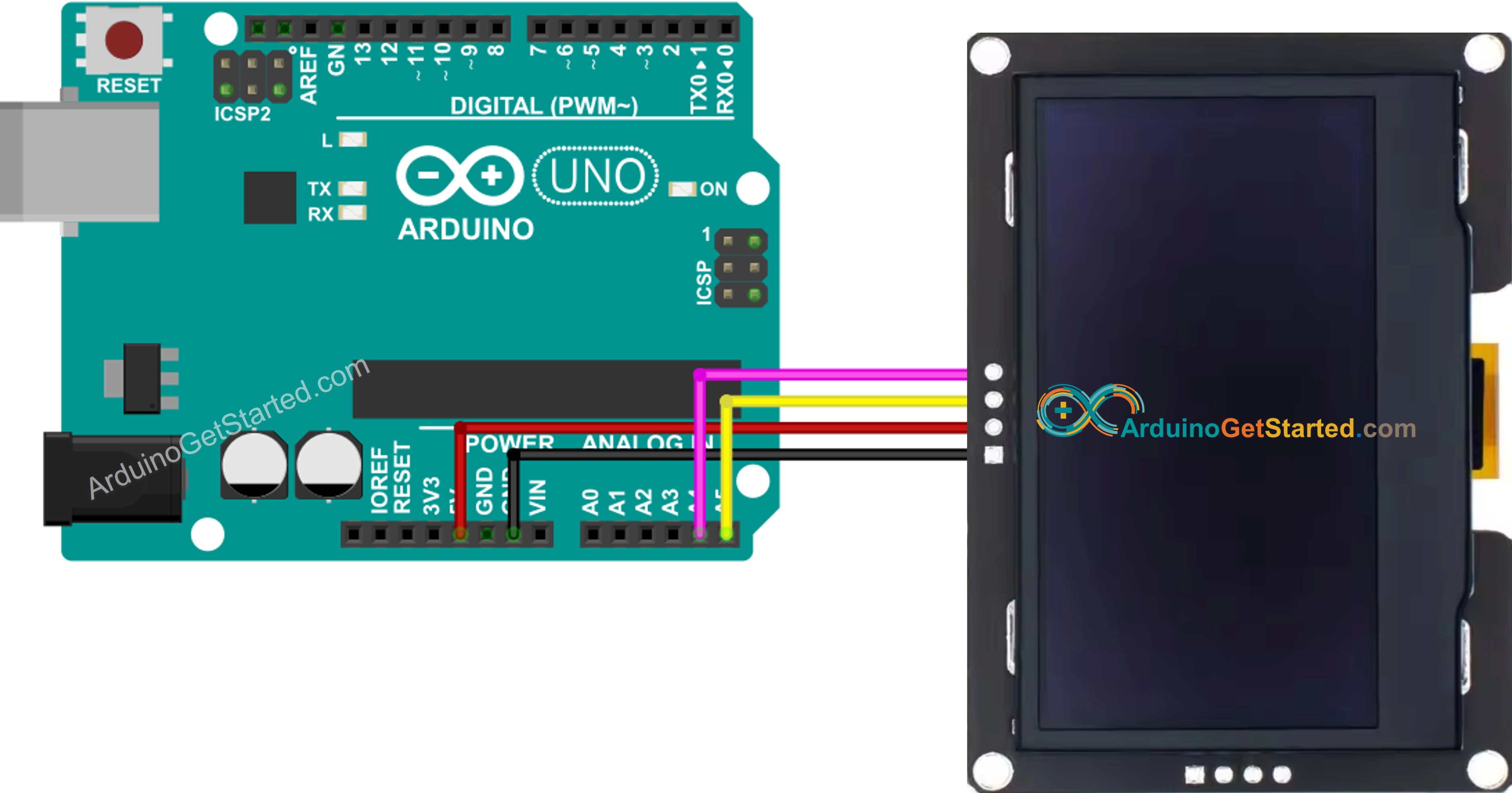
Arduino SSD1309 OLED 128x64 wiring diagram

This image is created using Fritzing. Click to enlarge image

  • Foto van de daadwerkelijke bedrading tussen Arduino en SSD1309 OLED 128×64
Arduino SSD1309 OLED 128x64 real wiring

This image is created using Fritzing. Click to enlarge image

Bij gebruik van een ander Arduino-type veranderen de I2C-pinnen. De onderstaande tabel toont de correcte aansluitingen:

OLED Module Arduino Uno, Nano Arduino Mega
Vin 5V 5V
GND GND GND
SDA A4 20
SCL A5 21

Aan de slag — SSD1309 OLED met Arduino

Stap 1: Installeer de DIYables_OLED_SSD1309 Bibliotheek

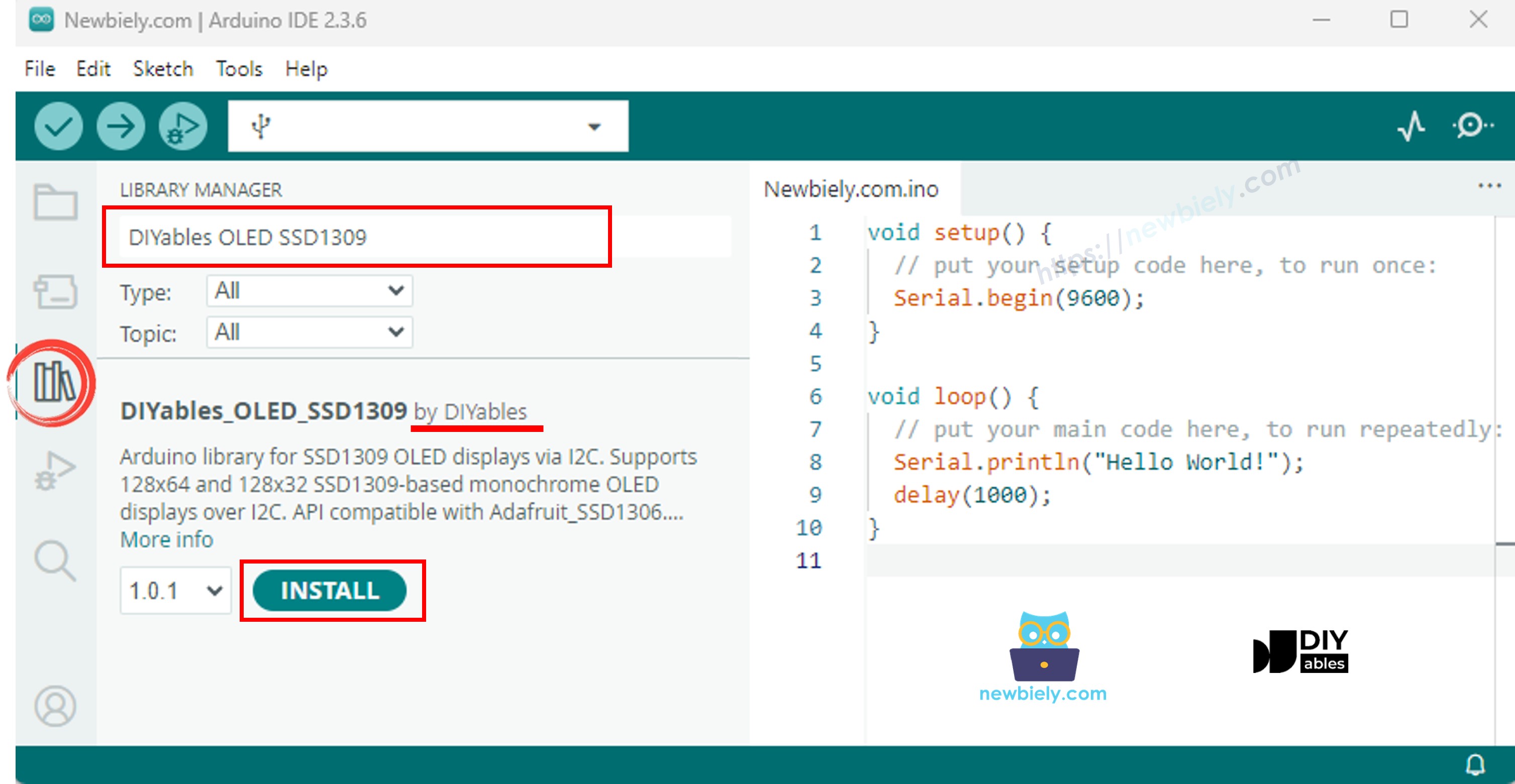
  • Open de Arduino IDE en klik op het Bibliotheken-icoon in de linkerzijbalk.
  • Typ "DIYables_OLED_SSD1309" in het zoekvak en zoek de bibliotheek gepubliceerd door DIYables.
  • Klik op de Installeren-knop.
Arduino SSD1309 OLED library
  • De IDE vraagt vervolgens om de benodigde afhankelijkheid (Adafruit GFX Library) te installeren. Klik op Alles installeren om door te gaan.
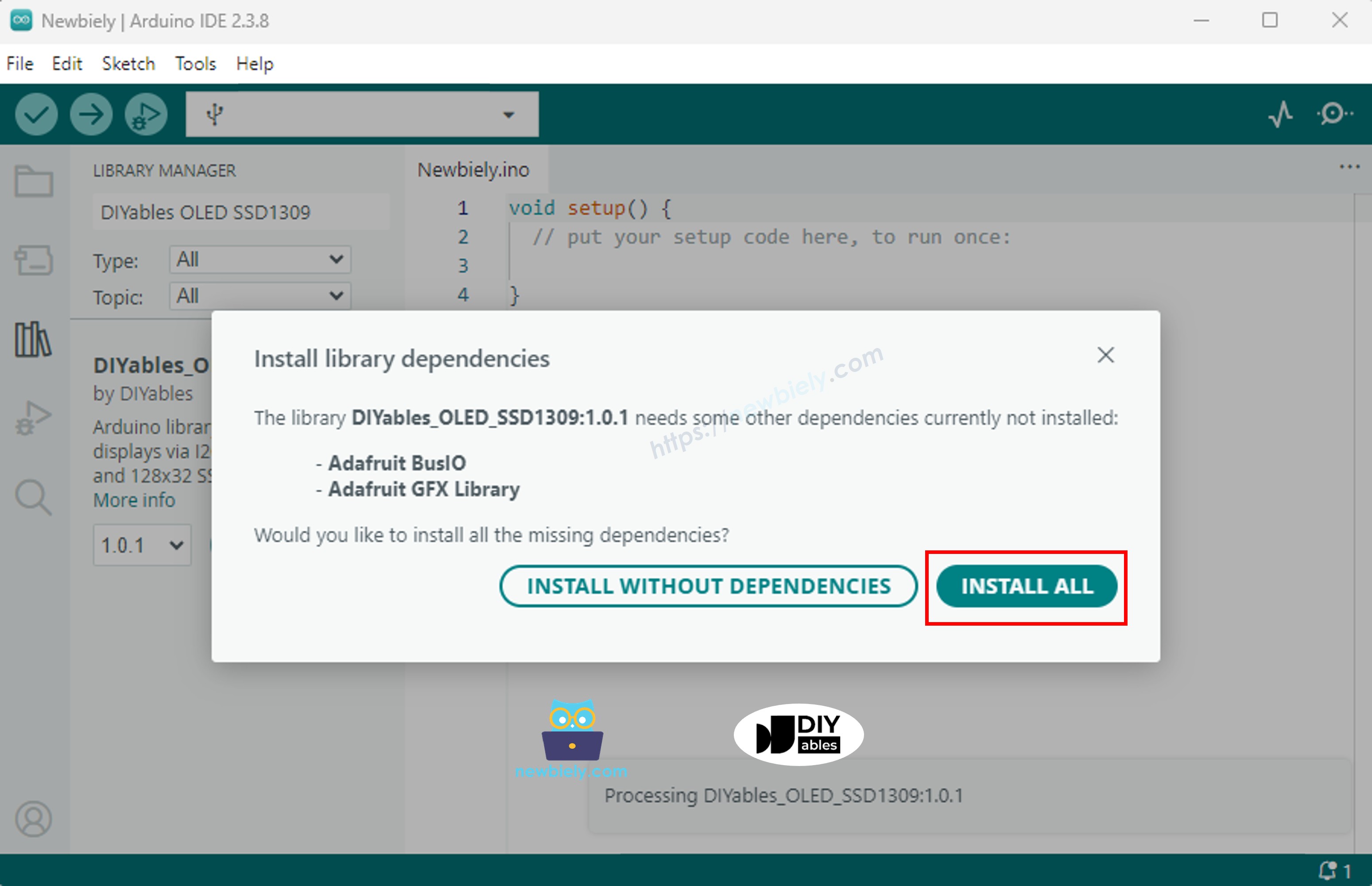
Arduino Adafruit GFX library

Stap 2: Basispatroon in Programmeren

Elke sketch die het SSD1309 aanstuurt volgt hetzelfde patroon: headers includen, een display-object aanmaken, initialiseren in setup(), tekenen in de off-screen buffer, en dan met display() de buffer naar het scherm sturen.

  • Voeg de benodigde headers toe:
#include <Wire.h> #include <Adafruit_GFX.h> #include <DIYables_OLED_SSD1309.h>
  • Stel de schermafmetingen in (128×64 voor de 2.42-inch module):
#define SCREEN_WIDTH 128 // OLED display breedte, in pixels #define SCREEN_HEIGHT 64 // OLED display hoogte, in pixels
  • Maak het display-object aan (geef -1 door als er geen reset-pin is aangesloten):
// Maak een SSD1309 display instantie op de standaard I2C bus DIYables_OLED_SSD1309 oled(SCREEN_WIDTH, SCREEN_HEIGHT, &Wire, -1);
  • Initialiseert het display binnen setup():
// Initialiseer de SSD1309 — gebruik adres 0x3C (standaard voor de meeste modules) if (!oled.begin(SSD1309_SWITCHCAPVCC, 0x3C)) { Serial.println(F("SSD1309 reservatie mislukt")); while (true); }
  • Daarna kunt u elke tekenfunctie aanroepen (clearDisplay(), drawPixel(), print(), enz.) gevolgd door oled.display() om het scherm te vernieuwen.

※ Notiz:

Alle voorbeeldcode in deze handleiding is bedoeld voor het SSD1309 OLED 128×64 (2.42 inch) en gebruikt de DIYables_OLED_SSD1309 bibliotheek.

Arduino Code — Hello World op SSD1309 OLED

Het eenvoudigste beginpunt: druk een paar regels tekst af in verschillende groottes.

/* * Deze Arduino code is ontwikkeld door newbiely.nl * Deze Arduino code wordt zonder enige beperking aan het publiek beschikbaar gesteld. * Voor volledige instructies en schema's, bezoek: * https://newbiely.nl/tutorials/arduino/arduino-ssd1309-oled-display */ /* * DIYables OLED SSD1309 – Hello World * Prints text in two sizes on the 2.42 inch 128x64 I2C OLED. */ #include <Wire.h> #include <Adafruit_GFX.h> #include <DIYables_OLED_SSD1309.h> #define SCREEN_WIDTH 128 #define SCREEN_HEIGHT 64 #define OLED_RESET -1 #define SCREEN_ADDRESS 0x3C DIYables_OLED_SSD1309 display(SCREEN_WIDTH, SCREEN_HEIGHT, &Wire, OLED_RESET); void setup() { Serial.begin(9600); if (!display.begin(SSD1309_SWITCHCAPVCC, SCREEN_ADDRESS)) { Serial.println(F("SSD1309 allocation failed")); for (;;); } display.clearDisplay(); display.setTextSize(1); // 6x8 pixels per character display.setTextColor(SSD1309_PIXEL_ON); // turn pixels on display.setCursor(0, 0); display.println(F("Hello, World!")); display.println(); display.setTextSize(2); // 12x16 pixels per character display.println(F("DIYables")); display.setTextSize(1); display.println(); display.println(F("SSD1309 OLED 128x64")); display.display(); // push buffer to screen } void loop() { }

Arduino Code — Tekst Weergeven op SSD1309 OLED

Het volgende voorbeeld toont meer tekstfuncties — meerdere tekstgroottes, nummernotatie, en de F() macro om RAM te besparen.

/* * Deze Arduino code is ontwikkeld door newbiely.nl * Deze Arduino code wordt zonder enige beperking aan het publiek beschikbaar gesteld. * Voor volledige instructies en schema's, bezoek: * https://newbiely.nl/tutorials/arduino/arduino-ssd1309-oled-display */ /* * DIYables OLED SSD1309 – Display Text Demo * Demonstrates text display features on 2.42" SSD1309 128x64 I2C OLED. */ #include <Wire.h> #include <Adafruit_GFX.h> #include <DIYables_OLED_SSD1309.h> #define SCREEN_WIDTH 128 #define SCREEN_HEIGHT 64 #define OLED_RESET -1 #define SCREEN_ADDRESS 0x3C DIYables_OLED_SSD1309 display(SCREEN_WIDTH, SCREEN_HEIGHT, &Wire, OLED_RESET); void setup() { Serial.begin(9600); if (!display.begin(SSD1309_SWITCHCAPVCC, SCREEN_ADDRESS)) { Serial.println(F("SSD1309 allocation failed")); for (;;); } delay(2000); // wait for initializing display.clearDisplay(); // clear display display.setTextSize(1); // text size = 1 display.setTextColor(SSD1309_PIXEL_ON); // set text color display.setCursor(0, 10); // set position to display display.println(F("Text size = 1")); // display text display.display(); // update display delay(2000); display.setTextSize(2); // text size = 2 display.setCursor(0, 30); // set position to display display.println(F("Size = 2")); // display text display.display(); // update display delay(2000); display.clearDisplay(); // clear display display.setTextSize(1); display.setCursor(0, 0); display.println(F("Display integer:")); display.println(12345); display.println(); display.println(F("Display float:")); display.println(1.2345); display.println(); display.println(F("Display HEX:")); display.println(0xABCD, HEX); display.display(); // update display } void loop() { }

Handige Display Functies Referentie

Hieronder een snel overzicht van de meest gebruikte functies bij het werken met de SSD1309 OLED via de DIYables bibliotheek:

  • oled.clearDisplay() — wis de framebuffer (alle pixels uit).
  • oled.display() — verzend de buffer naar het OLED scherm zodat wijzigingen zichtbaar worden.
  • oled.drawPixel(x, y, color) — zet of wis een individuele pixel.
  • oled.setTextSize(n) — schaalt het lettertype met factor *n* (1 = 6×8, 2 = 12×16, … tot 8).
  • oled.setCursor(x, y) — verplaatst de tekstcursor naar pixelcoördinaten *(x, y)*.
  • oled.setTextColor(SSD1309_PIXEL_ON) — alleen voorgrondkleur van tekst (achtergrond is transparant).
  • oled.setTextColor(SSD1309_PIXEL_OFF, SSD1309_PIXEL_ON) — tekst met expliciete achtergrondkleur.
  • oled.println("bericht") — print een tekstregel en gaat naar de volgende regel.
  • oled.println(getal) — print een geheel getal in decimale weergave.
  • oled.println(getal, HEX) — print een geheel getal in hexadecimale weergave.
  • oled.startscrollright(start, stop) — hardware-scroll naar rechts tussen pagina *start* en pagina *stop*.
  • oled.startscrollleft(start, stop) — hardware-scroll naar links.
  • oled.startscrolldiagright(start, stop) — hardware-scroll diagonaal rechts.
  • oled.startscrolldiagleft(start, stop) — hardware-scroll diagonaal links.
  • oled.stopscroll() — stopt elke actieve hardware-scroll.
  • oled.setContrast(value) — stel helderheid in (0–255).
  • oled.dim(true/false) — snel dimmen naar minimum of terugzetten naar de vorige helderheid.
  • oled.invertDisplay(true/false) — hardware-inversion van kleuren (aan-uit pixels) uitvoeren.

Hoe tekst verticaal en horizontaal centreren op de SSD1309 OLED

Bekijk Hoe tekst verticaal/horizontaal centreren op OLED

Arduino Code — Vormen Tekenen op SSD1309 OLED

Omdat de DIYables_OLED_SSD1309 bibliotheek Adafruit_GFX uitbreidt, krijgt u een complete set tekenfuncties: pixels, lijnen, rechthoeken, gevulde rechthoeken, cirkels, gevulde cirkels, driehoeken, gevulde driehoeken, en afgeronde rechthoeken. De onderstaande sketch doorloopt ze allemaal met geanimeerde demo’s.

/* * Deze Arduino code is ontwikkeld door newbiely.nl * Deze Arduino code wordt zonder enige beperking aan het publiek beschikbaar gesteld. * Voor volledige instructies en schema's, bezoek: * https://newbiely.nl/tutorials/arduino/arduino-ssd1309-oled-display */ /* * DIYables OLED SSD1309 – Draw Shapes * Cycles through every shape primitive on the 2.42" SSD1309 128x64 OLED. */ #include <Wire.h> #include <Adafruit_GFX.h> #include <DIYables_OLED_SSD1309.h> #define SCREEN_WIDTH 128 #define SCREEN_HEIGHT 64 #define OLED_RESET -1 #define SCREEN_ADDRESS 0x3C DIYables_OLED_SSD1309 display(SCREEN_WIDTH, SCREEN_HEIGHT, &Wire, OLED_RESET); void setup() { Serial.begin(9600); if (!display.begin(SSD1309_SWITCHCAPVCC, SCREEN_ADDRESS)) { Serial.println(F("SSD1309 allocation failed")); for (;;); } display.clearDisplay(); } void loop() { // --- Pixels --- display.clearDisplay(); for (int16_t i = 0; i < display.width(); i += 4) { display.drawPixel(i, i * display.height() / display.width(), SSD1309_PIXEL_ON); } display.display(); delay(1500); // --- Lines --- display.clearDisplay(); for (int16_t i = 0; i < display.width(); i += 8) { display.drawLine(0, 0, i, display.height() - 1, SSD1309_PIXEL_ON); } for (int16_t i = 0; i < display.height(); i += 8) { display.drawLine(0, 0, display.width() - 1, i, SSD1309_PIXEL_ON); } display.display(); delay(1500); // --- Rectangles --- display.clearDisplay(); for (int16_t i = 0; i < display.height() / 2; i += 4) { display.drawRect(i, i, display.width() - 2 * i, display.height() - 2 * i, SSD1309_PIXEL_ON); } display.display(); delay(1500); // --- Filled rectangles (inverse) --- display.clearDisplay(); for (int16_t i = 0; i < display.height() / 2; i += 6) { display.fillRect(i, i, display.width() - 2 * i, display.height() - 2 * i, SSD1309_PIXEL_INVERSE); } display.display(); delay(1500); // --- Circles --- display.clearDisplay(); for (int16_t i = max(display.width(), display.height()) / 2; i > 0; i -= 5) { display.drawCircle(display.width() / 2, display.height() / 2, i, SSD1309_PIXEL_ON); } display.display(); delay(1500); // --- Filled circles (inverse) --- display.clearDisplay(); for (int16_t i = max(display.width(), display.height()) / 2; i > 0; i -= 6) { display.fillCircle(display.width() / 2, display.height() / 2, i, SSD1309_PIXEL_INVERSE); } display.display(); delay(1500); // --- Rounded rectangles --- display.clearDisplay(); for (int16_t i = 0; i < display.height() / 2 - 2; i += 4) { display.drawRoundRect(i, i, display.width() - 2 * i, display.height() - 2 * i, display.height() / 4, SSD1309_PIXEL_ON); } display.display(); delay(1500); // --- Filled rounded rectangles (inverse) --- display.clearDisplay(); for (int16_t i = 0; i < display.height() / 2 - 2; i += 4) { display.fillRoundRect(i, i, display.width() - 2 * i, display.height() - 2 * i, display.height() / 4, SSD1309_PIXEL_INVERSE); } display.display(); delay(1500); // --- Triangles --- display.clearDisplay(); for (int16_t i = 0; i < max(display.width(), display.height()) / 2; i += 5) { display.drawTriangle( display.width() / 2, display.height() / 2 - i, display.width() / 2 - i, display.height() / 2 + i, display.width() / 2 + i, display.height() / 2 + i, SSD1309_PIXEL_ON); } display.display(); delay(1500); // --- Filled triangles (inverse) --- display.clearDisplay(); for (int16_t i = max(display.width(), display.height()) / 2; i > 0; i -= 6) { display.fillTriangle( display.width() / 2, display.height() / 2 - i, display.width() / 2 - i, display.height() / 2 + i, display.width() / 2 + i, display.height() / 2 + i, SSD1309_PIXEL_INVERSE); } display.display(); delay(1500); }

Arduino Code — Hardware Scrollen op SSD1309 OLED

De SSD1309 heeft een ingebouwde scroll-engine die de beeldinhoud verschuift zonder CPU-belasting. De DIYables bibliotheek biedt vier scrollrichtingen: rechts, links, diagonaal rechts en diagonaal links. Elke functie neemt een startpagina en een stoppagina (pagina’s zijn horizontale stroken van 8 pixels hoog, genummerd 0–7 op een 64 pixels hoog scherm).

※ Notiz:

Roep altijd display() aan om uw inhoud op het OLED te plaatsen voor het starten van scrollen. Vermijd tekenen tijdens het scrollen — stop eerst met stopscroll().

/* * Deze Arduino code is ontwikkeld door newbiely.nl * Deze Arduino code wordt zonder enige beperking aan het publiek beschikbaar gesteld. * Voor volledige instructies en schema's, bezoek: * https://newbiely.nl/tutorials/arduino/arduino-ssd1309-oled-display */ /* * DIYables OLED SSD1309 – Scroll Text * Demonstrates all four hardware scroll directions on the 2.42" OLED. */ #include <Wire.h> #include <Adafruit_GFX.h> #include <DIYables_OLED_SSD1309.h> #define SCREEN_WIDTH 128 #define SCREEN_HEIGHT 64 #define OLED_RESET -1 #define SCREEN_ADDRESS 0x3C DIYables_OLED_SSD1309 display(SCREEN_WIDTH, SCREEN_HEIGHT, &Wire, OLED_RESET); void setup() { Serial.begin(9600); if (!display.begin(SSD1309_SWITCHCAPVCC, SCREEN_ADDRESS)) { Serial.println(F("SSD1309 allocation failed")); for (;;); } display.clearDisplay(); display.setTextSize(2); display.setTextColor(SSD1309_PIXEL_ON); display.setCursor(10, 24); display.println(F("DIYables")); display.display(); delay(2000); } void loop() { // Scroll right across all pages display.startscrollright(0x00, 0x07); delay(3000); display.stopscroll(); delay(500); // Scroll left display.startscrollleft(0x00, 0x07); delay(3000); display.stopscroll(); delay(500); // Diagonal scroll right display.startscrolldiagright(0x00, 0x07); delay(3000); display.stopscroll(); delay(500); // Diagonal scroll left display.startscrolldiagleft(0x00, 0x07); delay(3000); display.stopscroll(); delay(500); }

Arduino Code — Bitmap Afbeelding weergeven op SSD1309 OLED

Om een bitmap op het SSD1309 OLED te tonen moet u eerst uw afbeelding converteren naar een C-byte-array. Gebruik daarvoor de gratis image2cpp online tool:

  1. Upload uw afbeelding (PNG, JPG, BMP, etc.).
  2. Stel de canvasgrootte in op 128×64 (of kleiner).
  3. Kies Arduino code als uitvoerformaat.
  4. Kopieer de gegenereerde array naar uw sketch.
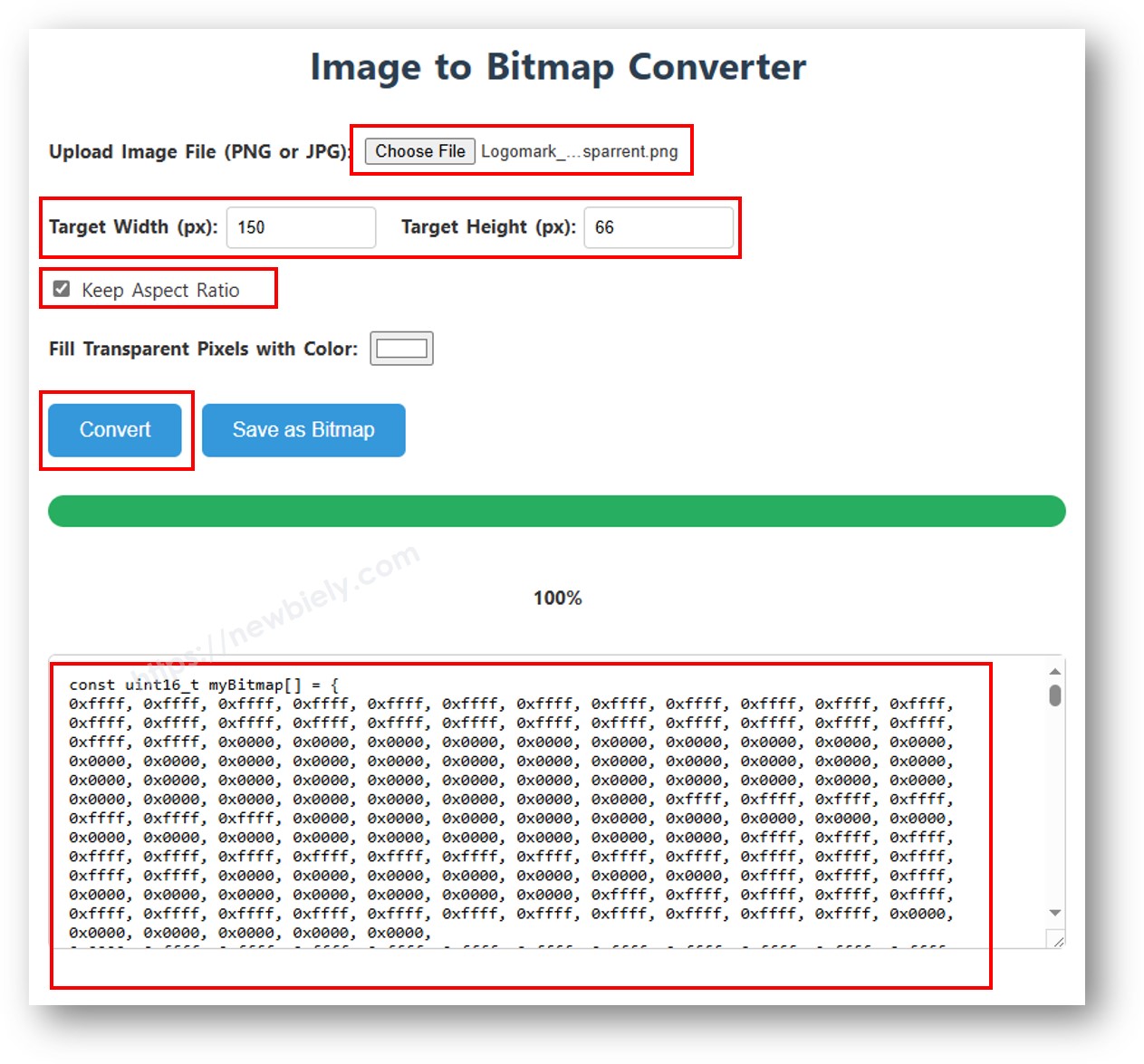
image to bitmap array

Het onderstaande voorbeeld wisselt tussen een 16×16 hart-icoon en een full-width DIYables logo:

/* * Deze Arduino code is ontwikkeld door newbiely.nl * Deze Arduino code wordt zonder enige beperking aan het publiek beschikbaar gesteld. * Voor volledige instructies en schema's, bezoek: * https://newbiely.nl/tutorials/arduino/arduino-ssd1309-oled-display */ /* * DIYables OLED SSD1309 – Display Image Demo * Displays bitmap images on the 2.42" SSD1309 128x64 I2C OLED. */ #include <Wire.h> #include <Adafruit_GFX.h> #include <DIYables_OLED_SSD1309.h> #define SCREEN_WIDTH 128 #define SCREEN_HEIGHT 64 #define OLED_RESET -1 #define SCREEN_ADDRESS 0x3C DIYables_OLED_SSD1309 display(SCREEN_WIDTH, SCREEN_HEIGHT, &Wire, OLED_RESET); // 16x16 heart bitmap const unsigned char heart16x16[] PROGMEM = { 0x00, 0x00, 0x03, 0xc0, 0x0f, 0xf0, 0x1f, 0xf8, 0x3f, 0xfc, 0x7f, 0xfe, 0xff, 0xff, 0xff, 0xff, 0xff, 0xff, 0xff, 0xff, 0x7f, 0xfe, 0x3f, 0xfc, 0x1f, 0xf8, 0x0f, 0xf0, 0x03, 0xc0, 0x00, 0x00 }; // 128x64 DIYables logo bitmap const unsigned char diyablesLogo[] PROGMEM = { 0xff, 0xff, 0xff, 0xff, 0xff, 0xff, 0xff, 0xff, 0xff, 0xff, 0xff, 0xff, 0xff, 0xff, 0xff, 0xff, 0xff, 0xff, 0xff, 0xff, 0xff, 0xff, 0xff, 0xff, 0xff, 0xff, 0xff, 0xff, 0xff, 0xff, 0xff, 0xff, 0xff, 0xff, 0xfe, 0x00, 0x07, 0xff, 0xff, 0xff, 0xff, 0xff, 0xff, 0x80, 0x01, 0xff, 0xff, 0xff, 0xff, 0xff, 0xe0, 0x00, 0x00, 0xff, 0xff, 0xff, 0xff, 0xff, 0xfc, 0x00, 0x00, 0x3f, 0xff, 0xff, 0xff, 0xff, 0x80, 0x00, 0x00, 0x1f, 0xff, 0xff, 0xff, 0xff, 0xe0, 0x00, 0x00, 0x07, 0xff, 0xff, 0xff, 0xfe, 0x00, 0x00, 0x00, 0x07, 0xff, 0xff, 0xff, 0xff, 0x80, 0x00, 0x00, 0x01, 0xff, 0xff, 0xff, 0xfc, 0x00, 0x00, 0x00, 0x03, 0xff, 0xff, 0xff, 0xff, 0x00, 0x00, 0x00, 0x00, 0xff, 0xff, 0xff, 0xf0, 0x00, 0x00, 0x00, 0x00, 0xff, 0xff, 0xff, 0xfc, 0x00, 0x00, 0x00, 0x00, 0x3f, 0xff, 0xff, 0xe0, 0x00, 0x00, 0x00, 0x00, 0x3f, 0xff, 0xff, 0xf0, 0x00, 0x00, 0x00, 0x00, 0x1f, 0xff, 0xff, 0xc0, 0x00, 0x00, 0x00, 0x00, 0x1f, 0xff, 0xff, 0xe0, 0x00, 0x00, 0x00, 0x00, 0x0f, 0xff, 0xff, 0x80, 0x00, 0x00, 0x00, 0x00, 0x0f, 0xff, 0xff, 0xc0, 0x00, 0x00, 0x00, 0x00, 0x07, 0xff, 0xff, 0x00, 0x00, 0x00, 0x00, 0x00, 0x03, 0xff, 0xff, 0x80, 0x00, 0x00, 0x00, 0x00, 0x03, 0xff, 0xfe, 0x00, 0x00, 0x00, 0x00, 0x00, 0x01, 0xff, 0xfe, 0x00, 0x00, 0x00, 0x00, 0x00, 0x01, 0xff, 0xfc, 0x00, 0x00, 0xff, 0xf0, 0x00, 0x00, 0xff, 0xfc, 0x00, 0x00, 0x3f, 0xfc, 0x00, 0x00, 0xff, 0xfc, 0x00, 0x03, 0xff, 0xfc, 0x00, 0x00, 0x7f, 0xf8, 0x00, 0x00, 0xff, 0xff, 0x00, 0x00, 0xff, 0xf8, 0x00, 0x0f, 0xff, 0xff, 0x00, 0x00, 0x3f, 0xf0, 0x00, 0x03, 0xff, 0xff, 0xc0, 0x00, 0x7f, 0xf0, 0x00, 0x1f, 0xff, 0xff, 0xc0, 0x00, 0x1f, 0xe0, 0x00, 0x0f, 0xff, 0xff, 0xe0, 0x00, 0x7f, 0xf0, 0x00, 0x7f, 0xff, 0xff, 0xe0, 0x00, 0x0f, 0xc0, 0x00, 0x1f, 0xff, 0xff, 0xf8, 0x00, 0x3f, 0xe0, 0x00, 0xff, 0xff, 0xff, 0xf8, 0x00, 0x07, 0x80, 0x00, 0x7f, 0xff, 0xff, 0xfc, 0x00, 0x1f, 0xe0, 0x00, 0xff, 0xff, 0xff, 0xfc, 0x00, 0x03, 0x80, 0x00, 0xff, 0xff, 0xff, 0xfc, 0x00, 0x1f, 0xc0, 0x01, 0xff, 0xff, 0xff, 0xfe, 0x00, 0x03, 0x00, 0x01, 0xff, 0xff, 0xff, 0xfe, 0x00, 0x1f, 0xc0, 0x03, 0xff, 0xff, 0xff, 0xff, 0x00, 0x00, 0x00, 0x03, 0xff, 0xff, 0xff, 0xff, 0x00, 0x0f, 0xc0, 0x03, 0xff, 0xff, 0xff, 0xff, 0x80, 0x00, 0x00, 0x07, 0xff, 0xf0, 0x7f, 0xff, 0x00, 0x0f, 0xc0, 0x07, 0xff, 0xff, 0xff, 0xff, 0xc0, 0x00, 0x00, 0x0f, 0xff, 0xf0, 0x7f, 0xff, 0x80, 0x0f, 0x80, 0x07, 0xff, 0xff, 0xff, 0xff, 0xe0, 0x00, 0x00, 0x1f, 0xff, 0xf0, 0x7f, 0xff, 0x80, 0x07, 0x80, 0x0f, 0xff, 0xff, 0xff, 0xff, 0xf0, 0x00, 0x00, 0x3f, 0xff, 0xf0, 0x7f, 0xff, 0xc0, 0x07, 0x80, 0x0f, 0xff, 0xff, 0xff, 0xff, 0xf8, 0x00, 0x00, 0x7f, 0xff, 0xf0, 0x7f, 0xff, 0xc0, 0x07, 0x80, 0x0f, 0xfe, 0x00, 0x00, 0xff, 0xfc, 0x00, 0x00, 0xff, 0xfc, 0x00, 0x03, 0xff, 0xc0, 0x07, 0x80, 0x0f, 0xfe, 0x00, 0x00, 0xff, 0xfe, 0x00, 0x01, 0xff, 0xfc, 0x00, 0x01, 0xff, 0xc0, 0x07, 0x80, 0x0f, 0xfe, 0x00, 0x00, 0xff, 0xff, 0x00, 0x03, 0xff, 0xfc, 0x00, 0x01, 0xff, 0xc0, 0x07, 0x80, 0x0f, 0xfe, 0x00, 0x00, 0xff, 0xff, 0x00, 0x03, 0xff, 0xfc, 0x00, 0x01, 0xff, 0xc0, 0x07, 0x80, 0x0f, 0xfe, 0x00, 0x00, 0xff, 0xff, 0x00, 0x03, 0xff, 0xfc, 0x00, 0x01, 0xff, 0xc0, 0x07, 0x80, 0x0f, 0xff, 0xff, 0xff, 0xff, 0xfe, 0x00, 0x01, 0xff, 0xff, 0xe0, 0x7f, 0xff, 0xc0, 0x07, 0x80, 0x0f, 0xff, 0xff, 0xff, 0xff, 0xfc, 0x00, 0x00, 0xff, 0xff, 0xf0, 0x7f, 0xff, 0xc0, 0x07, 0x80, 0x0f, 0xff, 0xff, 0xff, 0xff, 0xfc, 0x00, 0x00, 0xff, 0xff, 0xf0, 0x7f, 0xff, 0xc0, 0x07, 0x80, 0x0f, 0xff, 0xff, 0xff, 0xff, 0xf8, 0x00, 0x00, 0x7f, 0xff, 0xf0, 0x7f, 0xff, 0xc0, 0x07, 0x80, 0x0f, 0xff, 0xff, 0xff, 0xff, 0xf0, 0x00, 0x00, 0x3f, 0xff, 0xf0, 0x7f, 0xff, 0x80, 0x07, 0x80, 0x07, 0xff, 0xff, 0xff, 0xff, 0xe0, 0x00, 0x00, 0x1f, 0xff, 0xf0, 0x7f, 0xff, 0x80, 0x07, 0xc0, 0x07, 0xff, 0xff, 0xff, 0xff, 0xc0, 0x00, 0x00, 0x0f, 0xff, 0xff, 0xff, 0xff, 0x80, 0x0f, 0xc0, 0x03, 0xff, 0xff, 0xff, 0xff, 0x80, 0x00, 0x00, 0x07, 0xff, 0xff, 0xff, 0xff, 0x00, 0x0f, 0xc0, 0x03, 0xff, 0xff, 0xff, 0xff, 0x00, 0x00, 0x00, 0x03, 0xff, 0xff, 0xff, 0xff, 0x00, 0x0f, 0xe0, 0x01, 0xff, 0xff, 0xff, 0xfe, 0x00, 0x03, 0x00, 0x01, 0xff, 0xff, 0xff, 0xfe, 0x00, 0x1f, 0xe0, 0x00, 0xff, 0xff, 0xff, 0xfc, 0x00, 0x07, 0x80, 0x00, 0xff, 0xff, 0xff, 0xfc, 0x00, 0x1f, 0xe0, 0x00, 0x7f, 0xff, 0xff, 0xf0, 0x00, 0x0f, 0xc0, 0x00, 0x3f, 0xff, 0xff, 0xf8, 0x00, 0x3f, 0xf0, 0x00, 0x3f, 0xff, 0xff, 0xe0, 0x00, 0x1f, 0xe0, 0x00, 0x1f, 0xff, 0xff, 0xf0, 0x00, 0x3f, 0xf8, 0x00, 0x1f, 0xff, 0xff, 0x80, 0x00, 0x3f, 0xe0, 0x00, 0x07, 0xff, 0xff, 0xe0, 0x00, 0x7f, 0xf8, 0x00, 0x0f, 0xff, 0xff, 0x00, 0x00, 0x7f, 0xf8, 0x00, 0x03, 0xff, 0xff, 0xc0, 0x00, 0x7f, 0xfc, 0x00, 0x03, 0xff, 0xf8, 0x00, 0x00, 0xff, 0xfc, 0x00, 0x00, 0xff, 0xff, 0x00, 0x00, 0xff, 0xfe, 0x00, 0x00, 0x7f, 0xe0, 0x00, 0x01, 0xff, 0xfe, 0x00, 0x00, 0x1f, 0xf8, 0x00, 0x01, 0xff, 0xfe, 0x00, 0x00, 0x00, 0x00, 0x00, 0x03, 0xff, 0xff, 0x00, 0x00, 0x00, 0x00, 0x00, 0x03, 0xff, 0xff, 0x00, 0x00, 0x00, 0x00, 0x00, 0x07, 0xff, 0xff, 0x80, 0x00, 0x00, 0x00, 0x00, 0x03, 0xff, 0xff, 0x80, 0x00, 0x00, 0x00, 0x00, 0x0f, 0xff, 0xff, 0xc0, 0x00, 0x00, 0x00, 0x00, 0x07, 0xff, 0xff, 0xc0, 0x00, 0x00, 0x00, 0x00, 0x1f, 0xff, 0xff, 0xe0, 0x00, 0x00, 0x00, 0x00, 0x0f, 0xff, 0xff, 0xe0, 0x00, 0x00, 0x00, 0x00, 0x7f, 0xff, 0xff, 0xf8, 0x00, 0x00, 0x00, 0x00, 0x3f, 0xff, 0xff, 0xf8, 0x00, 0x00, 0x00, 0x01, 0xff, 0xff, 0xff, 0xfe, 0x00, 0x00, 0x00, 0x00, 0x7f, 0xff, 0xff, 0xfc, 0x00, 0x00, 0x00, 0x03, 0xff, 0xff, 0xff, 0xff, 0x00, 0x00, 0x00, 0x00, 0xff, 0xff, 0xff, 0xff, 0x00, 0x00, 0x00, 0x0f, 0xff, 0xff, 0xff, 0xff, 0xc0, 0x00, 0x00, 0x03, 0xff, 0xff, 0xff, 0xff, 0xc0, 0x00, 0x00, 0x3f, 0xff, 0xff, 0xff, 0xff, 0xf0, 0x00, 0x00, 0x0f, 0xff, 0xff, 0xff, 0xff, 0xf0, 0x00, 0x01, 0xff, 0xff, 0xff, 0xff, 0xff, 0xfe, 0x00, 0x00, 0x3f, 0xff, 0xff, 0xff, 0xff, 0xff, 0x00, 0x0f, 0xff, 0xff, 0xff, 0xff, 0xff, 0xff, 0xc0, 0x03, 0xff, 0xff, 0xff, 0xff, 0xff, 0xff, 0xff, 0xff, 0xff, 0xff, 0xff, 0xff, 0xff, 0xff, 0xff, 0xff, 0xff, 0xff, 0xff, 0xff, 0xff, 0xff, 0xff, 0xff, 0xff, 0xff, 0xff, 0xff, 0xff, 0xff, 0xff, 0xff, 0xff, 0xff, 0xff, 0xff, 0xff, 0xff, 0xff, 0xff, 0xff, 0xff, 0xff, 0xff, 0xff, 0xff, 0xff, 0xff, 0xff, 0xff, 0xff, 0xff, 0xff, 0xff, 0xff, 0xff, 0xff, 0xff, 0xff, 0xff, 0xff, 0xff, 0xff, 0xff, 0xff, 0xff, 0xff }; void setup() { Serial.begin(9600); if (!display.begin(SSD1309_SWITCHCAPVCC, SCREEN_ADDRESS)) { Serial.println(F("SSD1309 allocation failed")); for (;;); } delay(2000); display.setCursor(0, 0); } void loop() { // Display 16x16 heart icon display.clearDisplay(); display.drawBitmap((SCREEN_WIDTH - 16) / 2, (SCREEN_HEIGHT - 16) / 2, heart16x16, 16, 16, SSD1309_PIXEL_ON); display.display(); delay(2000); // Display full-screen DIYables logo display.clearDisplay(); display.drawBitmap(0, 0, diyablesLogo, 128, 64, SSD1309_PIXEL_ON); display.display(); delay(2000); // Invert display display.invertDisplay(true); delay(2000); display.invertDisplay(false); delay(500); }

※ Notiz:

  • De bitmap-afmetingen mogen de schermresolutie niet overschrijden (128×64 voor de 2.42 inch module).

Arduino Code — Contrast en Dimbare Helderheid op SSD1309 OLED

De SSD1309 ondersteunt 256 contrastniveaus (0–255). De DIYables bibliotheek biedt setContrast() voor fijne aanpassing en dim() voor snelle schakeling tussen minimale helderheid en de eerder ingestelde waarde.

/* * Deze Arduino code is ontwikkeld door newbiely.nl * Deze Arduino code wordt zonder enige beperking aan het publiek beschikbaar gesteld. * Voor volledige instructies en schema's, bezoek: * https://newbiely.nl/tutorials/arduino/arduino-ssd1309-oled-display */ /* * DIYables OLED SSD1309 – Contrast & Dim * Sweeps contrast from 0→255→0 then toggles dim mode on the 2.42" OLED. */ #include <Wire.h> #include <Adafruit_GFX.h> #include <DIYables_OLED_SSD1309.h> #define SCREEN_WIDTH 128 #define SCREEN_HEIGHT 64 #define OLED_RESET -1 #define SCREEN_ADDRESS 0x3C DIYables_OLED_SSD1309 display(SCREEN_WIDTH, SCREEN_HEIGHT, &Wire, OLED_RESET); void setup() { Serial.begin(9600); if (!display.begin(SSD1309_SWITCHCAPVCC, SCREEN_ADDRESS)) { Serial.println(F("SSD1309 allocation failed")); for (;;); } // Draw a test pattern so the contrast changes are visible display.clearDisplay(); display.fillRect(0, 0, 64, 32, SSD1309_PIXEL_ON); display.fillRect(64, 32, 64, 32, SSD1309_PIXEL_ON); display.setTextSize(1); display.setTextColor(SSD1309_PIXEL_INVERSE); display.setCursor(16, 28); display.println(F("Contrast Demo")); display.display(); delay(2000); } void loop() { // Ramp up for (int c = 0; c <= 255; c += 5) { display.setContrast((uint8_t)c); delay(30); } delay(1000); // Ramp down for (int c = 255; c >= 0; c -= 5) { display.setContrast((uint8_t)c); delay(30); } delay(1000); // Quick dim toggle display.dim(true); // minimum brightness delay(2000); display.dim(false); // restore delay(2000); }

Arduino Code — Aangepaste Externe Lettertypen op SSD1309 OLED

De Adafruit GFX bibliotheek bevat tientallen schaalbare FreeFont lettertypen (Serif, Sans, Mono — elk in Regular, Bold, Italic en vier formaten). U activeert ze op het SSD1309 display door de bijbehorende header te includen en setFont() aan te roepen.

※ Notiz:

  • Bij gebruik van een extern lettertype verwijst de Y-coördinaat van de cursor naar de basislijn van de tekst, niet naar de linker bovenhoek. Dit wijkt af van het ingebouwde 5×7 lettertype.
  • Externe lettertypen worden opgeslagen in flash (PROGMEM). Gebruik ze spaarzaam op geheugenbeperkte AVR-borden (Arduino Uno = 32 KB flash).
/* * Deze Arduino code is ontwikkeld door newbiely.nl * Deze Arduino code wordt zonder enige beperking aan het publiek beschikbaar gesteld. * Voor volledige instructies en schema's, bezoek: * https://newbiely.nl/tutorials/arduino/arduino-ssd1309-oled-display */ /* * DIYables OLED SSD1309 – External Fonts * Cycles through three FreeFont typefaces on the 2.42" SSD1309 OLED. */ #include <Wire.h> #include <Adafruit_GFX.h> #include <DIYables_OLED_SSD1309.h> #include <Fonts/FreeSerif9pt7b.h> #include <Fonts/FreeSansBold12pt7b.h> #include <Fonts/FreeMono9pt7b.h> #define SCREEN_WIDTH 128 #define SCREEN_HEIGHT 64 #define OLED_RESET -1 #define SCREEN_ADDRESS 0x3C DIYables_OLED_SSD1309 display(SCREEN_WIDTH, SCREEN_HEIGHT, &Wire, OLED_RESET); void setup() { Serial.begin(9600); if (!display.begin(SSD1309_SWITCHCAPVCC, SCREEN_ADDRESS)) { Serial.println(F("SSD1309 allocation failed")); for (;;); } display.clearDisplay(); display.display(); } void loop() { // ── Built-in 5×7 font ── display.clearDisplay(); display.setFont(NULL); display.setTextSize(1); display.setTextColor(SSD1309_PIXEL_ON); display.setCursor(0, 0); display.println(F("Built-in 5x7 font")); display.println(); display.setTextSize(2); display.println(F("DIYables")); display.display(); delay(3000); // ── FreeSerif 9pt ── display.clearDisplay(); display.setFont(&FreeSerif9pt7b); display.setTextSize(1); display.setTextColor(SSD1309_PIXEL_ON); display.setCursor(0, 14); // Y = baseline display.println(F("FreeSerif 9pt")); display.setCursor(0, 38); display.println(F("DIYables OLED")); display.setCursor(0, 58); display.println(F("Hello World!")); display.display(); delay(3000); // ── FreeSansBold 12pt ── display.clearDisplay(); display.setFont(&FreeSansBold12pt7b); display.setTextSize(1); display.setTextColor(SSD1309_PIXEL_ON); display.setCursor(0, 20); display.println(F("SansBold")); display.setCursor(0, 52); display.println(F("DIYables")); display.display(); delay(3000); // ── FreeMono 9pt ── display.clearDisplay(); display.setFont(&FreeMono9pt7b); display.setTextSize(1); display.setTextColor(SSD1309_PIXEL_ON); display.setCursor(0, 14); display.println(F("FreeMono 9pt")); display.setCursor(0, 34); display.println(F("0123456789")); display.setCursor(0, 54); display.println(F("!@#$%^&*()")); display.display(); delay(3000); }

SSD1309 OLED Problemen Oplossen

Als er niets verschijnt op de 2.42 inch SSD1309 OLED na het uploaden van uw sketch, controleer dan het volgende:

  • Controleer de bedrading — bevestig dat SDA, SCL, VCC en GND correct zijn aangesloten op de juiste Arduino-pinnen.
  • Bevestig de driver chip — deze bibliotheek is ontworpen voor de SSD1309. Als uw module een andere controller gebruikt (bijv. SH1106), zal het niet correct werken.
  • Controleer het I2C-adres — de meeste SSD1309 modules staan standaard op 0x3C, maar sommige gebruiken 0x3D. Gebruik onderstaande I2C scanner om het adres te detecteren:
// I2C adres scanner — print elk gedetecteerd apparaat naar de Seriële Monitor #include <Wire.h> void setup() { Wire.begin(); Serial.begin(9600); Serial.println("I2C Scanner"); } void loop() { byte error, address; int nDevices = 0; Serial.println("Scanning..."); for (address = 1; address < 127; address++) { Wire.beginTransmission(address); error = Wire.endTransmission(); if (error == 0) { Serial.print("I2C device found at address 0x"); if (address < 16) Serial.print("0"); Serial.print(address, HEX); Serial.println(" !"); nDevices++; } else if (error == 4) { Serial.print("Onbekende fout op adres 0x"); if (address < 16) Serial.print("0"); Serial.println(address, HEX); } } if (nDevices == 0) Serial.println("Geen I2C apparaten gevonden"); else Serial.println("klaar"); delay(5000); }

Verwachte Seriële Monitor output bij detectie van het SSD1309:

COM6
Send
Scanning... I2C device found at address 0x3C ! done
Autoscroll Show timestamp
Clear output
9600 baud  
Newline  
  • Zorg dat display() wordt aangeroepen — de SSD1309 gebruikt een framebuffer. Tekenfuncties wijzigen alleen het RAM-buffer; er verschijnt niets op het scherm totdat u oled.display() aanroept.
  • Controleer de voeding — het 2.42 inch module verbruikt meer stroom dan kleinere OLED’s. Zorg dat uw voeding voldoende stroom kan leveren (meestal 20–40 mA bij maximale helderheid).

※ ONZE BERICHTEN

  • U bent welkom om de link naar deze tutorial te delen. Gebruik onze inhoud echter niet op andere websites. We hebben veel moeite en tijd gestoken in het maken van de inhoud, respecteer alstublieft ons werk!