
Arduino - LED - Knipperen zonder delay

Stel u voor dat Arduino twee taken moet uitvoeren: LED laten knipperen en de status van een knop controleren, die op elk moment ingedrukt kan worden. Als we de functie delay() gebruiken (zoals beschreven in een vorige tutorial), kan Arduino sommige drukgebeurtenissen missen. Met andere woorden, Arduino kan niet de tweede taak volledig uitvoeren.

In deze tutorial leert u hoe Arduino een LED laat knipperen en tegelijkertijd de status van een knop controleert zonder drukgebeurtenissen te missen.

We doorlopen drie voorbeelden en vergelijken de verschillen:

※ Notiz:

  • Deze methode is niet alleen voor het knipperen van een LED en het controleren van een knop. Over het algemeen maakt deze methode het mogelijk dat Arduino meerdere taken tegelijkertijd uitvoert zonder elkaar te blokkeren.
  • Deze tutorial biedt diepgaande kennis om het werkingsprincipe te begrijpen. Voor eenvoudiger gebruik kunt u de Arduino - LED bibliotheek gebruiken.

Over LED en knop

Als u niet bekend bent met LED en knop (pinout, werking, programmeren ...), bekijk dan deze tutorials:

Aansluitschema
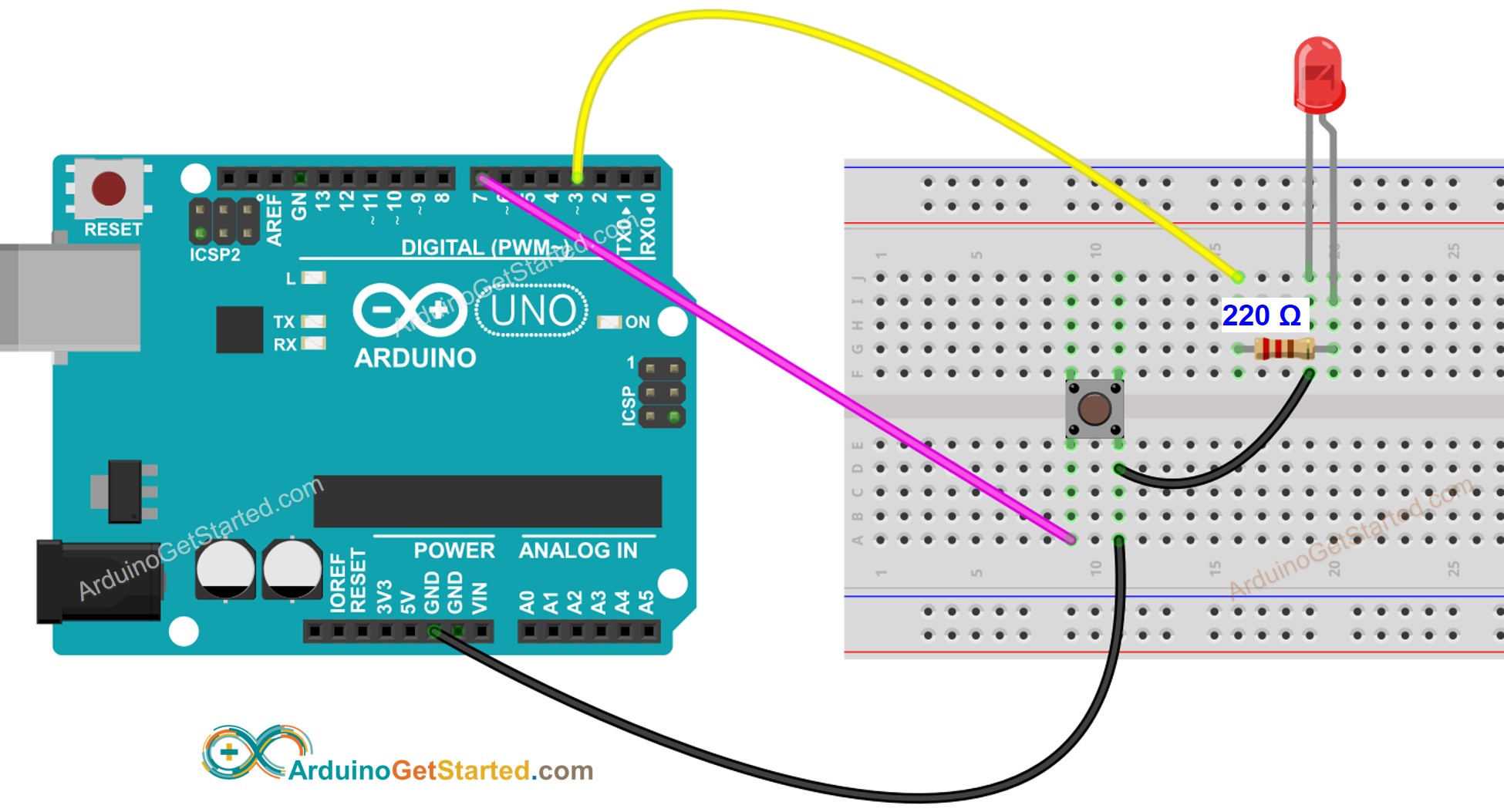
Arduino LED Aansluitschema

Deze afbeelding is gemaakt met Fritzing. Klik om de afbeelding te vergroten.

Arduino Code - Met Delay

/* * Deze Arduino code is ontwikkeld door newbiely.nl * Deze Arduino code wordt zonder enige beperking aan het publiek beschikbaar gesteld. * Voor volledige instructies en schema's, bezoek: * https://newbiely.nl/tutorials/arduino/arduino-led-blink-without-delay */ // constants won't change: const int LED_PIN = 3; // the number of the LED pin const int BUTTON_PIN = 7; // the number of the button pin const long BLINK_INTERVAL = 1000; // interval at which to blink LED (milliseconds) // Variables will change: int ledState = LOW; // ledState used to set the LED int previousButtonState = LOW; // will store last time button was updated void setup() { Serial.begin(9600); // set the digital pin as output: pinMode(LED_PIN, OUTPUT); // set the digital pin as an input: pinMode(BUTTON_PIN, INPUT); } void loop() { // if the LED is off turn it on and vice-versa: ledState = (ledState == LOW) ? HIGH : LOW; // set the LED with the ledState of the variable: digitalWrite(LED_PIN, ledState); delay(BLINK_INTERVAL); // If button is pressed during this time, Arduino CANNOT detect int currentButtonState = digitalRead(BUTTON_PIN); if(currentButtonState != previousButtonState) { // print out the state of the button: Serial.println(currentButtonState); // save the last state of button previousButtonState = currentButtonState; } // DO OTHER WORKS HERE }

Snelle Stappen

  • Verbind Arduino met de pc via USB-kabel
  • Open Arduino IDE, selecteer het juiste board en poort
  • Kopieer de bovenstaande code en open deze in Arduino IDE
  • Klik op de Upload knop in Arduino IDE om de code naar Arduino te uploaden
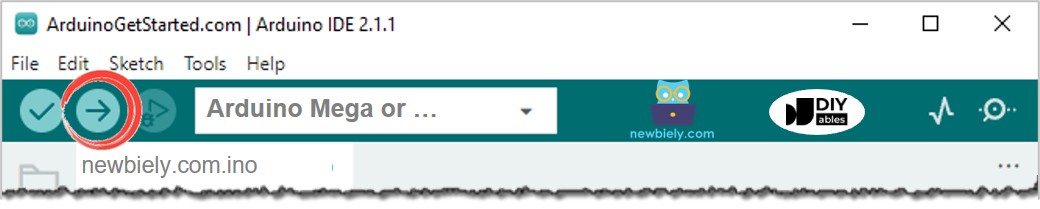
Arduino IDE - Hoe code te uploaden
  • Open de Seriële Monitor
  • Druk 4 keer op de knop
  • Kijk naar de LED: De LED wisselt periodiek tussen AAN/UIT elke seconde
  • Bekijk de output in de Seriële Monitor
Newbiely | Arduino IDE 2.3.8
──
File
Edit
Sketch
Tools
Help
Arduino Uno
Newbiely.ino
···
8 Serial.println("Hello World!");
Output
Serial Monitor
Message (Enter to send message to 'Arduino Uno' on 'COM15')
New Line
9600 baud
1 0
Ln 11, Col 1
Arduino Uno on COM15
2
  • In de Seriële Monitor zijn sommige knopdrukken gemist. Dit komt doordat Arduino TIJDENS de delay NIETS kan doen. Daarom kan het de drukgebeurtenissen niet detecteren.

Arduino Code - Zonder Delay

/* * Deze Arduino code is ontwikkeld door newbiely.nl * Deze Arduino code wordt zonder enige beperking aan het publiek beschikbaar gesteld. * Voor volledige instructies en schema's, bezoek: * https://newbiely.nl/tutorials/arduino/arduino-led-blink-without-delay */ // constants won't change: const int LED_PIN = 3; // the number of the LED pin const int BUTTON_PIN = 7; // the number of the button pin const long BLINK_INTERVAL = 1000; // interval at which to blink LED (milliseconds) // Variables will change: int ledState = LOW; // ledState used to set the LED int previousButtonState = LOW; // will store last time button was updated unsigned long previousMillis = 0; // will store last time LED was updated void setup() { Serial.begin(9600); // set the digital pin as output: pinMode(LED_PIN, OUTPUT); // set the digital pin as an input: pinMode(BUTTON_PIN, INPUT); } void loop() { // check to see if it's time to blink the LED; that is, if the difference // between the current time and last time you blinked the LED is bigger than // the interval at which you want to blink the LED. unsigned long currentMillis = millis(); if (currentMillis - previousMillis >= BLINK_INTERVAL) { // if the LED is off turn it on and vice-versa: ledState = (ledState == LOW) ? HIGH : LOW; // set the LED with the ledState of the variable: digitalWrite(LED_PIN, ledState); // save the last time you blinked the LED previousMillis = currentMillis; } // check button state's change int currentButtonState = digitalRead(BUTTON_PIN); if(currentButtonState != previousButtonState) { // print out the state of the button: Serial.println(currentButtonState); // save the last state of button previousButtonState = currentButtonState; } // DO OTHER WORKS HERE }

Snelle Stappen

  • Start de bovenstaande code en druk 4 keer op de knop
  • Kijk naar de LED: De LED wisselt periodiek tussen AAN/UIT elke seconde
  • Bekijk de output in de Seriële Monitor
Newbiely | Arduino IDE 2.3.8
──
File
Edit
Sketch
Tools
Help
Arduino Uno
Newbiely.ino
···
8 Serial.println("Hello World!");
Output
Serial Monitor
Message (Enter to send message to 'Arduino Uno' on 'COM15')
New Line
9600 baud
1 0 1 0 1 0 1 0
Ln 11, Col 1
Arduino Uno on COM15
2
  • Alle drukgebeurtenissen werden gedetecteerd.

Code-uitleg

Lees de lijn-voor-lijn uitleg in de commentaarregels van de code!

Meer taken toevoegen

De onderstaande code laat twee LEDs knipperen met verschillende intervallen en controleert de status van de knop.

/* * Deze Arduino code is ontwikkeld door newbiely.nl * Deze Arduino code wordt zonder enige beperking aan het publiek beschikbaar gesteld. * Voor volledige instructies en schema's, bezoek: * https://newbiely.nl/tutorials/arduino/arduino-led-blink-without-delay */ // constants won't change: const int LED_PIN_1 = 3; // the number of the LED 1 pin const int LED_PIN_2 = LED_BUILTIN; // the number of the LED 2 pin const int BUTTON_PIN = 7; // the number of the button pin const long BLINK_INTERVAL_1 = 1000; // interval at which to blink LED 1 (milliseconds) const long BLINK_INTERVAL_2 = 500; // interval at which to blink LED 2 (milliseconds) // Variables will change: int ledState_1 = LOW; // ledState used to set the LED 1 int ledState_2 = LOW; // ledState used to set the LED 2 int previousButtonState = LOW; // will store last time button was updated unsigned long previousMillis_1 = 0; // will store last time LED 1 was updated unsigned long previousMillis_2 = 0; // will store last time LED 2 was updated void setup() { Serial.begin(9600); // set the digital pin as output: pinMode(LED_PIN_1, OUTPUT); pinMode(LED_PIN_2, OUTPUT); // set the digital pin as an input: pinMode(BUTTON_PIN, INPUT); } void loop() { unsigned long currentMillis = millis(); // check to see if it's time to blink the LED 1 if (currentMillis - previousMillis_1 >= BLINK_INTERVAL_1) { // if the LED is off turn it on and vice-versa: ledState_1 = (ledState_1 == LOW) ? HIGH : LOW; // set the LED with the ledState of the variable: digitalWrite(LED_PIN_1, ledState_1); // save the last time you blinked the LED previousMillis_1 = currentMillis; } // check to see if it's time to blink the LED 2 if (currentMillis - previousMillis_2 >= BLINK_INTERVAL_2) { // if the LED is off turn it on and vice-versa: ledState_2 = (ledState_2 == LOW) ? HIGH : LOW; // set the LED with the ledState of the variable: digitalWrite(LED_PIN_2, ledState_2); // save the last time you blinked the LED previousMillis_2 = currentMillis; } // check button state's change int currentButtonState = digitalRead(BUTTON_PIN); if(currentButtonState != previousButtonState) { // print out the state of the button: Serial.println(currentButtonState); // save the last state of button previousButtonState = currentButtonState; } // DO OTHER WORKS HERE }

Video Tutorial

We overwegen het maken van videotutorials. Als u videotutorials belangrijk vindt, abonneer u dan op ons YouTube-kanaal om ons te motiveren de video's te maken.

Uitbreidbaarheid

Deze methode maakt het mogelijk dat Arduino meerdere taken tegelijkertijd uitvoert zonder elkaar te blokkeren. Bijvoorbeeld: een verzoek naar het internet versturen en wachten op een antwoord, terwijl ondertussen een aantal LED-indicatoren knipperen en een annuleerknop wordt gecontroleerd.

※ ONZE BERICHTEN

  • U bent welkom om de link naar deze tutorial te delen. Gebruik onze inhoud echter niet op andere websites. We hebben veel moeite en tijd gestoken in het maken van de inhoud, respecteer alstublieft ons werk!