
Arduino - Rotary Encoder LED
In deze tutorial gaan we leren hoe u Arduino programmeert om de helderheid van een LED te regelen aan de hand van de uitgangswaarde van een rotary encoder.
Hardware Benodigd
Of u kunt de volgende kits kopen:
| 1 | × | DIYables Sensorkit (18 sensoren/displays) |
Openbaarmaking: Sommige van de links in deze sectie zijn Amazon-affiliate links. We kunnen een commissie ontvangen voor aankopen die via deze links worden gedaan, zonder extra kosten voor u. We waarderen uw steun.
Over LED en Rotary Encoder
Als u nog niet bekend bent met LED en rotary encoder (pinout, hoe het werkt, hoe te programmeren ...), bekijk dan de volgende tutorials:
Bekabelingsschema
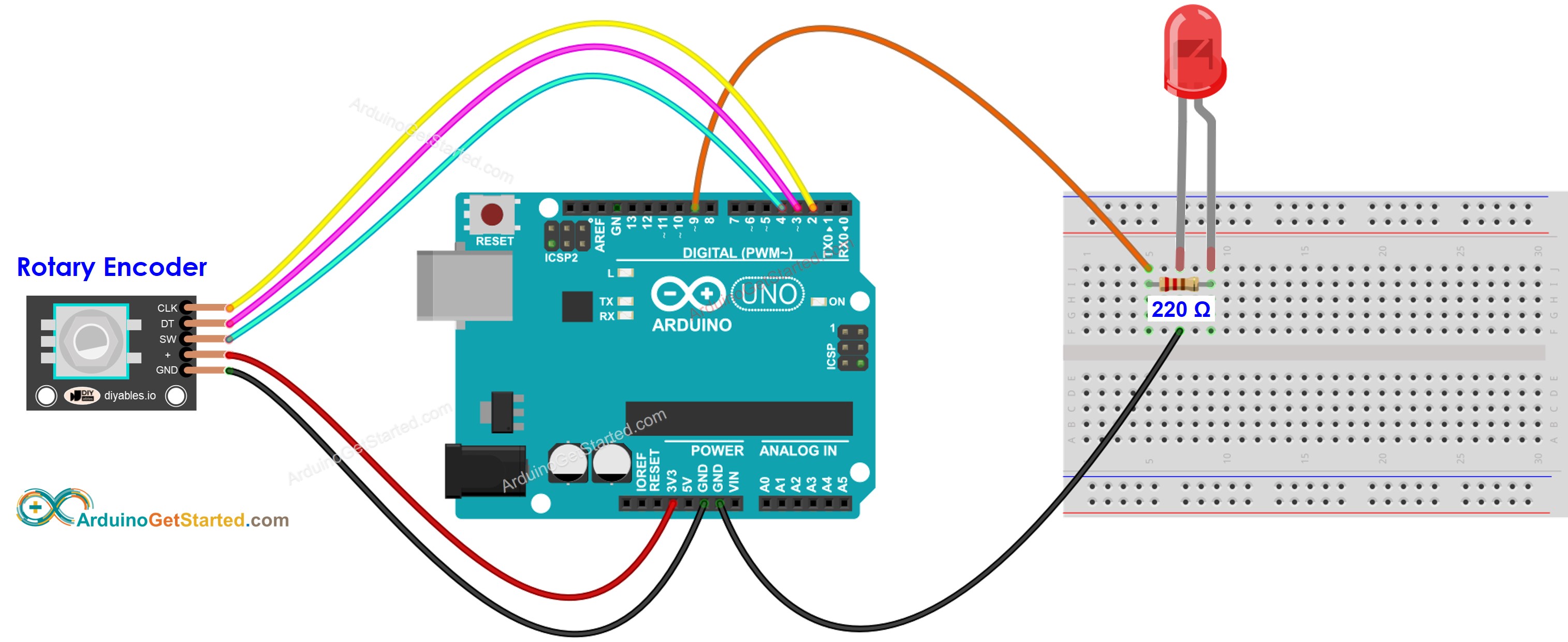
Deze afbeelding is gemaakt met Fritzing. Klik om de afbeelding te vergroten.
Arduino Code
/*
* Deze Arduino code is ontwikkeld door newbiely.nl
* Deze Arduino code wordt zonder enige beperking aan het publiek beschikbaar gesteld.
* Voor volledige instructies en schema's, bezoek:
* https://newbiely.nl/tutorials/arduino/arduino-rotary-encoder-led
*/
#include <Servo.h>
#define CLK_PIN 2
#define DT_PIN 3
#define SW_PIN 4
#define LED_PIN 9
#define DIRECTION_CW 0 // clockwise direction
#define DIRECTION_CCW 1 // counter-clockwise direction
int counter = 0;
int direction = DIRECTION_CW;
int CLK_state;
int prev_CLK_state;
int brightness = 125; // middle value
void setup() {
Serial.begin(9600);
// configure encoder pins as inputs
pinMode(CLK_PIN, INPUT);
pinMode(DT_PIN, INPUT);
// read the initial state of the rotary encoder's CLK pin
prev_CLK_state = digitalRead(CLK_PIN);
pinMode(LED_PIN, OUTPUT);
}
void loop() {
// read the current state of the rotary encoder's CLK pin
CLK_state = digitalRead(CLK_PIN);
// If the state of CLK is changed, then pulse occurred
// React to only the rising edge (from LOW to HIGH) to avoid double count
if (CLK_state != prev_CLK_state && CLK_state == HIGH) {
// if the DT state is HIGH
// the encoder is rotating in counter-clockwise direction => decrease the counter
if (digitalRead(DT_PIN) == HIGH) {
direction = DIRECTION_CCW;
counter--;
brightness -= 10; // you can change this value
} else {
// the encoder is rotating in clockwise direction => increase the counter
direction = DIRECTION_CW;
counter++;
brightness += 10; // you can change this value
}
if (brightness < 0)
brightness = 0;
else if (brightness > 255)
brightness = 255;
// sets the brightness of LED according to the counter
analogWrite(LED_PIN, brightness);
Serial.print("COUNTER: ");
Serial.print(counter);
Serial.print(" | BRIGHTNESS: ");
Serial.println(brightness);
}
// save last CLK state
prev_CLK_state = CLK_state;
}
Snelle Stappen
- Verbind de Arduino via de USB-kabel met uw PC
- Open de Arduino IDE, selecteer het juiste board en juiste poort
- Kopieer de bovenstaande code en open deze met de Arduino IDE
- Klik op de Upload knop in de Arduino IDE om de code naar de Arduino te uploaden
- Open de Seriële Monitor
- Draai aan de rotary encoder
- Zie de helderheid van de LED veranderen
- Bekijk de resultaten in de Seriële Monitor
8
Serial.println("Hello World!");
Message (Enter to send message to 'Arduino Uno' on 'COM15')
New Line
9600 baud
COUNTER: 1 | BRIGHTNESS: 135
COUNTER: 2 | BRIGHTNESS: 145
COUNTER: 3 | BRIGHTNESS: 155
COUNTER: 4 | BRIGHTNESS: 165
COUNTER: 5 | BRIGHTNESS: 175
COUNTER: 6 | BRIGHTNESS: 185
COUNTER: 7 | BRIGHTNESS: 195
Code Uitleg
Lees de regel-voor-regel uitleg in de commentaarregels van de broncode!
Video Tutorial
We overwegen het maken van videotutorials. Als u videotutorials belangrijk vindt, abonneer u dan op ons YouTube-kanaal om ons te motiveren de video's te maken.
Gerelateerde Tutorials
📱 Aanbevolen apps
 English for KidsSpelenderwijs Engels leren voor jonge kinderen.Ontdek het opGoogle PlayBeschikbaar in deApp Store
 Bubble NoteZelfverwijderende notities – schrijf ze als berichten.Ontdek het opGoogle PlayBeschikbaar in deApp Store
 Didn't BuyVersla impulsaankopen en bespaar meer.Ontdek het opGoogle PlayBeschikbaar in deApp Store
 Knowledge PathOefentoetsen om alles te leren.Ontdek het opGoogle PlayBeschikbaar in deApp Store