
Arduino - LCD Klok
In deze handleiding leert u hoe u een LCD klok maakt door:
- De datum en tijd te lezen van de DS3231 RTC module en deze weer te geven op een LCD I2C 16x2
- De datum en tijd te lezen van de DS1307 RTC module en deze weer te geven op een LCD I2C 16x2
U kunt kiezen uit twee RTC modules: DS3231 en DS1307. Zie DS3231 vs DS1307
Hardware vereist
Of u kunt de volgende kits kopen:
| 1 | × | DIYables Sensorkit (18 sensoren/displays) |
Openbaarmaking: Sommige van de links in deze sectie zijn Amazon-affiliate links. We kunnen een commissie ontvangen voor aankopen die via deze links worden gedaan, zonder extra kosten voor u. We waarderen uw steun.
Aankoopadvies: Een andere optie is om het LCD I2C-display te maken door LCD 2004 Display en PCF8574 I2C Adapter Module te combineren.
Over LCD, DS3231 en DS1307 RTC module
Als u nog niet bekend bent met LCD, DS3231 en DS1307 (pinout, werking, hoe te programmeren…), leer er meer over in de volgende tutorials:
LCD- en RTC-libraries installeren
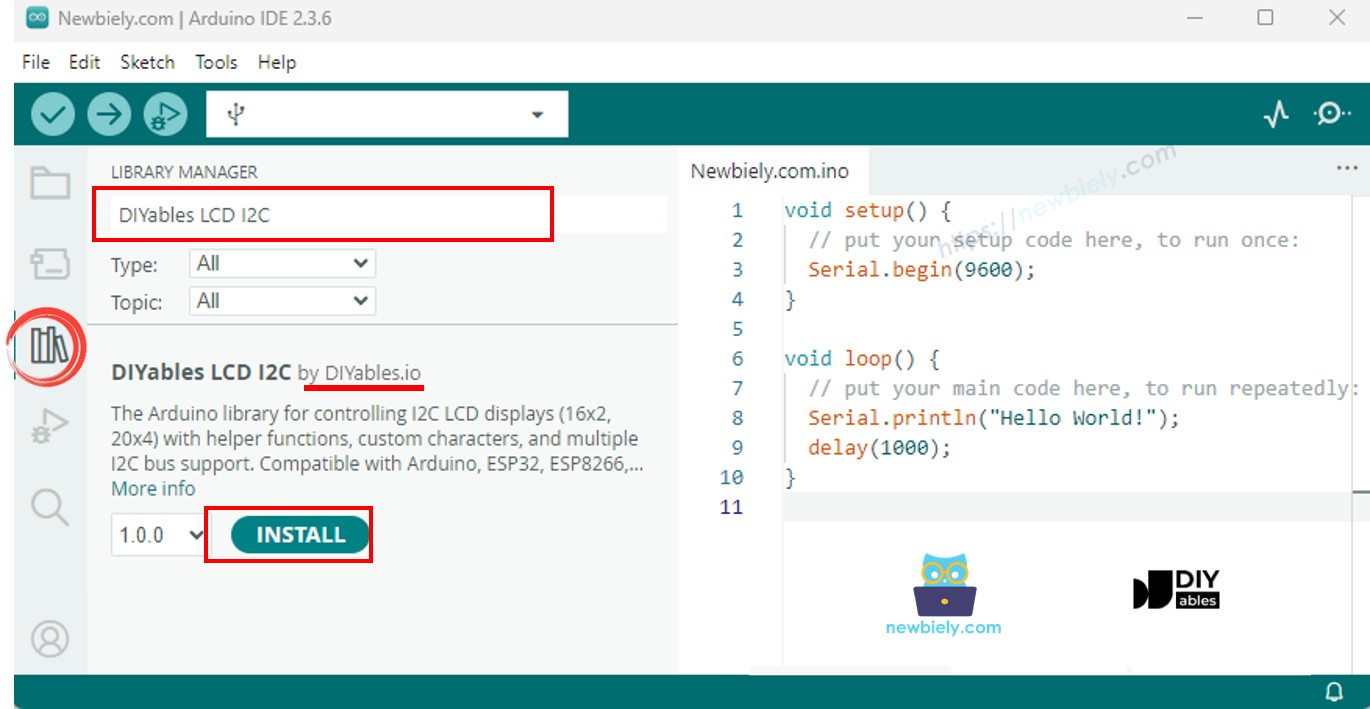
- Ga in de Arduino IDE naar het Libraries-icoon in de linkerzijbalk.
- Zoek op “DIYables LCD I2C”, vind vervolgens de DIYables_LCD_I2C library van DIYables
- Klik op de knop Installeren om de DIYables_LCD_I2C library te installeren.
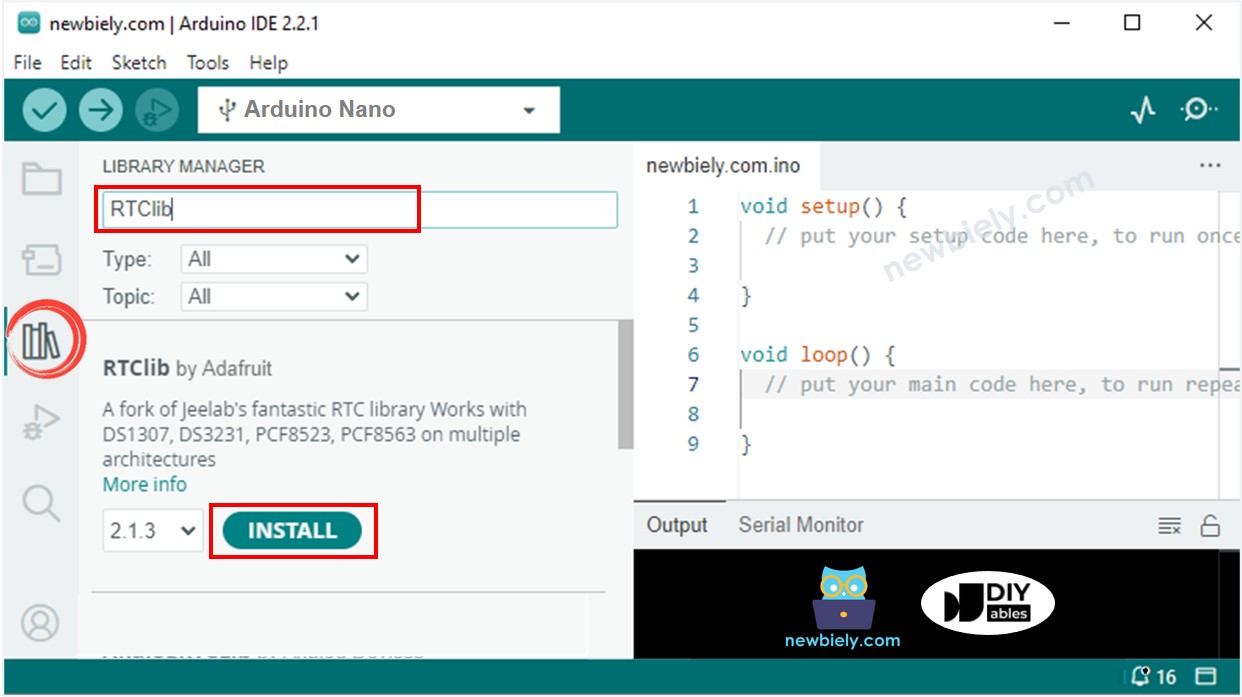
- Zoek op “RTClib”, vind de RTC library van Adafruit. Deze library werkt met zowel DS3231 als DS1307
- Klik op de knop Installeren om de RTC library te installeren.
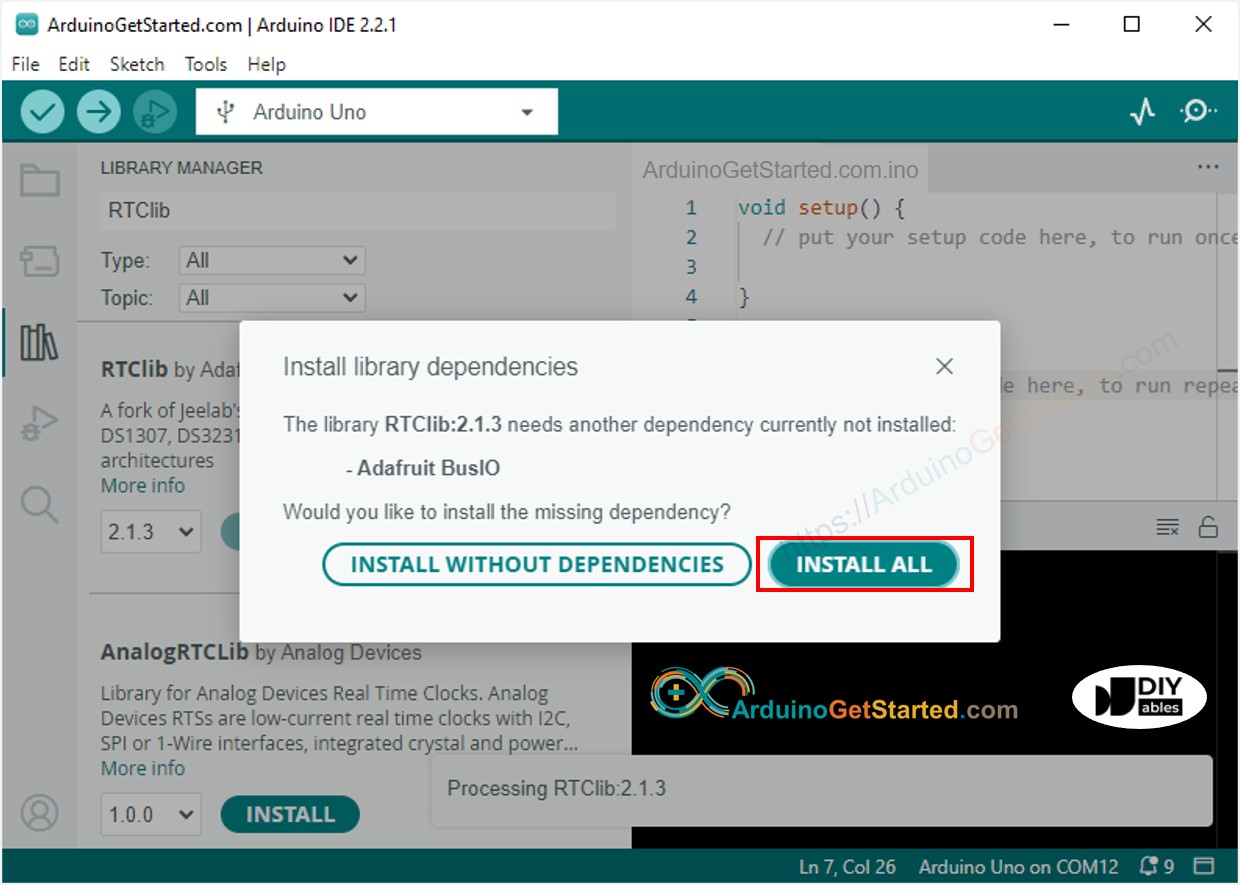
- Mogelijk wordt u gevraagd om extra bibliotheek-afhankelijkheden te installeren
- Klik op Alles installeren om alle benodigde dependancies te installeren.
Tijd uitlezen van DS3231 RTC module en weergeven op LCD
Bedradingsschema
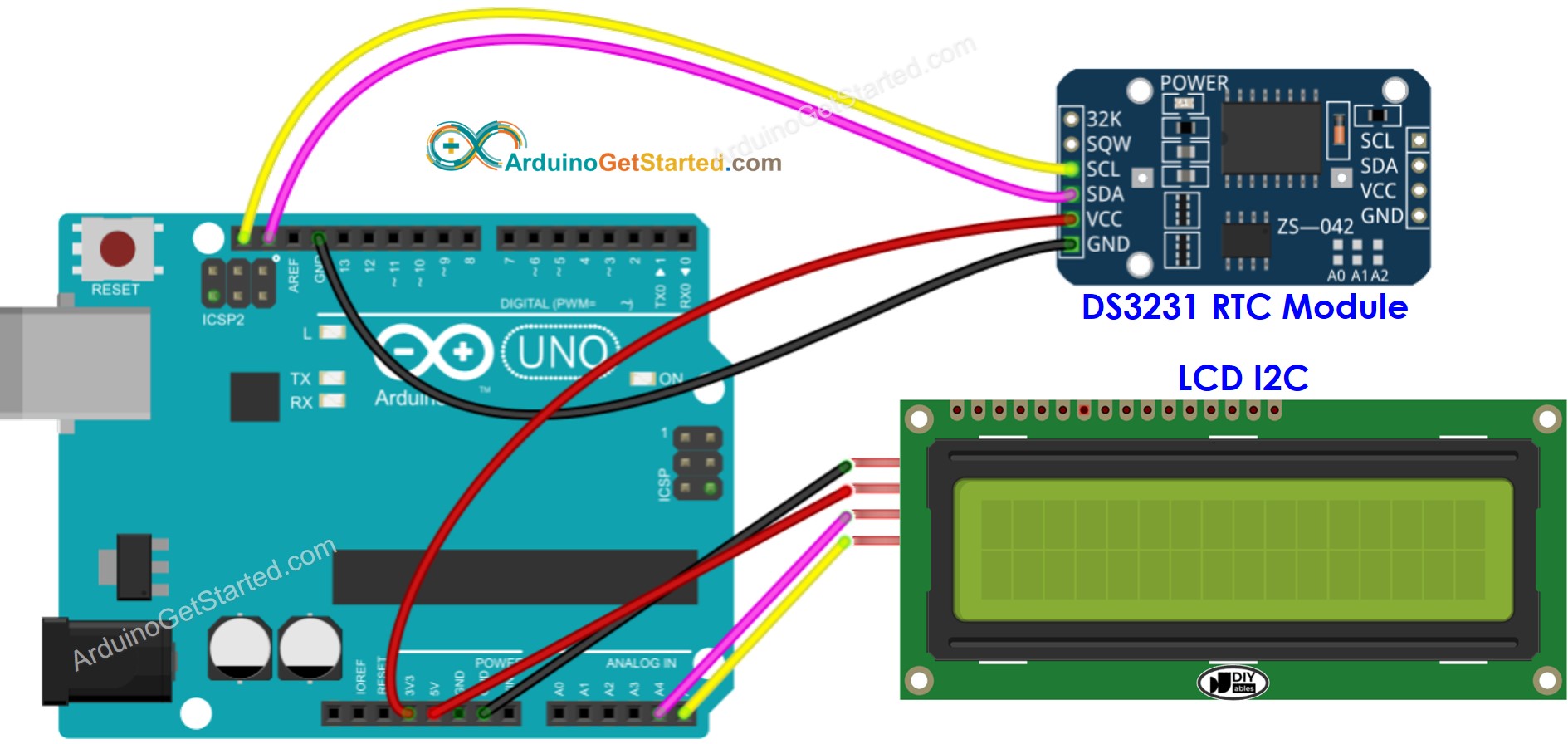
Deze afbeelding is gemaakt met Fritzing. Klik om de afbeelding te vergroten.
Arduino Code - DS3231 en LCD
/*
* Deze Arduino code is ontwikkeld door newbiely.nl
* Deze Arduino code wordt zonder enige beperking aan het publiek beschikbaar gesteld.
* Voor volledige instructies en schema's, bezoek:
* https://newbiely.nl/tutorials/arduino/arduino-lcd-clock
*/
#include <DIYables_LCD_I2C.h>
#include <RTClib.h>
DIYables_LCD_I2C lcd(0x27, 16, 2); // I2C address 0x27 (from DIYables LCD), 16 column and 2 rows
RTC_DS3231 rtc;
void setup() {
Serial.begin(9600);
lcd.init(); // initialize the lcd
lcd.backlight(); // open the backlight
// SETUP RTC MODULE
if (!rtc.begin()) {
Serial.println("Couldn't find RTC");
Serial.flush();
while (true)
;
}
// automatically sets the RTC to the date & time on PC this sketch was compiled
rtc.adjust(DateTime(F(__DATE__), F(__TIME__)));
}
void loop() {
DateTime now = rtc.now();
int year = now.year();
int month = now.month();
int day = now.day();
int hour = now.hour();
int minute = now.minute();
int second = now.second();
lcd.clear();
lcd.setCursor(0, 0); // start to print at the first row
lcd.print("Date: ");
lcd.print(year);
lcd.print("/");
lcd.print(month);
lcd.print("/");
lcd.print(day);
lcd.setCursor(0, 1); // start to print at the second row
lcd.print("Time: ");
lcd.print(hour);
lcd.print(":");
lcd.print(minute);
lcd.print(":");
lcd.print(second);
delay(1000); // Update every second
}
Snelle stappen
- Kopieer bovenstaande code en open deze in de Arduino IDE
- Klik op de knop Uploaden in de Arduino IDE om de code naar de Arduino te uploaden
- Bekijk het resultaat op het LCD scherm
Tijd uitlezen van DS1307 RTC module en weergeven op LCD
Bedradingsschema
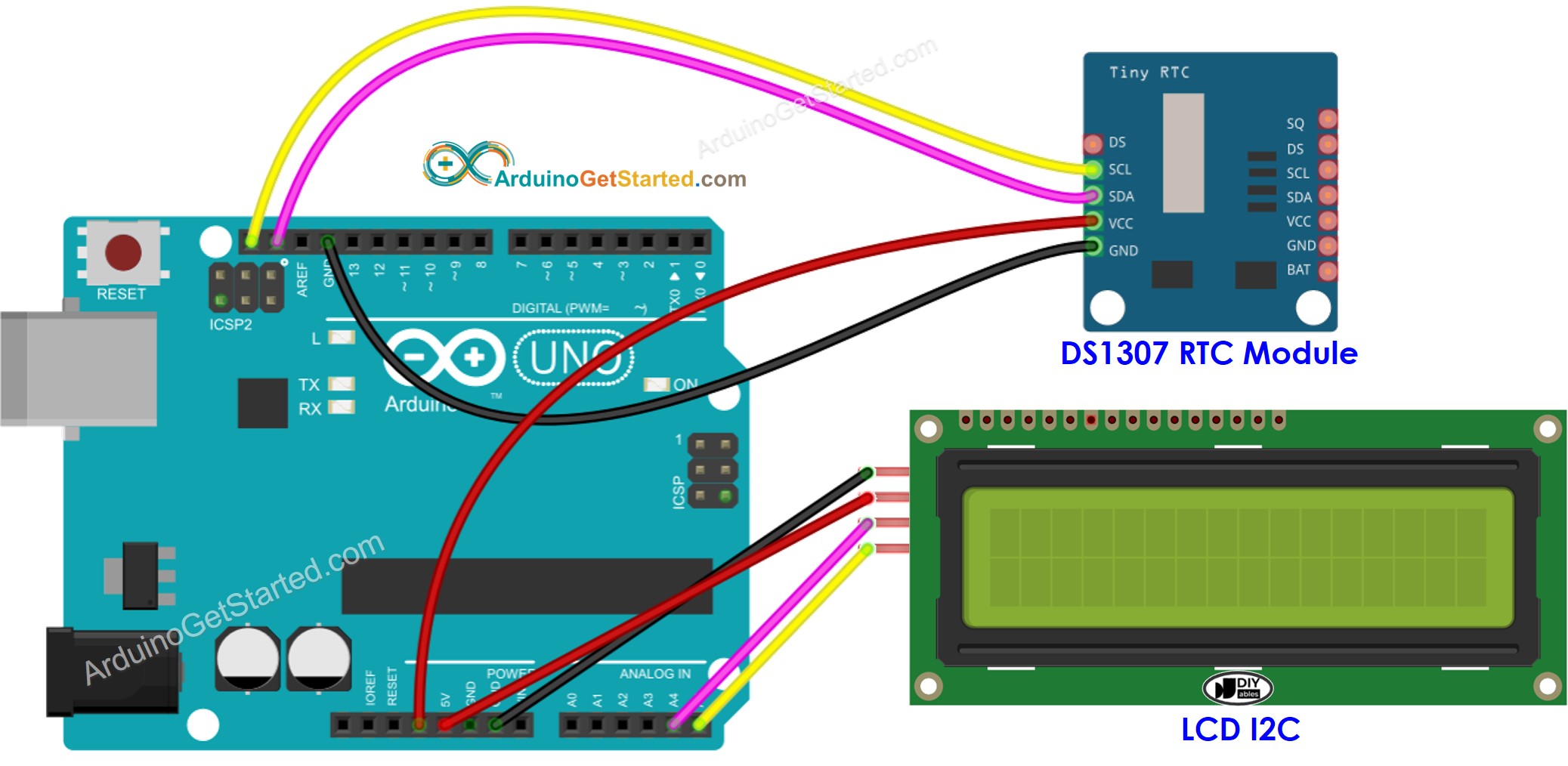
Deze afbeelding is gemaakt met Fritzing. Klik om de afbeelding te vergroten.
Arduino Code - DS1307 en LCD
/*
* Deze Arduino code is ontwikkeld door newbiely.nl
* Deze Arduino code wordt zonder enige beperking aan het publiek beschikbaar gesteld.
* Voor volledige instructies en schema's, bezoek:
* https://newbiely.nl/tutorials/arduino/arduino-lcd-clock
*/
#include <DIYables_LCD_I2C.h>
#include <RTClib.h>
DIYables_LCD_I2C lcd(0x27, 16, 2); // I2C address 0x27 (from DIYables LCD), 16 column and 2 rows
RTC_DS1307 rtc;
void setup() {
Serial.begin(9600);
lcd.init(); // initialize the lcd
lcd.backlight(); // open the backlight
// SETUP RTC MODULE
if (!rtc.begin()) {
Serial.println("Couldn't find RTC");
Serial.flush();
while (true)
;
}
// automatically sets the RTC to the date & time on PC this sketch was compiled
rtc.adjust(DateTime(F(__DATE__), F(__TIME__)));
}
void loop() {
DateTime now = rtc.now();
int year = now.year();
int month = now.month();
int day = now.day();
int hour = now.hour();
int minute = now.minute();
int second = now.second();
lcd.clear();
lcd.setCursor(0, 0); // start to print at the first row
lcd.print("Date: ");
lcd.print(year);
lcd.print("/");
lcd.print(month);
lcd.print("/");
lcd.print(day);
lcd.setCursor(0, 1); // start to print at the second row
lcd.print("Time: ");
lcd.print(hour);
lcd.print(":");
lcd.print(minute);
lcd.print(":");
lcd.print(second);
delay(1000); // Update every second
}
Snelle stappen
- Kopieer bovenstaande code en open deze in de Arduino IDE
- Klik op de knop Uploaden in de Arduino IDE om de code naar de Arduino te uploaden
- Bekijk het resultaat op het LCD scherm
Video Tutorial
We overwegen het maken van videotutorials. Als u videotutorials belangrijk vindt, abonneer u dan op ons YouTube-kanaal om ons te motiveren de video's te maken.
Gerelateerde Tutorials
📱 Aanbevolen apps
 English for KidsSpelenderwijs Engels leren voor jonge kinderen.Ontdek het opGoogle PlayBeschikbaar in deApp Store
 Bubble NoteZelfverwijderende notities – schrijf ze als berichten.Ontdek het opGoogle PlayBeschikbaar in deApp Store
 Didn't BuyVersla impulsaankopen en bespaar meer.Ontdek het opGoogle PlayBeschikbaar in deApp Store
 Knowledge PathOefentoetsen om alles te leren.Ontdek het opGoogle PlayBeschikbaar in deApp Store