
Arduino RS485 naar WiFi
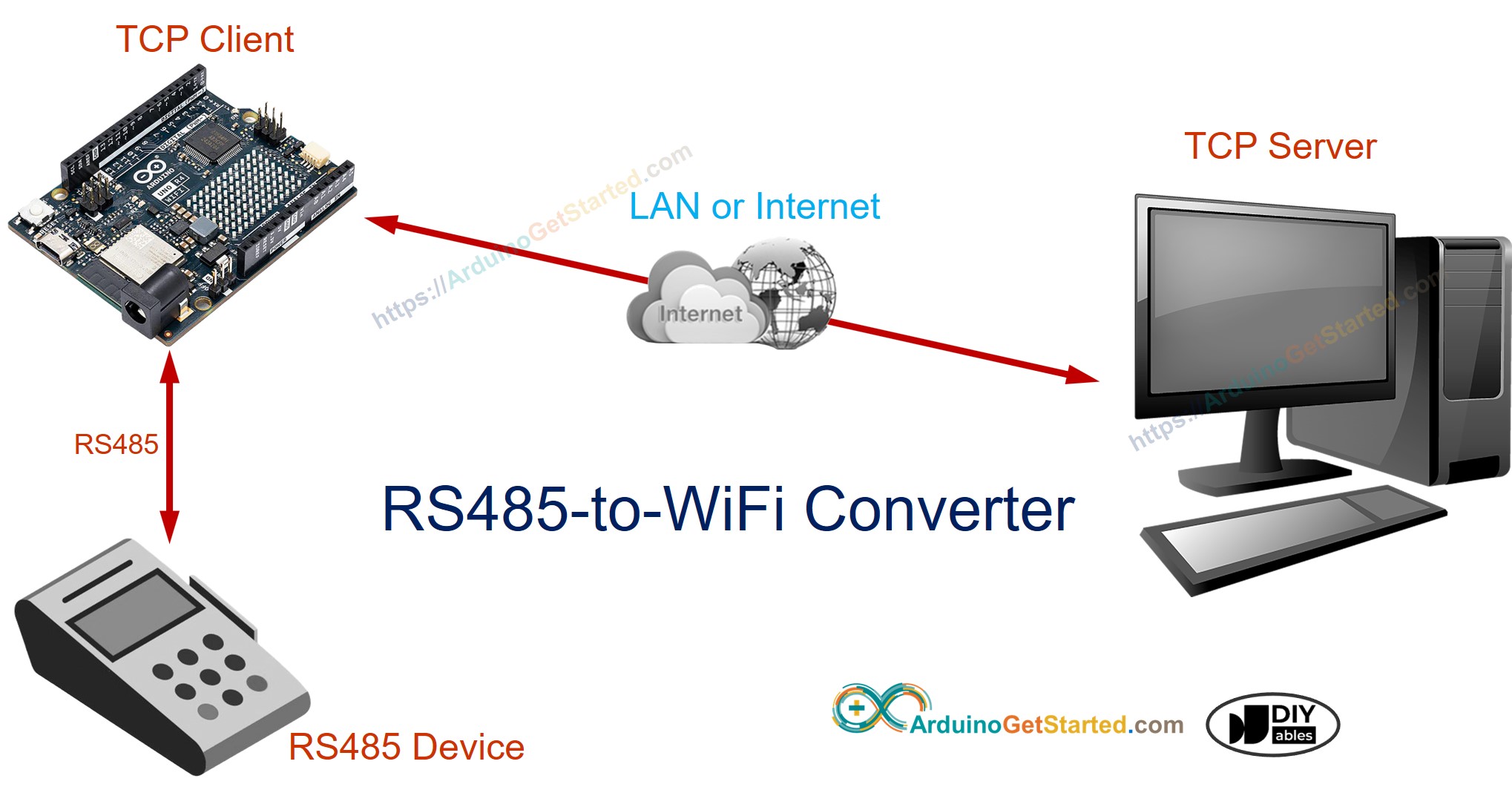
In deze handleiding gaan we aan de slag met de Arduino Uno R4 WiFi om een Serial RS485 naar WiFi converter te bouwen. Met deze opstelling leest de Arduino data uit een seriële RS485-interface en verzendt deze naar een TCP-server, die zich kan bevinden binnen hetzelfde lokale netwerk (LAN) of op afstand via internet. De Arduino kan ook data van de TCP-server ontvangen en terugsturen via de seriële RS485-interface.
Deze stappen stellen u in staat om veelzijdige communicatieschrijden tot stand te brengen tussen seriële RS-485 apparaten en TCP/IP-servers met behulp van Arduino.
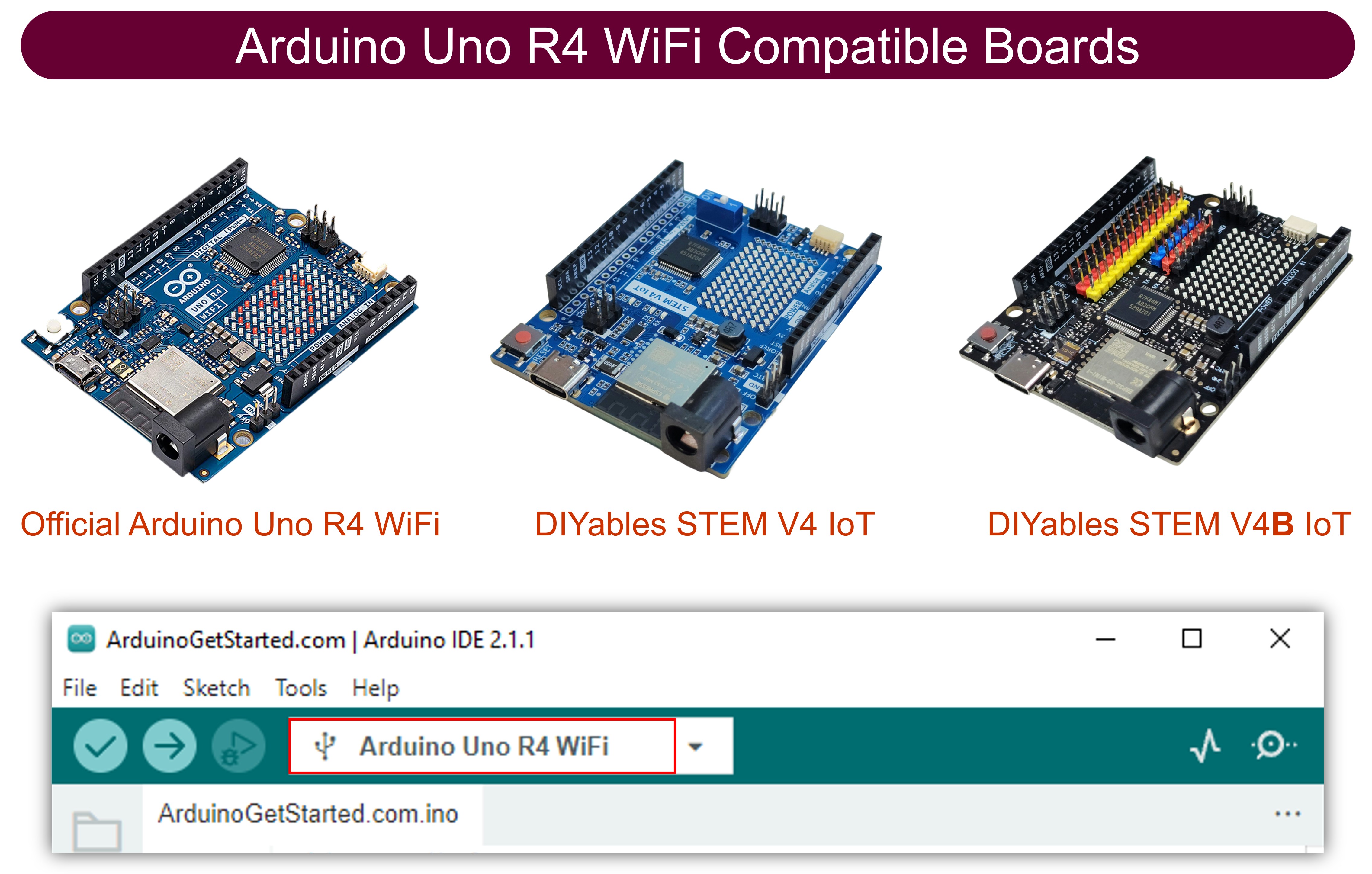
Benodigde Hardware
Of u kunt de volgende kits kopen:
| 1 | × | DIYables STEM V4 IoT Starterskit (Arduino inbegrepen) | |
| 1 | × | DIYables STEM V4B IoT Starterskit (Arduino inbegrepen) | |
| 1 | × | DIYables Sensorkit (18 sensoren/displays) |
Over RS485 en TCP
Als u niet bekend bent met het gebruik van RS485 en TCP-communicatie met Arduino, leer hierover dan meer in de volgende tutorials:
- Arduino - RS485 tutorial
- Arduino - TCP Client tutorial
Hoe de RS485 naar WiFi converter werkt
- Arduino maakt verbinding met een serieel apparaat via de seriële RS485-interface
- Arduino functioneert als een TCP-client die verbinding maakt met een TCP-server (dit kan TCP-server software op uw PC of een andere Arduino zijn die als TCP-server is geprogrammeerd)
- Arduino leest data van de seriële RS485-interface en stuurt die naar de TCP-server
- Arduino leest data van de TCP-verbinding en stuurt die naar de seriële RS485-interface
Aansluitschema
- Aansluitschema bij gebruik van hardware serial
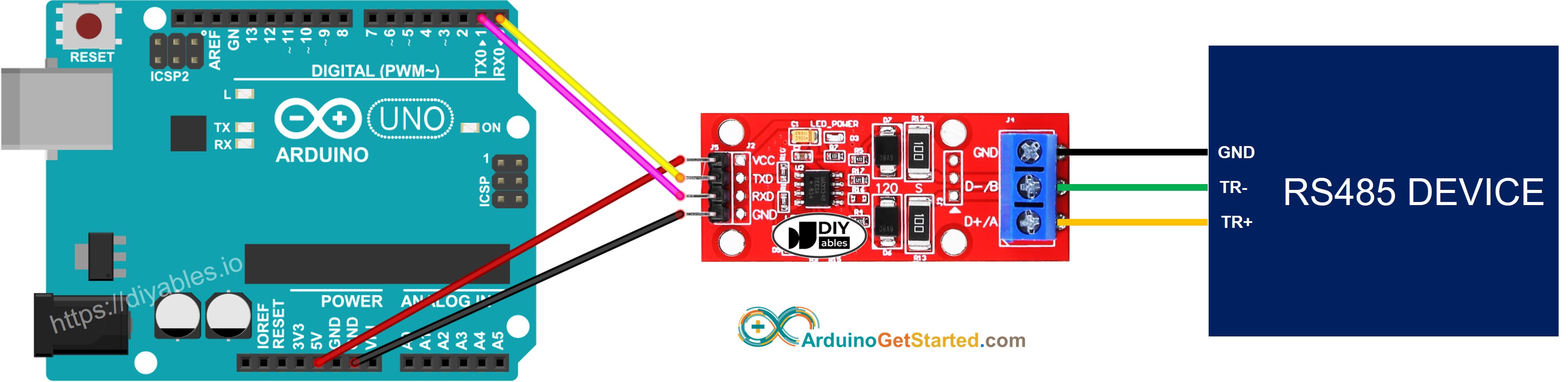
Deze afbeelding is gemaakt met Fritzing. Klik om de afbeelding te vergroten.
- Aansluitschema bij gebruik van software serial
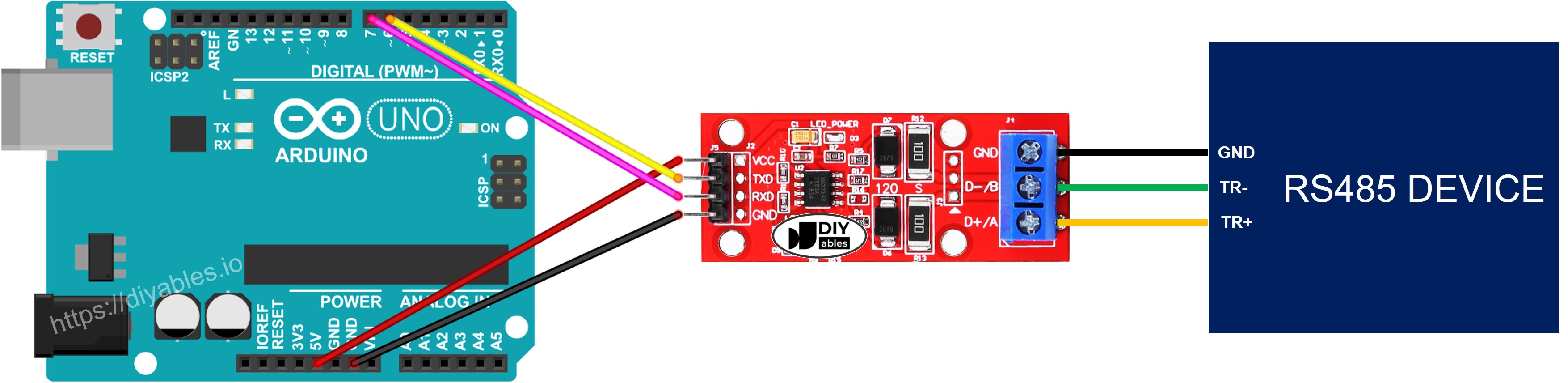
Deze afbeelding is gemaakt met Fritzing. Klik om de afbeelding te vergroten.
Arduino Code voor Hardware Serial
Arduino Code voor Software Serial
Testen
U kunt een test uitvoeren waarbij data op de volgende manier wordt verzonden:
- Seriële Software (op uw PC) → RS-485 → Arduino → WiFi → TCP Server Software (op uw PC).
- TCP Server Software (op uw PC) → WiFi → Arduino → RS-485 → Seriële Software (op uw PC).
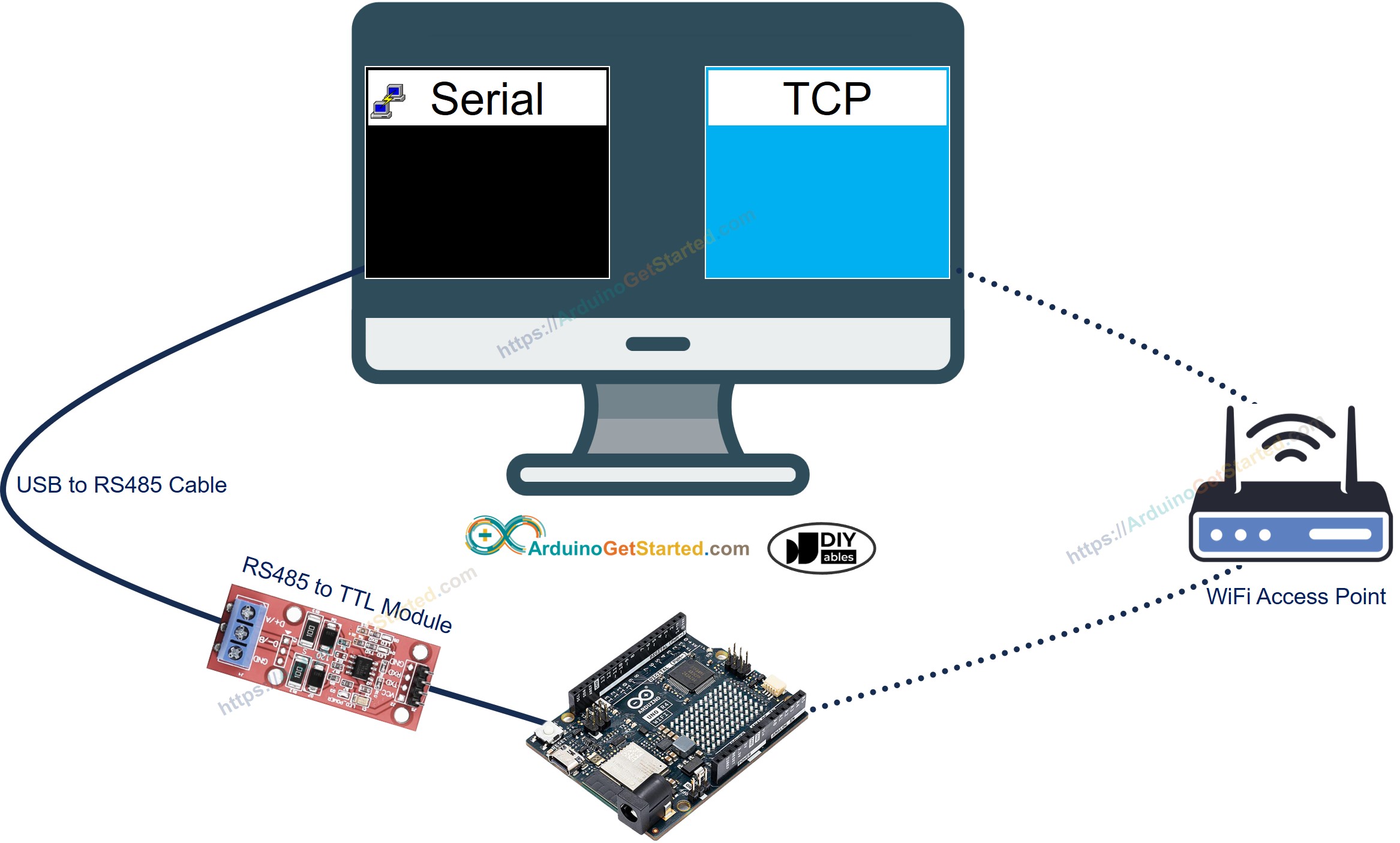
Volg de onderstaande stappen om dit uit te voeren:
- Als u voor het eerst de Arduino Uno R4 gebruikt, zie dan hoe u de omgeving instelt voor Arduino Uno R4 in de Arduino IDE.
- Verbind de Arduino Uno R4 WiFi met uw PC via de TTL-naar-RS485 module en de RS485-naar-USB kabel volgens bovenstaand aansluitschema
- Installeer een TCP-server software zoals ezTerm
- Open het seriële programma en configureer de seriële parameters (COM-poort, baudrate, etc.)
- Open het TCP-server programma en configureer dit als TCP-server en klik vervolgens op de knop Listen
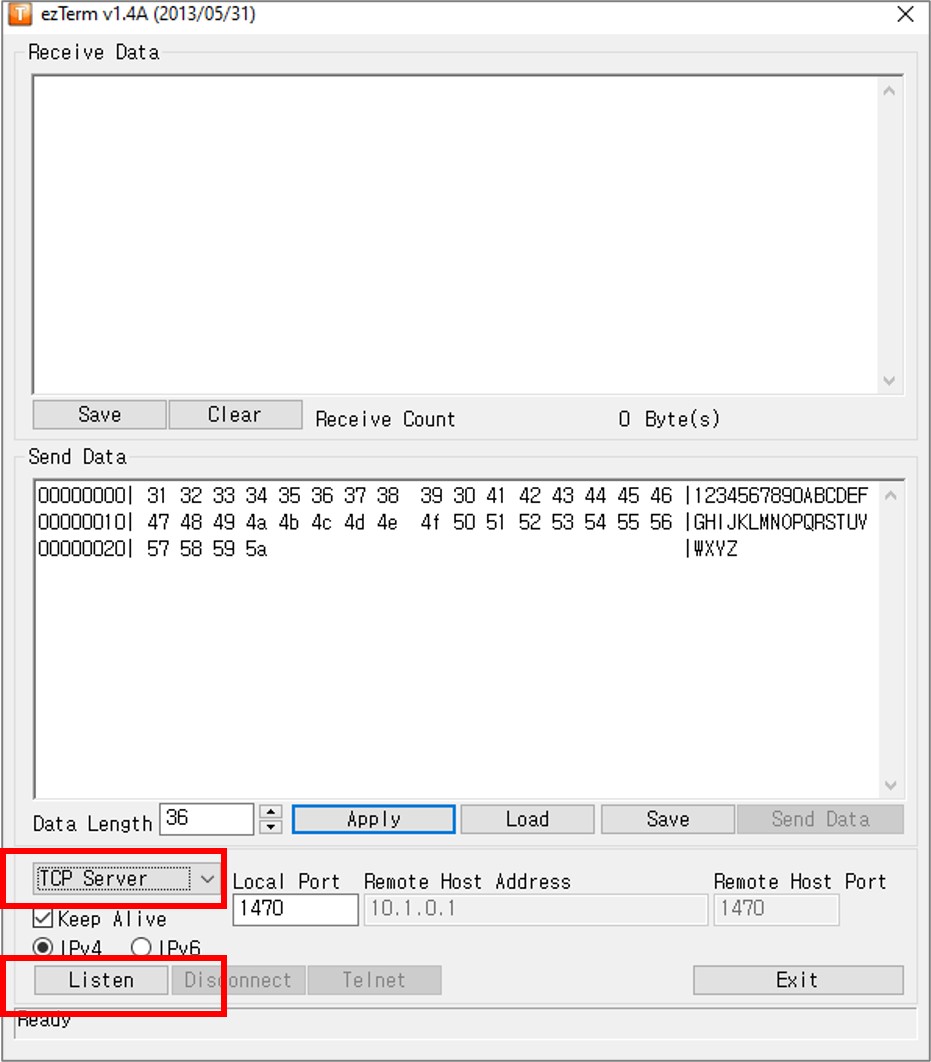
- Open de opdrachtprompt (Command Prompt) op uw PC
- Zoek het IP-adres van uw PC op door het volgende commando uit te voeren:
- De uitvoer ziet er ongeveer als volgt uit:
- Werk in de Arduino-code het IP-adres van de TCP-server (uw PC) bij. In het bovenstaande voorbeeld: 192.168.0.26
- Compileer en upload de code naar uw Arduino-board door op de knop Upload te klikken in Arduino IDE
- Typ wat data in het seriële programma om die naar de Arduino via Serial te sturen
- Als het werkt, ziet u de echo data in de TCP-server software
- Typ wat data in het TCP-server programma om die naar de Arduino via TCP te sturen
- Als het werkt, ziet u de echo data terug in het seriële programma
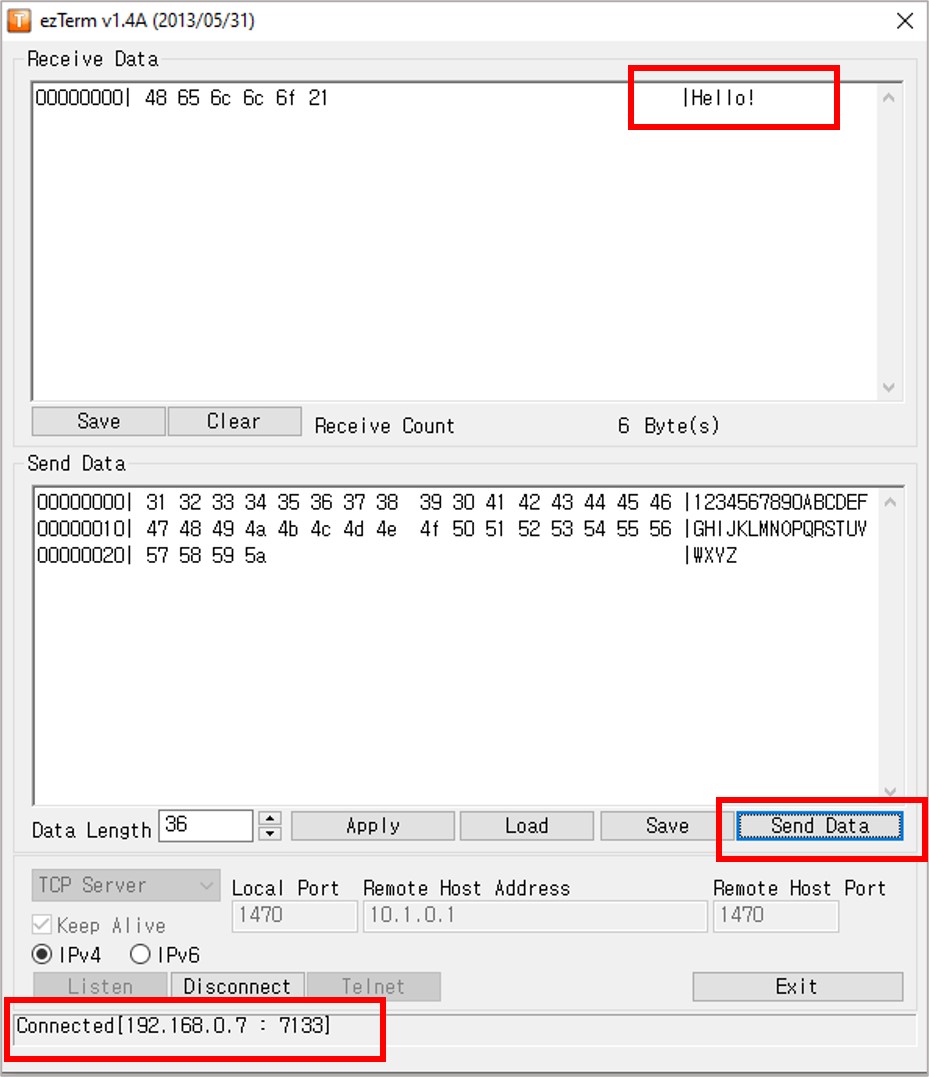
Als u liever een commerciële RS485-naar-Ethernet converter gebruikt, kunt u CSE-H55N2 Serial To Ethernet Converter aanschaffen.
Video Tutorial
We overwegen het maken van videotutorials. Als u videotutorials belangrijk vindt, abonneer u dan op ons YouTube-kanaal om ons te motiveren de video's te maken.
Gerelateerde Tutorials
📱 Aanbevolen apps
 English for KidsSpelenderwijs Engels leren voor jonge kinderen.Ontdek het opGoogle PlayBeschikbaar in deApp Store
 Bubble NoteZelfverwijderende notities – schrijf ze als berichten.Ontdek het opGoogle PlayBeschikbaar in deApp Store
 Didn't BuyVersla impulsaankopen en bespaar meer.Ontdek het opGoogle PlayBeschikbaar in deApp Store
 Knowledge PathOefentoetsen om alles te leren.Ontdek het opGoogle PlayBeschikbaar in deApp Store